Strategic Enterprise Management — Business Planning and Simulation (SEM-BPS) provides flexible capabilities that gain functionality through the SAP CRM planning services configuration. Obtain an understanding of the configuration options that SEM-BPS offers for SAP CRM integrated planning with Marketing Planner.
Key Concept
Strategic Enterprise Management — Business Planning and Simulation (SEM-BPS) is a toolset that supports the deployment of flexible planning solutions based on an underlying BW system. It enables the configuration and development of manual input layouts along with automated planning functions that directly update data in a real-time BW InfoCube.
If you want to provide an efficient budgeting and planning interface to your SAP CRM users, you can incorporate Strategic Enterprise Management — Business Planning and Simulation (SEM-BPS) with your CRM planning. The options for enhancing SAP CRM planning with BPS can become a bit confusing, because several technical components are involved.
To help clarify how you can optimize your planning, I’ll focus on a marketing planning example to show how the various toolsets come together. I’ll walk through a few of the options that you can use to provide users with the optimal planning experience. First, configure the basic integration through a planning profile. Then, add a new planning category in SEM and BW. Finally, incorporate the new category into manual and automated planning interfaces.
The processes in this article apply to SAP CRM 4.0 and SAP CRM 2005. To use SEM, you need to have an underlying installation of Business Information Warehouse (BW) to host its transactional and master data.
Note
Although SAP included the majority of BPS functionality directly within the base installation of BW 3.5, SAP CRM requires the further installation of SEM on top of the BW instance. You can either add SEM to an existing BW installation or create a new instance. Refer to
https://service.sap.com/instguides and then follow menu path SAP
Components > SAP SEM to find the complete installation information required to install SEM.
Marketing Planner
Call Marketing Planner with transaction code CRM_MKTPL in SAP CRM. You can create marketing plans, campaigns, trade promotions, and deals within the planner and assign each of these objects a planning profile group, such as Standard Marketing & Campaign Planning on the Basic Data tab. You configure the planning profile group within SAP CRM customizing to interface with one or more planning profiles in the BPS system. This is considered close integration because CRM and BPS share master and transactional data.
A BPS planning profile is a collection of planning areas and their sub-objects, such as planning layouts for manually entering data and functions for automating the process of generating data. The planning area itself has a one-to-one relationship with an underlying BW transactional InfoCube. This is a special type of InfoCube that allows users to update the InfoCube data in real time through planning applications. You also can use multi-planning areas that pull together data from multiple InfoCubes. Figure 1 shows the relationships between these modules.

Figure 1
Planning object relationships
After you select a planning profile group for a marketing object, you can navigate to various tabs within Marketing Planner to perform the planning. For the sake of consistency, these examples focus on planning costs for a campaign. You can modify other planning subjects and areas in a similar fashion. Figure 2 shows a basic example. In this example, I am planning costs for a marketing campaign C/2005-GH1-001-000. I entered the planned dollar amount to spend for several metrics as defined by spending categories, such as TV Advertising Costs and Print Costs. Expanding the rows or columns that display these spending categories allows me to plan at a lower level of detail, such as by product, customer hierarchy, or fiscal period as defined in the planning layout.
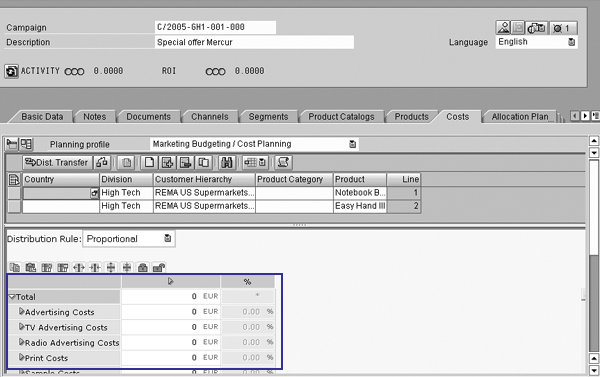
Figure 2
Campaign cost planning in the Marketing Planner
Add Metrics
To help you become comfortable with the configuration involved in changing planning interfaces, let’s consider a simple example. I want to add a new planning category — Internet Advertising — to the basic interface previously introduced. This enhancement requires me to make changes in BW, BPS, and a special area of BPS used only for CRM called planning services.
The first step is to create a new metric. Metrics are represented by a special characteristic in BW called 0MEASURE. You maintain the metrics in Measure Catalog, an SEM module that you call with transaction code UMK_MB. SAP delivers many metrics as part of the standard installation in Measure Catalog. To create a custom measure, you must first create a customer measure catalog. After this is in place, you can add measures by right-clicking on the measure catalog, such as CRM Marketing Key Figures, and choosing Create>Measure.
The measure can be as simple as a unique code and appropriate description, although you can populate a great deal of metadata in Measure Catalog. Note that creating the measure may not immediately make it available for planning. The measure catalog is integrated to the underlying BW master data for characteristic 0MEASURE, but you may need to force the replication through the menu path Utilities>BW Master Data > Measures: Update BW Master Data. You may even need to have your BW administrator activate the master data of 0MEASURE to make it available for use.
Now that the new measure is available for use in planning, you must include it in the planning level and layout. You perform the majority of BPS configuration in a single transaction — Planning Workbench (transaction BPS0). By default, the system displays all planning when you first access transaction BPS0. You can narrow down the scope of objects under consideration by clicking on the Planning profile button at the top of the screen, double-clicking on the planning profile indicated within the CRM configuration, and then clicking the Planning button to return to Planning Workbench.
In my example, the value of 0MEASURE (referenced as Key Figure) is restricted within the planning level to a limited set of values. Right-click on the planning level (4MP20000 in Figure 3) and choose Change level. Select the More column for Key Figure and enter the new characteristic value ZCRM_KPI_001.

Figure 3
Planning level configuration in the planning workbench (transaction BPS0)
This makes your new characteristic available for use in a planning interface. To assign it a column or row, you need to modify the planning layout. Planning layouts are specific to planning levels. Double-click on the planning level you have been modifying, Budgeting/Cost Planning in this example. A list of layouts and functions appears in the lower left corner of Planning Workbench. Right-click on the appropriate manual planning layout, in this example Multi-Dimensional Distribution, and choose Change layout to modify its design.
You must follow three steps to define a planning layout. The first step contains general settings. These should remain the same for this example, so click on the Continue button to access the detailed column and row definitions. As a second step, create a new entry with the custom key figure ZCRM_KPI_001 as shown in Figure 4 to make it available for planning.
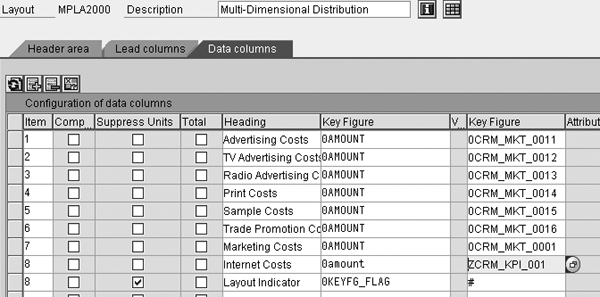
Figure 4
Add the new key figure to an existing layout
The SAP CRM integrated planning configuration has a unique layer called Planning Services. This is additional configuration found within the SEM system that enables more advanced (and user-friendly) planning layouts than typical SEM-BPS. For the third step, maintain settings through transaction code UPX_MNTN1 to ensure the new column appears as you expect within CRM. When you first call this transaction after making changes in Planning Workbench, a message such as that shown in Figure 5 advises of automatic changes.
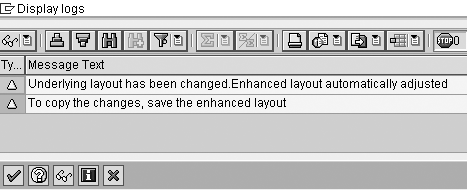
Figure 5
Planning Services are aware of changes made in Planning Workbench
Many of the enhanced planning layout options are self-explanatory. For example, you can define the formatting and behavior of lead columns, such as whether the system should use a hierarchy for display purposes. The Key Figure Scheme is a unique offering that allows formula logic beyond that available in Planning Workbench. After you add the new Internet Costs key figure to the key figure scheme, this key figure is now available to use in Marketing Planner.
Key Figure Scheme Changes
The key figure scheme offers some interesting potential as well. Say Internet advertising is often correlated with general advertising costs. Within the key figure scheme, you can add a percentage element to calculate the relationship between these two key figures. You also can use the key figure scheme to set the value of Internet costs as a percentage of advertising costs.
First, insert a new row in the Key Figure Scheme and choose the option for Calculated Key Figure. Provide an appropriate name and choose the divided by operator. Enter the appropriate line numbers for Advertising Costs and Internet Costs to form the relationship. In this case, enter line items 10 and 70 to create a formula that divides Internet costs by general advertising costs. This new row is shown in Figure 6.

Figure 6
Add a calculated key figure to the Key Figure Scheme
Click on the Enhance column to set detailed parameters of the new row (Figure 7). This is an important step because you can make the element display only or hidden. Figure 7 shows an example of this configuration with the default options selected.

Figure 7
Enhance the calculated Key Figure definition within the Key Figure Scheme
The default is an element that is visible that you can update. In this case, it’s critical to define the Advertising Costs row as constant, so it is not adjusted for changes made to the new calculated key figure.
Figures 8, 9, and 10 show this calculated key figure in action. Internet Costs start out as 106.6% of advertising costs in Figure 8. As I choose to manually increase the dollar value of the Internet costs to $1,519, the system recalculates the Internet percentage as 311.9% in Figure 9. I subsequently decide that this is too much expense to direct toward the Internet and that the percentage should be 211.9%. In Figure 10, I manually set the Internet percentage to 211.9%, so the system calculates the Internet costs as $1,032.
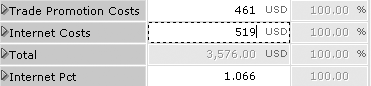
Figure 8
Initial calculation of Internet Pct
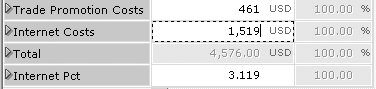
Figure 9
Recalculated Internet Pct based on Internet Costs change

Figure 10
Recalculated Internet Costs based on Internet Pct change
BPS Functions
If you desire further flexibility in automatically calculating planning figures, it may be useful to enlist BPS planning function capabilities. Planning functions are common to all BPS solutions, so you may have a strong knowledgebase within your team if you are currently using BPS for other planning purposes.
You configure planning functions through Planning Workbench. They are specific to a planning level, so the first step is to select a level by double-clicking on its name. You can create a new function by right-clicking on the level’s name in the bottom left corner of the screen and choosing Create planning function.
A dialog box appears that allows you to select the type of function. The Formula function illustrated in this example uses a simplified programming language called Formula Extension (FOX) to enable conditional processing of logic. The planning function itself is quite simplistic. The only requirement is to define which characteristics you want to change or use as conditions when you run the formula.
The real logic is contained within a planning parameter group. You create the parameter group by right-clicking on the formula name and choosing Create parameter group. The parameter group definition screen changes based on the type of function and fields to change. In most cases, it is a series of input fields. The formula builder is slightly more complex because you can enter procedural code that must adhere to syntax rules. SAP help is available by clicking on the information icon from within the tool. There is also an informative syntax checker built directly in the formula builder. The simple example shown in Figure 11 sets Internet costs to one- half of the general advertising costs. You could use conditions, loops, and advanced calculations if necessary, including a function Exit that triggers an ABAP function module to modify the data. Once configured, these functions appear in a drop-down box within the Marketing Planner application — simply select one to execute it. Figure 12 shows an example of the simple formula function. The result is Internet Costs being set to half of the general Advertising Costs.

Figure 11
Simple formula function definition

Figure 12
BPS functions available within Marketing Planner
Matt Christensen
Matt Christensen is the director of Enterprise Performance Management at PRAGMATEK Consulting Group in Minneapolis. He has more than seven years of experience implementing a broad set of SAP financial modules, including configuration and development in R/3, Business Information Warehouse, and Strategic Enterprise Management. Matt holds an undergraduate degree in computer science and an MBA in finance.
You may contact the author at matt.christensen@pragmatek.com.
If you have comments about this article or publication, or would like to submit an article idea, please contact the editor.





 Premium