Learn how to create various objects such as position, organizational unit, and job through actions in Organizational Management.
Key Concept
An action triggers a series of infotypes, one after the other, for data entry. Actions in Organizational Management (OM) are similar to personnel actions in Personnel Administration (PA). In PA, personnel actions create a new personnel number (PERNR) and enter data for the new PERNR. They also capture events in the employee life cycle in the company (e.g., promotion, separation, or transfer). In OM, actions create organizational objects and enter the data for the created object in various infotypes that are called one after another.
A number of methods are available for creating objects in Organizational Management (OM), including expert mode, simple maintenance, organizational and staffing, and general structures. Each method has its own advantages and disadvantages, but in all these methods, you must create several infotypes. These infotypes vary depending on the object you’re creating and your organization’s needs.
These varying infotypes pose a risk for data omissions. In other words, you may create unnecessary infotypes, or fail to create the required infotypes. You can avoid data omissions by creating objects in OM through actions. Actions guide you in entering the required data, infotype by infotype.
How Actions in OM Work
Each object has an object-specific standard transaction code, which you need to create that object (Table 1). For each of these transaction codes, there is a standard pre-configured action that is defaulted.

Table 1
Object-specific standard transaction codes
In addition to these transaction codes, there are master transaction codes. The difference between object-specific and master transaction codes is that when you execute master transaction codes, you must specify the object type (Figure 1). However, object-specific transaction codes have pre-defined object types (Figure 2).
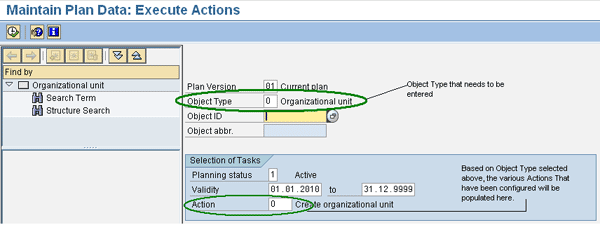
Figure 1
Transaction PP03 is a master transaction code in which you need to enter the object type manually
In Figure 1, select the object type you want to create. In this example, I entered object type O to create an organizational unit. The actions configured for that object type show up in the F4 help of the Action field. In Figure 2, there is no field to enter the object type because transaction PQ10 is exclusively for the creation of the organizational unit. The Action field defaults to action O, which is the standard SAP-configured action to create an organizational unit.
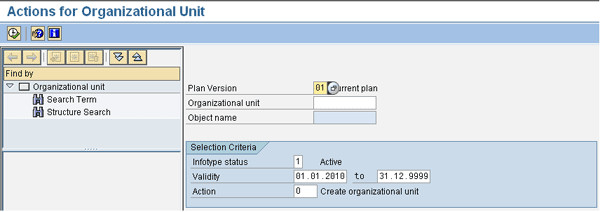
Figure 2
Transaction PQ10 is an object-specific transaction code for organizational unit
Once you complete a transaction code, you enter a series of infotypes. You have to configure which infotypes are required, which I cover in the next section.
Note
Whatever the transaction code is that you’re executing to create a particular object type, only the initial screen differs. The rest of the screens are similar, and are based on the configuration of the action selected.
Configure an OM Action
To explain the various steps you must take to configure an OM action, I’ve used the example of configuring a custom action to create a position.
Step 1. Create the Action
Follow IMG menu path Personnel Management > Organizational Management > Basic Settings > Maintain Personnel Actions > Actions (overview) (Figure 3). This is where you define the action code, which is identified by a one- to four-character alphanumeric code (the first character must be numeric according to the naming convention for customer-defined actions) and a longer description in the action text column (which the user creates). Click the New Entries button or press function key F5 to create the new action.
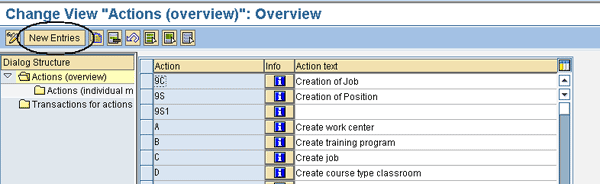
Figure 3
The screen where the new action is created
In this example, enter Action code 99 and Action text Test Action for Position Creation (Figure 4).
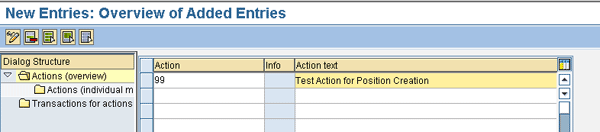
Figure 4
New action created with Action code 99
Step 2. Add Infotypes for the Action
Infotype 1000 (object) defines what object you create when you execute this action. Infotype 1000 is the first and most important infotype you need to create because no objects in OM may come into existence until after you create this infotype. Follow menu path Personnel Management > Organizational Management > Basic Settings > Maintain Personnel Actions > Actions (individual maintenance) (Figure 5).
Select the action you configured in the first step and double-click Actions (individual maintenance). In the new blank screen, click the New Entries button. A new screen opens up for editing (Figure 5).
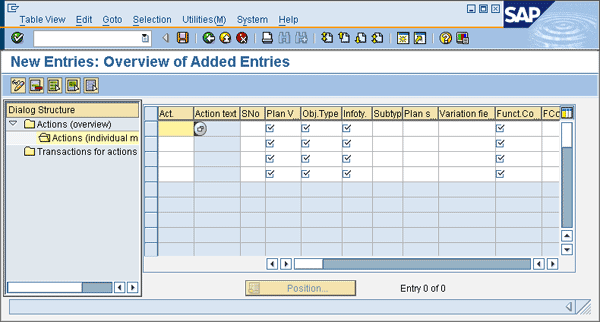
Figure 5
Various infotypes that have to be created and assigned to the action that has been configured
Here are the explanations for the various columns in Figure 5.
- Act. (action) – The action you created in the first step
- Action text – The long description of the action. This is a display-only field and the text value defaults from the action definition.
- SNo (serial number) – The order in which the various infotypes are called when you execute the action
- Plan V (plan version) – The plan version of the object you are creating (In the example, I enter **, which implies any plan version that is valid. If you want objects to be created only in the current plan version, enter 01)
- Obj. Type (object type) – The object type that you are creating. Since I am configuring the custom action to create a position, I enter S here.
- Infoty. (infotype) – The infotype you need to create for the object type defined in the previous step. The first infotype you must enter is infotype 1000.
Note
Similar to personnel actions, when creating an action in OM, a series of infotypes is called for data entry. These infotypes are defined in this step.
- Subtyp (subtype) – The subtypes (if any) you need to create for the infotype. For example, you enter subtype A002 (reporting to) to infotype 1001 (relationship).
- Plan s (planning status) – Planning status of the object. In this example I left it blank, so that it is valid for any planning status.
- Variation fie (variation field) – Variant for infotypes configured in the previous step. This is mostly applicable for infotype 1001 (relationship) and the field is configured to default to the screen you see in Figure 6. Here you enter the default value for the Type of related object field (Figure 6) when you create any subtype of infotype 1001, during the execution of the Action. For example, when you create subtype A008 (holder relationship) for infotype 1001, you may enter BP (business partner), CP (central person), P (person), or US (user). Of these four values, if you want any specific value to be defaulted, then you need to enter this in the variation field. If you leave this field blank, then no value is defaulted and you have to manually enter the value.
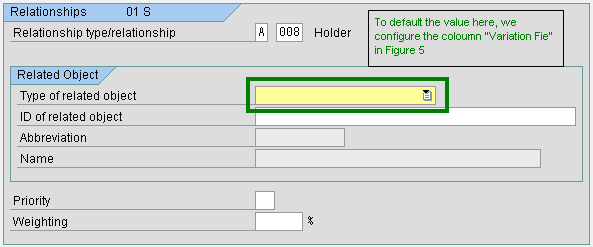
Figure 6
Type of related object for subtypes of infotype 1001
- Funct.Co (function code) – Defines what kind of operation you want to perform. For configuring actions, the value is INSE (insert/create). INSE is similar to the INS operation you use while configuring personnel actions. Other function codes include COPY (copying a record) and DEL (deleting a record).
- FCode scr. var. (function code for screen variation) – An additional attribute to the function code. This is only valid if the function code has the value INSE. You can enter one of two values: MASS (prevents fast entry data when you create the infotype) or DUTY (marks the creation of the infotypes as mandatory). If this field is blank, then fast entry is enabled (Figure 7).
Depending on your experience, you may find fast entry useful if you are trying to create a number of objects simultaneously, or you may find it confusing if you do not have much experience.

Figure 7
Fast entry button for infotype 1001, subtype B007 (in red box)
In fast entry mode, an additional field called Object ID is displayed (Figure 8). This allows you to enter data for multiple objects from a single screen by entering the object IDs of these multiple objects and entering the relevant data one after the other.
One more additional button, Edited objects, is displayed in fast entry mode (Figure 8). Clicking this button displays the list of all the objects you’ve modified in fast entry mode (Figure 9).
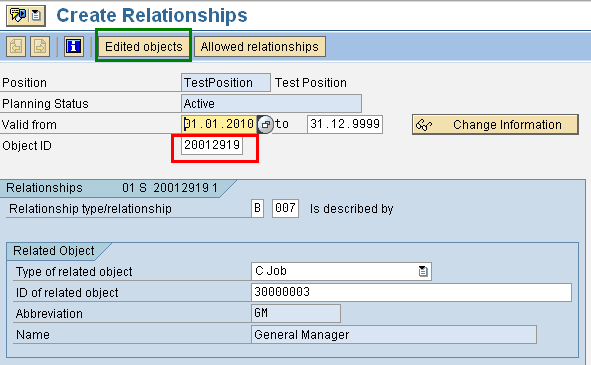
Figure 8
Object ID field and Edited objects button
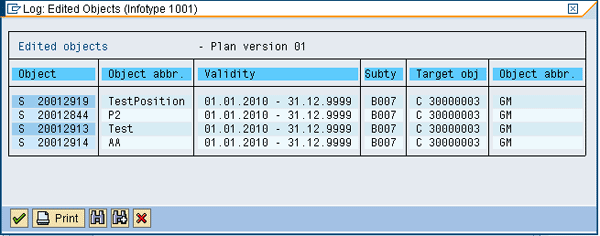
Figure 9
Objects modified in fast entry mode
In Figure 9, four positions have been edited using fast entry. The data that has been edited is the creation of subtype B007 (is described by). The job ID that has been assigned is 30000003 for all of these four positions.
By entering DUTY in the function code for screen variation field, the creation of any infotype becomes mandatory. Select this option carefully because unless you enter and save the details you cannot move on to the next screen. Also, except for logoff, close, and /n command, no other button/transaction code works. The system displays the message in Figure 10 if you press F12 (Cancel), F3 (Back), or Shift+F3 (Exit).

Figure 10
Message for mandatory entry of infotypes
Entries in the Action 99 Example
Figure 11 shows the various entries in my action 99 example.
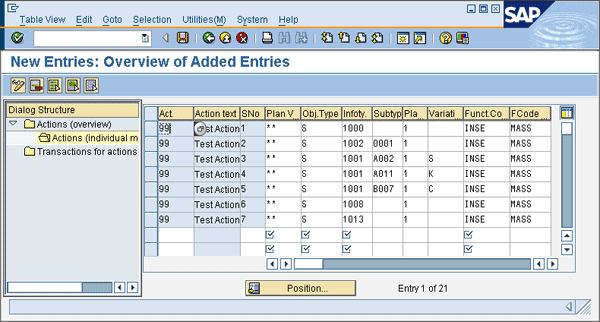
Figure 11
Example entries for configuring action 99
Notice these entries I used in my example:
- The first column contains value 99, since I am configuring for test action 99
- The object type in all the rows is S because I am creating a position
- I did not enter the value DUTY and I suppressed fast entry mode
- For serial numbers 3, 4, and 5, I used a Variation field (Figure 11)
For serial number 3, in which I am assigning a reporting relationship, I set the default object type to S. When a user creates this relationship through the action, the object type in the screen defaults to S and the user only needs to enter the object ID.
This is especially useful in cases in which there are multiple object types. For example, in serial number 5, (subtype B007) possible object types include C (job), RY (responsibility), AG (role), TS (standard task), T (task), and UG (user group). Since I am interested in using object type C, I entered the same value in the variation field, so when this infotype is created, the object type defaults to C.
Step 3. Assign a Default Action to the Standard Transaction Code
Figure 12 shows an excerpt of table T77S0 (PD system table). In this table, you can view all the transaction codes that SAP has defined to create objects and the default action for each of these transaction codes.
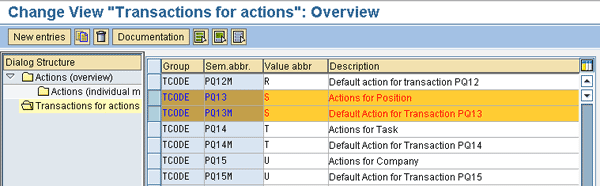
Figure 12
Extract from table T77S0
You can find all the transaction codes for actions (objects in OM) under the group TCODE. The Sem.abbr. (semantic abbreviation) for these transaction codes starts with PQ followed by two numeric characters.
Two lines are defined for each object. The first one is the transaction code itself and the object type that is created when the transaction code is executed. In Figure 12, PQ13 is the transaction code for creating a position (defined by object S). The second line defines the default action when the transaction code is executed. In this table, Sem.abbr. PQ13M stands for defining the default action for transaction code PQ13. The default action is defined as S under Value abbr.
For example, as I mentioned earlier, transaction code PQ13 in Figure 12 has been defined to create a position. In the next line, the default action for this transaction code has been assigned as S. Instead of S, you can assign the action you created (99 in this example). However, from this view, you cannot replace S with 99. You need to use the maintenance view in table T77S0.
Note
Apart from objects in OM, standard transaction codes are defined to create other objects such as training program, location, business, type, resource, external person, qualification, qualification profile, external instructor, and resource type.
Default the Action for a Standard Transaction Code
Here I explain the step-by-step process to change the default action for a standard transaction code. Execute transaction code SM30 and enter table T77S0 in the Table/View field (Figure 13) Click the Maintain button.
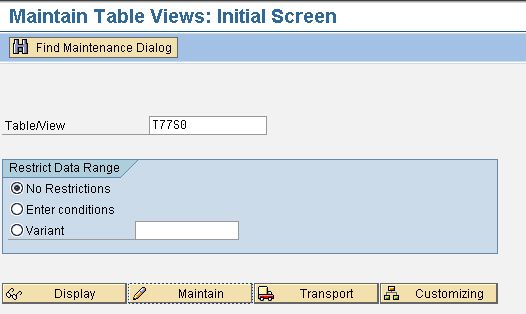
Figure 13
Transaction SM30 table maintenance
After the table maintenance screen opens, click the Position… button at the bottom of the screen (Figure 14). In the pop-up window, enter tcode in the Group name field and pq13m in the Semantic abbr. field.
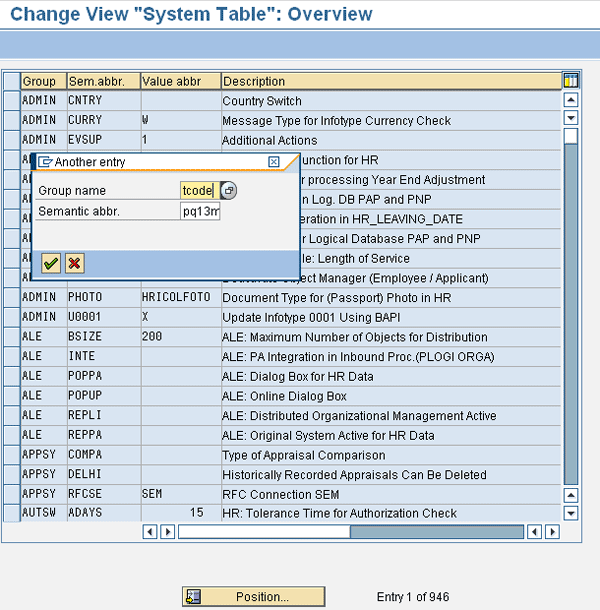
Figure 14
System table T77S0 is where the integration switches between OM and PA are maintained under group PLOGI (except for default values for OM action transaction codes)
Change the entry from S to 99 (under key TCODE – PQ13M). To do this, you have to overwrite S. Once you change this entry, click the save icon (Figure 15).

Figure 15
Change the default action from S to 99
The next time you execute transaction code PQ13, it defaults to action 99 (Figure 16). In Figure 16, notice the Action field contains 99, instead of the standard S action created by SAP.
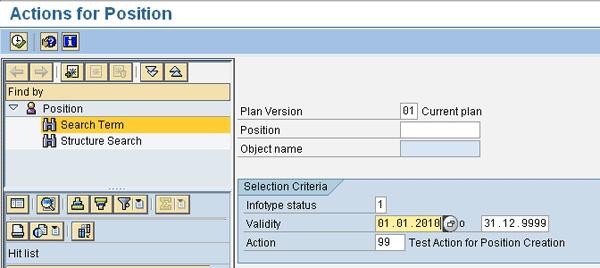
Figure 16
Action 99 defaulted for transaction code PQ13
Vamsi Mohan
Vamsi Mohan works as an SAP ERP HCM consultant. He has been working in SAP ERP HCM for the past seven years in various assignments. Vamsi has rich experience in time management, payroll, LSO, ESS, and has been part of many implementations. Prior to joining Accenture, he was associated with TCS, IBM, and Dell. Vamsi has a master’s degree in business administration.
If you have comments about this article or publication, or would like to submit an article idea, please contact the editor.




 Premium