Follow these steps to create a statistics list using SAP Query in SAP HR. You can use a statistics list to summarize data and create totals and averages.
Key Concept
You can create three types of reports with the SAP Query tool: basic lists, statistics lists, and ranked lists. The most common type of SAP Query report is a basic list report that displays individual line-item data across the columns of the report. The data displayed in a basic list report may contain an overall total at the bottom but is often not auto-summarized to display summary detail only. Generally speaking, the system displays data as it appears in the R/3 database. In contrast to basic lists, the data in statistics lists is output in a compressed, summarized format. A ranked list places items in order and ranks them in terms of highest to lowest or vice versa.
SAP Query, the most robust reporting solution delivered with SAP R/3 for end-user reporting, is most widely known for its basic list style of reporting. However, it can do more than create basic lists. I will explain how you can use it to produce statistics lists, including summary analyses of data with totals and averages. The only technical requirement for creating statistics lists in SAP is using SAP Query.
SAP Query statistics lists are ideal for analyzing average rate of pay for all associates by cost center. Instead of viewing a list of all associates in the cost center and their rates of pay, you can use statistics lists to view the averages by cost center. It is also helpful to view the total number of new hires in a yearly comparison. In other words, you can make a simple report that compares the total number of associates hired in 2004, 2005, and 2006.
To gain a better understanding of what a statistics list is all about, review Figure 1. It shows an example of a basic list report that you can create in SAP Query. This basic list gives line-item details of the salaries for associates in various organizational units. If you want to calculate the average annual salary of associates by organizational unit you can use a statistics list (Figure 2).
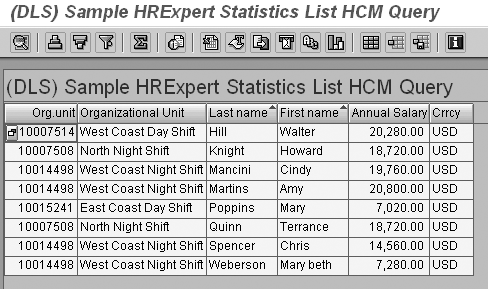
Figure 1
The output of a basic list in SAP Query
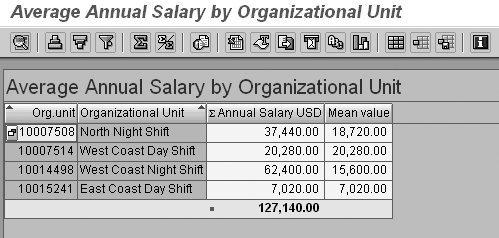
Figure 2
The output of a statistics list in SAP Query
I’ll explain the steps to create your own statistics lists in SAP Query. You need to have access to SAP Query. If you have already been using SAP Query to create basic lists, then creating statistics lists requires no extra configuration.
Step 1. Navigate to the Maintain Queries Initial screen by using transaction /nSQ01.
Step 2. In the Query field, enter a name for the query you are creating and then click on the Create button. In my example, I used DLS_HREXPERT_01, where DLS is your initials. The InfoSets of User Group dialog box appears listing all the data sources that are available within your selected query group.
Step 3. Select the appropriate InfoSet that you use for your HR reporting and then press Enter. Most likely, this InfoSet is based on logical database PNP. The Title, Format screen appears, allowing you to save the basic formatting specifications for your query, including the name (title) and any notes you want to store for the query (Figure 3). The only required field is Title.
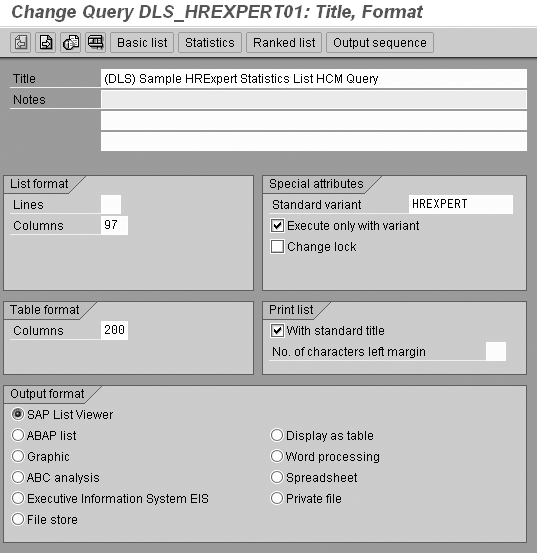
Figure 3
Save the basic formatting specifications for your query
Step 4. Enter a meaningful title and then select the save icon on the application toolbar.
Step 5. Click on the white arrow next screen icon on the application toolbar to navigate to the Select Field screen. This screen lists all the field groups available in your InfoSet.
Step 6. Place a check mark next to each field group whose fields you want to include in your report. In Figure 4, I selected infotypes 0000 (actions), 0001 (organizational assignment), 0002 (personal data), and 0008 (basic pay). Click on the next screen icon and the Select Field screen appears with a list of all the available fields within the selected field groups.
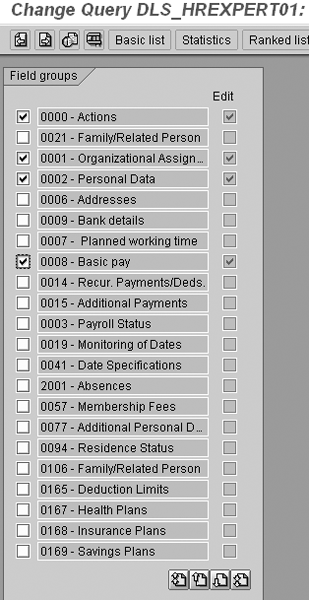
Figure 4
Check each field group whose fields you want to include in your report
Step 7. Place a check mark next to each field that you want to include in your report. You can use the page up and down icons shown at the bottom of Figure 4 to navigate among all the fields. Figure 5 shows an example of the Select Field screen where you edit select fields from the field groups. This example displays the field group for infotype 0000.
For this example, include the following fields:
• Org unit (infotype 0001)
• Text: org unit (infotype 0001)
• Last name (infotype 0002)
• First name (infotype 0002)
• Annual salary (infotype 0008)
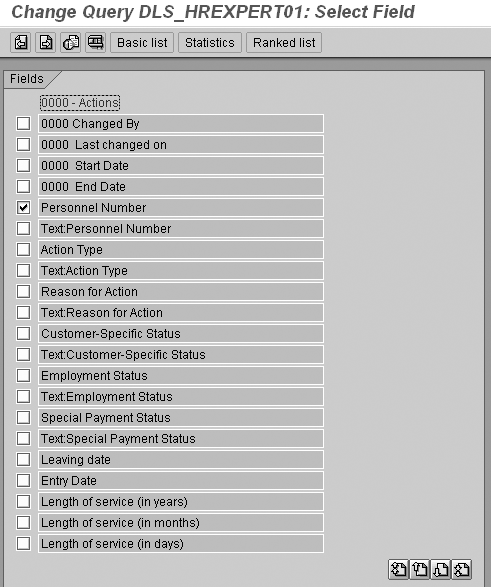
Figure 5
Edit fields in infotype 0000
Step 8. Click on the Statistics button on the application toolbar to create a statistics list in SAP Query. The Statistic Structure screen appears, giving you an opportunity to define your compressed list report (Figure 6).
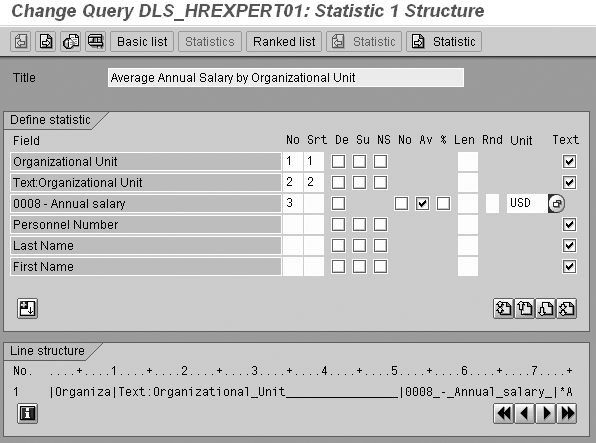
Figure 6
The statistic structure screen of SAP Query
Step 9. Enter a title at the top of the screen. In my example, I used Average Annual Salary by Organizational Unit.
Step 10. Specify the sequence in which you want to output the fields and state whether you want R/3 to sort them in ascending or descending order. Note that R/3 always calculates totals for numeric fields. For my example in Figure 6, I chose to see the average of the annual salary field by organizational unit. After you create a statistics list, the toolbar has a Statistic button (the last one on the application toolbar in Figure 6) that allows you to create multiple statistics. The ability to create multiple statistics gives you an easy mechanism by which you can define more than one summary in a single SAP Query. However, single statistics lists are most popular for HR reporting.
Step 11. Press F8 or click on the execute icon to execute the report. As with almost all other reports in SAP, you see the report’s selection screen upon execution. The selection screen gives you an opportunity to specify any criteria for the output of your report.
Step 12. Press F8 or click on the execute icon a second time to display your finished statistics list report. Your report format should look similar to that in Figure 2.

Danielle Larocca
Danielle Larocca is currently the Senior Vice President of Human Capital Management for EPI-USE Labs. Previously she was the Executive Vice President of Operations/Chief Knowledge Officer at a technology start-up. She has more than 20 years of strategic leadership experience in multi-national business, business process re-engineering, and project and people management. Danielle is an expert on SAP Human Resources (HR) and reporting and has authored four best-selling books on SAP. She is a regular speaker at numerous conferences around the world on topics such as HR, technology, change management, and leadership. She is an official SAP Mentor, a global designation assigned to less than 160 professionals worldwide, who serve as influential community participants in the SAP ecosystem. This group is nominated by the community and selected by the SAP Mentors’ Advisory Board to keep SAP relevant. Danielle also serves as an expert advisor for SAP Professional Journal.
You may contact the author at me@daniellelarocca.com.
If you have comments about this article or publication, or would like to submit an article idea, please contact the editor.