To quote from a recent experience: "Can you show me how to list manually entered exchange rates and the amounts involved? I want to do a sanity check on possible typos."
To quote from a recent experience:
“Can you show me how to list manually entered exchange rates and the amounts involved? I want to do a sanity check on possible typos.”
“Well, yes and no. It is not a standard report you can run yourself. It involves two different tables. I can combine them in Excel. It will take some time. Could you come back tomorrow? Or you could enter a ticket requesting a new report.”
“Why can’t I create a simple list? Our old system … etc. etc.”
You always need the report they did not build. It is the experience of users and consultants alike. After go-live, you would like to have some list that is not available. The ABAP programmer has gone and you are faced with the uphill struggle of having a change request approved. This occurs more frequently if your R/3 system includes non-standard Z-tables that are outside normal reporting.
Many of us have wished for an uncomplicated method that allows user-friendly analysis. With Release 4.6, SAP has complied. A new functionality called QuickViewer does away with much costly programming or a long course in Report Painter. It is hiding in the System>Services menu path. I discovered it by accident. It poses no big hurdles once you understand the various data sources.
I’m going to show you the basics in three steps, using an example of logical database BRM, which combines various tables concerned with financial documents. Then I’ll give you a tip about using QuickViewer to join information from two different tables. Note: No customizing is required!
Using the Logical Database
My first example is based on a simple question. The controller wants a list of financial documents in which exchange rates have been entered manually, and he wants the amounts involved. The reason is a sanity check. He wants to know the occurrence rate for typos and the risk involved.
To find QuickViewer, use menu path System>Services or transaction code SQVI. This takes you to the Create QuickView screen. (See Figure 1.)

Figure 4
Select layout mode
Step 1: Give your QuickView a name (free format) and choose your data source. You have the following four choices for the data source:
- Single table: Using a table allows you to create and share a report on a single table.
- Table join: A table join is a set of two or more tables that you create yourself.
- SAP Query InfoSet: InfoSets are combinations of tables used by queries in the system. They allow reuse of information explored by existing queries.
- Logical database: A logical database is a preconfigured set of tables that provides a view of several database tables. You can choose from a drop-down list of more than 180 logical databases defined in SAP. They are used in ABAP programs to retrieve data and make it available to application programs.
Tip!
If you are not sure what is hidden in a database, click the Display button. It shows the tables and fields involved.
Step 2: Select and define fields. Field selection and the definition of selection fields are easy once you have found the right logical database. On the respective tabs, select the values you need and move them from the selection list into the tab by clicking on the arrows between the lists. (See Figure 2, which shows the List fld. select where you select the fields that appear in the final report.)

Figure 5
Convert QuickView to a query
Another way to select fields is to use the left side of the screen and pull open the table and select fields you need. For my example, I chose the selection fields User Name, Exchange Rate, Currency key, Fiscal period, Company Code, Fiscal year, Document type, and Accounting document.
Note A lot of help is available in this screen, both online and via Web documents. Clicking on the links at the bottom of the page in the Help topics window links you to the relevant documentation.
Step 3: Execute the report. Now, hit the execute button and look at the result. This brings up the selection screen. (See Figure 3.) One final tip on this screen before you execute the report: On the selection screen, a small button hides the output format. If you pull this screen open, it allows you to select all available reporting formats, ranging from ALV to Excel.
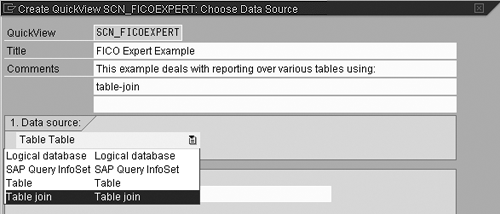
Figure 6
Select Table join as a data source

Figure 7
Graphical desplay of joined tables
Tip!
Unskilled users can create resource-consuming queries, so QuickViewer is primarily for functional experts, super users, and support functions. However, if you think your report is worth the attention of others, you can publicize it as a query. To do this, follow the menu path Tools>ABAP workbench> Utilities>SAP Query>Queries. On this screen, select the user group that will use your report (Edit>Other user group). Select Query>convert QuickView and a screen pops up to convert your QuickView into a query that can be used by all members of the user group. You have to enter a name for your query and a name for the InfoSet linked to it. Both are free format. (See Figure 5.)

Figure 1
Initial QuickViewer screen
Tip!
It might be you are so happy with the QuickView that you want it as a report, or transaction in SAP. In that case you can do your programmer a favor. Run SE38 and clear the input field. Run the QuickView and execute SE38 again. In the input field you now see the program that represents your QuickView. If you give this information to the programmer, the rest is a piece of cake.
Using QuickViewer for Table Joins
You can also work with table joins in QuickViewer. The main steps are the same; only the data source is different. You use this approach when you want to combine data from two or more tables. For example, I recently needed a list of IDocs with error status 51 selected by error message. The error message number is stored in table EDIDS, and the IDoc number and error status are in table EDIDC.
The first step in a case like this is to select Table join as a Data source. (See Figure 6.)
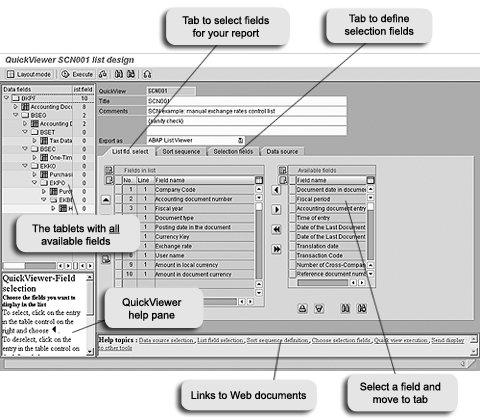
Figure 2
Select and define fields
Next, provide the tables you want to analyze. The system comes up with an empty screen on which you can enter the tables.
For my selection and report I need:
IDoc number: EDIDC-DOCNUM
IDoc status: EDIDC-STATUS
Error message number: EDIDS-STAMNO
This list involves different tables, so you cannot use SE16 to browse data in a single table. You can enter these values in QuickViewer using the Insert table button.
Entering tables EDIDC and EDIDS results in a graphical display of joined tables. (See Figure 7.) This is the basis of your report. The system automatically provides the links between the tables. However, if you want to remove one or more, click on them and select Remove join condition from the pop-up box. In general, this is not necessary, as the links are standard SAP. However, you might have a special case in which you want to use a different logic to link one or more tables. If the link is not correct, the system shows an error message.

Figure 3
Output format selection button
Clicking on the green arrow takes you back to the main screen, where you select the fields to include in your report and define the selection screen as you did in the first example. You might want to press the check button to see if there are inconsistencies in the links between tables. These can occur if you change the links between tables and make a logical mistake.
Once you have mastered these two examples, working with the other two available data sources — single tables and SAP Query InfoSets — should pose no problems.
Dr. Stef G.M. Cornelissen
Dr. Stef G.M. Cornelissen, MBA, is an experienced international SAP business consultant from the Netherlands with certifications in FI, CO, and SD. He took part in important international projects involving the large Dutch multinationals. Before specializing in SAP, he worked as a management consultant and was a senior advisor to the Board of Directors of the University of Nijmegen. Stef's academic background is in business administration, economics, and organizational science. He is the owner of Bowstring BV and principal partner at Sperry Associates.
You may contact the author at info@bowstring.nl.
If you have comments about this article or publication, or would like to submit an article idea, please contact the editor.