Track contractual events that occur in long-term projects with the down payment chain functionality in FI. Walk through the end-to-end configuration of the functionality supported by process steps with an example.
Key Concept
SAP’s down payment chains functionality groups all the accounting documents that belong to one contract. It also allows you to structure the data entry and display of the business transactions so that you can more effectively control and track them. Down payment chains are part of FI and integrate with managerial accounting (CO) and Project System (PS).
Long-term business projects — the construction of a new building, for example — can span years. Different business transactions involving multiple business partners (e.g., raising partial invoices, partial payments, retention amounts, and additional costs) accumulate and become a challenge to manage. SAP’s down payment chain functionality helps you track these events.
SAP has two types of down payment chains:
- Debit-side down payment chains monitor receivables from customers involved in the project and provide information on past and future incoming payments
- Credit-side down payment chains monitor payables for vendors or subcontractors involved in the project and provide information on past and future outgoing payments
I explain the configuration steps and business process using the example of a credit-side down payment chain. First, I review some concepts and the decisions to be taken based on the contractual terms.
The down payment chain type, such as the debit-side down payment or credit-side down payment chain, is used to restrict the types of transactions that can be posted to the down payment chain. Down payment chain types help reduce input errors, and they are specific to a company code. You create at least one down payment chain type for the debit-side or credit-side per company code as required.
You need to set various control parameters at the down payment chain type:
- Set the number ranges used for creating the down payment chain. Create the required number ranges and then assign them to the down payment chain (see step 1 in the next section).
- Set whether the partial invoices can be posted as down payment requests or invoices based on the client business practice. You can choose only one of the two options.
- Set the initial status for the system while creating the down payment chain. You control this via the check box Initial Status Released. Selecting this check box sets the status as released for the created down payment chain. Leaving the box unchecked puts it in the created status. The user needs to change the status to released for posting the transactions (see step 2 in the next section).
- You specify the maximum percentage of retention amounts for partial and final invoices and additional costs according to the contractual agreement. The system makes these percentages default while creating the down payment chain in the contract data section. During the creation of the down payment chain, the user can change the percentages if necessary.
- The cumulative data entry indicates whether data is to be entered cumulatively into the down payment chains or as a delta entry. If it is checked, the cumulative view is ready for input while posting the data for the down payment chain.
- The transaction category determines which postings can be made within the transaction. The transaction category is assigned while creating a transaction in the down payment chain.
- The required verification categories are configured in the IMG (see step 7 in the “Configuring Down Payment Chains Step by Step” section), one per company code. Businesses insist on submitting proof of a contractor’s registration number, license, and employee work permits before processing the transactions. Nonsubmission of these items blocks payment and could trigger penalties according to the contractual terms.
Configuring Down Payment Chains Step by Step
You configure the settings for down payment chains in FI Customizing by following menu path Accounts Payable and Accounts Receivable > Business Transactions > Debit-Side and Credit-Side Down Payment Chains. Follow these customization steps to set up down payment chains:
Step 1. Define number range intervals using menu path SPRO > Financial Accounting (New) > Accounts Receivable and Accounts Payable > Business Transactions > Debit-Side and Credit-Side Down Payment Chains > Define Number Range Intervals or by using transaction /SAPPCE/DPCNKR. This transaction brings you to the screen shown in Figure 1. Assign the intervals to the down payment chain types to be configured in the next step. The system sequentially assigns the number while creating the down payment chain from the interval created in this IMG step for a company code.

Figure 1
Maintenance of number range intervals
Note
Figure 1 includes number ranges for credit side (ZC) and debit side (ZD). In the example, I refer to the ZC number range.
Step 2. Then create down payment chain types using menu path SPRO > Financial Accounting (New) > Accounts Receivable and Accounts Payable > Business Transactions > Debit-Side and Credit-Side Down Payment Chains > Define Chain Types (Figure 2). Chain type configuration is key to the down payment chain process. Chain types are unique to the company code and various control parameters are set at the chain types.

Figure 2
Configure the down payment chain type
In addition to determining the type of down payment chain such as debit side or credit, you also set the following important control parameters while creating the down payment chain type:
- Determine which number range intervals are used while creating the accounting documents
- Treat the partial invoices as down payment requests or invoices
- Choose which initial status system should set while creating the down payment chain
- Set default percentages for retention amounts, guarantee amounts, and additional costs under different categories
- Determine which document type is valid for the accounting documents
So which document type is valid for the accounting documents? I recommend using a new document for control purposes. In the given business process example, you create a YD document type and assign it to the down payment chain type. Prefix assignment numbers are the additional information for each item in the accounting document that can be used while generating the reports on line items. For down payment chains, the assignment number is assigned by the system, starting with the assignment prefix, followed by the down payment chain number, and finishing with the transaction number. I recommend creating your own assignment prefix for ZC created in the given example for quick identification of the type of down payment chain.
Step 3. Define special general ledger transactions (Figure 3). In this IMG activity, you determine the applicable special general ledger transactions such as security retention amounts or special retention amounts for the down payment chain type. Follow menu path SPRO > Financial Accounting (New) > Accounts Receivable and Accounts Payable > Business Transactions > Debit-Side and Credit-Side Down Payment Chains > Define Chain Types.
On the screen shown in Figure 3 the special general ledger (GL) indicators created for the special GL transactions are tagged to the down payment chain type for the company code. Say, for the business example I created the special GL indicators 8 and 9 for Retention Amount and Special Retention Amounts, respectively, and assigned to the Credit-Side Down Payment Chain type for the company code Z123.
Note
Special general ledger transactions are special transactions (e.g., down payments, guarantees, and retention amounts) that need to be reported separately in financial statements.

Figure 3
Assignment of special general ledger indicators
Before you assign the special GL indicators, however, you must create the required indicators in two IMG menu paths by assigning the alternative reconciliation accounts. Retention amounts or special retention amounts posted through down payment chains update these reconciliation accounts. For customers, use transaction SPRO and follow menu path Financial Accounting (New) > Accounts Receivable and Accounts Payable > Business Transactions > Postings with Alternative Reconciliation Account > Other Special G/L Transactions > Define Alternative Reconciliation Account for Customers or use transaction OBXY directly. For vendors, use transaction SPRO and follow IMG menu path Financial Accounting (New) > Accounts Receivable and Accounts Payable > Business Transactions > Postings with Alternative Reconciliation Account > Other Special G/L Transactions > Define Alternative Reconciliation Account for Vendors or use transaction OBXT directly.
Step 4. Define retention amount categories for calculating the retention amounts on partial or full invoices (Figure 4). Use transaction SPRO and follow menu path Financial Accounting (New) > Accounts Receivable and Accounts Payable > Business Transactions > Debit-Side and Credit-Side Down Payment Chains > Define Retention Amount Categories. The categories defined here are used in the contract data tab while creating the down payment chains. You define the retention amount categories under a unique ID for each company code and specify whether it is valid for a partial invoice or final invoice based on the business decision.

Figure 4
Retention amount categories
Step 5. Define additional cost categories. Use transaction SPRO and follow menu path Financial Accounting (New) > Accounts Receivable and Accounts Payable > Business Transactions > Debit-Side and Credit-Side Down Payment Chains > Define Additional Cost Categories. You define this category only when there are additional costs according to the contract for the down payment chain type. Then you map a general ledger account for posting the amounts.
Note
In an example of a construction project, the additional costs category refers to costs involved in the waste disposal or land leveling. In the IMG activity you define all such costs applicable for down payment chain type debit side or credit side and assign with a GL account to which these costs are posted.
Step 6. Define contractual penalty categories. Use transaction SPRO and follow menu path Financial Accounting (New) > Accounts Receivable and Accounts Payable > Business Transactions > Debit-Side and Credit-Side Down Payment Chains > Define Contractual Penalty Categories. You define this only if there are any penalties according to contractual agreements. Contractual penalties refer to the charges levied for nonfulfillment of contractual obligations — for example, noncompletion of work in the stipulated time or quality of work not meeting the standards as agreed upon mutually by the parties to the contract. In this screen you define the penalty categories under a unique ID with short text for each company code.
Step 7. Define verification categories such as licenses or proof of company registration for each contract (Figure 5). Use transaction SPRO and follow menu path Financial Accounting (New) > Accounts Receivable and Accounts Payable > Business Transactions > Debit-Side and Credit-Side Down Payment Chains > Define Verification Cost Categories. For each company code, you create one verification category as per the contractual agreement. Examples of verification categories include trade licenses, company registration numbers, or employee work permits.

Figure 5
Verification categories
Step 8. Define the payment block for retention amounts and special retention amounts for each down payment chain type (Figure 6). Use transaction SPRO and follow menu path Financial Accounting (New) > Accounts Receivable and Accounts Payable > Business Transactions > Debit-Side and Credit-Side Down Payment Chains > Define payment block for retention amounts and special retention amounts. In this IMG activity you set the payment blocks for partial invoice or final invoice as applicable for each company code and down payment type such as debit side or credit side. SAP has provided standard payment block types that can be used (Table 1).

Figure 6
Payment blocks

Table 1
SAP standard payment block types
Step 9. Develop your own consistency and authorization checks by using enhancements. You can implement the required enhancements by using transaction SPRO and following IMG menu path Financial Accounting (New) > Accounts Receivable and Accounts Payable > Business Transactions > Debit-Side and Credit-Side Down Payment Chains > Business Add-Ins (BAdIs) > BAdI: Editing Payment Chains. You can use the following BAdIs for specific client requirements:
- Consistency check for down payment chain master data
- Authorization checks for down payment chains
- Consistency check on posting
- Enhancement of overviews: down payment chains, transactions, and documents
- Change FI document type
SAP Process Flow
Now that you have configured the down payment chain, you are ready to learn the business process flow for posting and processing the transactions using the down payment chain type configured in the previous section. For my business example, I have used the data shown in Table 2.

Table 2
Sample data for process example
In my business example, Z123 Company (company code Z123) is in the construction business and created a project for one of its ventures. In the SAP system, this project is created in PS under the project code A-00003 with the name Z123 Company Construction Project with the required work breakdown structure (WBS) elements. As part of the project, Z123 Company entered into a contract with vendor Z123-LV1 (Z123 Land Vendor 1) for the procurement of land for construction purposes. I’ll show you how this company can create a down payment chain for this vendor, post down payments, and clear them with a final invoice.
Create the Down Payment Chain
You must maintain the down payment chain before posting the transactions. Create the down payment chain using transaction /SAPPCE/DPCD01 or by following menu path Accounting > Financial Accounting > Additional Functions > Down Payment Chains > Debit-Side Down Payment Chains (Figure 7). For credit-side down payment chains, use transaction /SAPPCE/DPCK01 or follow menu path Accounting > Financial Accounting > Additional Functions > Down Payment Chains > Credit-Side Down Payment Chains.

Figure 7
Down payment chain maintenance
The processing screen for either debit-side or credit-side down payment chains includes the screen area DP Chain Structure, which contains the details of the down payment chain number, customer or vendor, and the project. The work area is where the actual transaction data is posted, and the Worklist and Favorites sections facilitate the creation of further down payment chains.
For this example, you take the credit-side down payment chain and create the project and the WBS elements listed in Table 2. Before creating the down payment chain, make sure you have ready contract data such as contract values, retention amounts, payment conditions, and account assignment data.
On the processing screen Display Credit-Side Down Payment Chain, click the create icon or choose Down Payment Chain > Create (Figure 8). In the dialog box enter the data for chain type (e.g., ZCSI). The company code defaults to that specified for the chain type and vendor (e.g., Z123-LV1). Optionally, you can enter purchase order data.

Figure 8
Create a down payment chain
After entering the data click the green arrow icon  to confirm and continue. On the next screen, Create Contract for Credit-Side Down Payment Chain, enter the contract data. In the Header Data section, enter general contract data such as down payment chain name, currency, and external reference data such as a contract number (Figure 9). You can use the external reference to save the contract number for the customer or vendor.

Figure 9
Create a down payment chain – Account Assignment tab
In the Account Assignment tab, enter a general ledger account as an offset account for expenses that you will create as a primary cost element, the WBS element to which the actuals are booked, and distribution percentage combinations as account assignment items. The distribution percentage determines the percentage of sharing of actual costs in case of multiple WBS elements.
In the Payment Agreements tab, enter the payment conditions such as the agreed terms of payment for partial or final invoices, cash discount percentages, or retention amounts (Figure 10). Note before assigning the retention amounts here, you create the required retention amount categories in IMG (refer back to step 4 in the section titled “Configuring Down Payment Chains Step by Step”).

Figure 10
Create a down payment chain in the Payment Agreements tab
The Verification and Contractual Penalties tab refers to the agreed-upon verification criteria — for example, the contractor’s company certificate and tax certificate. Nonsubmission of this data before the agreed-upon date makes the contract liable for cancellation. Penalties are the extra levies for nonfulfillment of contractual terms (Figure 11). Note before penalties are assigned, the required categories are created in the IMG. Refer to step 5 in the configuration section of this article.

Figure 11
Enter verification data
Save the data by clicking the save icon  or by choosing Contract > Save from the menu. After you have saved the data, the system issues the following message: Down payment chain has been created. It then assigns a chain number to the down payment chain within the number range interval defined in the chain type. In my example, number 2010000001 is assigned to the down payment chain (Figure 12).

Figure 12
Create a down payment chain – Chain Status tab
Now the down payment chain is ready for posting the transactions:
- Advance payments
- Partial invoices with retention amounts
- Final invoices to end the chain clearing advance payments and retention amounts
Post Advance Payments
To post the advance payment, click the Posting button or choose Edit > Posting from the screen Display Credit-Side Down Payment Chain. In the Create Transaction dialog box, enter the data for the transaction name (e.g., Advance Payment Posting) and select the transaction category Advance Payment Request. Under the Bank Details section, the system shows the vendor and bank details for the selected vendor as entered in the master data. After entering the data continue by clicking the green arrow mark icon (Figure 13).

Figure 13
Create a transaction for posting an advance payment
Return to the Maintain Credit-Side Down Payment Chain screen with the Posting tab activated in the work area to enter the data for the transaction. Enter the data for the document date. The system defaults the currency, posting date, reference, and other fields. Enter the amount for the transaction in the Advance Payment Amount field. The advance amount is allocated to WBS elements based on the contract data. In my example it is allocated to one WBS element.
Check the correctness of the document by clicking the check document posting icon  . If there are no errors, save the document by clicking the save icon
  (Figure 14). The Detail View tab shows the details of the transactions for the down payment chain (Figure 15).
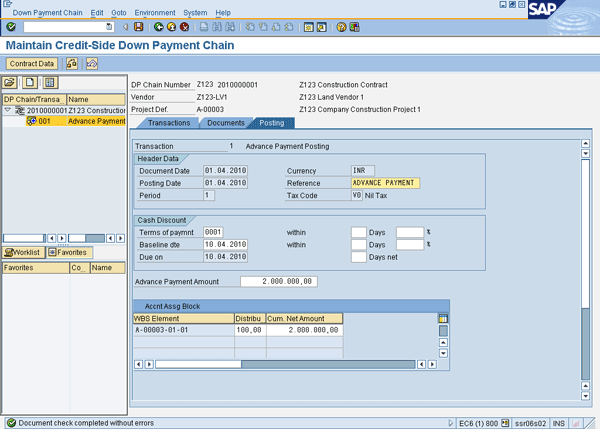
Figure 14
Posting data for an advance payment

Figure 15
Transaction data for the down payment chain
The system posts the advance payment as a down payment request, a noted item in FI with the special general ledger indicator F (Figure 16).
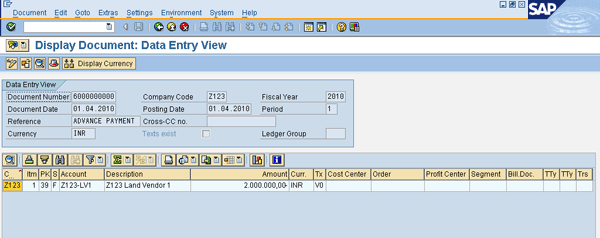
Figure 16
Posting advance payment — FI document
Now you need to post the advance payment against the request created in step 1. Use transaction F-48 or follow menu path Accounting > Financial Accounting > Accounts Payable > Document Entry > Down Payment > Down Payment (Figure 17). Enter the following details:
- Document Date
- Type (KZ is defaulted by system)
- Company Code
- Posting Date
- Period: Filled by the system based on the posting date
- Currency/Rate
- Reference (e.g., Down Payment)
- Doc. Header Text (e.g., Down Payment Posting)
- (Vendor) Account (e.g., Z123-LV1)
- Special G/L ind (e.g., A)
- (Bank general ledger) Account (e.g., 100000)
- Amount (e.g., 2000000)
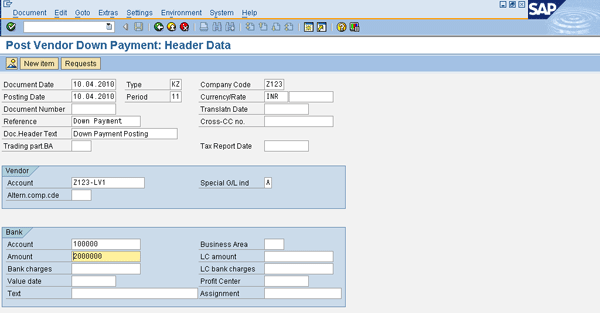
Figure 17
Enter the header data
After entering the data, click the Requests button to select the required down payment request. Select the required request and click the Create down payments button to create the down payment (Figure 18). The system posts the document debiting the vendor and crediting the bank (Figure 19).
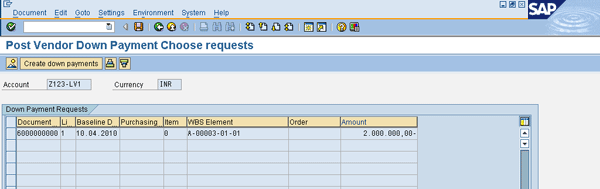
Figure 18
Select the down payment request
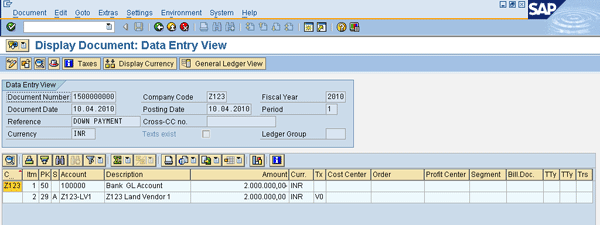
Figure 19
The system debits the vendor and credits the bank
The down payment chain is updated with the payment (Figure 20). Click the Transactions tab to see that the Status indicator has changed from red to green, meaning the open item is cleared and the Overview tab is updated with the payment data (Figure 21).
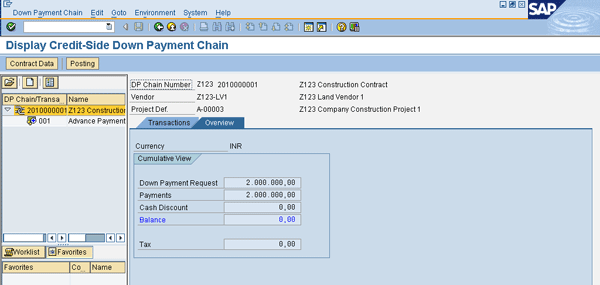
Figure 20
Down payment chain — Overview tab

Figure 21
Down payment chain — Transactions tab
Post Partial Invoice
In a long-term contract, vendors or contractors typically submit invoices based on the contractual terms for the completed stages. These are the partial invoices that the system must properly account for, and they are subject to agreed-upon retention amounts.
Assume that the vendor (e.g., Z123-LV1) has submitted two partial invoices for INR 800,000 and 700,000, and 10 percent is the retention amount applicable on these invoices. To post the partial invoices, click the Posting button or choose Edit > Posting from the Display Credit-Side Down Payment Chain screen. In the Create Transaction dialog box, enter the data for the transaction name (e.g., Posting of Partial Invoice 1) and select the transaction category Partial Invoice as Invoice. Continue by clicking the green check mark icon (Figure 22).
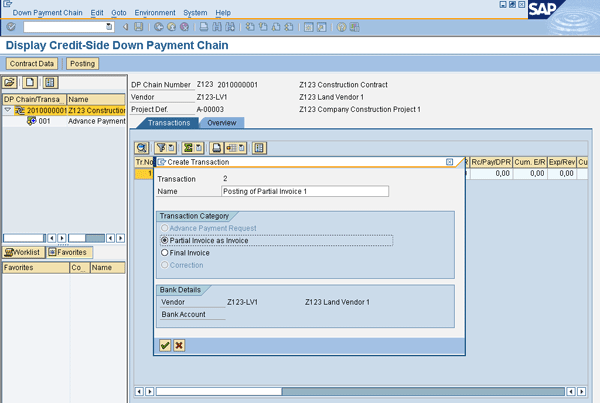
Figure 22
Create a transaction for a partial invoice
Return to the Maintain Credit-Side Down Payment Chain screen to enter the data for the invoice in the Posting tab (Figure 23). Enter the data for the Document Date, Posting Date, and Reference (e.g., PARTIAL INVOICE1). All other fields are defaulted by the system. Enter the invoice amount in the Delta field.
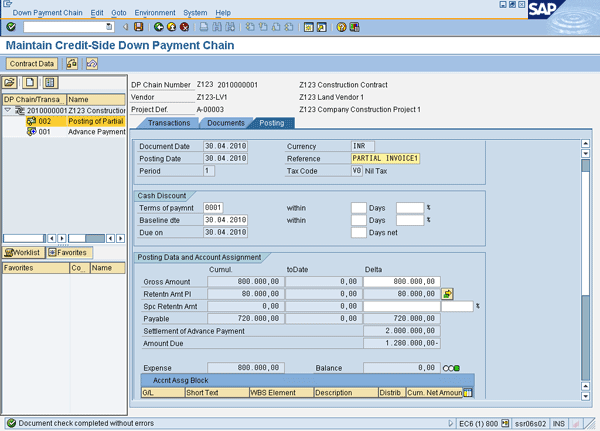
Figure 23
Posting data for a partial invoice
Check the correctness of the document by clicking the check document posting icon  . At this stage, the system calculates the retention amount based on the percentage entered in the contract data and shows the amount (Figure 24). Post the document by saving the data. Repeat the same steps to post all the invoices.
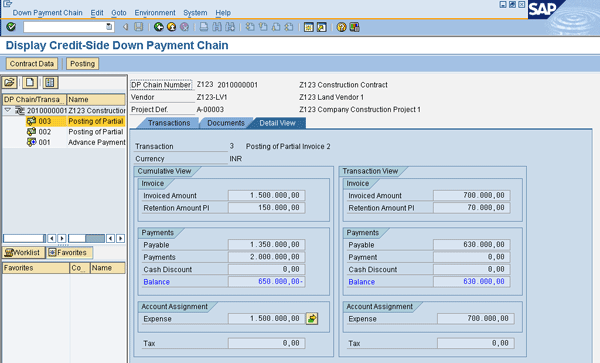
Figure 24
The Detail View tab for posting a partial invoice
Post a Final Invoice
Upon completion of the work, the vendor or contractor submits a final invoice. Posting the final invoice completes the down payment chain by reversing the down payment and retention amounts, showing the balance payment, if any, to the vendor or contractor. Assume that in my example that vendor Z123-LV1 has submitted a final invoice for INR 550,000. To post the final invoice, click the Posting button or choose Edit > Posting from the Display Credit-Side Down Payment Chain screen.
In the Create Transaction dialog box, enter the data for transaction name (e.g., Final Invoice Posting) and select the transaction category Final Invoice (Figure 25). Click the green check mark icon  to continue.
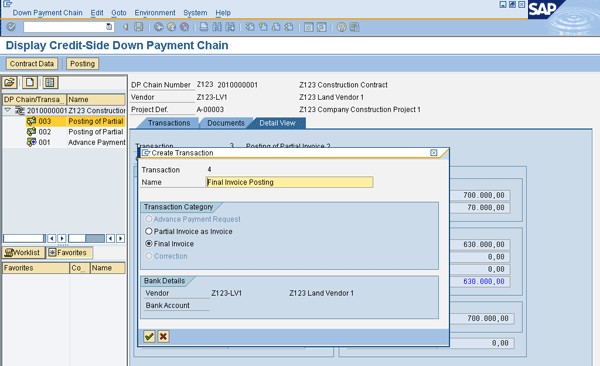
Figure 25
Create a transaction for a final invoice
Return to the Maintain Credit-Side Down Payment Chain screen to enter the data for the invoice in the Posting tab (Figure 26). Enter the data for Document Date, Posting Date, and Reference. All other fields are defaulted by system. Enter the invoice amount in the Delta field.
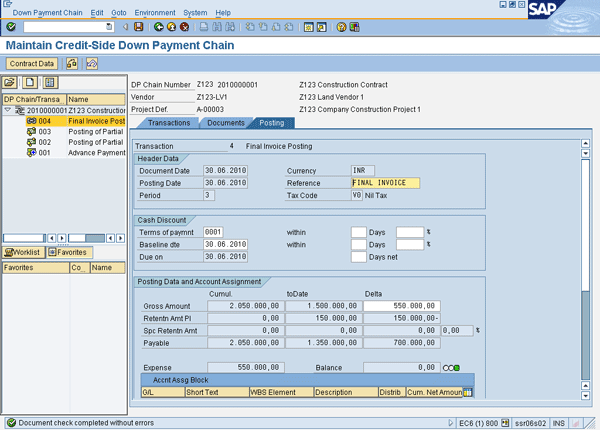
Figure 26
Posting data for a final invoice
Check the correctness of the document by clicking the check document posting icon . Post the document by saving the data by clicking on the save icon . The Detail View tab shows the updated contract details (Figure 27).
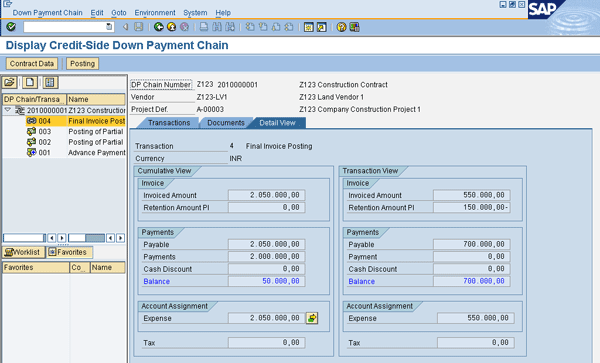
Figure 27
The Detail View tab for posting a final invoice
You can view the vendor balances and clearing of the special general transactions in Accounts Payable by using transaction FK10N, as shown in Figure 28 for vendor balances and Figure 29 for special GL transactions.
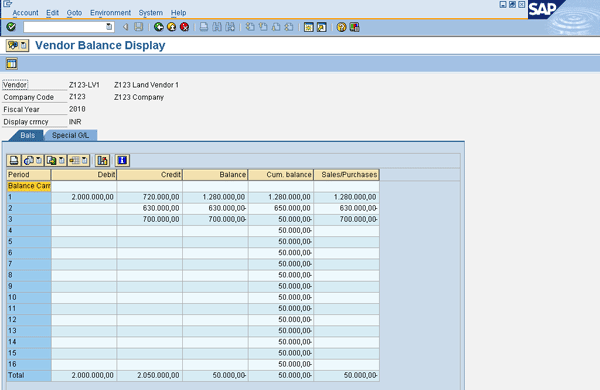
Figure 28
Vendor balances
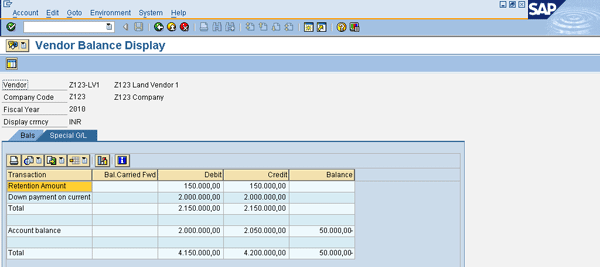
Figure 29
Special general ledger transactions with vendor balances
Shankar Kaza
Shankar Kaza is has more than 12 years of SAP consulting and management experience, specializing in FI. He has more than 13 years of rich domain experience as head of finance and accounts departments in a cross-section of industries. Currently, he is heading the SAP Financials practice in Tech Mahindra.
You may contact the author at Shankar.Kaza@techmahindra.com.
If you have comments about this article or publication, or would like to submit an article idea, please contact the editor.