Discover three Personnel Administration (PA) problems you may face in your upgrade to mySAP ERP and how to permanently fix them. You may not face these specific problems, but you can learn from the methodology behind the solutions.
Key Concept
Personnel lookup tables contain the system settings for the infotypes that store personal data for employees. SAP contains several standard sample entries, called SAP entries, in these lookup tables. Each upgrade or release may overwrite changes to existing entries, so you should avoid changing this data. If changes are unavoidable, document them carefully so you can repeat them when necessary.
A successful upgrade minimizes the impact on users. To this end, I’ll explain and show you how to solve the main functional HR upgrade problems that may occur during your upgrade from R/3 4.6C to mySAP ERP Central Component (ECC) 5.0. In part 2 of this series, I continue with Personnel Administration (PA) issues. I will address Payroll issues in part 3.
After you upgrade from 4.6C to SAP ECC 5.0, you need to fix three PA issues. The first is an object editing error that occurs in the personal data infotype 0002 and related client configuration. The second error is in the personnel file transaction PA10 and re-entry date action transaction PA41. You must synchronize related infotypes in configuration tables such as the infotype dialog/database assignment table T777D, infotype customized attributes table T582A, and infotype country setting table T582L. The last error involves incorrect data in personnel lookup tables such as the religious denominations table (T516T) and marital status designations table (T502T) in infotype 0002. This last error may relate to how R/3 4.6C configured these tables.
Note
A couple of these issues may apply only to R/3 4.6C because the upgrade from R/3 4.6C to 4.7 solves some problems.
Note
Remember, your first step should be to check and evaluate the direct symptoms that the error message describes.
Object Editing Errors in Infotype 0002
This problem occurs when you try to save changes or new employee records in the personal data infotype 0002 in PA using transaction PA30. Figure 1 shows the pop-up window with the error message Client 300 has status ‘not modifiable.’ The client number in the message reflects the client you’re using.
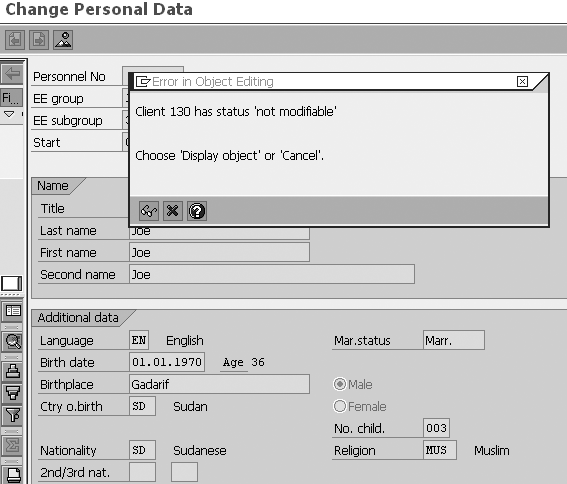
Figure 1
When you click on the save icon, the object editing error message appears in the personal data infotype
Although you may save changes despite this error message, the message appears whenever you save any changes to the personal data infotype. This could confuse users and may give them the wrong impression that SAP ECC 5.0 isn’t saving their changes or that they’re performing configuration changes in the production system.
This error message appears only if you checked the No changes allowed option in the Maintaining Clients setting via transaction SCC4. The quality assurance system and production system usually display this error because those systems normally use the No changes allowed option. On the other hand, the error message may not appear in the development system. Therefore, you should investigate this problem even if you don’t see it in your initial test in the development system.
Solution
To resolve this issue, enter transaction OOCR or follow the IMG menu path Personnel Management>Organizational Management> Transport>Set Up Transport Connection. Click on the execute icon to see the screen shown in Figure 2.
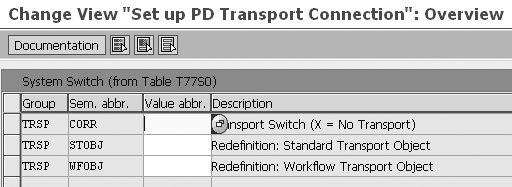
Figure 2
Set up the Personnel Development (PD) transport connections overview
The first row in Figure 2 controls the type of transport connection you wish to use. Three connections types exist: no automatic transport connection (X), automatic transport connection (blank), and transport using object lock (T). To display the connection types, click on the choose from pick list  icon in the first field in the Value abbr. column in Figure 2 and the system displays the transport connections options list (Figure 3).
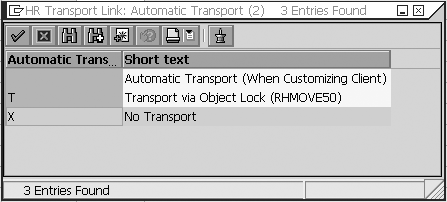
Figure 3
Transport connections options list
In this case, double-click on the X: No Transport option. As shown in Figure 4, the screen from Figure 2 updates with the value of X. Click on the save icon. Now you can maintain and save the personal data infotype 0002 in SAP ECC 5.0 through transaction PA30 without pop-up error message interruptions.
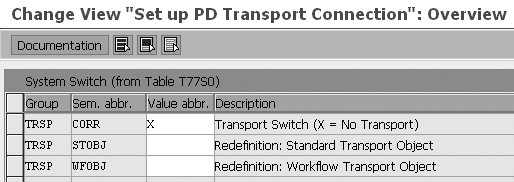
Figure 4
The PD transport connections overview after update
Re-Entry Date Correction Action and Personnel File Errors
This problem occurs whenever users attempt to display a personnel file using transaction PA10 or execute the re-entry date correction action using transaction PA41. Instead of performing these functions, the system displays the message Infotype 0122 does not exist (Figure 5). This error occurs regardless of whether your company uses the bonus infotype 0122.

Figure 5
Error message after executing the personnel file (transaction PA10) or re-entry date correction action (transaction PA41)
Note
You may not face the infotype 0122 error message problem with an SAP R/3 4.7 to SAP ECC 5.0 upgrade.
Solution
The reason for this error is that the dialog/database assignment of infotype 0122 is not available in the infotypes — dialog/database assignment table (T777D) in your SAP ECC 5.0 system. However, this infotype exists in the infotype attributes table (T582A) and may exist in the infotypes country-specific settings table (T582L), too.
To resolve this issue, you need to delete infotype 0122 from tables T582A and T582L to synchronize the settings of your related infotype tables. First, delete the entry for infotype 0122 from table T582A. Enter the transaction S_AHR_61011213 or follow IMG menu path Personnel Management>Personnel Administration>Customizing Procedures> Infotypes>Infotypes. Click on the execute icon to see the screen shown in Figure 6.

Figure 6
Infotype activities selection screen
Double-click on first row, Infotype, to see the infotype attributes window shown in Figure 7. Scroll until you find infotype 0122. Select the 0122 row, click on the delete icon, and then click on the save icon (Figure 8).
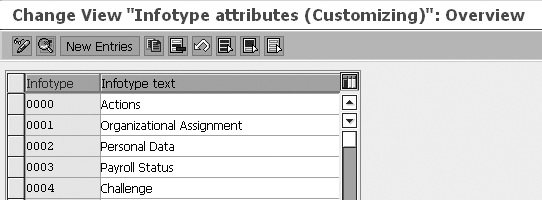
Figure 7
Infotype attributes maintenance window
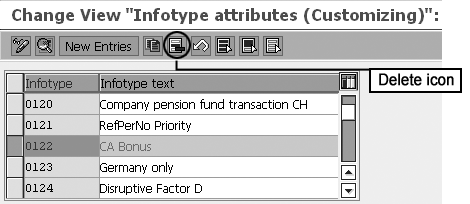
Figure 8
Highlight and delete infotype 0122 in the infotype attributes maintenance window
Next, delete the entry for infotype 0122 from table T582L. Enter transaction S_AHR_61011205 or follow IMG menu path Personnel Management>Personnel Administration>Customizing Procedures>Infotypes>Assign infotypes to countries. Click on the execute icon to see the screen in Figure 9. Scroll until you find infotype 0122, select it, click on the delete icon, and then click on the save icon (Figure 10).
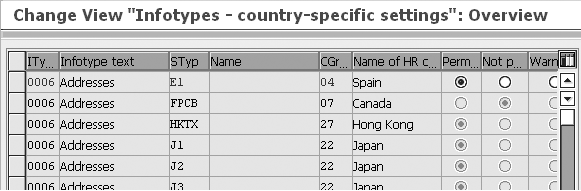
Figure 9
Infotypes - country-specific settings window
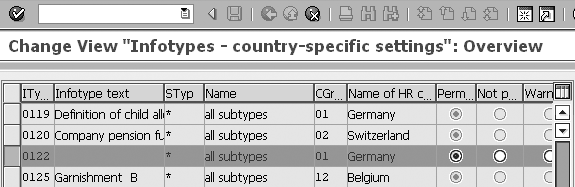
Figure 10
Select and delete infotype 0122
Now you may use the personnel file transaction (PA10) to scroll through an employee’s personnel file without seeing any error messages. The system displays all data stored for an employee in the various infotypes in ascending numerical order according to their validity periods (Figure 11).
If you enter the wrong entry date for an employee by mistake, you may change it after completing the hiring action using the re-entry correction action (transaction PA41) without receiving an error message (Figures 12 and 13).
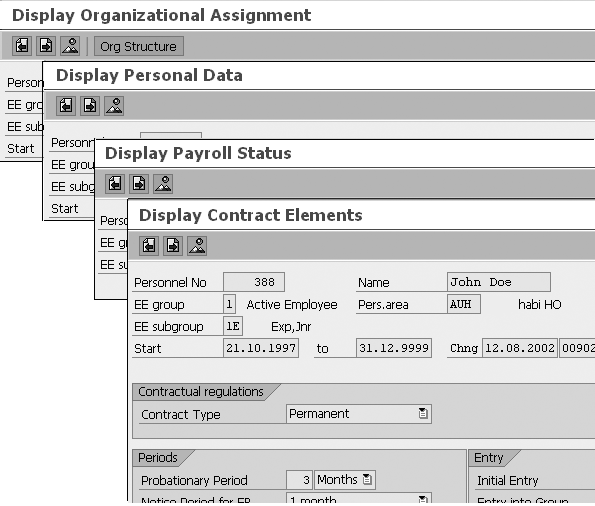
Figure 11
Correctly display infotype data after configuring the infotype-related tables

Figure 12
Change Entry/Leaving Date screen after you set up the infotype-related tables
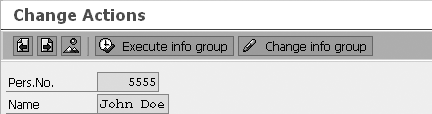
Figure 13
Change Actions screen after you set up the infotype-related tables
Errors in Personnel Lookup Table Data
This issue involves how you configure personnel lookup tables (e.g., religious denominations table T516T and marital status designations table T502T) in infotype 0002. Usually, the standard mySAP ERP system contains several sample entries for the personnel data lookup tables. These entries appear for family member relationship types in infotype 0021, address types in infotype 0006, and marital status designations and religious denominations in infotype 0002.
How you resolve data errors in the personnel lookup tables depends on how you customized them in R/3 4.6C. If you used the same SAP standard sample entries and added your own entries with different new keys in R/3 4.6C (as recommended), you won’t have a post-upgrade problem.
You may have changed the descriptions for or deleted some SAP standard entries because your company doesn’t use them. Many people do this because the SAP standard list is long and they want to prevent user confusion and minimize data-entry errors. If your system does not use the standard sample entries, you need to adjust them because the SAP standard entries will replace them during the upgrade. In some countries, employers track religious denominations, so I’ll use that personnel lookup table to show you what occurs after the upgrade and what you need to do.
In your R/3 4.6C system, say you customized and limited the list of religious denominations to five entries by changing the description of the first five SAP standard entries using the same SAP standard keys as shown in Figure 14. The upgrade replaces those customized religious denominations entries with SAP standard entries. As result, the old customized entries from R/3 4.6C disappear and the list defaults to the SAP standard entries as shown in Figure 15.
This results in incorrect personal data information when you display the personal data infotype. The incorrect information occurs because the religious field (KNOFE) in table PA0002 stored only the religion key value, not the religious description. For some employees, the religion key value stored in table PA0002 is 01, which means Muslim as customized in R/3 4.6C (Figure 14). After upgrading, the key value 01 in SAP ECC 5.0 means Evangelical, as shown when you display infotype 0002 for the same employee (Figure 15).
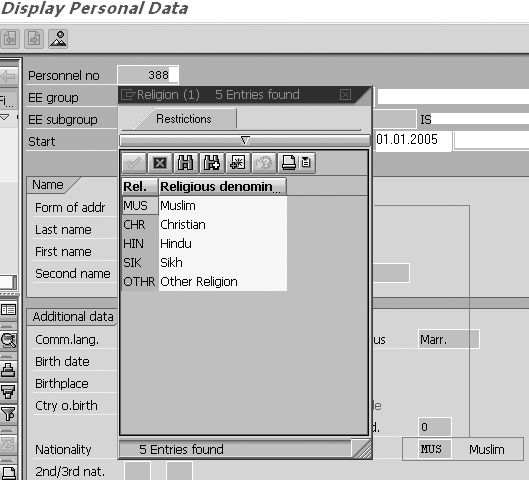
Figure 14
Personal data infotype 0002 with customized religious denomination entries in R/3 4.6C. The employee record reflects the correct religious data.
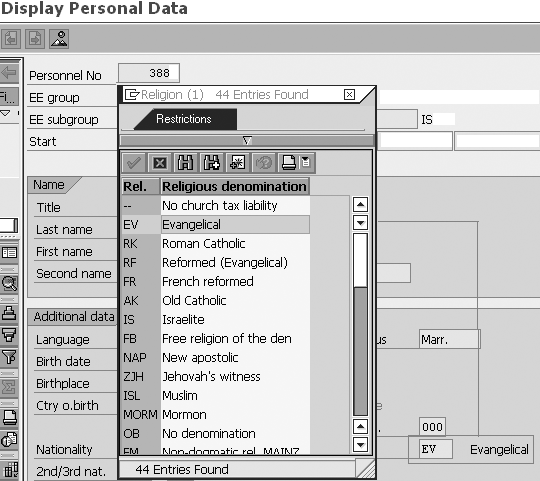
Figure 15
Personal data infotype 0002 after upgrade in ECC 5.0. The employee record reflects incorrect religious data.
Solution
To resolve this problem, you need to replace the customized descriptions of the first five rows in R/3 4.6C with the original key values. Enter transaction S_AHR_61011596 or follow IMG menu path Personnel Management>Personnel Administration>Personal Data>Personal Data>Create religious denomination. Click on the execute icon to see the window shown in Figure 16. Replace the description of the five key values to the original customized description used in R/3 4.6C, which you should have documented prior to altering the descriptions. Delete the rest of rows by selecting them, clicking on the delete icon, and then clicking on the save icon (Figure 17).
Note
When you overwrite descriptions in R/3 4.6C, the original customized descriptions disappear forever in the system. You can restore the descriptions only by referring to your own documentation of your changes.

Figure 16
Change View of religious denomination SAP ECC 5.0 standard values before changes
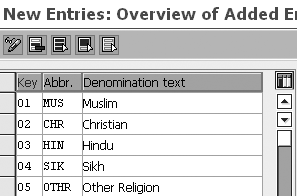
Figure 17
Description and abbreviation of the five key values after changes (customized values)
After you make the above changes, you can use transaction PA30/PA20 to see the correct religions for each employee in infotype 0002 as assigned originally in R/3 4.6C. That means that the upgrade will not change the employees’ religious data in SAP ECC 5.0.
Remember that this solution solves the problem in SAP ECC 5.0, but does not prevent the same problem from occurring again in future upgrade projects. Therefore, after finalizing your upgrade project, I recommend that you reconfigure your customized entries in the lookup tables so that future upgrades do not affect your lookup table configuration. To ensure this, use different customized keys instead of replacing SAP standard lookup entries. Let me explain in more detail.
First, create new entries for same descriptions shown in Figure 16, but use different key values (e.g., 95: Muslim, 96: Christian, 97: Hindu, 98: Sikh, and 99: Other Religion.) You have 10 entries total and two descriptions for each religion, but with different keys (e.g., 01 and 95: Muslim, 02 and 96: Christian, 03 and 97: Hindu), which you can view using transaction (S_AHR_61011596).
Next, change the content of the KNOFE field in table PA0002 for all employees in your organization to the new keys (e.g., from 01 to 95, 02 to 96, 03 to 97). You can either change the Religion field in employees’ personal data infotypes through transaction PA30 or create and execute a simple program to change these values directly in table PA0002. An ABAP developer usually performs the latter task by writing program or using Legacy System Migration Workbench (transaction code LSMW).
Lastly, delete the original key value entries (01, 02, 03, 04, and 05) in transaction S_AHR_61011596. This way, you can use your own keys to describe your customized entries instead of using the SAP standard keys. This prevents personal data problems in the lookup tables for future upgrade projects.
Mohamed Khalid Yousif
Mohamed Khalid Yousif is a certified senior SAP HR consultant. Mohamed has a master’s degree in computer science from Khartoum University, Sudan. He is currently the team leader of the SAP HR support team and also was team leader of the ECC 5.0 upgrade project at National Drilling Company, Abu Dhabi, UAE.
You may contact the author at myousif@ndc.ae.
If you have comments about this article or publication, or would like to submit an article idea, please contact the editor.



 Premium
