Discover key tools and process steps that assist in the remediation of risks identified at the single role level by SAP BusinessObjects Access Control Risk Analysis and Remediation.
Key Concept
Risk Analysis and Remediation (RAR) is part of SAP BusinessObjects Access Control. This capability helps all key stakeholders work in a collaborative manner to achieve ongoing segregation of duties and audit compliance at all levels. While many companies focus first on the identification of the risk, the actual remediation of the risk is much more important and vital to ensure compliance is maintained.
In today’s environment, we are inundated with data. As more managers realize, it’s what we do with that data that determines the benefit of the information. The Risk Analysis and Remediation (RAR) component of SAP BusinessObjects Access Control identifies segregation of duties (SoD) and critical action risks. However, if management does not actively do anything with the data, the main benefit of purchasing RAR is not realized.
I’ll review the key steps involved in reviewing these reports and remediating the risks identified. I will include specific reports and screens in RAR that assist in this process. It is important to recognize that this is an iterative process that takes time. The recommendations were developed based on more than eight years of work on risk analysis and remediation projects.
The remediation process is most efficient when performed in the following three sections: single role remediation, composite role remediation, and user remediation. In this article, I’ll discuss single role remediation.
Single Role Remediation
Too many people want to jump right in and immediately review user SoD conflicts. This is a mistake and results in hundreds of hours of effort duplication compared to starting your analysis at the single role level. The reason for this is that you should first remediate risks in single roles, which automatically flow through to all users who have these roles.
Even starting at the role level can seem daunting. Some companies have more than 100,000 single roles and these roles could each have thousands of conflicts. If the report were run wide open with an asterisk in the role name, millions of conflicts could be reported, which makes remediation almost impossible to tackle.
The best practice is to group roles by business process or other variables to ease the reviewing of conflicts. If you use a naming standard for your roles, you can run the reports in groups of roles that can be reviewed in various business areas. For example, you might have a naming standard that all finance roles start with ZFI* so the reports can run at this level. If you do not use a naming standard, you can add individual roles to the multiple selection screen of RAR to run reports that way.
However, it’s extremely important to ensure completeness of the review if you choose to run the single role analysis in groups. To assist with this, it is best to maintain a Microsoft Excel spreadsheet or other listing of all roles, which you can use for tracking purposes. The best way to accomplish this is to access the back-end SAP system where the roles are reviewed. Use transaction code SUIM, expand Roles, and click Roles by Complex Selection Criteria (Figure 1). Run the report wide open, but ensure only single roles are selected by clicking the Single Roles check box (Figure 2).
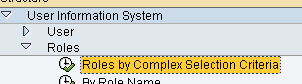
Figure 1
Transaction SUIM
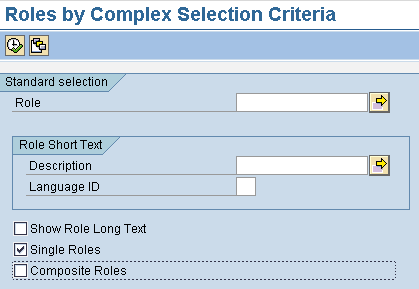
Figure 2
Roles by Complex Selection Criteria report
After clicking the execute icon in the SUIM report, you see all roles in the system (Figure 3). You can download this report to Excel and use it to prove the completion of the RAR project. Figure 4 is an example of an Excel spreadsheet that you can use to track completion to prove to auditors and the business that all roles were analyzed.
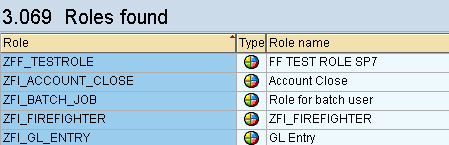
Figure 3
SUIM report showing all single roles

Figure 4
Excel tracking sheet for completeness
See Figure 5 for an example of how to run single role-level risk analysis in RAR using a naming standard. This report should be run in the background.
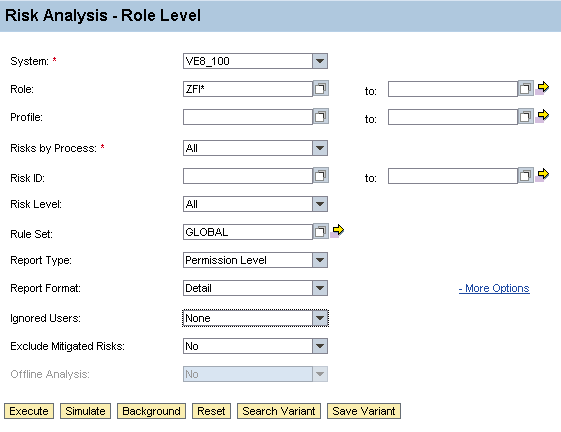
Figure 5
Single-role risk analysis
In this screen, you should set the following items:
- It is best to run the analysis for single roles on the development system of the landscape being reviewed. The reason is that this landscape contains roles that are in the process of being developed and remediation can occur on those roles.
- The Report Type should be Permission Level. This ensures that false positives at the transaction level are excluded and only the true conflicts are reported.
- The Report Format should be Detail. By running at detail level, the appropriate level of information is available for the business to analyze the conflict. This ensures the business can see down to the authorization object field level the cause of the conflict.
- When first performing remediation, there should be no mitigated risks, so set Exclude Mitigated Risks to No
You can obtain the results of the analysis by viewing the background job spool file. To do this, you go to Background Job > Search and search for the job name. After the job completes, click the icon in the Result column (Figure 6).

Figure 6
Background job spool results
The results are shown in Figure 7. You should download and save these reports to a location that auditors can access if there are any questions about this analysis. To download the report, click the download icon in Figure 7.
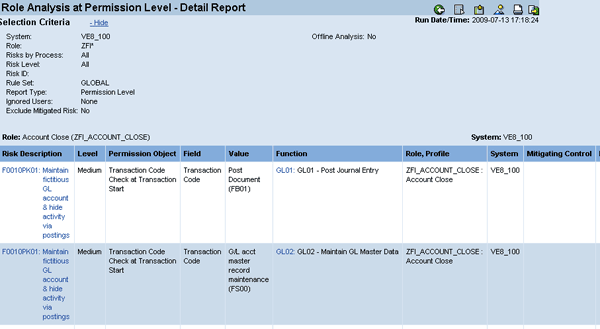
Figure 7
Single-role risk analysis results
Now the real fun begins. The first thing to do is to focus on the roles with the most conflicts. The easiest way to do this is to switch the view on your report to Summary view. You can do this by clicking the display summary report icon in Figure 7.
By reviewing at the summary level, you can easily identify roles that have hundreds or thousands of conflicts. These may be roles that are used by system IDs or Firefighter IDs and are not applicable for SoD review. If these roles are such that they won’t be assigned to end users and are controlled in other ways, such as via Superuser Privilege Management (SPM), you can ignore them for remediation.
However, you still need to review these roles periodically. To achieve this, you need to add these roles to the critical role table by following menu path Rule Architect > Critical Roles > Create (Figure 8). In this example, the role ZFI_BATCH_JOB came up with more than 1,000 conflicts. Upon discussions with business, you decide to only assign this role to batch users and not to end users.
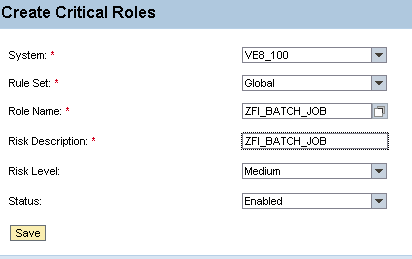
Figure 8
Creation of critical roles
By adding this role to the critical role table, you can run separate reports to find out which users have these critical roles (Figure 9). This is the level at which you should review these roles, rather than at the individual SoD conflict level. You can review the report shown in Figure 9 periodically to ensure only system users have this role.
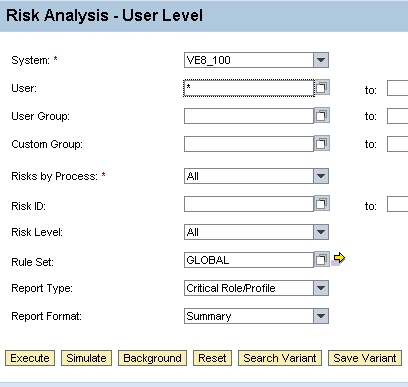
Figure 9
Critical role and profile report
Once these superuser access-type roles are added to the critical role table, you need to remediate the remaining roles. You can remediate single role risks identified by RAR in four ways:
- Remove one of the transactions causing the conflict
- Remove or adjust the authorization objects in the role that are causing the conflict
- Adjust the RAR rules to account for a false positive reading
- Create a mitigating control for the risk
In the next section, I’ll use the role ZFI_ACCOUNT_CLOSE to demonstrate how this iterative process works. Figure 10 shows that this single role has four SoD risks.
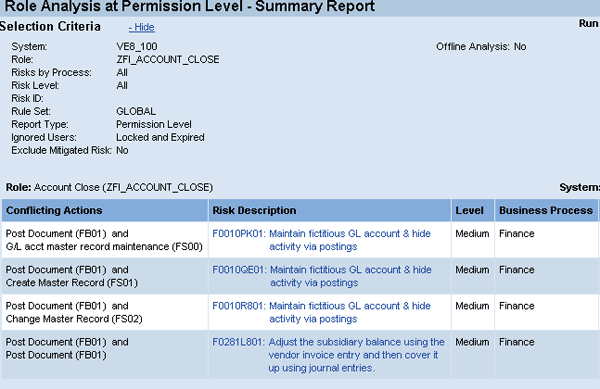
Figure 10
SoD report for role ZFI_ACCOUNT_CLOSE
1. Remove One of the Transactions Causing the Conflict
When a conflict is identified, the first question to ask is whether the role requires both transactions that make up each SoD conflict. In this example, the question is whether the user requires FB01, FS00, FS01, and FS02 — these are the four transactions that are causing the conflicts. There are several reports and processes that can help the business make a decision about whether the transactions are needed.
If RAR has been implemented for a while, you can use the Action Usage by Role and Profile report, which is located on the Informer tab under Security Reports > Miscellaneous. The key requirements are that you have implemented RAR for a certain period of time and executed the Alert Generation job continuously for the time period that you want to review.
The Alert Generation job is located on the Configuration tab under Background Job > Alert Generation (Figure 11). This job accumulates from the system all actions performed by users for a certain time period. You should run it daily so you can use the Action Usage by Role and Profile report.
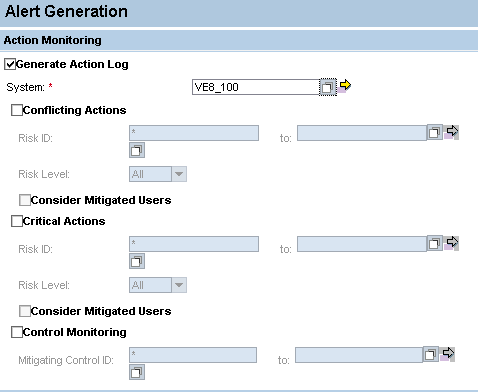
Figure 11
Find the Alert Generation job
If the Alert Generation job has been running for a while, the Action Usage by Role and Profile report is an excellent way to determine whether a role needs all assigned transactions (Figure 12).
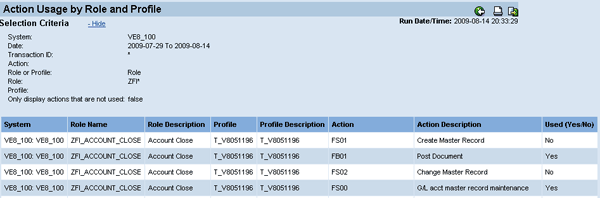
Figure 12
Action Usage by Role and Profile report showing use of transactions
In this example, the report indicates that no user who has this role has ever executed transaction FS01 or FS02. This indicates that you can remove the two transactions from this role with no adverse impact. Removing these two transactions removes two of the four SoD conflicts for this role.
If RAR has not been implemented or the Alert Generation job has not been executed, running this report is not an option. In the absence of this report, you can work with your Basis team and others to execute transaction code STAD and other monitoring transactions to see how often these transactions are used and whether the roles require them.
Finally, if no monitoring reports are available, the next best option is to send a query to the users who have these roles to find out if they are using the transactions that are conflicting. Users often confirm that the transactions are not needed and can be removed. After the unneeded transactions are removed, you can run the RAR role SoD report again to report only the remaining conflicts.
2. Remove or Adjust the Authorization Objects in the Role That Are Causing the Conflict
The next question to ask is whether there are authorization object settings you can adjust that would cause the role to no longer have the risk. In this example, after removing conflicting transactions, the role still has a risk between transactions FS00 and FB01 (Figure 13). By reviewing the functions that contain transactions FB01 and FS00 in Rule Architect, you can see which permissions relate to each transaction.
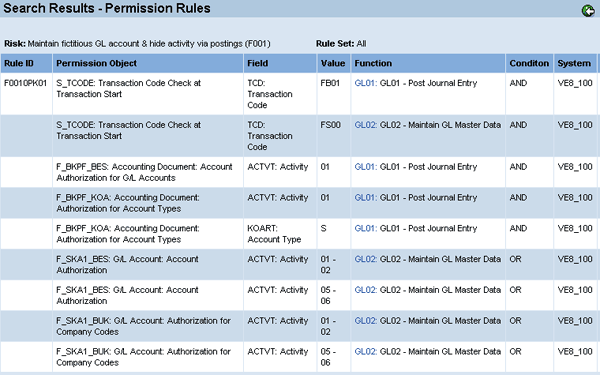
Figure 13
Technical definition of risk
When reviewing the role, the business indicates that the user only needs to be able to display in transaction FS00 and not edit. The security team should assist in identifying that permissions F_SKA1_BES and F_SKA1_BUK are the permissions that determine whether FS00 is edit only or display only. In the role, you can see both of these permissions have Activity of *, meaning all activities (Figure 14). Because the user only needs to be able to display, you can edit these two permissions to have an Activity of 03 – Display. By changing this Activity to 03, the user no longer satisfies the permission level rule because they cannot edit using transaction FS00. This means the conflict will be removed from the report.
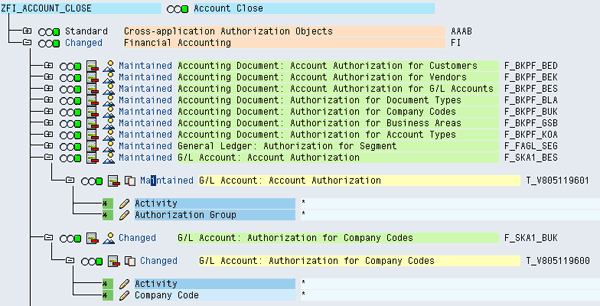
Figure 14
Technical build of role ZFI_ACCOUNT_CLOSE
3. Adjust the RAR Rules to Account for a False Positive Reading
The third option is that, upon review, the determination is made that the rule itself is not accurate and is causing false positive results (i.e., risks to show where there aren’t any). Whether you decide to use the delivered rule set or customize your own, there may be situations in which the rules are missing permissions or field values that are needed to execute the transaction. The security team and members of the business need to work together to prove that there is something missing in the rules that would negate the reported risk. It is imperative that all changes to the rules are fully understood and approved to ensure accurate reporting.
Let’s use the example of the risk between transactions FS00 and FB01 again. As part of the remediation process, the customer is adamant that the user can’t actually create a journal entry using transaction FB01. Security and the business work together to perform a security trace while the user executes transaction FB01 using the role. The security trace finds that there is a custom authorization object (e.g., ZFI_POST) that the company has created which is needed to run the transaction.
In this case, you need to update the Rule Architect to include permission ZFI_POST as required to execute transaction FB01. You can do this by following menu path Rule Architect > Functions > Search and then finding the function in which transaction FB01 is included. Go to Change and click the Permissions tab. You can add additional permission checks or edit existing permission checks (Figure 15).
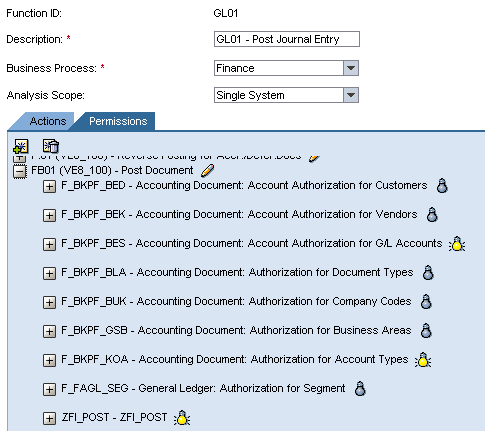
Figure 15
Changing of rules for additional permissions
4. Create a Mitigating Control for the Risk
If at the end of the analysis the previous three options cannot be applied, the risk is a true risk and exists in the single role. At this point, you need to develop, document, and attach a mitigating control to the role in RAR.
Creation of a mitigating control is the responsibility of the business unit. The business unit needs to understand the risk involved in having the SoD conflict in the role and should take appropriate steps to ensure that if the risk is exploited, it is caught in a timely manner (i.e., a detective control). See Figure 16 for an example of a mitigating control. A best practice is to start the mitigation with a description of the risk being mitigated. You should be as detailed as possible in the mitigation so that auditors and management can appropriately review it and ensure the mitigation is occurring.
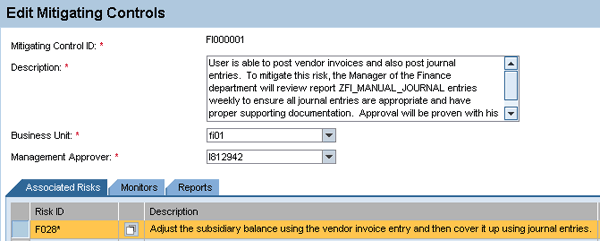
Figure 16
Creation of a mitigating control
After the mitigation is created, you then attach it to the role that has the conflict (Figure 17). To reach this screen, go to the Mitigation tab and click Mitigated Roles.
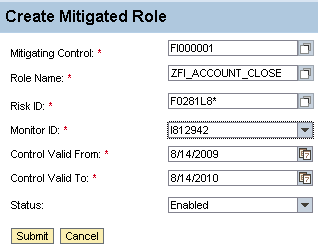
Figure 17
Single role mitigation
If at all possible, it’s best to mitigate the role to the seven-digit level, which is specific to the transaction-level conflict. For example, risk F0281L8* is specific to the conflict between transactions FB01 and FB01 (see the fourth conflict listed in Figure 10). Mitigating at Risk ID F028* would mitigate all F028* risks, when maybe this mitigation only pertains to this specific transaction combination.
Jayne Gibbon
Jayne Gibbon, CPA, has been implementing SAP applications since 1996 and is currently a director in the Chief Customer Office at SAP. Jayne’s focus is making customers successful with their SAP HANA deployments. She has helped more than 100 customers drive business value with SAP HANA. Prior to joining SAP in 2007, Jayne worked for two multinational manufacturing companies based in Wisconsin. While an SAP customer, Jayne led the very first implementation of Virsa’s Compliance Calibrator, which is now part of SAP Access Control. Jayne’s experience includes internal audit; computer security; governance, risk, and compliance; SAP HANA; and SAP analytics.
You may contact the author at jayne.gibbon@sap.com.
If you have comments about this article or publication, or would like to submit an article idea, please contact the editor.




 Premium