Learn how to optimize three key processes to help meet the demands of extracting line-item financial data from R/3: loading financial data, enhancing the extraction process to modify content, and defining delta management to deal with high volume.
Extracting FI line-item data presents a number of challenges. Because of the large volume of detailed transaction data involved, FI line-item extraction must be scalable to accommodate increasing amounts of data and provide a delta capability, since daily full loads would be inefficient. Another issue is that users often require specific fields in their reports, and you often need to modify the extraction to accommodate those requirements in the likely event that SAP’s Business Content cannot fill them.
Finally, you typically have a large number of users with a wide variety of data needs at different levels of granularity. Some might want recent or even near real-time data—postings that have just been booked in R/3. Since FI data frequently includes status fields, such as the status of an invoice, they’ll regularly want to check whether a document’s open or cleared, for example. Other users might want to navigate from one area to the other, for instance to drill down from a G/L account to reduce A/P information.
What follows is a series of tips and techniques to address some of the challenges posed by line-item data extractions out of the R/3 FI modules—General Ledger (G/L), Accounts Payable (A/P), and Accounts Receivable (A/R)—to BW. They might allow you to learn and obtain results faster if you’re a beginner. Or, they might help you make better design choices or improve performance if you’re already acquainted with BW. You’ll then be able to exercise a number of techniques to practice and optimize your financial extracts. I will cover the following processes:
1. Loading financial data to meet a range of user needs
2. Enhancing your extraction process to modify content
3. Defining delta management to effectively manage high volumes of data
Note
The following applies to R/3 4.0B and above, and Plug-In (PI) 2002.1 and above. See SAP note 485958 for near real-time extraction should your PI release be 2001.1 or 2001.2. I also assume that you have BW 3.0A or greater. See SAP note 401646 to create the InfoSources if your BW release is 2.0B or 2.1C, SP17.
Note
Other InfoSources are available for transaction figures (0FI_GL_1, 0FI_AP_1, 0FI_AR_1), cost of sales ledger (0FI_GL_2), and payment history (0FI_AR_5). These InfoSources are feeding InfoCubes, and therefore do not give information on a line-item level.
Loading Financial Data
Before you can load financial data into BW, you need to know in which tables the G/L, A/P, and A/R data are stored. This knowledge will help you determine whether the delivered Business Content suffices to meet the user needs or whether you’ll have to make enhancements. BW provides DataSources, InfoSources, and ODSs to handle this information as part of its standard Business Content. Figure 1 and Table 1 illustrate the relationships between the R/3 tables and the Business Content.

Figure 1
The process elements for loading financial data into BW
The 0FI_GL_4 DataSource provides the G/L accounting line items from tables BKPF (Accounting Document Header) and BSEG (Accounting Document Segment) in the R/3 source system tables. This DataSource delivers a consolidated view of the data coming from these two central financial tables into the 0FI_GL_4 InfoSource, which in turn populates the 0FIGL_O02 ODS with the line-item document details. Only fields that are relevant for the G/L are replicated from the financial accounting document (BKPF and BSEG tables) to the BW. In particular, the InfoSource doesn’t contain any InfoObjects from A/R and A/P accounting. This information is extracted separately (InfoSources 0FI_AR_4 and 0FI_AP_4).
R/3 A/P data is located in the BSAK (cleared vendor invoices) and BSIK (open vendor invoices) tables. The 0FI_AP_4 DataSource delivers a consolidated view of the data coming from these two financial tables into the 0FI_AP_4 InfoSource, which in turn populates the line item 0FIAP_O03 ODS with the document details. R/3 A/R data is located in the BSAD (cleared items) and BSID (open items) tables. The 0FI_AR_4 DataSource delivers a consolidated view of the data coming from those two financial tables into the BW InfoSource 0FI_AR_4, which in turn populates the line item 0FIAR_O03 ODS with the document details.
The R/3 BWFI_AEDAT table records FI changed documents. To start recording these changes, call transaction code SM30 and insert this row in the R/3 Business Transaction Events TPS31 table:
| Process |
Function Module |
| 00005011 |
BWFIP_WRITE_AEDAT_POINTER |
| Table |
Contents |
R/3 Module |
| BKPF |
Accounting document header |
G/L |
| BSEG |
Accounting document segment |
G/L |
| BSAK |
Cleared vendor invoices |
A/P |
| BSIK |
Open vendor invoices |
A/P |
| BSAD |
Cleared items |
A/R |
| BSID |
Open items |
A/R |
| BWFI_AEDAT |
FI changed documents |
FI |
| Table 1 |
Sources of financial data provided through the OFI_GL_4 DataSource |
Then follow these steps in the BW 3.0B Administrator Workbench to complete the FI extraction procedure:
1. Transfer the FI-relevant Business Content DataSources from R/3 to BW. Select your source system from the source system tree and right-click to bring up a pop-up menu. Select the Customizing extractors option from that menu. Then follow the menu path Business Information Warehouse>Business Content DataSources/Activate SAP Business Content>Transfer Business Content DataSources.
2. Select the source system and click on the Replicate DataSources option from the context menu to assign the DataSources (Figure 2).

Figure 2
Assign DataSources by clicking on the Replicate DataSources option
3. Select the DataSources and assign the InfoSources using the context menu.
4. Select the InfoSources and use the context menu to define and activate the communication structures, as well as to define the transfer rules.
5. Select the data targets to define the ODSs, InfoCubes, and update rules (Figures 3 and 4).
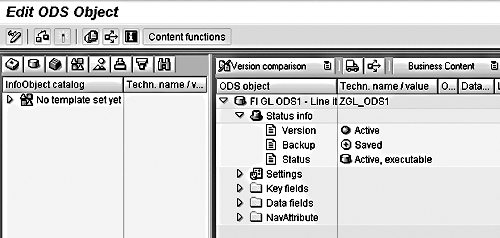
Figure 3
Define the ODS for the data targets
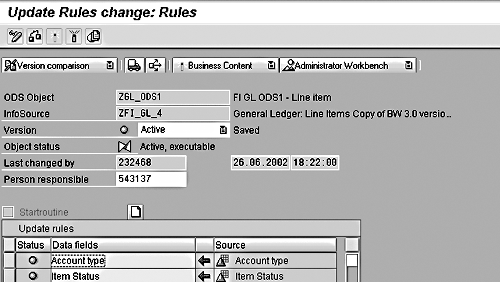
Figure 4
Define the update rules for the data targets
6. Select your InfoSources and use the context menu to create InfoPackages. To preserve data consistency, first load a G/L InfoPackage by following the menu path Scheduler>Initialization options for the source system from the standard InfoPackage screen and using the Initialize delta process option under the Update tab (Figure 5). Then load the initial A/P and A/R InfoPackages with the same option.
Tip!
Loading the G/L InfoPackage before the A/P or A/R InfoPackage preserves data integrity, because the G/L account extraction determines the selection criteria (company code, fiscal period) and the upper time limit of all extracted FI line items.
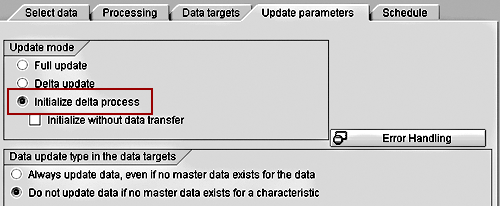
Figure 5
Load a G/L InfoPackage using the Initialize delta process option
Your setup is now complete. You can extract newer information by using the Delta update option on the same screen shown in Figure 5.
Note
Not all fields or records from the FI document tables are selected and extracted by default. Refer to the Business Content documentation shipped with SAP BW and the R/3 tables’ definitions to determine which fields and selection criteria are in effect. Otherwise, edit your DataSources, communication structures, and transfer rules.
Tip!
Extract both local and group currency amounts to preserve the historical truth and avoid reconciliation issues between R/3 and BW. Both amounts are available by default and there’s no significant gain in space or performance by keeping only one of them in the communication structure. Extracting both eases maintenance and improves online performance, because you won’t need to perform any currency translation in your queries.
Tip!
The application of SAP notes 538729 and 534608 significantly increases the performance of the 0FI_GL_4 DataSource.
Enhancing Your Extraction Processes
Two techniques are preferred to enhance FI extractions. Both cleanly separate the SAP-delivered content from your custom enhancements. They allow you to modify content to meet a range of user needs while warranting the preservation of your customizations over time. This gives SAP software the highest possible degree of flexibility because the customizations are managed in isolation. There’s no need to worry about complications when you implement the next release or correction package.
The first technique consists of using SAP-delivered customer include programs to extend the extract structures. You may apply this technique if all fields of the customer include are part of the source R/3 table. No additional ABAP coding is required. The extractor automatically fills the fields of the customer include. Table 2 summarizes which customer include is available for each DataSource.
| DataSource |
R/3 Table |
Extract structure |
Customer include |
| 0FI_GL_4 |
BSEG |
DTFIGL_4 |
CI_BSIS |
| 0FI_AP_4 |
BSIK/BSAK |
DTFIAP_3 |
CI_BSIK |
| 0FI_AR_4 |
BSID/BSAD |
DTFIAR_3 |
CI_BSID |
| Table 2 |
Customer includes available for extending extract structures |
For example, assume you want to add the account number of the vendor (BSEG-LIFNR) to your G/L extract. Use transaction code SE11 (Data Dictionary) in the R/3 source system as per SAP note 430303 to enhance the 0FI_GL_4 DataSource with any fields from the BSEG table (instead of BSIS). See Figure 6.
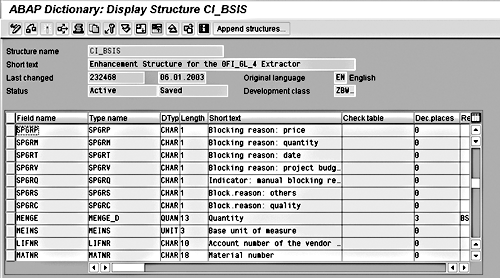
Figure 6
Enhance the ØFI_GL_4 Data Source with fields from BSEG
The second technique addresses the case when some fields of the customer include are not in the R/3 table. Say, for instance, that you want to add the user name (BKPF-USNAM) to your G/L extract. Again, use transaction code SE11 in the R/3 source system to enhance the 0FI_GL_4 DataSource with any fields not available in the BSEG table (see SAP note 430303). Then invoke transaction code SE37 and the Business Transaction Event 00005021 to build your own BWFI_APPEND_FIELD ABAP function module that fills the customer include. Use the function module SAMPLE_PROCESS_00005021 as a template for the interface (input parameter: DataSource: changing parameter: Structure). Call transaction code SM30 (View Maintenance) and insert the following row in the TPS31 table:
| Process |
Function Module |
| 00005021 |
BWFI_APPEND_FIELD |
Call transaction code RSA6 (Figure 7) to postprocess the DataSource. Select the line item BW DataSources to enhance, and press the Ctrl+Shift+F1 key combination to make changes. Remove the Hide field flags as necessary (Figure 8). Save the field list. Call transaction code RSA1 (Administrator Workbench) in BW to replicate the enhanced DataSource. Create the new InfoObject as per your requirements. Extend the accompanying InfoSources and data targets. Finally, activate all changed objects.
Note
The first technique is more efficient than the second when the processing is conducted by package rather than by every extracted record. The duration of the extraction may therefore be substantially shorter than the duration of processing record by record.
Tip!
The initial upload of the 0FI_*_4 extractor blocks online transactions because it locks out other processes from accessing the Business Transaction Event table TPS31. This is corrected in the standard system with PI 2003.1 (not delivered at this writing). See SAP note 574714 for details.
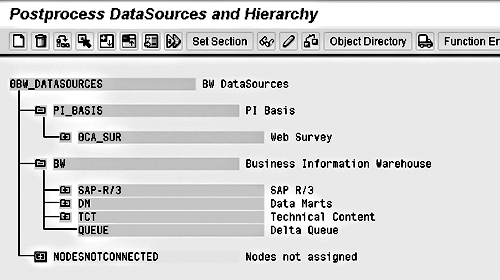
Figure 7
Invoking transaction code RSA6
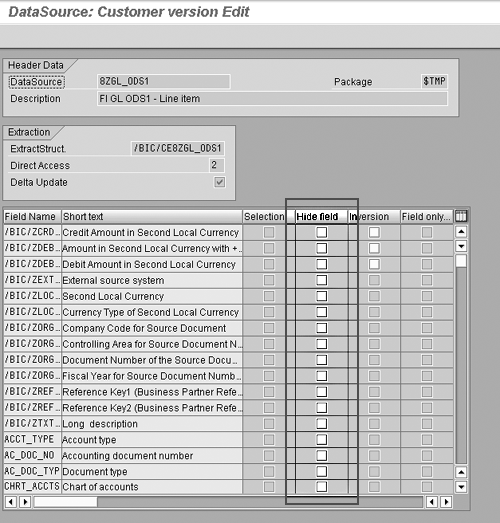
Figure 8
Remove the Hide field flags
Defining Delta Management
Delta management allows you not only to improve performance by controlling volumes of transferred data, but also to report on more real-time information. You must change the R/3 FI update programs FI_DOCUMENT_CHANGE and PR_WF_PAYMENT_BLOCK_RESET to start the recording of changed documents. This must be completed before you can use the delta init mode to upload data to the BW system. SAP provides these program changes as standard Business Content via support packages, or you can manually install them in R/3 after using a preliminary correction. See SAP note 401646 for implementation details.
Recording of the changed line items must start at least the day before the first data request in the Initialize delta process option under the Update parameters tab. (See Figure 5.) This ensures that all the changed documents are selected in the first data upload in the delta mode. Use transaction code SM30 to update the R/3 Business Transaction Events TPS31 table as shown below:
| Process |
Function Module |
| 00005011 |
BWFIP_WRITE_AEDAT_POINTER |
An entry in the R/3 BWOM_SETTINGS table (Figure 9) determines how long in advance the time interval has to be. Use transaction code SE16 (Table Maintenance) to display and set global settings for the FI extraction in that table. The value PARAM_VALUE for the entry PARAM_NAME=‘BWFISAFETY’ gives this required interval in days. The default value is 1 (day) if this entry is missing. For example, if BWFISAFETY=2, then the entry of the process 00005011 must be made in the TPS31 table using SM30 two days before the data is uploaded to BW via the delta init mode.
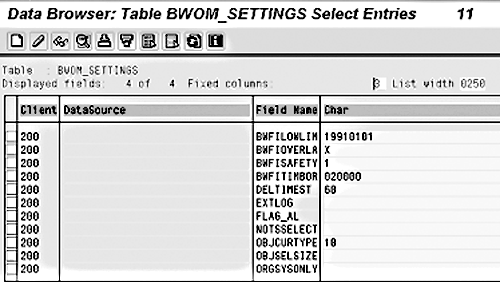
Figure 9
Global settings for the BWOM_SETTINGS table
Let’s examine the remaining parameters and values of table BWOM_SETTINGS:
BWFILOWLIM allows you to set the lower time limit of the timestamp selection for data requests in update-mode initialization of the delta method. Together with the selection criteria, this parameter is a decisive factor for the data volume with data requests in update-mode initialization of the delta method.
BWFISAFETY allows you to set the upper time limit of the timestamp selection for data requests in all update modes. A value equal to 1 in this parameter means that the upper time limit of the timestamp selection is the previous day. With larger parameter values, the upper limit of the time stamp selection is correspondingly further (in days) in the past. Note that you cannot choose a parameter value smaller than 1, as this would prevent the delta dataset from being entirely retrieved.
ORGSYSONLY should be set to X if your SAP R/3 system is part of an ALE scenario. This ensures that only those line items that were originally posted to the BW system are transferred there from the SAP R/3 system. This prevents line items from being transferred several times from various SAP R/3 systems.
DELTIMEST allows you to set the retention period of entries that are no longer required in the BWOM2_TIMEST timestamp table. The default setting for deletion of entries that are no longer required in the timestamp table is 60 days. The minimum retention period for entries in the timestamp table is 15 days. When entries are deleted from the BWOM2_TIMEST table, the corresponding entries for the changed FI line items are simultaneously deleted from the log table BWFI_AEDAT.
BWFIOVERLAY is where you set the overlap so you can do more than one delta a day by adding an X to the BWFIOVERLAY field and specifying how many days overlap. The smallest allowed value is 1.
The FI delta mechanism is the Extractor type and relies on timestamps. Timestamps are stored in seconds since 1/1/1990 in the BWOM2_TIMEST table (see Figure 10), taking into account the time zone and daylight savings time. Delta records are directly transferred to BW. No record is written to the BW delta queue.

Figure 10
Timestamp mechanism
Let me explain how this mechanism captures new and changed documents in FI-G/L: New FI documents—i.e., those posted in R/3 since the last line-item extraction—are selected based on the field BKPF-CPUDT. The BWFIP_WRITE_AEDAT_POINTER function module uses the FI document key and the date of the last change to record (in the BWFI_AEDAT table) the R/3 documents that changed since the last line-item extraction occurred. The DataSources use an after-image delta method (AIM). Inserted and changed FI line items are transferred in their final state from the source system, hence “after-image.”
The mechanism to capture new and changed documents in FI-A/R and FI-A/P is also based on timestamps, but there is an additional constraint: The extractors for FI-A/R and FI-A/P line items are logically linked with the FI-G/L extractors to provide a consistent snapshot of FI data in BW. The FI-G/L account extraction determines the selection criteria (company code, fiscal period) and upper time limit of all extracted FI line items. No further selection criteria are possible for A/R and A/P. “Uncoupling” the extractions is possible with PI 2002.2 (see SAP note 551044). The InfoSources 0FI_AR_4 and 0FI_AP_4 provide no data if no new extraction has taken place with the 0FI_GL_4 InfoSource since the last data request.
Note
Table BWOM2_TIMEST is shared with the CO DataSources. It documents the upload history by recording FI data that has already been extracted to BW. It also provides well-defined synchronization points if the delta fails.
Note
If the source system is deleted for the 0FI_GL_4 InfoSource in the BW’s Administrator Workbench, the entry from the TPS31 table is also removed. This stops the recording of changed line items in the BWFI_AEDAT table. Before you can make a new data request with the Initialization of the delta method update mode, add the entry to the TPS31 table again.
Tip!
The most recent FI documents extracted to BW are posted in R/3 the day before. Apply SAP note 485958 to circumvent this restriction.
Tip!
Changes to the BKPF-XBLNR field (reference) in the accounting document header are not reflected as such in the BWFI_AEDAT table. Such changes are therefore not transferred via the delta mechanism to BW. Apply SAP note 579888 to correct this program error.
Gilles Jaegy
Gilles Jaegy began his career at Hewlett-Packard in 1990 in Evry, France, as a software engineer. During his 13-year career at HP, Gilles has held multiple positions in IT including project lead in logistics and finance data warehousing, SAP BW development and implementation, technology services, software configuration management, and IT management. Gilles is currently responsible for the BW IT projects that benefit the Finance and Administration organization. Gilles attended the Institut d’Informatique d’Entreprise, Evry, France, and received a B.S. degree in computer science. He also attended the University of Santa Clara, California, where he earned an MBA with distinction.
If you have comments about this article or publication, or would like to submit an article idea, please contact the editor.