Fine-tune the migration cockpit to include your own activities in addition to standard ones so that you can see all the steps in one central place.
Key Concept
The migration cockpit helps you perform the tasks for migration to the SAP General Ledger. It is a step-by-step guide with all the required steps and the interdependencies for specific scenarios, such as migration with document splitting, migration without document splitting, or migration using parallel accounting. The migration cockpit displays the Process Tree / Monitor of all the necessary tasks and programs to be executed and arranged within the phases with interdependencies.
Even though the migration cockpit includes all the mandatory steps for migration to the SAP General Ledger, users often need to add activities to the process. Examples include:
- Check FI posting periods
- Communicate SAP downtime
- Determine open items volume
- Check CO posting periods
- Check SPL posting periods
- Download key FI reports for comparison
My experience with SAP General Ledger projects is that many times SAP users manage these additional steps outside the migration cockpit in a Microsoft Excel spreadsheet or other manual process. The beauty of the migration cockpit is that you can enhance it to include your own customer-defined activities so they are all in the same place.
I will demonstrate this functionality with the example of adding the activity Confirm Reconciliation and Closing of Previous Fiscal Year to the preparation phase. Before I show you how to adapt the migration cockpit, I’ll give a brief explanation of how it works.
Migration Projects
An SAP General Ledger migration project has many moving parts with complex interdependencies that require an accurate and well-planned execution. The sequence of the steps to be executed depends on the target scenario. For example, the execution steps differ if you are or are not planning for parallel accounting, and whether or not you are planning for document splitting. Add to that the sensitivity and complexity of reorganizing Financials data in the production system with tight deadlines.
To manage the execution of these activities, companies used to prepare a cutover plan in Microsoft Project or other project management tools. However, SAP now provides mandatory fee-based migration services to assure the quality and to offer safe migration to SAP General Ledger. The migration cockpit, which is part of those services, includes the following functionality:
- Installed on the SAP instance so the status is displayed automatically
- Migration processing controlled by phases and a sequence of activities
- Contains all the necessary programs to be executed as part of the migration
- Controlled process step by step with interdependencies
- Built-in predecessor-successor relationship for tasks so they are executed in the correct sequence
- Central location for documentation and status of migration sequence
- Clear audit trail of documents and report postings. You can attach the files and documents as additional information.
Migration Cockpit
The migration cockpit process (Figure 1) is divided into the following six phases:

Figure 1
Migration cockpit Process Tree / Monitor
1. Setup phase:
- Create migration plans
- Assign company codes and ledgers to a migration plan
- SAP General Ledger customizing
2. Checkup phase:
- Check for consistency
- Check for organization structures
3. Preparation phase:
- Lock users
- Check batch-input sessions
4. Migration phase:
- Build work lists for open items and for documents
- Migrate open items from previous years and from current-year documents
5. Validation phase:
- Check for the successful migration
6. Activation phase:
- Activate SAP General Ledger accounting
- Unlock the users
- Release the system to the users
The detailed steps and activities of the setup phase are shown in Figure 2. The migration cockpit displays the Process Tree / Monitor of all the necessary tasks and programs to be executed within the phases as well as the interdependencies.

Figure 2
Steps and activities within the setup phase
You can make a number of selections in the process tree:
- Migration Documentation: This just contains useful information. It is not a program or transaction.
- Binding programs: These programs (e.g., Create Migration Plan or Set Migration Date) are specifically assigned to a particular phase and have to be executed during that phase.
- Optional programs: You can execute these programs (e.g., Customizing of Package via Transport Request (Optional) or Display Migration Plan (Optional)) depending on your specific situation. The optional programs don’t have status reports (green, yellow, or red) and are marked with (Optional) in the activity text.
The legends (i.e., symbols) of various options available in the migration cockpit are shown in Figure 3. You can get to this screen by clicking the legends icon shown in Figure 2.
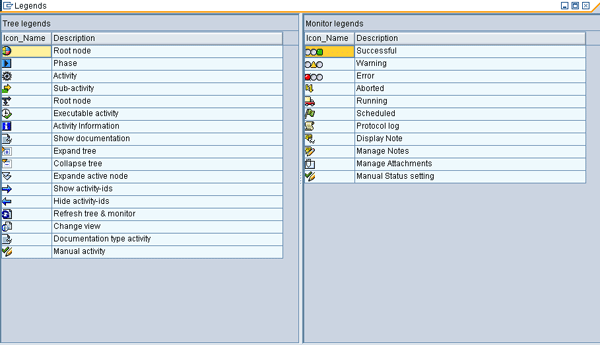
Figure 3
Legends of the icons in the migration cockpit
Adapt the Migration Cockpit
Figure 4 shows the activity Confirm Reconciliation and Closing of Previous Fiscal Year within the Preparation Phase that I am using as an example to explain how to adapt the cockpit to your business needs.

Figure 4
Activities of the preparation phase
Note that this is a manual activity and the documentation attached to this activity mentions you need to perform activities such as closing the FI posting periods. To display the documentation, click the documentation icon in Figure 2.
Now, rather than having these activities done manually with the possibility of mistakes, wouldn’t it be better if you could add your own activity of Close posting periods in FI to the migration cockpit itself? Adding such customer-defined activities in the migration cockpit would significantly improve control during the migration process.
In the next sections, I will demonstrate how to add an activity to the migration cockpit by including the activity of Check for FI posting periods. The program associated with this activity is performed by transaction code OB52.
Click the insert activity icon to insert an activity to the process monitor (ProMo). Choose Create New Activity as shown in Figure 5.
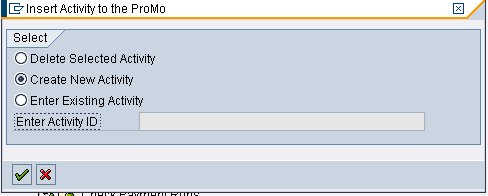
Figure 5
Insert an activity in the Process Tree / Monitor
An Add activity wizard appears and walks you through the four necessary steps shown in Figure 6.
- Define the Activity ID
- Define the Activity ID attributes
- Define the program name and transaction code for the activity
- Define the documentation for the activity

Figure 6
Add the activity wizard
1. Define the Activity
Click the Continue button and the Define Activity step is maintained as shown in Figure 7. Enter 90010_CHECK_FI_POSTING_PERIODS in the Activity ID. The Activity ID should begin with the current package (e.g., 90010). Since you want this activity to execute a transaction (OB52), you set the Activity type as Transaction. If you want to set the predecessor or successor relationship, you could assign the Predecessor activity or Successor activity. Enter the appropriate text for the activity text as Check for FI Posting periods.

Figure 7
Define the activity
2. Define the Activity Attributes
Click the Continue button and the Define activity attributes step is maintained as shown in Figure 8. Set the Execution Type as Dialog and the Reqd. user role for exec as Migration User. Define other attributes for the activity such as whether restart of the activity is allowed or not and whether execution in parallel is allowed or not. If you want to re-run the activity, you could define the Restart allowed indicator. Similarly, if you want the task to be executed in parallel, you could set the Allow parallel execution indicator.
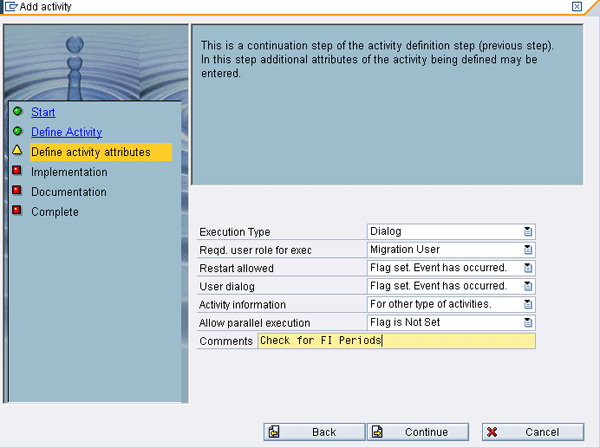
Figure 8
Maintain activity attributes
3. Define the Program Name and Transaction Code for the Activity
Click the Continue button and the Implementation step is maintained as shown in Figure 9. In my example, since you want to execute the transaction for maintaining FI posting periods, assign the transaction as OB52. If you want to execute the program, you can set the value in the Program field.

Figure 9
Implementation step of the activity
If you have an activity that is not necessarily a program or a transaction, but just a manual step to be performed outside the system, you can keep both of these blank. In this case, the Activity Type would be set to Not Executable in Figure 7.
4. Define the Documentation for the Activity
Click the Continue button and the Documentation step is maintained as shown in Figure 10. You should set some useful documentation for the activity to be added to the cockpit. The documentation for the activity is defined in this step. Click the create icon to define the useful documentation as shown in Figure 11.

Figure 10
Documentation of the activity

Figure 11
Define the documentation
Once the documentation is saved, the documentation is assigned to the activity as shown in Figure 12.

Figure 12
Documentation of the activity
Click the Continue button and the final step of Complete is displayed as shown in Figure 13. This step confirms that all the necessary data required is maintained.

Figure 13
Complete step of Add Activity
Click the Complete button and a dialog box asks you to confirm whether you want this activity as optional or mandatory, as shown in Figure 14.

Figure 14
Activity as optional or not
In this example, I want to set this as optional, so I click the Yes button. Now, the migration cockpit is enhanced with your own customer-defined activity as shown in Figure 15.

Figure 15
Migration cockpit with user-defined activity

Mitresh Kundalia
Mitresh Kundalia heads the SAP practice at Quality Systems & Software (www.QSandS.com), a consulting firm specializing in SAP S/4HANA, SAP General Ledger, and complex System Landscape Optimization (SLO)-type reorganizations. Mitresh is widely acknowledged as a leading SAP expert, with multiple publications and an SAP-PRESS book to his credit. He has published more than 50 peer-reviewed articles and white papers, and he has given presentations at various SAP conferences and events. Mitresh is the chief solutions architect of General Ledger Migration Optimizer (GLMO), a leading product to accelerate and jump-start the SAP S/4HANA and SAP General Ledger initiatives; SAP Data Reorganization Optimizer (SDRO), an SLO-type product for managing complex system landscape reorganizations; and Group Currency Activation and Conversion (GCAC), a product suite to manage introduction of parallel currencies and conversion of data in a live SAP system.
You may contact the author at Mitresh@QSandS.com.
If you have comments about this article or publication, or would like to submit an article idea, please contact the editor.





 Premium