Preview this excerpt from Thomas Michael’s SAP PRESS book Reporting for SAP Asset Accounting to see some key reporting features in Asset Accounting (FI-AA). The book reviews both the various kinds of standard reports available and some important reporting tools that users often overlook.
Key Concept
Simulation versions are functions that allow you to consider different scenarios without affecting your master records. They are only available for depreciation reports. Specifically, they only work for reports on balances, not for transaction reports.
Users can frequently overlook beneficial tools in their standard SAP systems either because they don’t know of them or can’t find them in the system. I’ll show you two such tools, available in many standard asset reports, that you can use to improve your Asset Accounting (FI-AA) reports by adding flexibility and testing ability.
The first is simulation versions, which allows you to simulate the effects of certain changes to asset values. The second tool is currency translation methods, which allows you to run asset reports in currencies different from the one assigned to a particular depreciation area. Both reporting tools are easy to set up in configuration and easy to use on the standard report selection screen.
Simulation Versions
Simulation versions allow you to project asset values under a what-if scenario without making changes to the existing asset master records or asset values. They are simple to set up and you can use them on many standard asset reports including the total depreciation report and the depreciation simulation report.
Say you are considering changing all assets in the machinery and equipment class from a five-year useful life to four years but want to know the impact this change would have on annual depreciation expense before committing to it. You could use a simulation version for this scenario without making any changes to useful lives and run a report showing the new depreciation expense amounts.
Another useful example is the implementation of the 50% bonus depreciation in recent years in the US. The government allowed 50% bonus depreciation on certain qualified assets for specific fiscal years. Many of my consulting clients wanted to know the effect of such changes to their current and future depreciation expense before making changes to existing assets. By using a simulation version with the depreciation forecast report, I was able to quickly analyze the impact of these changes without committing to them.
To configure a simulation version, use transaction OAV7 or follow menu path Accounting > Financial Accounting > Fixed Assets > Information System > Tools > Simulation Versions. Figure 1 shows the detail screen for a sample simulation version.

Figured 1
Simulation version configuration
The first row in this simulation version applies only to depreciation area 01 and asset class 2000, and only to assets with depreciation key LINB. The Valid to and Valid from dates refer to the asset’s capitalization date — in this example, the simulation version only applies to assets with a capitalization date between 01/01/1997 and 12/31/2007. If an asset fulfills these criteria, the simulation changes the depreciation key to LINA and extends the current useful life of the asset by 120%. For example, if the useful life is 10 years, the simulation would extend it to 12 years.
The second row in Figure 1 is almost identical to the first row but uses a masking scheme for the asset class (Class) field. For example, let’s say you have three asset classes:
- 2000 – Office buildings
- 2010 – Warehouses
- 2020 – Storage buildings
If you want to make the simulation version valid for these three asset classes, you could enter three rows, one for each asset class. A more elegant solution, however, is to use the wildcard character + as shown in the second row. This row then applies to all four-digit asset classes that start with 2.
You can reach the total depreciation report for three assets without a simulation version (RAHAFA_ALV01) by following menu path Accounting > Financial Accounting > Fixed Assets > Information System > Reports on Asset Accounting > Explanations for P&L > International > Depreciation > Total Depreciation (Figure 2). The current depreciation key for these assets is LINB, the useful life is 10 years, and the planned depreciation is $7,930 for the year.

Figure 2
Total depreciation report without simulation version
Now let’s use a simulation version for these three assets. Figure 3 shows the selection screen section where you can enter the simulation version.

Figure 3
Simulation version field on the report selection screen
Figure 4 shows the same report for the same assets but with the simulation version. Notice that the depreciation key is now LINA, the useful life is shown as 12 years, and the planned depreciation changed to $7,586 for the year.

Figure 4
Total depreciation report with simulation version
As you can see, it is easy to set up what-if scenarios for assets using simulation versions. The basic configuration screen allows you to create simulation rules based on depreciation area, asset class, depreciation key, and capitalization date. If you need additional criteria for more complex simulations, you can use a substitution (user exit) to add your own logic to this functionality via ABAP code.
Currency Translation Methods
Currency translation methods provide a reporting tool to display asset values in any currency using any exchange rate or logic. You can use these translation methods on many standard SAP reports including the asset balance report, total depreciation report, and depreciation simulation report.
I have created an asset as an example for this section to make it easier to follow along. The asset, a piece of machinery, has a capitalization date of 01/01/2003 (Figure 5).
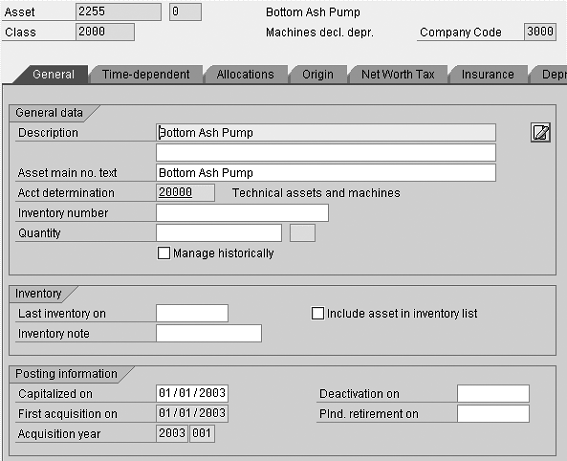
Figure 5
Asset master record showing capitalization date of 01/01/2003
Running a simple asset balance report shows the asset’s acquisition cost of $5,500 (Figure 6). The report shows the values in US dollars because this is the currency assigned to this particular depreciation area.

Figure 6
Asset values in US dollars
Currency Translation Methods Configuration
You use transaction OAW3 or follow menu path Accounting > Financial Accounting > Fixed Assets > Information System > Tools > Currency Translation Methods to configure the currency translation methods. In my example, I use translation method EU to convert the asset’s US dollar values into euro values (Figure 7).

Figure 7
Details for currency translation method EU
Let me explain the fields in detail:
- Currency. This is the currency key for the translation. In my example, it is set to euros.
- Exch. (Exchange) Rate Type. This is the exchange rate type I want to use with this particular currency translation method. You can set up as many exchange rate types in FI as you need.
- Transl. (Translation) on. This indicator controls the actual exchange rate logic. It is the most important setting for the currency translation.
- Day and Month. You can only use these fields in conjunction with Transl. on indicator 2 (free date). When you select the free date indicator, you can specify the actual calendar date here.
The Transl. on setting tells the system what date (and, correspondingly, what exchange rate) to use for the currency translation. Available options include:
- Capitalization date
- Free date
- Acquisition date
- Current date
- Own translation
I’ll explain each option in detail.
Capitalization Date
My example asset master record shows a capitalization date of 01/01/2003. Now let’s check the currency exchange rate table to see what the exchange rate on 01/01/2003 for USD to EUR was. You can use transaction OB08 to check the currency exchange rate table TCURR in the SAP system (Figure 8).

Figure 8
Figure 8 Currency exchange rates
In this example, you can see that the exchange rate on 01/01/2003 was 1.03610 EUR to 1 USD. Now let’s start a simple asset balance report and use the currency translation method EU shown in Figure 9.

Figure 9
Asset balance report selection screen with currency translation method EU
When I execute the report, I get the output shown in Figure 10. Notice the report header — it indicates the currency translation to euro. Also, the last column now shows the currency key EUR.

Figure 10
Asset balance report with currency translation to EUR
As expected, the currency translation converted the asset’s cost of $5,500 US dollars to 5,308.37 euros because the exchange rate at the time of the capitalization date 01/01/2003 was 1.03610.
Free Date
The free date option allows you to choose a specific date of the reporting year. You set it by entering 2 in the Transl. on field. When using the free date option, you have to specify the Day and the Month of the currency translation. I used January 1 in this example (Figure 11).

Figure 11
Free date translation as of January 1
When I execute the report with a reporting date of 12/31/2007, the currency exchange uses the exchange rate that was valid on January 1 of the reporting year 2007. A quick check of the exchange rate on 01/01/2007 in Figure 8 shows the rate as 1.31970. Consequently, the asset’s acquisition cost is now shown as 4,167.61 euros in Figure 12.
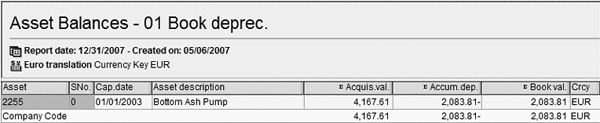
Figure 12
Asset values in euro as of January 1, 2007
Note
The free date option only allows you to specify a date and a month but not a year. Therefore, the currency translation always refers to the reporting fiscal year entered on the selection screen of the report.
Acquisition Date
The acquisition date option refers to the First Acquisition On date on the asset master record (unlike the capitalization date option, which, obviously, refers to the Capitalization Date on the asset master).
Under normal circumstances both dates would always be the same. There are, however, instances in which it makes sense to have differences between the two dates. One example is the post capitalizations transaction, in which the Cap. date might be in 2006 but the First Acq. date is in 2007. Other than that, this translation method works in the same way the capitalization date option does.
Current Date
This option refers to the physical date that you run the report — in other words, today. This option causes the report to use the most current exchange rate it can find in the currency exchange rate table and, assuming you update this table on a periodic basis, produces the most up-to-date reporting values in foreign currencies.
Own Translation
If none of the above standard options meet your translation requirements, you can set the Transl. on field to 3 to perform your own currency translations. This option works with a user exit in which you can provide your own translation logic in the form of custom ABAP code.
To create this user exit, go to transaction CMOD and create a project that uses enhancement project AMGS_001. You need to place your custom ABAP code into the include program ZXBADU03.
An example for using your own translation would be if you wanted to be able to translate assets as of an important date in the past (i.e., a merger date), a specific asset revaluation date, or any other particular event that had significance for the asset values.
Thomas Michael
Thomas Michael has been a business technology consultant since 1993 and has worked with an impressive array of more than 60 clients all over the world. As the president and CEO of Michael Management Corporation, he speaks and writes widely about SAP implementation issues. You can find more of Thomas’ expert articles at his popular Web site at www.michaelmanagement.com.
Thomas will be presenting at the upcoming SAPinsider Managing Your SAP Projects 2016 conference, November 2-4 in Orlando. For information on the event, click here.
You may contact the author at tmichael@michaelmanagement.com.
If you have comments about this article or publication, or would like to submit an article idea, please contact the editor.