Manager
SAPexperts/GRC
With the advent of Sarbanes-Oxley and other compliance rules, the need for full traceability across a solution development effort is expanding far beyond just the pharmaceutical industry. SAP Solution Manager has a collection of features that enable your project to provide end-to-end visibility to all aspects of solution development and delivery. From initial design through final testing and signoff, SAP Solution Manager allows you to link and trace all the activities, documents, and technical objects needed to deliver your solution.
Key Concept
Being able to quickly find all parts of a solution is becoming more and more critical as solutions become more complex, and audit and compliance requirements increase. Take advantage of SAP Solution Manager linking capabilities and group all parts of designing, building, and testing a solution into logical units of work centered on the business process.
If you look at what goes into designing and delivering business processes in an SAP system, you’ll see that there are many parts that must work together to achieve solution success. Before you assemble the logical unit of work known as a complete business process, you should take a closer look at the component parts.
A business process design and delivery contain many of the features in Tables 1 and 2 in varying combinations. Table 1 contains the documents commonly used in the design and build of a solution. Table 2 contains the technical objects used in the design and build.
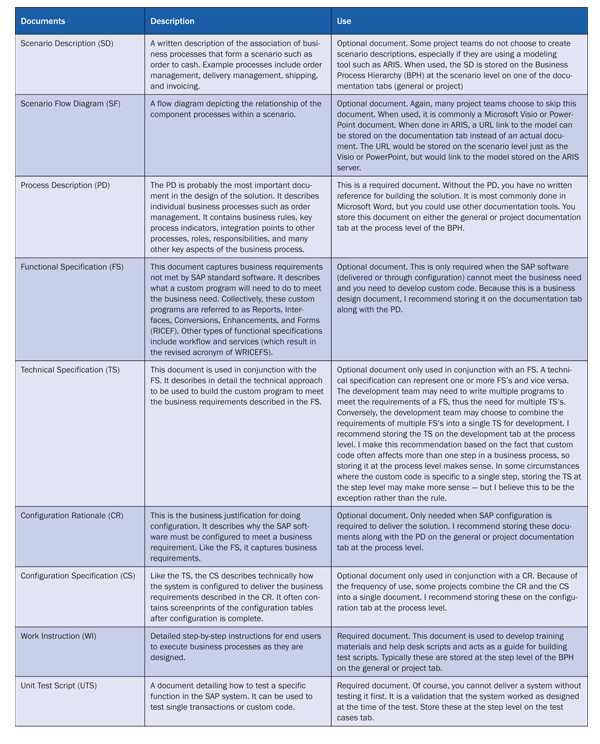
Table 1
Documents needed in the build and design of a solution
In Table 2, the reference to the general and project documentation tabs are based on the project type being used. When working with a template project, use the general documentation tab; when working with an implementation project, use the project documentation tab. (The difference between these two types of projects is beyond the scope of this article.)
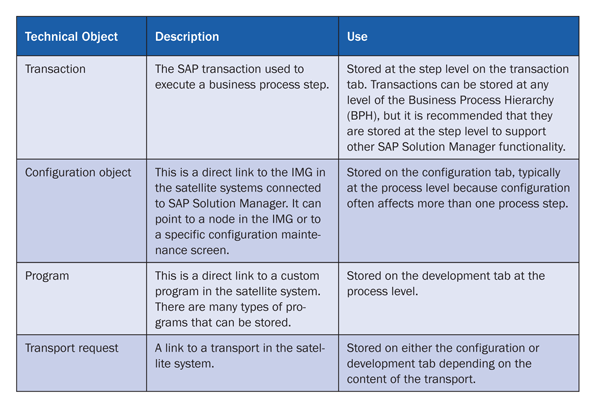
Table 2
Technical objects used in the design and build of a solution
Now that you have the collection of parts, you have to put them all together to make the solution whole. While it is true that the more items you have in a collection, the more combinations you can create, Table 3 shows my recommendation for how to relate the component parts to create an end-to-end collection that represents your business process.

Table 3
Related component parts example
Note that all the parts in Table 3 connect to documents. Documents connect to other documents and technical objects connect to documents. Also, if you carefully review the tables above, you see that the process description has the majority of associations. That’s because the process is the central point that holds it all together. It is the key or the descriptor for the “logical unit of work” that you deliver as a solution. Each process can stand alone, but steps cannot. Steps must join together to form a process. Processes come together to form scenarios, but scenarios are just a semantic construct. The process is where the real work happens. It is the basis for the business requirements and is the measure of business success.
Now you know the parts and how they go together, but you need to know how to connect them. Basically, there are only two types of link activities you need to accomplish when building your associations. The first is document-to-document links, and the second is technical object-to- document links. Document-to-document links are more robust than technical object-to-document links in that they can be established as bi-directional links and they have enhanced reporting features. For this reason, many projects choose only to use the document-to-document links, but I cover both types so you are well-informed for any situation. In the following section, I cover how to link all the component parts together step by step. Because the focus is on how to link the parts, I do not cover the processes for storing the individual parts.
Document-to-Document Links
In this example, I’ll start with the process description and link it to the functional specification for an enhancement. My business process, assemble-to-order processing in SAP ERP, needs to have a user exit developed at the time of post goods receipt to meet my business need. In Figure 1 you see the process description and the functional specification for the enhancement.
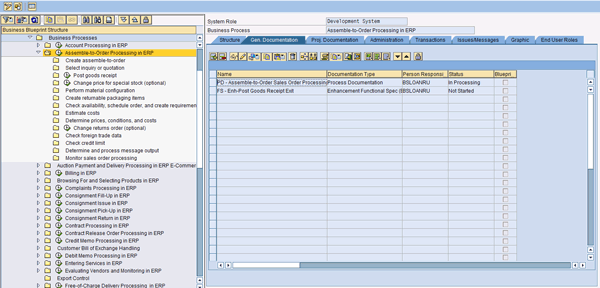
Figure 1
General Documentation tab for the process Assemble-to-Order Sales Order Processing in SAP ERP
Select the row containing the process description and click the attributes icon to reach the Maintain Attributes Link tab shown in Figure 2. Note that the UTS-Post Goods Receipt (unit test script) was previously linked and you are adding an additional link.
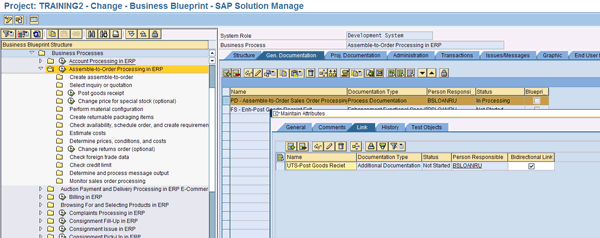
Figure 2
Link tab for the process description document
Click the insert link icon to add the link for the functional specification. This opens the Add Document window. Select the radio button for Link to a SAP Solution Manager Document (Figure 3).
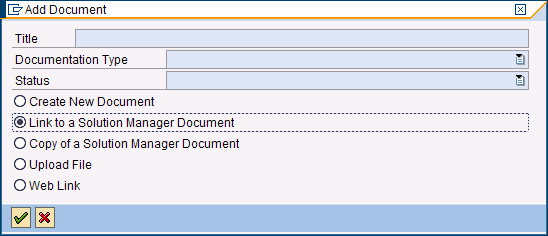
Figure 2
Add Document window
Pressing Enter opens the Find Document window (Figure 4). Note that I entered FS* into the title for the search criteria. As you can see, many other options for searching are available. Also note that the first search criteria line is Project. You can select documents from other projects if necessary. This is a handy feature when doing global rollouts to relate documents across rollouts.
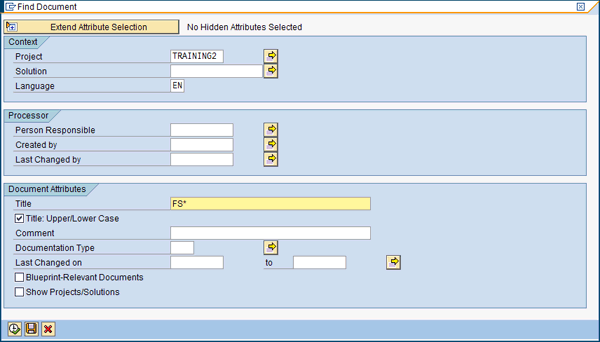
Figure 4
Find Document window
Click the execute icon to execute the search and you see the Documents Found window (Figure 5).

Figure 5
Documents found in your search
Double-click the document you want to link to create the link in the Maintain Attributes window Link tab (Figure 6).
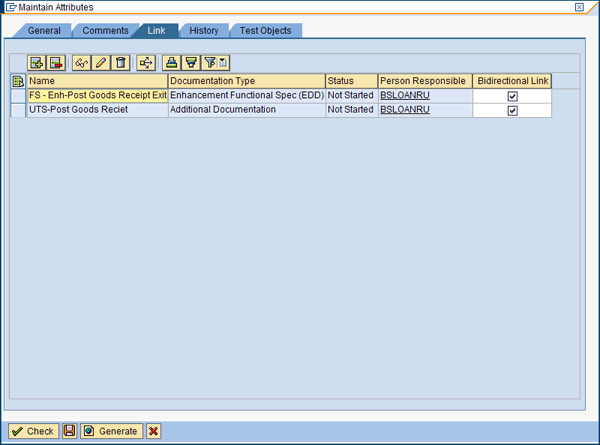
Figure 6
Documents linked
By default, the document is linked as a unidirectional link. This means you can only see the relationship between the process description and the functional specification from the Link tab on the process description. This is what I call a top-down relationship. If you click the Bidirectional Link check box, you can see the relationship between the process description and the functional specification in the Link tab of either document. Repeat the process as often as is necessary to build all the document relationships. There is virtually no limit to the number of links you can create. When you’ve added all the links you wish, be sure to save your work by clicking the save icon before exiting the window to store the links.
Technical Object-to-Document Links
These links differ from document-to-document links because they are only unidirectional, and they do not appear in the documents and links report (which I discuss in the next section). Therefore, I use them sparingly. Your project circumstances should dictate how you choose to use these links.
Start with the technical object you wish to link to a document. In the example below, I’m linking a program to a technical specification. The same process is used for linking transactions to work instructions or process descriptions, for example. Select the row containing the program from the Development tab in transaction SOLAR02, click the attributes icon, and then click the Links tab (Figure 7).
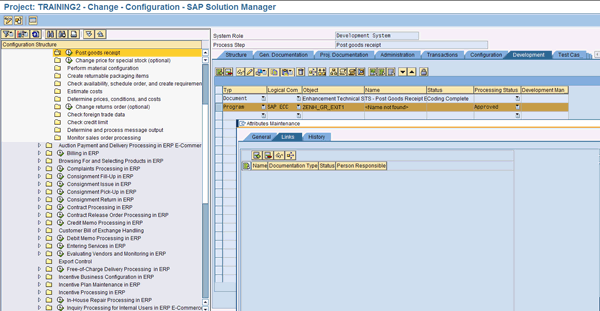
Figure 7
Links tab of the attributes window for the program object ZENH_GR_EXIT1
As with document-to-document links, click the insert link icon to add the link from the program to the technical specification (Figure 8). Enter TS* as the title to search for the technical specifications in the project.
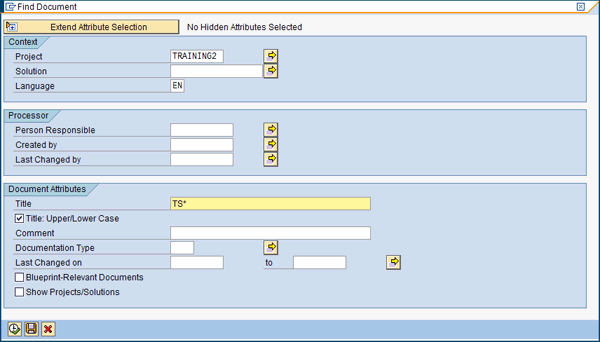
Figure 8
Find Document window
Click the execute icon to execute the search and see the Documents Found window. Again, double-click the technical specification to create the link. Note that this link does not have the option to create a bidirectional link (Figure 9). Click the save icon to save the link.

Figure 9
Technical specification link created for the program object
Like the document-to-document links, you can repeat the process as many times as necessary to create your technical object-to-document links.
Viewing the Documents and Links Report
Using transaction SOLAR_EVAL, launch the Documents and Links report (Figure 10). There are many selection options on this report (Figure 11). For the purposes of this example, I only selected the project TRAINING2 and left all the other options at their default settings.
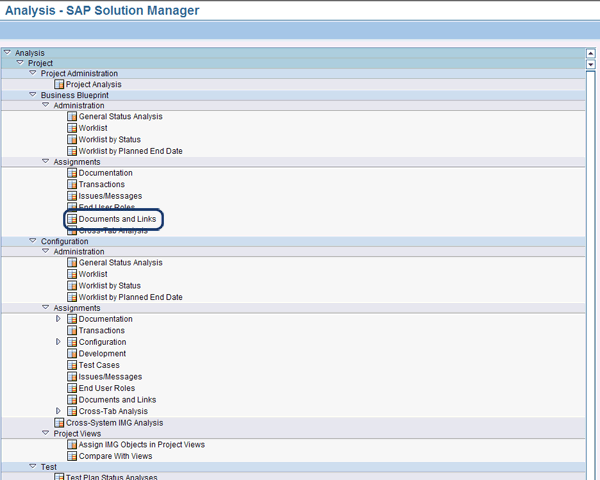
Figure 10
SOLAR_EVAL Documents and Links report
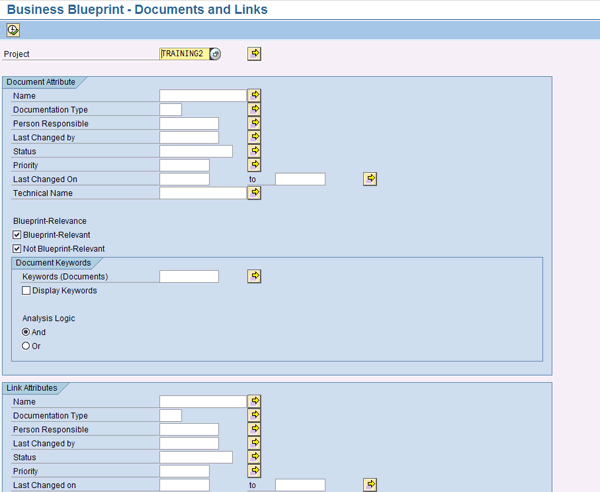
Figure 11
Documents and Links selection options
When you execute the report, it initially displays in hierarchy mode. Clicking the arrow icon opens the nodes of the hierarchy to expand the tree based on the structure of the BPH of your project. Figure 12 shows the expanded view.
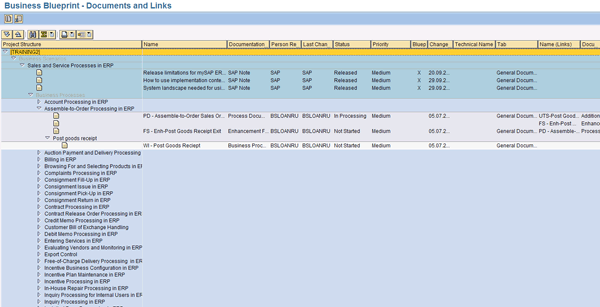
Figure 12
Hierarchy view of the Documents and Links report
My preference is the tabular view. You can access this view by clicking the tabular view icon (Figure 13).
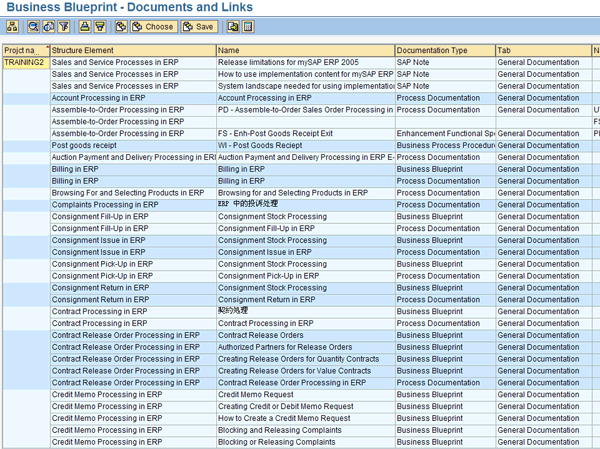
Figure 13
Tabular view of the Documents and Links report
The tabular view is more customizable than the hierarchy view and you can save your layout. Figure 14 shows a subsection of the report that displays the links created in this example. Your project has many more links if you use the features described in this article. The Documents and Links report also has features that allow you to download the data in several formats (including spreadsheets) so you can do further processing. This is helpful for building a full traceability matrix that some projects require.

Figure 14
Linked documents
As you can see, the ability to link documents to documents and technical objects to documents offers a variety of capabilities to help you manage your project. These features can help you get a better picture of all of the parts associated with the design and delivery of your solution. There are so many options and combinations for the use of these features that exploring them all is far beyond the scope of this article. In my example, I discussed linking everything to the process to form a logical unit of work. You may choose to build different combinations to meet your needs. I encourage you to set up a test project and explore the nuances of these features thoroughly before setting the standards for your project.
D. Russell Sloan
D. Russell Sloan is a specialist in project and program governance for IBM. He focuses on the use of SAP Solution Manager for global rollout projects for IBM’s largest customers, having worked with SAP software since 1996. Russell has degrees in accounting and information systems and has been a team and project leader for SAP projects for more than 14 years. He has been developing and deploying software systems for over 30 years.
You may contact the author at solmanruss@gmail.com.
If you have comments about this article or publication, or would like to submit an article idea, please contact the editor.




 Premium