SAPexperts?HR
Make the most of the user exits in Cross-Application Time Sheet (CATS) with these expert tips.
Key Concept
A user exit is a placeholder SAP provides to allow customers to add custom functionality to an SAP transaction without having to perform a system modification. User exits come in various flavors; for example, they can be function module exits, screen exits, or menu exits. Each of these types of user exits is very different from a technical standpoint.
Time entry is one of the most widely used transactions, so it is extremely important to take the necessary steps to make the process as efficient as possible. User exits can save your timekeepers precious time by automatically performing certain tasks. User exits are also useful for ensuring the accurate and consistent application of company- specific validation rules. Fourteen different user exits are available within the Cross-Application Time Sheet (CATS) module; you can use 12 of them during the data entry process. The other two user exits are for workflow approvals and the transfer of data to BW (CATS0008 and CATSBW01, respectively).
Throughout most of my career as a CATS consultant, many of my clients wanted to either make more extensive use of the available user exits or to improve the existing user exit code. I’ll share the expert tips for optimizing user exits that I often share with my own customers.
Customer enhancements can come in the form of user exits or Business Add-Ins (BAdIs). BAdIs are the new object- oriented method for building customer enhancements. The number of available BAdIs depends on your SAP release; you can use transaction SE18 to see a list of BAdIs available to you as well as any documentation related to these objects. Enter *CATS* in the Definition name field and click on the Search button. Note that the actual search process differs slightly between mySAP ERP Central Component (ECC) systems and lower releases.
CATS User Exits in Detail
I tested these user exits in ECC 6.0. Before you can implement any user exit, you must first create a project in transaction CMOD. You then have to assign the user exit definition to the project. Finally, you must activate the user exit definitions.
ABAP developers usually perform the steps required for activating a user exit:
Step 1. Access transaction CMOD and create a customer project with a project name and package. You need access to transaction CMOD as well as object S_DEVELOP, class BC_C to do this.
Step 2. Assign the needed SAP enhancements (user exits) to the project.
Step 3. Add the required development work to the user exit in transaction SE80. Depending on the type of user exit, you need to write ABAP code or create screens. This requires access to transaction SE80 plus additional authorization access that depends on the type of development work needed for each user exit.
Step 4. Activate the customer project. Access transaction CMOD and select the Components button. Click on the Change button. Once you have reached the Change (Project Name) screen, select Project>Activate.
After my brief description of CATS user exits, you will find examples and tips for using each one of them. I have also included screenprints for most of these user exits. I believe that to make the best use of CATS user exits, both technical and functional project resources should fully understand the functionality that each of these enhancements provides.
In addition, a download of sample code for user exits CATS0002, CATS0003, CATS0004, CATS0006, CATS0009, and CATS0010 can be accessed here: Downloads. My examples should provide a solid foundation for the types of enhancements you can make in CATS.
Note
This list of user exits applies to the CATS classic user interface (transaction CAT2). You can obtain more technical information about CATS user exits by reading the system documentation for each of these user exits via transaction SMOD. The documentation contains basic examples of how to properly code each of these user exits.
For additional information on the validity of CATS user exits for the different CATS user interfaces, and to learn more about additional CATS user exits, go to https://help.sap.com and look for the Technical Background Information for CATS.
CATP0001: Determine Target Hours
This user exit can fill the Target Hours row with a value you calculate based on your own business rules (Figure 1). You would use this user exit if the employee’s work schedule as stored in infotypes 0007 (planned working time) or 2003 (substitutions) does not meet your business needs. Let’s say that you have set up your work schedule rules (via infotype 0007) to 24 hours every day of the week. You could configure this user exit to default an eight-hour daily work schedule from Monday through Friday in the CATS time entry screen. This would allow your timekeeper to use the copy target hours functionality to default eight hours from Monday through Friday in the data entry section of the CATS time entry screen.

Figure 1
Generate the contents of the target hours row with user exit CATP0001
The Target Hours calculated by this user exit are only visible within CATS and are not available to use within Time Evaluation.
CATS0001: Set Up Worklist
You can use this user exit to build a worklist based on your own requirements (Figure 2). A worklist is a short list of logistics objects (such as networks or plant maintenance orders) that you can display in the CATS data entry screen. You can compile the worklist via this user exit using custom requirements such as the functional location of the object. If you choose to let the system help you build the worklist, then the system calls this user exit after it has built the worklist based on standard configuration settings. For the user exit to work, you must set the Customer enhancement flag in the CATS data entry profile configuration (transaction CAC1). CATS0001 lets you edit the contents of the system-built worklist by adding or removing entries, or you can decide to build the worklist completely on your own based on custom requirements.
Tip!
The number of logistics objects such as work orders, networks, and work breakdown structure (WBS) elements your system database stores can often grow to be more than a hundred thousand records or more. This could easily deteriorate user exit performance while it builds the worklist. Consequently, you should take special care to use efficient ABAP code when designing and implementing this user exit.

Figure 2
User exit CATS0001 allows you to create a worklist based on your custom requirements
CATS0002: Supplement Recorded Data
This is one of the most widely used CATS user exits. The purpose of this user exit is to manipulate the contents of the data entry section of the timesheet. You can edit the contents of a record or create a whole new record (Figure 3). This user exit only processes records that the CATS user edited.
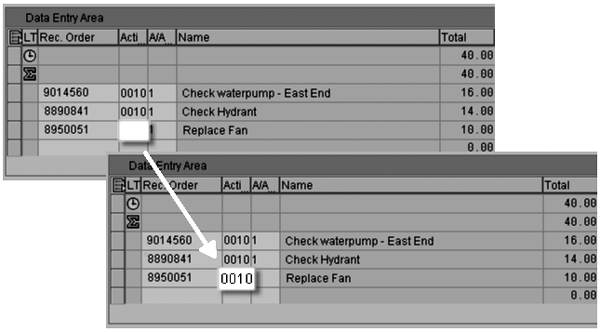
Figure 3
You can edit or create new records in the Data Entry Area with the help of user exit CATS0002
Keep these points in mind when working with user exit CATS0002:
- You cannot modify system fields (such as WORKDATE)
- Be sure to loop through the ENRICH_TABLE within your user exit code to properly process all records (such as records newly added within your user exit)
- Do not use the MESSAGE ABAP keyword within this user exit, because this stops the ABAP flow and could produce unexpected results
Note
Refer to Deepankar Maitra’s article “
Remunerating Multi-Rated Employees” in the HR hub of SAPexperts for how to use
CATS0002 to supplement recorded data,
CATS00003 to implement checks based on master data, and
CATS00006 to supplement standard checks for time sheet data.
CATS0003: Validate Recorded Data
As Figure 4 shows, user exit CATS0003 lets you perform custom checks on CATS data. Some of the most commonly asked questions regarding CATS user exits are: “What is the difference between user exit CATS0003 and CATS0006?” and “When should I use one versus the other? ”. The reason for the confusion is that you could use both to verify that the data entered by the user is in compliance with customer-specific validation rules.
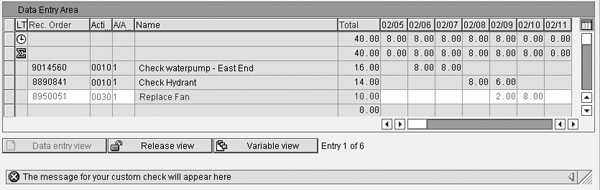
Figure 4
User exit CATS0003 allows you to perform custom edit checks one record at a time
However, many differences exist between these two user exits. Understanding these differences helps you determine which user exit best fits each business scenario. Some of the main characteristics of user exit CATS0003 are:
- The system processes data one record at a time
- The system only processes modified records
- It is not possible to perform edit checks that depend on the content of other records on the screen
- The bottom of the screen displays the error message text. All fields on the screen are grayed out with the exception of the row that contains processed data. This makes it very easy for users to see exactly where the error occurred.
- Even if the system finds multiple errors, it can only display a single message per row
See the section about CATS0006 to learn how that user exit differs from CATS0003.
An example of how to use this user exit is to verify that employees belonging to a particular company code cannot charge time to a work order belonging to a different company code. A second common use for this user exit is to verify that absences are not charged to a receiving object (such as a work order).
Tip!
User exit CATS0003 only issues one message even if your system found multiple problems. Error messages are automatically given a higher priority than warnings and information messages.
CATS0004: Deactivate Functions in the User Interface
You can use user exit CATS0004 to remove from the screen any functions (user commands) that you do not need, such as material withdrawal (Figure 5). You can hide functions by specifying the technical command name (e.g., WITH) within this user exit. This user exit removes the specified functions from the drop-down menu location and also hides the corresponding button (if applicable) from the screen.

Figure 5
You can remove unnecessary menu options and buttons from the CATS screen with the help of user exit CATS0004
Some companies might use this user exit to remove the Travel Expenses button (and drop- down menu option) from the screen header. My code in the Downloads section at the bottom of the article includes this option.
Tip!
It is possible to use user exit CATS0004 to hide the processing options at the bottom of the screen (view buttons). My code in the Downloads section at the bottom of the article allows you to do this.
CATS0005: Customer Field Enhancements
This is perhaps the most misunderstood of all CATS user exits. Customer business requirements often result in the need to capture certain types of data the delivered CATS functionality does not support. An example of such a requirement is to track the physical location where your employees performed the work. You may want to know for reporting purposes whether the work was performed at the corporate offices or out in the field.
Most of the time, users want to see these custom fields along with the delivered CATS fields. This requirement does not demand that you implement a user exit. You must execute the following steps to configure such a requirement. Note that a developer’s key is required for the first step:
Step 1. Add the custom field to structure CI_CATSDB via transaction SE11.
Step 2. Assign the additional CI_CATSDB field(s) to CATS screen fields. You perform this action via the IMG. Access the IMG via transaction SPRO and follow this path: Cross Application Components>Time Sheet>Settings for All User Interfaces>Customer-Specific Modifications>Create Customer Fields>Make field assignment.
Step 3. Add the customer field to your CATS profile. You perform this action via the IMG. Access the IMG via transaction SPRO and follow path Cross Application Components>Time Sheet>Settings for All User Interfaces>Customer-Specific Modifications>Create Customer Fields>Add customer fields to field selection.
If this solution meets your requirements, then you do not need to activate user exit CATS0005 (Figure 6). You only have to activate it if you want to enter your own data in a separate entry screen (which appears in a custom pop-up window).
Tip!
The standard CATS transfer programs (RCATSTCO, RPTEXTPT, RCATSTPM, RCATSTPS, RCATSTAL, and transaction CATM) do not transfer the contents of custom fields added to the CI_CATSDB structure to any of the target applications.
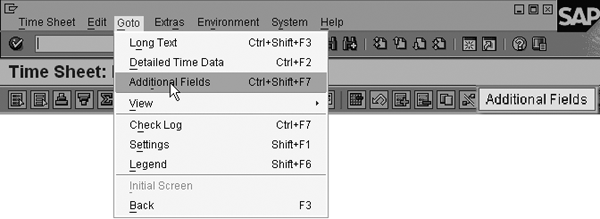
Figure 6
User exit CATS0005 allows you to call a pop-up window from the CATS screen. The menu or a screen button can call the custom function.
CATS0006: Validate Entire Time Sheet
Similar to user exit CATS0003, this user exit can validate data users enter into the timesheet (Figure 7). Some of the characteristics that make this user exit different from CATS0003, however, are:
- The system processes all data records visible in the CATS screen at the same time, even if no one edited them
- It is possible to perform edit checks that depend on the content of other records on the screen
- A pop-up window displays the error messages
- It is possible to display multiple messages for multiple days and employees

Figure 7
You can use user exit CATS0006 to perform custom checks on all records in the data entry area
This user exit would be a good fit if your policy dictates that employees only can record time to overtime attendance type if they also record time to regular hours on the same day.
CATS0007: Subscreen on Initial Screen
This user exit provides users with a subscreen located at the bottom of the CATS initial screen (Figure 8). You can use this subscreen to record or display any data you wish. The best way to get an idea about the exact location of this subscreen is to look at the CATS initial screen (SAPLCATS/1000) via transaction SE51. The customer subscreen (CUSTSCR2) is located at the bottom of the CATS screen.

Figure 8
User exit CATS0007 makes it is possible to activate a custom subscreen at the bottom of the CATS initial screen
An example of how to use this user exit is to enter data into the subscreen that users can utilize during the time entry process. To use this user exit, you must activate it as described in the “CATS User Exits in Detail” section and then create screen SAPLXCAT/2000. You must have a developer’s key as well as access to transaction SE51.
CATS0008: Determine Workflow Recipients for Approval
Occasionally, you may want to determine the approver for certain time records based on the actual data that users record in the system. This user exit allows you to implement such workflow criteria. You could, for example, add ABAP code to this user exit to determine the workflow recipient based on the owner of a work order.
CATS0009: Customer-Specific Text Fields in Data Entry Section
The CATS data entry screen provides you with two generic text fields called Name in which you can display any text you wish (Figure 9). User exit CATS0009 must provide the text for such fields. For example, you could employ this user exit to display the description of networks or work orders visible in the CATS detail screen. Be aware that these fields are display only and the CATSDB database does not store content of these custom text fields.
Tip!
These generic text fields are 40 characters each, which could make your data entry screen wider than the screen display size. This causes users to scroll to the right to see the rest of the time entry screen, which makes data entry more difficult. Consequently, you should activate these fields only if absolutely necessary.

Figure 9
User exit CATS0009 can add custom contents to the Name text fields in the data entry section
CATS0010: Customer-Specific Text Fields in Worklist
This user exit is similar to CATS0009. The main difference is that user exit CATS0010 provides text to fields in the worklist section of the screen rather than the data entry section (Figure 10).

Figure 10
User exit CATS0010 can add custom contents to the Name text fields in the worklist
CATS0011: Customer Functions
This user exit allows you to add up to four customer-defined functions in the CATS data entry screen menu (Figure 11). Two of these functions appear under the Extras menu option and the other two appear under the Environment menu. Two additional customer functions are also activated in the Time Sheet: Initial Screen.

Figure 11
User exit CATS0011 allows you to add custom functions to both the initial and the data entry CATS screens
An example of how to use this user exit is to call a custom report to display detailed leave balances. You can select one of the customer functions assigned to this user exit (such as +CU2 or +CU3) and the system submits the appropriate report when the user selects the predefined customer function. Add the ABAP code for submitting the report to the user exit ZXCATU12 using the contents of table SAP_CATSD to get the personnel number being processed. The function code selected by the user is stored in field SAP_FCODE.
Tip!
All six customer functions become visible after you activate CATS0011. You can use user exit CATS0004 to deactivate those additional functions that you do not need.
Tip!
You can turn off the Release view button at the bottom of the CATS entry screen with CATS0011 if your CATS profiles are configured to release the data upon save.
Tip!
Remember that leave balances available in the HR system only reflect the leave records that have been transferred from CATS into that system. Leave records could be waiting to be transferred in the CATS-to-HR interface table (PTEX2000) or, in the case of decoupled HR and logistics SAP systems, they could be waiting for Application Link Enabling (ALE) transfer. Transfer pending records in table PTEX2000 via transaction CAT6. The solution for records pending ALE transfer is a bit more complicated and depends on your specific system settings. Consequently, this particular scenario requires assistance from your system administrator.
CATS0012: Subscreen on Data Entry Screen
This user exit is similar to CATS0007. The major difference is that the subscreen appears at the top of the Time Sheet: Data Entry View screen (Figure 12). The size of the subscreen is limited to three rows of no more than 83 characters each. An example of how to use this user exit is to display an overview of current quota balances.

Figure 12
User exit CATS0012 allows you to add a custom header to the CATS Time Sheet: Data Entry View screen
To use this user exit, you must activate the user exit as described earlier and then create screen SAPLXCAT/3000. A developer’s key as well as access to transaction SE51 is necessary.
CATSBW01: Customer Exit for Time Sheet Data Transfer to BW
This user exit activates during the extraction of CATS data to BW. You do not need to activate this user exit extract unless you wish to store customer field data in the 0CATS_IS_1 DataSource. More specifically, user exit CATSBW01 allows you to make custom fields part of the extraction process by moving the contents of the CI_CATSDB include from table CATSDB to the BW DataSource.
Tips for CATS User Exits
One of the most common methods you can use to increase the efficiency of your CATS user exit code is to store the contents of fields and internal tables in global areas so you can share them among different user exits. You might consider storing these data declarations in include ZXCATTOP. You have to create this include after you start to develop your CATS user exits. You can create and edit it via transactions SE38 and SE80.
You cannot declare subroutine definitions in the main include (e.g., ZXCATU02 for user exit CATS0002, ZXCATU03 for user exit CATS0003) for any of these user exits. An additional method for improving the efficiency of your code is to create a custom work area for your subroutines by creating your own include (such as ZXCATF01) and declaring it inside include ZXCATZZZ. You can perform both of these steps via transaction SE80.
Manuel Gallardo
Manuel Gallardo is the director of HCM consulting at /N SPRO. He is a former SAP platinum consultant and his area of expertise is SAP HCM enterprise architecture, SuccessFactors, and enterprise mobility. Since working on his first SAP implementation in 1994, he has also worked on a wide variety of SAP HR modules, as well as SAP NetWeaver Portal and ABAP development. Manuel is the author of Configuring and Using CATS, and is a frequent conference speaker.
You may contact the author at manuel.gallardo@n-spro.com.
If you have comments about this article or publication, or would like to submit an article idea, please contact the editor.