The Capable-to-Match (CTM) engine in SAP Advanced Planning and Optimization executes planning per individual demand. When using minimum lot sizes, CTM applies the minimum lot size consideration individually to each demand within a time bucket. This can lead to underutilized capacity in the factory and unfulfilled customer demands. Learn about an approach you can use to address this limitation using the example of implementing minimum lot size functionality in CTM for a Distribution Requirements Planning (DRP) scenario.
Key Concept
Capable-to-Match (CTM) is a demand or supply matching algorithm that matches individual demands against supply. Because of this logic the implementation of a minimum production run or lot size in CTM may result in a suboptimal production schedule.
Applying minimum lot size in the product location master and executing Capable-to-Match (CTM) can lead to wrong results. The system typically overproduces if some type of demand aggregation is not performed. I discuss the limitations of implementing minimum lot size with CTM for a Distribution Requirements Planning (DRP) scenario and explain a step-by-step approach to address this limitation.
Overview of the CTM Process
Consider a simple supply chain with three distribution centers all placing a stock transfer demand on a production facility for a single product (Figure 1). For simplicity, the following assumptions are made:
- The transport time to each distribution center is the same
- The production capacity is 7,000 tonnes (To) per month
- The minimum lot size for the SKU ordered by the distribution centers is 4,000 To
- The forecast demand at the distribution centers DC1, DC2, and DC3 is 4,000, 2,000, and 1,500 TOs, respectively, all for the same SKU. The forecast is placed on the 15th of the month at all the distribution centers.
- The priority of demand is DC3 (priority 1), DC2 (priority 2), and DC1 (priority 3)
- The stock of the ordered SKUs at the distribution center and manufacturing plant is 0
Note
A tonne is a metric weight equaling 1,000 kilograms.

Figure 1
A theoretical supply chain model
CTM is a finite-based supply and demand matching algorithm. The premise is that demand is prioritized and matched to the appropriate supply. Each demand is planned individually and matched to the appropriate production or supply. Given this premise, the steps of a CTM planning run and the associated planning result are as outlined in Figure 2.
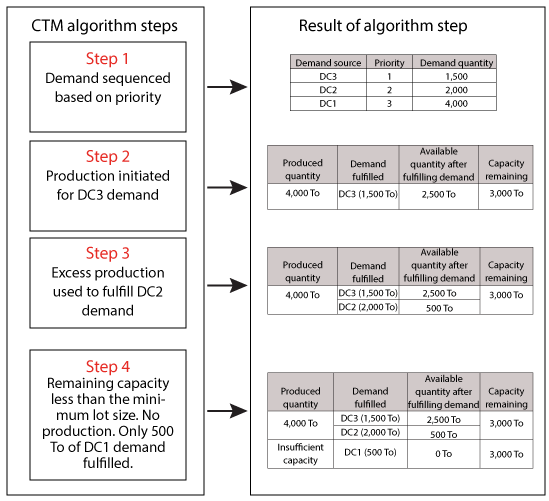
Figure 2
CTM algorithm steps and associated results
The results shown in Figure 2 are as follows:
Step 1. A CTM run prioritizes the demand. The result is that demand at DC3 is planned first, then demand at DC2, and finally demand at DC1.
Step 2. Taking the first demand of 1,500 To at DC3, the system checks the supply at the production location. Because inventory is 0, production is triggered to the minimum production run of 4000 To. From the produced quantity, 1,500 To is used to fulfill the DC3 demand, leaving a residual inventory of 2,500 To. The demand is fulfilled in the form of a stock transport requisition (STR) from the manufacturing plant to DC3. In addition, because production of the minimum lot size has been triggered, the available capacity of 7,000 To is reduced to 3,000 To.
Step 3. Taking the second demand of 2,000 To at DC2, the CTM algorithm allocates 2,000 To from the available inventory leaving 500 To available. The 2,000 To is shipped to DC2 on an STR.
Step 4. The last demand of 4,000 To at DC1 is planned. The 500 To of remaining supply is shipped on an STR to DC1, leaving unfulfilled demand of 3,500 To. Because the minimum lot size is 4,000 To and the remaining capacity is 3,500 To, no new production is triggered. The end result is that there is 3,000 To of unused capacity at the manufacturing location and 3500 To of unfulfilled demand at DC1.
If there were no minimum production run, the CTM calculation would use the remaining 3,000 To of capacity with the result that the DC1 demand would only be 500 To short, and production would be 100 percent used.
In summary, the above example illustrates the limitation that CTM has when implementing minimum lot size; namely, that each demand is planned separately, resulting in underutilized capacity and unfulfilled demand.
Visualization of the Problem in SAP Advanced Planning and Optimization (APO)
The preceding discussion was for a theoretical example. Before presenting a solution to the problem with the associated system results, let’s see how the problem really manifests itself in APO.
The starting point is a CTM run that plans product Min_LOT_SIZE_SKU at three warehouses: DC1, DC2, and DC3. The production plant is PRODN_PLANT. Figure 3 shows the master data selection for the Location Products to be planned.To access this data execute transaction code /SAPAPO/CTMMSEL or follow menu path Multilevel Supply and Demand Matching>Environment>Master Data Selection.

Figure 3
Master data selection profile
As indicated in the theoretical example, inventory at warehouses and the production location is 0. Demands are entered at each distribution center in week 11.2014.You can view this data in the planning book view of the warehouse. To access this screen execute transaction code /SAPAPO/SDP94 or follow menu path APO > Supply Network Planning > Planning > Interactive Supply Network Planning (Figure 4).

Figure 4
Planning book view of demand distribution by distribution center
Capacity is maintained for the production resource at the Location PRODN_PLANT at 7,000 To from 02/01/2014 to 12/01/2014 as shown in Figure 5. To access this screen execute transaction code /SAPAPO/RES01 or follow menu path APO > Master Data > Resource > Resource.

Figure 5
Capacity of 7000 To maintained per month
Lastly, the product master is updated with the Minimum Lot Size of 4,000 To as shown in Figure 6. To access the data on this screen execute transaction code /SAPAPO/MAT1 or follow menu Path APO > Master Data > Product > Product.
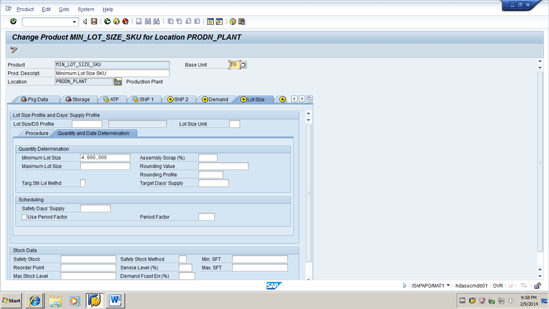
Figure 6
Minimum lot size of 4000 To maintained in the material master
Using the above data set a CTM run is executed with a CTM profile that sorts the demands by Material Location Priority and plans the supply accordingly. To view the result of the CTM run execute transaction code /SAPAPO/CTM or follow menu path Multilevel Supply and Demand Matching > Planning > Capable to Match (Figure 7).

Figure 7
CTM result of demand fulfillment
The results show that of the total demand of 7,500 To only 4,000 To is fulfilled. The demand is fulfilled at DC2 and DC3 because the demands at these locations have a higher priority than DC1. Looking in the planning book at the distribution centers and comparing demands and receipts, you can see that the demands are fulfilled by planned stock transfer requisitions. These requisitions are listed in the last four rows of the last column of the screen shown in Figure 8.

Figure 8
CTM-generated stock transfers as seen in the planning book
Solution to the Problem
The solution to meeting the conflicting requirements of adhering to minimum lot size and at the same time using capacity 100 percent can be realized by implementing the following processing steps:
Step 1.Execute the CTM run for the warehouse demands with the CTM setting Ignore Minimum Lot Size. The logic of this is that at the production location the total stock transfer demand should be generated and constrained by the production capacity.
Step 2. Delete the planned orders that were already created. This is done because in step 3 a new CTM run is executed for the aggregated stock transfer demand with minimum lot size switched on. In the next step you recalculate the production with minimum lot size.
Step 3.Execute a CTM run for the Aggregated Stock Transfer Demand with minimum lot size switched on. With the planned order deleted, the production location has only the stock transfer demands. These are aggregated in the CTM run so that they are planned as one demand. The planning is done with the minimum lot size switched on. The result is that you have capacity fully utilized and the minimum lot size constraint applied.
Step 4. Delete the stock transfer requisitions created from step 1 and used as the basis for the demand aggregation in step 3. Step 3 calculated the production; however, you need to recalculate the stock transfer requisitions based on the production and in consideration of the demand priorities. This is done in step 5.
Step 5. Execute CTM to recalculate the stock transfer requisitions based on demand. You recalculate the stock transfer requisitions in consideration of the demand priority and also to build up the pegging relationships between the production and the demand at the distribution centers.
The same data is used and all STRs and planned orders are deleted so that a new supply can be generated.
Step 1. Execute the CTM Run for the Warehouse Demands with the CTM Setting Ignore Minimum Lot Size
The first CTM run is executed using a CTM profile in which the option to not use Lot Sizes is set. This is set in the master data section of the CTM profile and is accessed via transaction code /SAPAPO/CTM or by following menu path Multilevel Supply and Demand Matching > Planning > Capable to Match (Figure 9).

Figure 9
CTM profile setting made to ignore minimum lot size
In addition the master data selection for the CTM run is set to plan the warehouse and production locations. Figure 10 shows the master data selection used in the CTM run. The master data selection is accessed via transaction code/SAPAPO/CTMMSEL or by following menu path Multilevel Supply and Demand Matching > Environment > Master Data Selection.
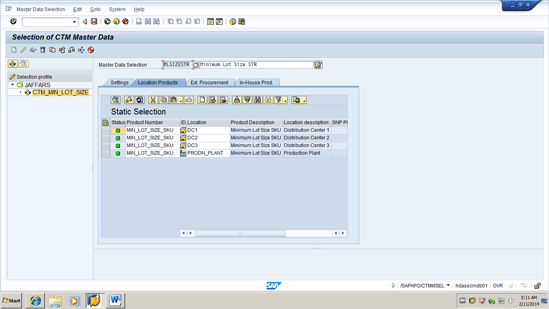
Figure 10
Master data selection defined to plan all location products
Using the CTM profile, the CTM run is executed and the demand is fulfilled by STRs as shown by the CTM demand fulfillment log. You can access the log via transaction code /SAPAPO/CTM or by following menu path Multilevel Supply and Demand Matching > Planning > Capable to Match (Figure 11).
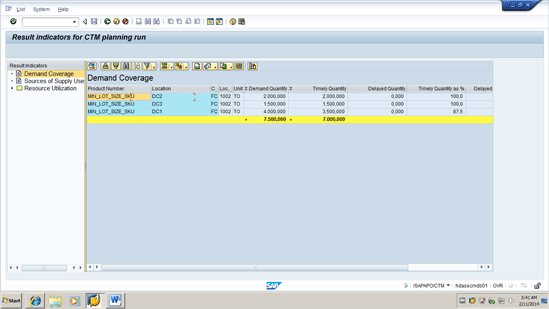
Figure 11
Demand coverage result of CTM run with ignore minimum lot size setting
The demand fulfillment aligns with the production capacity of 7,000To. Looking in the product view at the manufacturing location (Figure 12), you can see the STR demands and planned production consisting of three planned orders (2,000, 1,500, and 3,500). These planned order quantity results also show that the minimum lot size for production of 4,000 To is not followed, as the setting to ignore lot size was switched off in the CTM profile. The product view is accessed via transaction code /SAPAPO/RRP3 or by following menu path APO > Production Planning > Interactive Production Planning > Product View (Figure 12).
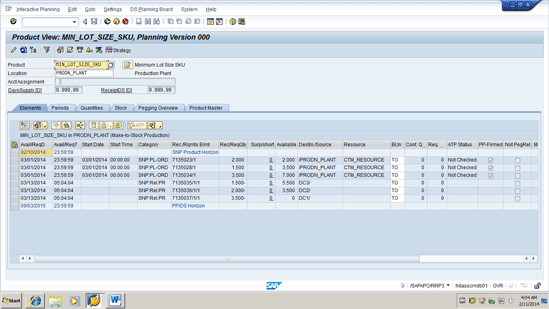
Figure 12
Product view showing the planned production and STR demands
Step 2. Delete the Planned Orders
The results from the first CTM run generate the stock transfer demand on the production location in consideration of the available production capacity. However, the planned production is not in minimum lot size. Therefore in this step the planned production is deleted so that in the next step CTM can be executed with consideration of lot size. The deletion is performed using transaction code SE38 and specifying program /SAPAPO/RLCDELETE(there is no menu path or transaction code that calls the program directly). On the initial screen the Available-to-Promise (ATP) category for planned orders EE is specified as shown in Figure 13.

Figure 13
Settings used to delete planned orders in program /SAPAPO/RLCDELETE
The result in the product view after step 2 is executed is that the production has disappeared to leave only the STR demand (Figure 14). You access the product view via transaction code /SAPAPO/RRP3 or by following menu path APO > Production Planning > Interactive Production Planning > Product View.
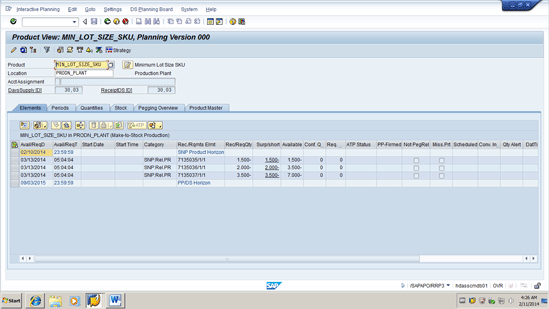
Figure 14
Product view after deletion showing zero production
Step 3. Execute CTM for the Aggregated Stock Transfer Demand with Minimum Lot Size Switched On
Now you execute a new CTM run using a CTM profile that has only the production location specified in the master data selection (Figure 15). The rationale is that in the CTM run only the demand in the production location is planned. The demands are the STR demands and these should be planned using the minimum lot size.The Master Data selection is accessed via transaction code/SAPAPO/CTMMSEL or by following menu path Multilevel Supply and Demand Matching > Environment > Master Data Selection.
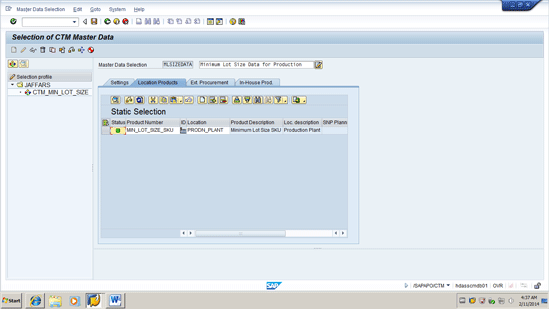
Figure 15
Master data selection defined to only plan at the production plant location
In addition to using a new master data selection, the CTM profile used in this step is defined with the Minimum Lot Size switched on (Figure 16).
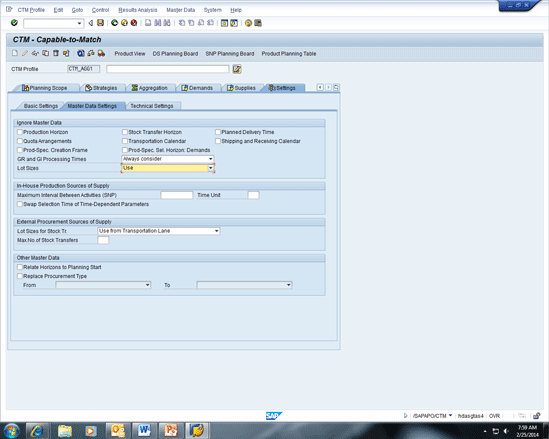
Figure 16
Define the CTM profile with the minimum lot size option changed to Use
In addition, the aggregation tab of the CTM profile (Figure 17) is updated with the setting Time-Based Aggregation and the ATP category EB, which represents the stock transfer requisition demands seen in the product view (Figure 12). The CTM profile is accessed via transaction code /SAPAPO/CTM or by following menu path Multilevel Supply and Demand Matching > Planning > Capable to Match.

Figure 17
Aggregation settings in CTM profile
For clarification on the impact of the aggregation settings, the demand simulation is executed in the CTM profile. The result shown in Figure 18 shows the aggregated demand of 7,000 To. From the demand simulation, click the Requirement Info button. The system then shows the individual STR demands that make up the aggregated number (Figure 19).

Figure 18
Demand simulation showing the aggregated stock transfer demand

Figure 19
Aggregated stock transfer demand breakdown
Executing the CTM run for this aggregated demand results in a planned production quantity of 7,000 To. This number meets the minimum lot size restriction and uses the available capacity. The result is observed in the product view. In this view instead of individual planned orders that do not meet minimum lot size, a single planned order is created for 7000 To (Figure 18).
Note
When you are using the aggregation, it is important to make sure that the Demand Date is set correctly in the global CTM settings to meet business requirements. The concept of this setting is to address the fact that the aggregated demand is the sum of individual demands, which may have different demand dates.
When the demand is aggregated, the CTM engine needs to assign a demand date for the aggregated demand. In the global settings there are a number of options for defining the aggregated demand date. Figure 20 shows these options. The global settings are accessed via transaction code /SAPAPO/CTMCUST or by following menu path APO > Multi Level Demand and Supply Matching > Environment > Master Data Selection.

Figure 20
Options in global settings for determining the aggregated demand date
Steps 4 and 5, following, are housekeeping steps that are recommended to redefine the pegging relationships between the newly created production and the STR demands. Based on my experience, when using CTM and particular fixed pegging, users often use the product view pegging to understand which supply is matched to which demand. Given this, it is important to make sure that the pegging relationships are re-established. This is accomplished by steps 4 and 5.
Step 4. Delete the Stock Transfer Requisitions Created from Step 1 and Use Them As the Basis for the Demand Aggregation in Step 3
This step involves executing program /SAPAPO/RLCDELETE, as was done in Figure 13, except that the locations specified are the warehouses (not the production location) and the ATP category to be deleted is EA for stock transport receipts. The stock transport requisitions are deleted so that in the next step when the CTM run is executed new requisitions are generated for the distribution center demand using the production generated in step 3.
Step 5. Execute CTM to Recalculate the Stock Transfer Requisitions Based on Demand
This step is done to recalculate the stock transfer requisitions in consideration of the demand priority and also to build up the pegging relationships between the production and the demand at the distribution centers. The CTM profile should have the following settings maintained:
- Demand Aggregation switched off
- Master Data Selection to pick up all distribution center and production location products
- Consider Lot Sizes switched on
- The master data setting to switch off production source of supply. This is a safety measure to ensure that no new production is generated and only the existing production generated in step 3 is used.
The previous three settings were shown earlier. The last setting is shown in Figure 21. The setting is defined in the CTM profile in the Basic Settings tab. You access this profile by executing transaction code /SAPAPO/CTM or by following menu path Multilevel Supply and Demand Matching > Planning > Capable to Match.
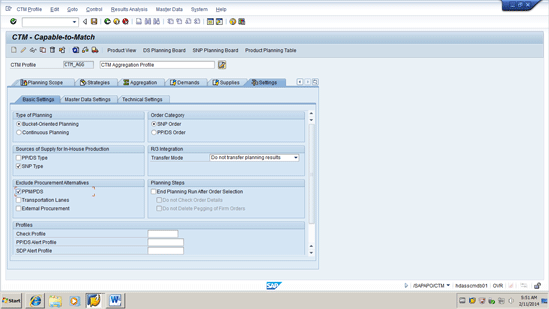
Figure 21
Switch off production source of supply
Now scroll to the left and click the Planning Run tab (Figure 22). Click the Start Planning button to execute CTM using the modified CTM profile.

Figure 22
Execute a CTM run using the modified CTM profile
Suhail Jaffari
Suhail Jaffari has been involved in SAP consulting and Supply Chain Re-Engineering projects since 1993. Working as a platinum-level consultant, Suhail has and continues to engage with clients worldwide, helping them to realize innovative SAP solutions to support complex supply chain operations.
If you have comments about this article or publication, or would like to submit an article idea, please contact the editor.