Understand the full cross-system flow of customer-relevant analytical information involving SAP CRM and SAP NetWeaver Business Warehouse (SAP NetWeaver BW). See how to automatically create SAP CRM target groups within Analysis Process Designer (APD) in SAP NetWeaver BW.
Key Concept
Analysis Process Designer (APD) is SAP’s environment for data mining. It is focused on, but is not restricted to, SAP CRM data. It can provide a graphical environment that allows you to combine multiple data transformations — such as predictions with decision trees and clustering, scoring, weighting, and ABC classifications — into one consistent analytical flow. This enables you to find significant patterns and hidden associations even in a high volume of data.
In consumer-focused industries, it is almost impossible to influence customers individually based on personal relationships or knowledge. Because of high data volume, the only way to analyze and develop the customer relationship is through automated analytical processes that automatically send results back to operational SAP CRM processes. In our last article, “Quick Tip: Uncover the Basics of Life Cycle Analytics Between SAP CRM and SAP NetWeaver BW,” we covered the first steps to understanding this relationship. Now we’ll take a closer look at the example given in that article and provide you with hands-on advice for modeling in Analysis Process Designer (APD) and looping data back to SAP CRM.
The scenario for our example involves the analysis of customer sales orders within a given time frame. The customers can be classified by sales revenue and we want to compare the sales revenues of the customers in specific time intervals (e.g., the last two quarters). This allows you to determine which customers show a significant decrease in sales revenue over the last two quarters, which might indicate that the relationship with these customers is at risk. We want to show that the APD model allows you to identify these customers and to transfer them back to SAP CRM automatically as a target group. This way, the critical customer segment is immediately available in SAP CRM and you can use it for a customer retention campaign, for example.
As we stated in the Quick Tip, by combining master-data-based filter rules and transactional-data-based analysis, you can create customer analytics in SAP NetWeaver BW that refer to SAP CRM data. The system can process integrated analytics based on transactional and master data derived from various source systems (Figure 1).
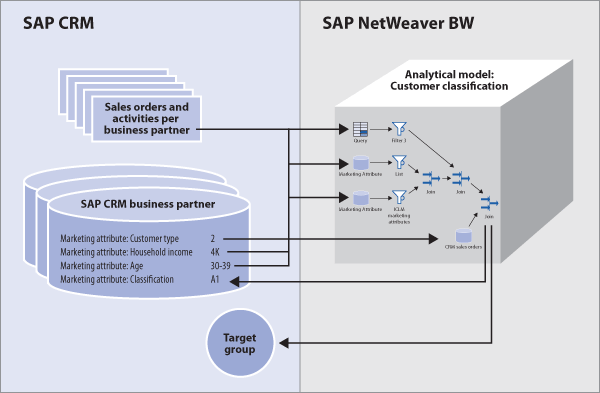
Figure 1
Overview of the flow between SAP CRM and SAP NetWeaver BW
We’ll show you how to compare the sales revenue of customers in the last two quarters and automatically generate a target group of customers that shows a critical decrease in sales revenue in the second time period. We separate the APD setup into three steps: data sources, analysis, and return of values. We also explain how to create an analytic process in SAP NetWeaver BW that refers to customer marketing attributes, sales transactions, and activities.
Note
We will not describe how to define and store marketing attributes in SAP CRM business partners or how sales-revenue-related information is extracted to SAP NetWeaver BW. You can achieve this with the extractors provided in the standard SAP NetWeaver BW content.
Note
As we want our example to be as close to the SAP standard as possible, we specifically avoid using ABAP coding in our examples. If custom-build ABAP blocks are necessary for your purposes, you can create them within APD.
Step 1. Define Data Sources in APD
Open APD in the relevant SAP NetWeaver BW system by entering transaction RSANWB. Create a new analysis process by clicking the new icon and then selecting General in the application drop-down menu. First, create a new data source based on a query by clicking the use query to read data icon and dragging it to the maintenance screen (Figure 2). We use a previously defined Business Explorer (BEx) query in this step.
Note
For information on how to define a BEx query, you can refer to SAP Help. Specifically, to see how to create use the SAP BEx Query Designer, you can reference this page. To check out the existing SAP NetWeaver BW content shipped within the system, go to this page.
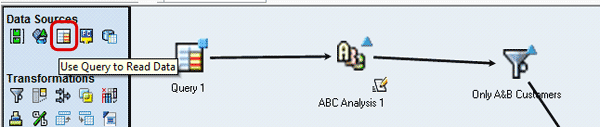
Figure 2
Create a data source based on an SAP NetWeaver BW query object
Enter a name for the data source (e.g., Customer with sudden decrease) and enter the relevant query object (Figure 3). The entry for the InfoCube is automatically determined based on the query you choose. If required, you can also add a variant for the query in the Variant field. Confirm your entries by clicking the green check mark icon.
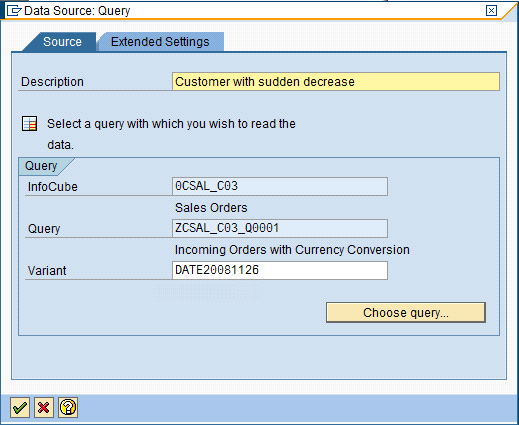
Figure 3
Define the data source by selecting a query
Step 2. Define a Filter Element in APD
Now you have to create the necessary filter step to identify customers with a significant decrease of sales revenue (e.g., greater than 75 percent). Click the filter icon in the Transformations section of the screen shown in Figure 2 and drag it into your maintenance screen. As this is a follow-up to the data retrieval within the previously-defined data source element, the filtering has to be linked to the previous step as a postprocessor. You can do this by clicking the right arrow icon of the query element and dragging that to the left arrow of the filter element (Figure 4).
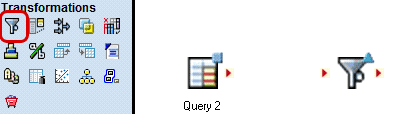
Figure 4
Create and bind the filter step to the data source object
You can now define the filter to the relevant change of sales revenue. Double-click the filter element you previously created and choose the relevant filter value in the Field Selection tab (Figure 5). In our example, the Change field contains the relevant information. Because we are using a query, the name of the field will vary according to our particular organization’s query and business requirements.
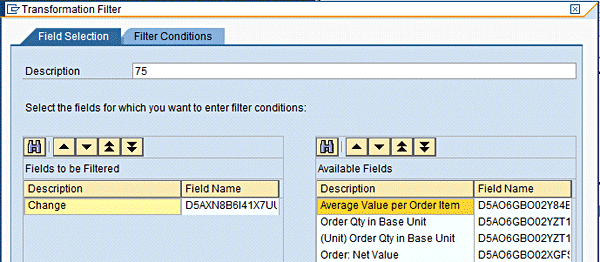
Figure 5
Choose the field for the filter
Go to the second tab, Filter Conditions, and select the desired threshold to identify your customer group. In our case, these are the customers with a change between 75 percent and 100 percent (Figure 6).
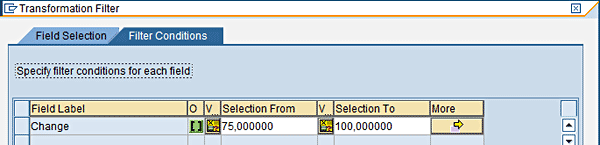
Figure 6
Define the filter value
Step 3. Create a Customer Group for SAP CRM
The next step is to create an element to write back the selected customers as a target group to the connected SAP CRM system. The target group is immediately created in SAP CRM and is available for further marketing activities, such as campaigns.
Tip!
Depending on your business scenario, you might want to consider combining the filter steps with additional customer analysis. By using the join option, you can handle two sets of customers derived by two different analyses in APD. A possible addition would be a classification based on marketing attributes or sales activities.
To add an SAP CRM data target, click the corresponding icon and drag it into the maintenance screen (Figure 7).
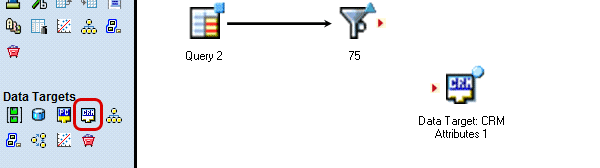
Figure 7
Create an SAP CRM data target
Now you have to define the data target in the SAP CRM system. Double-click the corresponding icon of the created data target in APD and a maintenance screen for the attributes appears. Enter a description and select the logical system to which the data should be written (Figure 8). Because the value should be used for a campaign, we also selected the data target TARGET_GROUP_FROM_BW CRM Target Group.
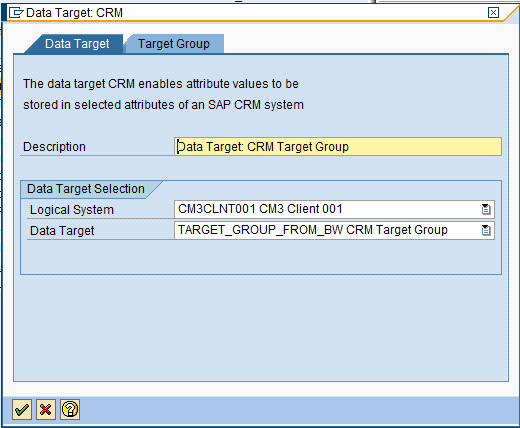
Figure 8
Create the data target for the SAP CRM target group
The last step is to define the technical name and segment type for the profile set. You want to create a new target group, so select the corresponding option on the Target Group tab and enter a new ID (e.g., Z_SUPER_HIGH_CHURN in our example) and the corresponding SAP CRM profile set (Figure 9). The technical name helps you identify your objects in SAP CRM.
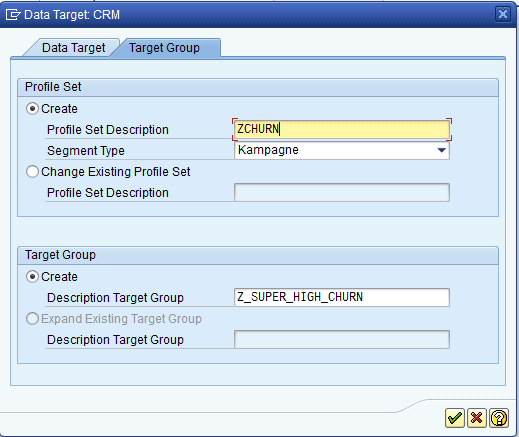
Figure 9
Define the SAP CRM target group in APD
Note
You can also extend an existing target group by choosing the corresponding option. Ensure that a target group with the entered technical name exists in your SAP CRM system.
After activating and executing the analysis process, you can log on to your connected SAP CRM system and search for the target group that was just created. You can immediately use the target group for direct campaign execution or further segmentation (Figure 10).
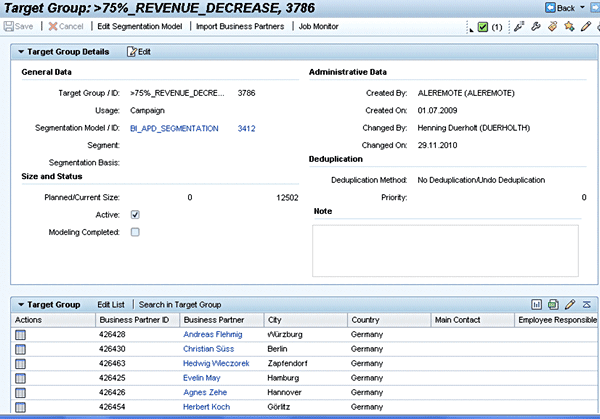
Figure 10
Sample SAP CRM target group in the SAP CRM WebClient UI with business role Marketing Professional
The steps in this article enable you to generate a target group in SAP CRM Marketing based on revenue data from customer sales orders. Our methodology was data mining using an analysis process in SAP NetWeaver BW. In Ankur Shah’s article “APD Simplifies Marketing Attribute Updates from SAP BI to SAP CRM,” you can see how to use analysis processes to analyze marketing attributes and other customer master data to automatically update marketing attributes in your SAP CRM system. By combining that article with this one, you can see how APD provides you with a flexible tool for SAP CRM data mining and looping results back into operational SAP CRM processes.
Tobias Scheele
Tobias Scheele is a senior consultant and project manager at ecenta AG in Walldorf, Germany and has four years of experience in SAP CRM and other SAP products. With a background in technical and functional consulting as well as development and project management, he has contributed to many successful SAP CRM and SAP NetWeaver BW projects worldwide.
You may contact the author at tobias.scheele@ecenta.com.
If you have comments about this article or publication, or would like to submit an article idea, please contact the editor.