See how to control customer-specific materials in a sales order and ensure that these materials are sold only to that specific customer. Using this process, you can ensure that with minimum data maintenance, a specific material is restricted to sales orders for only specific high-value customers.
Key Concept
Businesses sometimes create customer-specific materials and want to ensure that those materials are only allowed in sales orders created for those high-value customers. If you use SAP product allocation functionality, there is a great deal of overhead due to the amount of configuration and ongoing record maintenance involved. Instead, the usage indicator functionality in info records and item category determination can ensure that the materials are saved for the correct customer.
Using standard SAP simple functionality of usage indicator in customer material info records and item category determination, you can ensure that even in a make-to-stock (MTS) scenario, specific materials are allowed in sales orders only for particular customers.
It ensures that a customer-specific material is not shipped to other customers. Standard SAP listing and exclusion functionality cannot address this requirement because it requires high data maintenance efforts requiring users to either maintain a list of all the materials that a customer can buy or to exclude certain materials for customers.
For example, say your company produces building materials and dyes. You produce a special colored dye (Material X) for a key customer (Customer Y) to match the customer’s specifications. The customer expects that each time a purchase order is placed, the goods are shipped without any significant lead time. Similar to all other dye materials that you produce, Material X is also produced as a MTS material, but you want it to be sold only to Customer Y (or maybe a couple of other key customers with similar requirements). In such scenarios, you can set up this easy-to-use functionality to address this requirement.
By using this process, when a sales order is entered for the customer-specific material for an eligible customer, the system allows the usual processing of sales order by determining the regular item category. However, if that customer-specific material is entered in a sales order for a customer to whom this material is not supposed to be sold, then the system does not determine an item category and produces an error message.
To set up this functionality, you need to configure a new item category group and a new value of item category usage. Then configure item category determination for normal item category (for example, TAN) using this new item category group and item category usage for the required sales order types. You assign this new item category group to the material master of those customer-specific materials that you want to restrict the sales to specific customers. You create a customer-material info record for this customer-material combination and assign the new item category usage that you configured for this purpose. When a sales order is entered for this customer for the customer-specific material, the system determines the correct item category based on the item category usage from the customer-material info record and item category group maintained in the material master.
For ineligible customers, the system does not determine an item category in the sales order as no appropriate item category usage is found for the customer-material combination.
The following configuration steps are required:
Step 1. Define an item category group. By defining a new item category group, you can set up a specific determination rule of an item category in the sales order. This item category group is assigned in the material master of the customer-specific material. It is then used along with a new item category usage to determine the item category for the customer-specific material in the sales order. Create a new item category group. Follow IMG menu path Sales and Distribution > Sales > Sales Documents > Sales Document Item > Define Item Category Groups (Figure 1). Click the New Entries button to add a new item category group.

Figure 1
Define item category groups
Step 2. Define item usage. By defining a new item usage (along with the new item category group defined in Step 1), you set up a specific determination rule of item category in the sales order. This new item usage is assigned in the customer-material information record to facilitate item category determination during sales order entry for the specific customer and material. Create a new item usage as shown in Figure 2. Follow IMG menu path Sales and Distribution > Sales > Sales Documents > Sales Document Item > Define Item Category Usage. Click the New Entries button to add a new item usage.
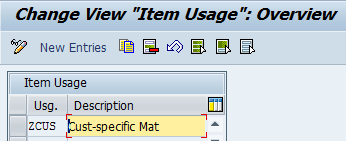
Figure 2
Define item category usage
Step 3. Assign item categories. Set the rule of item category determination in a sales order using the item category group and item usage created in steps 1 and 2, respectively. This ensures that an item category for customer-specific material is determined only when you maintain an applicable customer-material info record with the appropriate item usage. Follow IMG menu path Sales and Distribution > Sales > Sales Documents > Sales Document Item > Assign Item Categories. For all the order types that you plan to use for the customer-specific material, create a new entry for the combination of order type, the new item category group, and item category usage created in the earlier steps. Assign the default item category (item category TAN in this example) as shown in Figure 3.
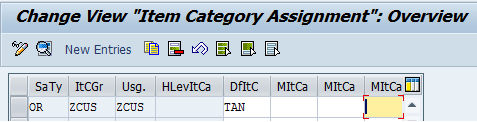
Figure 3
Assign item categories
Step 4. Define sales statuses. Follow IMG menu path Logistics General > Material Master > Settings for Key Fields > Data Relevant to Sales and Distribution > Define Sales Statuses. As shown in Figure 4, create a new sales status. Click the New Entries button and add a new value of sales status (for example, Z1) and description of the new status Select the new sales status and click the details icon. This takes you to Figure 5, or you can follow menu path Go to > Details or press Ctrl-Shift-F2.
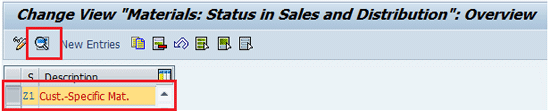
Figure 4
Define sales statuses
Enter A in the Block for order field as depicted in Figure 5. The new sales status is used for a text message appearing during sales order creation to notify users that a customer-specific material is entered. This is an optional step. If you do not want any additional message for customer-specific material entry in the sales order, then skip this step. If you skip it, then only the item category-related standard message error appears if the customer-specific material is entered in the sales order for a customer for which the sale of this material is not allowed.
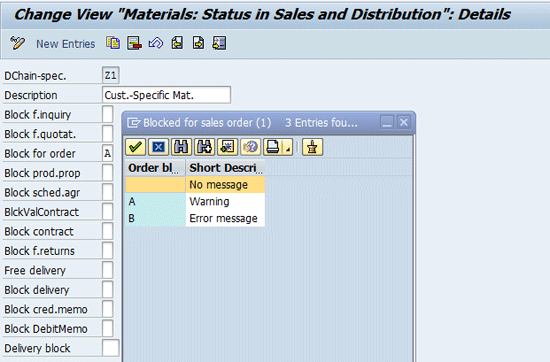
Figure 5
Define sales status details
After you complete the configuration activities mentioned in steps 1 to 4, you need to perform some master data maintenance activities for the material master and customer-material information record. The following master data maintenance steps are required:
Step 5. Change the material. You do not need to create a new material. Change the existing customer-specific material to change the field values of Item category group and X-distr.chain status with the new values configured in steps above. For the customer-specific material, assign the new item category group (defined in step 1) and the new sales status (defined in step 4) as shown in Figure 6. This enables the item category determination and appearance of a status message during sales order entry for a customer-specific material. To do so, follow IMG menu path Logistics > Sales and Distribution > Master Data > Products > Material > Trading Goods > Change or use transaction MM02. Maintain the item category group value as ZCUS (new value configured in step 1 above for customer-specific materials).

Figure 6
Change the material master — assign an item category group
As shown in Figure 7, maintain the cross-distribution chain status as Z1 (new value configured in step 4 for customer-specific materials). Z1 is used in this process only for the text message that appears in the sales order to notify the users that a customer-specific material is entered.
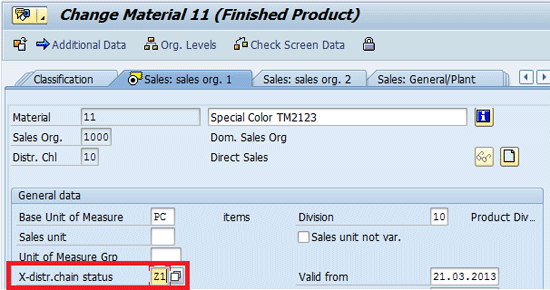
Figure 7
Change the material master — assign a cross distribution chain status
Step 6. Maintain the customer-material info record. Create a customer-material info record for the customer-specific material and assign the item usage field (with the value defined in step 2) in the customer-material info record. If the customer has provided a customer material number, then you can enter it in the Cust.material field or you can enter the material number in the Material no. field. Follow IMG menu path Logistics > Sales and Distribution > Master Data > Agreements > Customer Material Information > Create or use transaction VD51. Maintain the customer material info record for each customer-specific material as shown in Figure 8. Click Goto > Info record details. Maintain the item usage as ZCUS (new value configured in Step 3 for customer-specific materials) as shown in Figure 9.
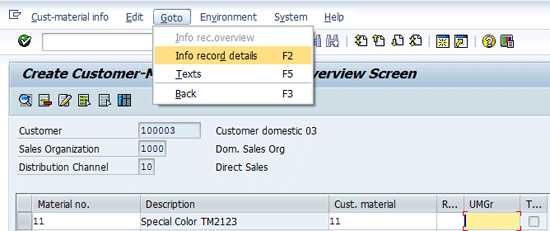
Figure 8
Maintain a customer-material info record

Figure 9
Assign item usage
Business Process
Following are the two scenarios that depict how you can use customer-specific materials in a sales order for a specific customer only and how the system prevents that material from being entered in a sales order for other non-eligible customers.
Scenario 1
When a customer-specific material is entered in a sales order for a customer that is not allowed to buy this material, then the status bar shows the message that the material entered is a customer-specific material (Figure 10). An error message follows stating that the corresponding item category is not found (Figure 11). This arrangement ensures that the material cannot be entered into a sales order for an ineligible customer.
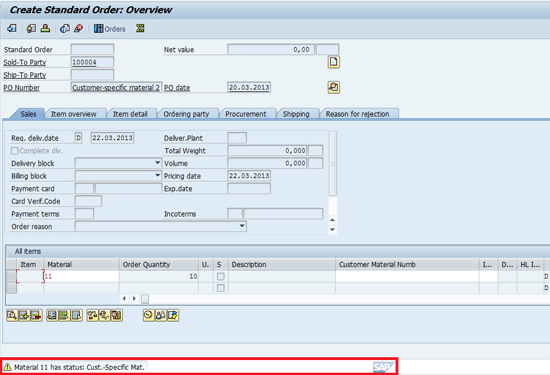
Figure 10
Material status message
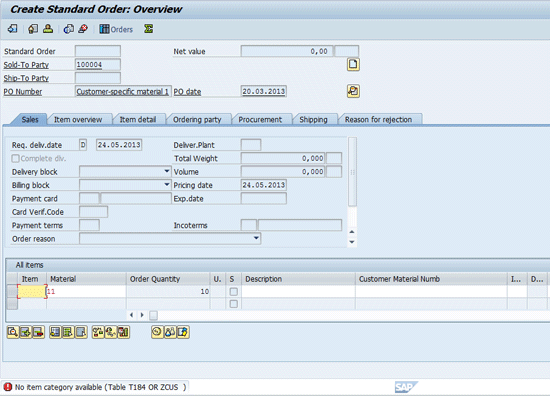
Figure 11
Creating a sales order for this customer is not allowed
Scenario 2
When a customer-specific material is entered in a sales order for a customer that is allowed to buy this material, then the status bar shows the message that the material entered is customer specific. Regular sales order processing follows, as shown in Figure 12.
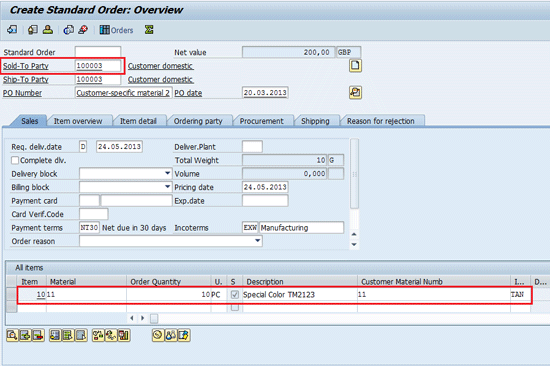
Figure 12
Creating a sales order for this customer is allowed
Ashok Faujdar
Ashok Faujdar has an MBA and more than 11 years of experience in the IT industry. For the last eight years, he has worked on SAP systems, led several implementations in sales and distribution, and co-authored a book on SAP Sales and Distribution.
You may contact the author at afaujdar@gmail.com.
If you have comments about this article or publication, or would like to submit an article idea, please contact the editor.