This article evaluates the online and offline features of "www.babylon.com," a useful translation, information, and conversion tool that allows you to type in a word, phrase, or acronym, and launch a search for definitions, facts, and translations into foreign languages ... without actually being connected to the Internet at the time. After a review of the site and its free viewing program and dictionary/glossary downloads, there are three demonstration exercises that give you a chance to try the tool out for yourself.
Key Concept
In this article, I will discuss my experience with and evaluation of the web site "Babylon.com." I believe this site can be useful to you because with it, you can find quick answers to questions such as …
- How many kilograms is 175 pounds?
- What currency is used in Thailand, and what’s the current exchange rate?
- What is the German word for "Settlement"?
In this article, I will discuss my experience with and evaluation of the web site "Babylon.com." I believe this site can be useful to you because with it, you can find quick answers to questions such as …
- How many kilograms is 175 pounds?
- What currency is used in Thailand, and what’s the current exchange rate?
- What is the German word for "Settlement"?
notAfter a review of the site, you can try some of the site’s features yourself. There are three demonstration exercises, after which you should be in good shape to decide for yourself whether or not you would like to become a regular visitor:
- Demonstration #1 — Download the free viewer and use it to answer the question: "How many kilograms is 175 pounds?"
- Demonstration #2 — Change a few settings on the viewer, and then use it with the example question: "What currency is used in Thailand, and what’s the current exchange rate (to Euros)?"
- Demonstration #3 — Download a free dictionary as practice for answering questions such as: "What is the German word for the FI/CO term ‘Settlement’?"
Babylon.Com — What Is It?
Babylon.com is really two things:
1. First, it is a web site (the home page is shown in Figure 1)
2. Second, it is a viewing program that you can download for free to your computer (Figure 2)
With the web site services (these require your computer to be connected to the Internet, of course), you can:
- Type in a word, a phrase, or an acronym, and launch a search for definitions, facts, and translations into foreign languages. For example, if you type in "Germany," you will get back a list of facts such as population (81,700,000) and capital (Berlin), but also hypertext links to a geographical map and to German soccer player Sebastian Deisler.
- Search for interesting glossaries and dictionaries that other people have created (for examples, see Figure 3), and download those (for free) to your computer so that you do not need to be connected to the Internet to view them. For example, by using the search keyword "SAP," I found a dictionary there that will translate many SAP FI/CO words (such as "Settlement") from English into German (so that I can know what English-speaking FI/CO consultants are talking to me about!).
The viewing program does two main things for you:
- Allows you to access the information in the glossaries and dictionaries that you downloaded from the web site.
- Lets you do all sorts of measurement and currency conversions with one mouse click. Figure 4 shows an example of that. I merely typed the words "175 pounds" into my Microsoft Word document, held down the SHIFT key, and used the right-mouse button while my mouse cursor was over the words — and the Babylon.com viewing program is automatically launched, along with the information that 175 pounds equals 79.379 kilograms.
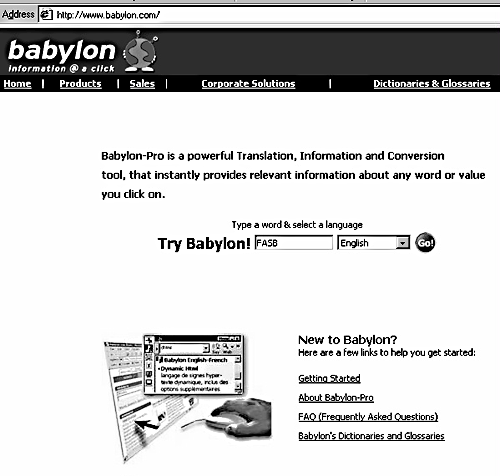
Figure 1
Babylon.Com Home Page

Figure 2
Babylon.Com Viewing Program
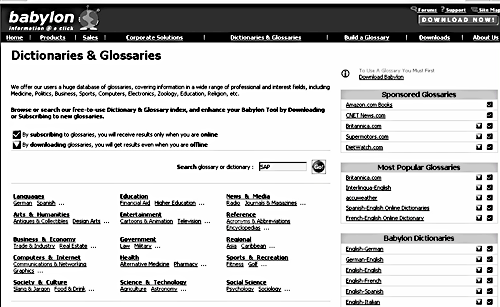
Figure 3
Databases from Babylon.Com
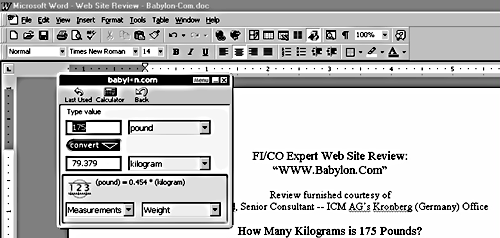
Figure 4
Example of Right-Mouse Action
Demonstration #1 — How Many Kilograms Is 175 Pounds?
Okay, it is your turn to try!
First, you will need to download the viewing tool from the web site. The URL is www.babylon.com. Once you get there, you will see in the upper-right corner of the main window the words "Free Trial Version." You can just choose the first option from the list. It is called something like "Babylon Trial Version (2.02 Mb)."
After you have downloaded that file, you will need to double-click on it to launch the set-up wizard. Follow the instructions all the way to the last screen, and when it asks you if you want to launch Babylon right away, say Yes.
One of the settings that the set-up wizard walked you through was the so-called "Hot Key": how you instruct the viewing tool that you want it to launch. The standard setting is the combination of the SHIFT key + a right-mouse button click. If you do that with your mouse cursor in any blank area on your computer screen ("Desktop"), you should see the viewing program pop up. (It will look like what was shown back in Figure 2.)
In the space provided, type in the number "175" and then press your ENTER key. The viewing tool responds by showing you a conversion into some other measurement, possibly kilograms. If it is not kilograms, just make sure that the field in the bottom-left corner is set to "Measurements" (rather than something like "Currencies"), and that the bottom-right corner is set to "Weight" (rather than something like "Time"). Then, change the middle field to the option "kilogram."
That’s it!
You can also have a try at using the "One Click" option. If you have a word processing document open, type the value "175 pounds." Then, position your mouse cursor over the numbers, and press your "Hot Key" (e.g., SHIFT + the right-mouse button).
If everything is working, the viewing tool will jump right up with your conversion!
Demonstration #2 — What Currency Is Used in Thailand, and What Is the Current Exchange Rate (to Euros)?
For this demonstration, just launch your Babylon.com viewing tool (e.g., SHIFT + right-mouse click). Then, click one time on the word "Convert." (If you don’t see this, try extending the size of your viewer on the right-hand side. Sometimes the viewing area is too small for all the buttons.)
Now, in the lower-left field, set the value to "Currencies." In the lower-right field, set the value to "By country." You can now scroll in the upper-two fields for countries. When you get to Thailand (abbreviated as "Thai"), you see the currency name as well ("Baht").
What about the current exchange rate between Euros and Bahts?
The rates that happen to be in your viewer right now will not necessarily be current (the "Last Updated On" date is shown in your viewer). To get a current update, look for a little button called "Menu" in the upper-right corner of the viewer. Click one time there. Then, choose Visit our site >Upgrade Babylon. After that, you’ll see a pop-up with two options: (1) Update Now; (2) More Info. I do not have much luck with choosing Option (1). Instead, it is Option (2) that gets me to a place where I can download the latest version of the viewer. And, the new currency exchange rates (courtesy of the XE.com site) are contained in that latest version.
Demonstration #3 — What Does the FI/CO Term "Settlement" Mean in German?
For this demonstration, you have the chance to download for yourself a free dictionary from the web site!
The URL is www.babylon.com. Once you get there, you will see in the lower corner of the main window the words "Dictionaries & Glossaries." For a search keyword, you can try "SAP" and the click on the "Go" button.
You should then see a list of five or so options to choose from. The first option in that list might be one called something like what’s shown in Figure 5: "SAP – Glossary English – German." Click once on the "Download" button, and follow the instructions you get prompted with. The goal is to download that file from the web site to your computer.
I suppose any of your computer’s file directories or folders is okay. But, actually, when you ran the Babylon installation program, it created a predefined directory path for you. It will be something similar to what is shown in Figure 6 (excuse the German text!). It is probably a good idea to use that pre-defined path for storing your Babylon downloads.
After you have downloaded that Dictionary file, you will need to make it visible to your Babylon viewer.
Here is what to do:
- If your viewer is not already active, use your Hot Key to launch it.
- Look for the "menu" button in the upper-right corner, and click one time on it.
- Choose the menupath: Glossary Options > Install From Disk …
- You will then see another pop-up window where you can browse your computer’s file directories/folders. Pick out the path where you just downloaded the dictionary file into. Then, when you see that file, double-click on it.
That should result in an automatic installation set-up. There is nothing more to do than that. Just double-click. And, watch. To verify that the installation went fine, look on your viewer for a button called "My List" (if it’s not visible, try extending the size of your viewer by dragging the right side). When you find that button, click on it one time. You will see a checkmark next to all dictionaries that are available to you even when you are not online. Look for the one you just tried to install ("SAP – Glossary English – German").
At this point, you can disconnect from the Internet. Launch your Babylon viewing program, if it is not already up. Then, in the field provided, type in the word " Settlement " and press your ENTER key. If everything has worked correctly, you should see both the English and the German word for "Settlement."
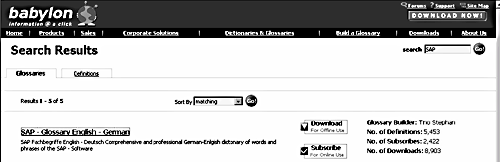
Figure 5
Download from Babylon.Com
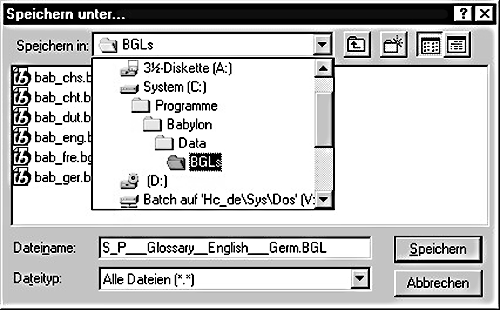
Figure 6
Example of the Predefined File Directory Path That the Babylon Install Program Creates for You (c:programsbabylondatabgls)
Summary
In the final analysis, I have found the Babylon site and free downloads to be quite handy. I hope my review has at least given you a good chance to get used to the site’s online and offline features, and to form an evaluation of what is there. If you have questions or comments for me, you can reach me at the e-mail address below. Best regards!
Oliver Hatzfeld
Dr. Oliver Hatzfeld is the Manager SCM with ICM AG’s Kronberg (Germany) office. He specializes in SAP SCM software application support for inter- and intra-enterprise collaboration.
You may contact the author at OHatzfeld@ICM.de.
If you have comments about this article or publication, or would like to submit an article idea, please contact the editor.


 Premium