Learn how to configure SAP NetWeaver Portal to access the work center for SAP BusinessObjects Access Control 10.0, SAP BusinessObjects Process Control 10.0, and SAP BusinessObjects Risk Management 10.0 using single sign-on.
Key Concept
The work center of SAP BusinessObjects GRC 10.0 can be accessed via SAP NetWeaver Business Client or SAP NetWeaver Portal. SAP NetWeaver Portal plays an important role in application integration, enhanced system security, and better authorization management. It also uses single sign-on to address user authentication challenges, especially in a scenario in which users need to log on to multiple back-end systems to perform transaction processing.
A typical SAP system landscape consisting of SAP BusinessObjects GRC 10.0 is made up of different back-end systems that can be accessed via different front-end tools. These front-end tools include:
- SAP GUI: This is used for performing customizing activities (for example, activation of Business Configuration Sets via transaction SCPR20) and administrative activities (for example, role generation via transaction PFCG) in the SAP BusinessObjects GRC ABAP back-end system.
- SAP NetWeaver Business Client: This is used for accessing the work center for operational activities (for example, Access Request Management).
- SAP NetWeaver Portal: This is used for accessing the work center for operational activities (for example, Access Request Management).
The work center represents a central environment that allows users to work in the system based on assigned roles in the back-end SAP BusinessObjects GRC system. The work center provides a common work environment for risk management, process control, and access control. The different components of the SAP BusinessObjects GRC 10.0 system landscape communicate with each other using standard communication protocols depending on the source and destination systems. The different communication services that are used in the SAP BusinessObjects GRC 10.0 system landscape includes:
- Hypertext Transfer Protocol (HTTP): HTTP represents the communication interface between the GRC server and browser-based client tools such as SAP NetWeaver Business Client or SAP NetWeaver Portal
- Remote Function Calls (RFC): RFCs provide a communication interface between SAP business applications (e.g., SAP ERP) and the SAP GRC server. Other components such as SAP BI content, GRC search, Adobe Document Services, and Nota Fiscal services rely on RFCs for interacting with the GRC server.
- Dialog Protocol (DIAG): The DIAG protocol is used for data interaction between SAP GRC server and the SAP GUI front end
- Web services: To establish communication between the GRC server and the SAP NetWeaver Identity Management system, Web services are used
- Adapter: Communication between GRC Server and non-SAP enterprise applications are based on adapters
This article is intended for SAP technical consultants and system administrators responsible for setting up the SAP BusinessObjects GRC system landscape. I provide step-by-step instruction on how to configure SAP NetWeaver Portal as a front-end tool for accessing SAP BusinessObjects Access Control 10.0, SAP BusinessObjects Process Control 10.0, and SAP BusinessObjects Risk Management 10.0. Setting this up allows you to achieve better user authentication, especially in situations in which users need to perform transaction processing but must log on to multiple back-end systems to complete it. Meanwhile, you can still be sure that the applications integrate properly and are secure. In the course of this article, I will be referring to two different systems:
- SAP NetWeaver Portal: This is the system running the SAP NetWeaver Java-based Portal solutions.
- SAP BusinessObjects GRC ABAP system: This is the system running the SAP BusinessObjects Access Control standalone or integrated (access control, process control and risk management) solution.
The article is divided into the following subtopics:
- Deploy the GRC_POR component and BP ERP Common Parts 1.51
- Connect SAP NetWeaver Portal to the SAP BusinessObjects GRC 10.0 ABAP back-end system
- Manage single sign-on (SSO) certificates
- Manage users in SAP NetWeaver Portal
- Access the SAP BusinessObjects GRC 10.0 work center via SAP NetWeaver Portal using SSO
At this juncture, it is important to state that the following components are prerequisites for setting up SAP NetWeaver Portal to access the SAP BusinessObjects GRC 10.0 work center:
Deploy the GRC_POR Component and BP ERP Common Parts 1.51
First, I assume SAP NetWeaver Java has been properly and successfully installed together with SAP NetWeaver Portal. The complete installation package for SAP BusinessObjects GRC 10.0 (which can be downloaded from SAP Service Marketplace) comes with a software component for SAP NetWeaver Portal. This component is known as GRC Portal Content (GRC_POR 1000) and needs to be deployed on SAP NetWeaver Portal to use it as a front-end tool for accessing the work centers of the SAP BusinessObjects GRC 10.0 ABAP system. The GRC Portal Content is an aggregation of SAP BusinessObjects GRC portal user interface objects to access the GRC application.
You also need to deploy the business package BP ERP Common Parts 1.51, which you can also download from SAP Service Marketplace. These two components are provided as Software Component Archive (.SCA) files. Hence, the Software Deployment Manager (SDM)-based tool known as Java Support Package Manager (JSPM) is used for applying these software components. Note that you should start JSPM using the SID<adm> account, where SID is the SAP system identifier.
Follow the procedure below to apply the software components (GRC_POR 1000 and BP ERP Common Parts 15.1) in SAP NetWeaver Portal. Place the two .SCA files in the input directory usrsaptransEPSin (Figure 1). Access the directory in which the JSPM tool is located at usrsapSIDJC<instance number>j2eeJSPM (Figure 2).
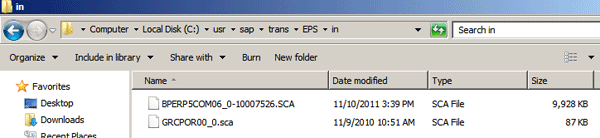
Figure 1
.SCA files in the default input directory
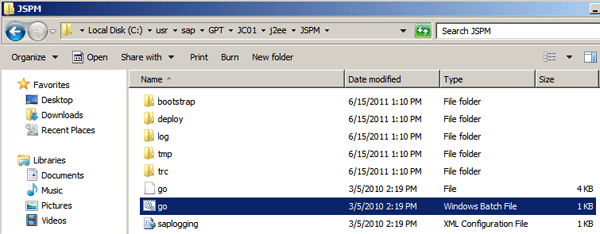
Figure 2
Directory for Initiating the JSPM tool
Double-click the go.bat file (the Windows batch file) to bring up the screen in Figure 3. Enter the password and click the Log On button (Figure 4). Choose the New Software Components radio button and click the Next button.

Figure 3
Initial screen to authenticate into JSPM

Figure 4
Choose the New Software Components radio button
The input directory is scanned for all components and Figure 5 displays. Click the Next button and JSPM validates the software components. Figure 6 appears.

Figure 5
Click Next

Figure 6
Initiate the component deployment
Click the Start button to initiate the deployment of the components. Figure 7 appears when the activity is complete. Then click the Exit button.

Figure 7
The new software components are deployed
Connect SAP NetWeaver Portal to the SAP BusinessObjects GRC 10.0 ABAP Back-End System
Now that the software components are deployed, you need to connect the portal to the back-end system. The solution to establishing a connection between these participating applications is to create the SAP BusinessObjects GRC ABAP system as a system in SAP NetWeaver Portal and consequently provide parameters that facilitate data exchange and information flow.
You need to complete the following three steps when creating systems in SAP NetWeaver Portal:
Step 1. Create a Folder in the PCD
Systems are created and maintained in the PCD, which stores objects and relationships and facilitates hierarchical structuring, user personalization, and centralized administration of the objects. For organizational purposes, it is a best practice to create a folder that houses the system object when it is created.
Access SAP NetWeaver Portal and navigate to Systems Administration > System Configuration. Right-click the Portal Content folder and choose New > Folder (Figure 8). This brings up the screen in Figure 9. Enter values for the Folder Name and Folder ID. Then select a Master Language and enter a Description. Click the Finish button.

Figure 8
Create a new folder

Figure 9
Enter the folder details
Figure 10 displays to tell you the operation was performed. Click the OK button to finish the process.

Figure 10
Click the OK button
Step 2. Create the System and Maintain Its Properties
A system is a repository containing an aggregation of connection properties that facilitates interaction between the portal and an external system. You need to create a system and maintain the attributes of the system before it can be referenced as a participating system in the SAP NetWeaver Portal system landscape. You can create systems via the following methods:
- Template: This creation approach is based on a predefined template for SAP systems and database connection (JDBC). Furthermore, you can create SAP systems based on the following template types:
- Dedicated application server: Connects to a specific SAP application server
- Load balancing system: Leverages logon group to access an SAP application server
- Connection string: Leverages special string syntax to access an SAP application server
- Portal archive (PAR) file: This creation approach is driven by the system landscape wizard that creates a system based on the portalapp.xml file in a deployed PAR file.
- Copy: This creation approach is based on copying an existing system and pasting it.
A system object is made up of several parameters that need to be maintained appropriately to establish connection to the external or back-end system. It is important to state that not all the system parameters need to be maintained for a connection to be established.
Note
Consult SAP Note 761917 (Systems Template Definition: Examples for SAP Systems) for more information about the maintenance of system object parameters.
Follow this procedure to create a system object in SAP NetWeaver Portal and consequently maintain the properties appropriately. Access the portal and navigate to System Administration > System Configuration. Click the Portal Content folder and locate the folder you created in the previous step (Figure 11). Right-click the folder (GRC10_System) and follow the path New > System (from template). Figure 12 is displayed.
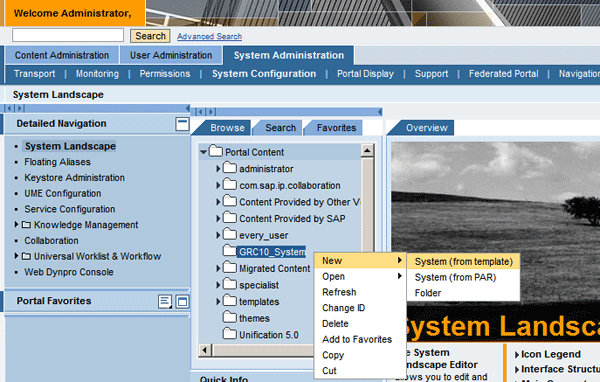
Figure 11
Drill into the folder you created

Figure 12
Choose a template type
Choose from the template types (e.g., SAP system using dedicated application server). Click the Next button to bring up the screen in Figure 13. Enter values for the System Name and System ID, select the Master Language, and enter a Description. Click the Next button and a summary page is displayed (Figure 14). Click the Finish button.
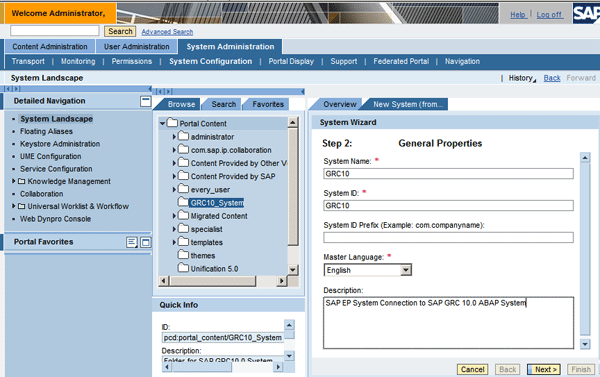
Figure 13
Enter details of the system object

Figure 14
Summary page
Figure 15 displays with a status message for the activity performed. Click the OK button and you see the system object for parameterization (Figure 16).
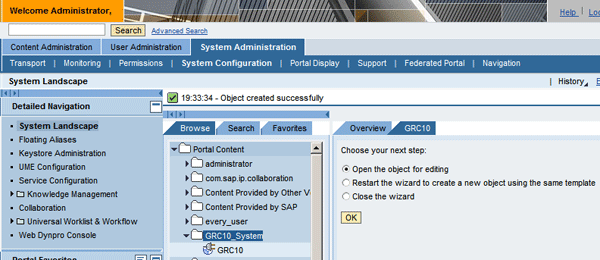
Figure 15
Click the OK button

Figure 16
Maintain system object properties
As asserted earlier, there are many properties to maintain for a system. You need to maintain only the attributes you need based on your business requirement for connection attribute requirements. The Property Category represents a field that you can use to filter these parameters based on closely related system attributes. For the purposes of this example, the property categories to maintain include Web Application Server, Connectors, and User Management system attributes.
First, choose Web Application Server (Web AS) in the Property Category field (Figure 17). Then enter the following values:
- Web AS Description (e.g., GRC10_System)
- Web AS Host Name (e.g., ACNW.sapken.com:8001)
- Web AS Path (e.g., /sap/bc/webdynpro)
- Web AS Protocol (e.g., http)

Figure 17
Select Web Application Server (Web AS) and enter values
Click the Save button.
Note
The procedure to confirm the Web Application Server host name and the corresponding port of your system is described in
Appendix 1.
Now define another Property Category called Connector (Figure 18).
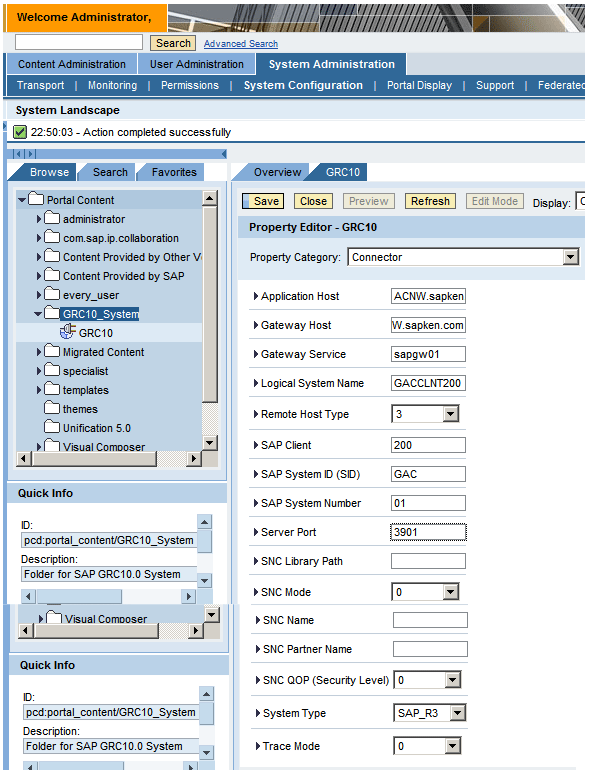
Figure 18
Maintain Connector system object properties
Enter values for the following fields:
- Application Host (e.g., ACNW.sapken.com:8001)
- Gateway Host (e.g., ACNW.sapken.com)
- Gateway Service (e.g., sapgw01)
- Logical System Name (e.g., GACCLNT200)
- SAP Client (e.g., 200)
- SAP System ID (SID) (e.g., GAC)
- SAP System Number (e.g., 01)
- Server Port (e.g., 3901)
- System Type (e.g., SAP_R3)
Click the Save button.
Note
The procedures to confirm the gateway properties (gateway host and service), logical system name, and server port are described in
Appendixes 2,
3, and
4, respectively.
Now maintain the last Property Category, User Management (Figure 19).

Figure 19
Maintain User Management system object properties
Enter values for the following fields:
- Authentication Ticket Type: SAP Logon Ticket
- Logon Method: SAPLOGONTICKET
- User Mapping Fileds: Leave blank
- User Mapping Type: admin,user
Click the Save button.
Step 3. Define System Aliases
The system alias is an important parameter that needs to be maintained in the system definition within the portal with strict adherence to SAP’s recommendations. The system alias is simply a name used to reference a system by portal components such as iViews. Unlike systems, an alias cannot be displayed or maintained in portal catalog. Instead they are displayed and maintained in the alias editor. A system can have one or more system aliases, but only one acts as the default for the system. The defined default system alias serves as input when defining reference systems in the Identity Management engine within the portal as I’ll explain later.
In SAP BusinessObjects GRC 10.0, the system alias that should be used depends on whether you have a standalone access control system or an integrated system. For SAP BusinessObjects Access Control 10.0, the system aliases that should be defined are SAP-GRC and SAP-GRC-AC. For the integrated SAP BusinessObjects GRC 10.0 installation with SAP BusinessObjects Access Control, SAP BusinessObjects Process Control, and SAP BusinessObjects Risk Management, the system aliases to define are SAP-GRC, SAP-GRC-AC, SAP-GRC-PC and SAP-GRC-RM.
Follow the procedure below to define system aliases. Access SAP NetWeaver Portal and navigate to the path System Administration > System Configuration > Portal Content (folder) > GRC10 System (folder) and double-click GRC10 (Figure 20).

Figure 20
Double-click GRC10
In the Display option, select System Aliases (Figure 21).

Figure 21
Select System Aliases
In the Alias Name field, enter SAP-GRC (Figure 22). Click the Add button.

Figure 22
Enter SAP-GRC
Repeat these steps, entering SAP-GRC-AC, SAP-GRC-PC and SAP-GRC-RM. The screen after performing these activities should look like the one in Figure 23. Note that the alias name, SAP-GRC, is set as default. Click the Save button.
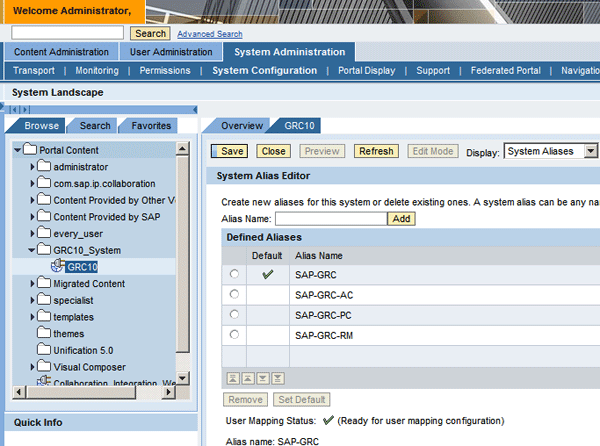
Figure 23
SAP-GRC is set as default
Manage SSO Certificates
Now that the connection has been established between the portal and the back-end system, you need to set up single-point user authentication management. SSO makes the user experience less cumbersome as they do not have to remember the password for different systems, especially when they are set up in many back-end systems. Depending on whether the user ID in the portal system and the back-end system are the same, you can have two SSO scenarios, namely:
- SSO based on an SAP logon ticket with user mapping: This is implemented when the user ID in the portal system is different from the user ID in the ABAP back-end system.
- SSO based on an SAP logon ticket without user mapping: This is implemented when the user ID in the portal system is the same as the user ID in the ABAP back-end system.
I’ll talk more about these scenarios later. A number of activities need to be performed to make the system ready for SSO operation. These include:
Step 1. Check Settings for SSO-Based Profile Parameters
For SSO to work, the participating SAP systems need to be configured to use SAP logon tickets for authentication. Hence, you need to maintain the following profile parameters appropriately in the instance profile:
- Login/create_sso2_ticket: This parameter determines whether the creation of an SSO ticket is allowed. The default value is 0. Make sure this parameter is set to 2.
- Login/accept_sso2_ticket: This parameter defines whether the SAP BusinessObjects GRC ABAP system accepts SSO tickets from SAP NetWeaver Portal if the certificate has been imported. The default value is 0, which means disallow. Make sure this parameter is set to 1 to permit logon via SSO ticket.
Follow the procedure below to confirm the settings for the profile parameters. Use transaction RZ10 to bring up the screen in Figure 24. In the Profile field, choose an instance profile. You can use input help to display possible options (e.g., GAC_DVEBMGS01_ACNW). The Version field is automatically populated. Then select the Extended maintenance radio button.

Figure 24
Choose the Profile
Note
Click the Change button to maintain the profile parameter, if you haven’t done so. It is a prerequisite for setting up SSO.
Figure 25 shows the values of the parameters.

Figure 25
Settings for SSO-based profile parameters
Step 2. Export the SAP NetWeaver Portal Certificate
Access the SAP NetWeaver Portal system and navigate menu path System Administration > System Configuration > Keystore Administration (Figure 26). Click the Download verify.der File button to bring up the pop-up screen in Figure 27. Click the Save button to save the file, and then click Close when it is complete.

Figure 26
Download the verify.der file
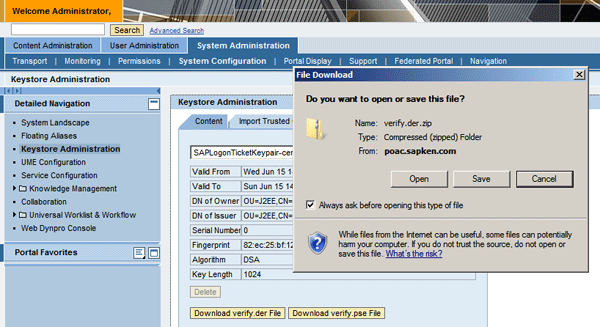
Figure 27
Save the file
Note that you need to extract the file to import it into the ABAP back-end system.
Step 3. Import the SAP NetWeaver Portal Certificate to Client 000 of the SAP BusinessObjects GRC ABAP System
Log on to client 000 of the ABAP system running the SAP BusinessObjects GRC application and use transaction STRUSTSSO2 to bring up the screen in Figure 28. Choose import certificate by clicking the import certificate icon in the bottom-left corner in the screen in Figure 28. This brings up the screen in Figure 29.
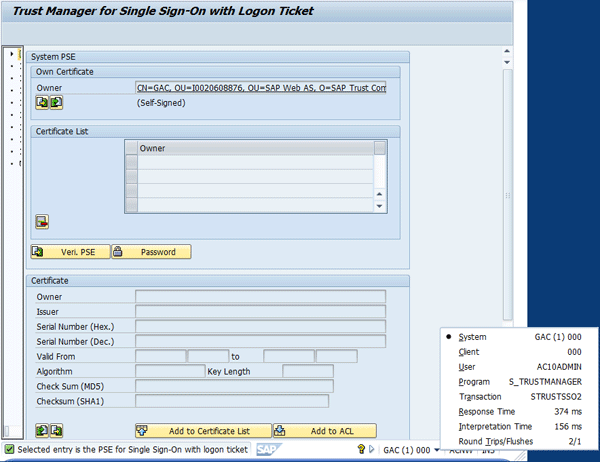
Figure 28
Import the certificate
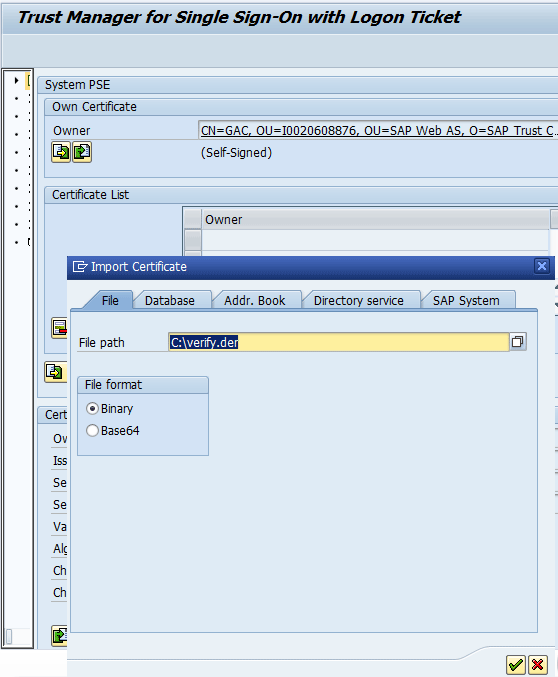
Figure 29
Define the File path
Define the path where the extracted portal certificate is stored. Click the green check mark icon to populate the certificate entries as shown in Figure 30.
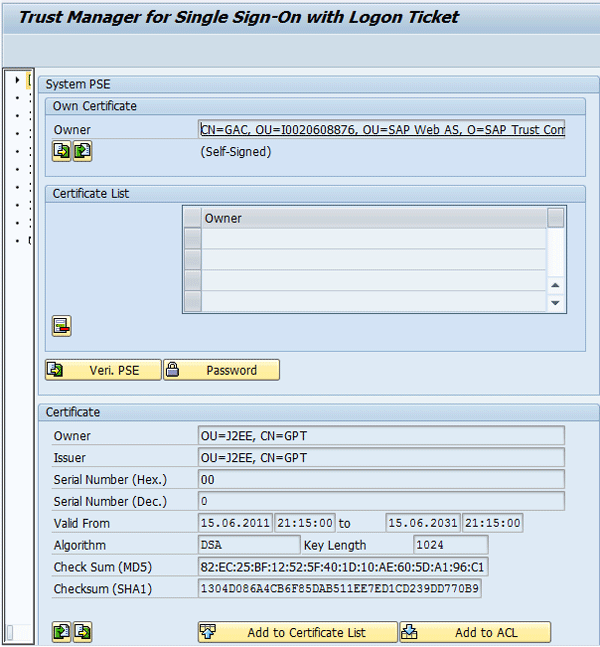
Figure 30
Populate the certificate entries
Click the Add to Certificate List button. An entry is added to the Owner table under the Certificate List section (Figure 31). Save.

Figure 31
An entry is added to the Owner table
Step 4. Add Certificate to the Access Control List in the Production Client of the Back-End System
Log on to the working client (e.g., 200) and use transaction STRUSTSSO2 (Figure 32).

Figure 32
Log on to the client
Double-click the certificate in the Owner table of the Certificate List section. Figure 33 displays the populated certificate details in the Certificate section.
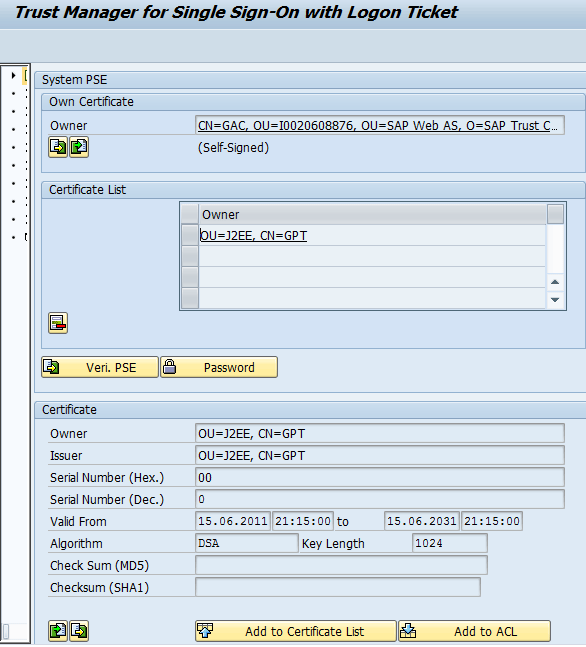
Figure 33
The Certificate properties populate
Click the Add to ACL button and a dialog box is displayed requesting information about the System ID (e.g., GPT) and Client (e.g., 000) of the portal (Figure 34). Click the green check mark icon.

Figure 34
Enter the System ID and Client information
Note
Appendix 5 describes how to know the client number to specify when defining the SSO access control list.
Figure 35 displays the Access Control List section now updated with a new entry in the Access Control List table under the Logon Ticket section. Save.
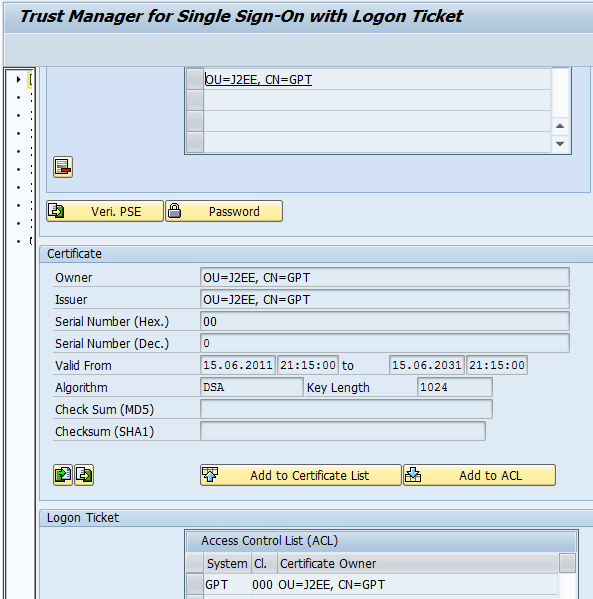
Figure 35
Logon ticket information is maintained
Review the Status of SSO Configuration
Transaction SSO2 is a good source of information for SSO-related configuration settings in the ABAP system. It provides useful information for troubleshooting and maintenance. Table TWPSSO2ACL provides details about the system for which the ABAP system accepts verified logon tickets from.
Use transaction SSO2 to bring up the screen in Figure 36. Click the execute icon to display the logon ticket information (Figure 37).

Figure 36
Transaction SSO2

Figure 37
SSO logon ticket information
User Management in SAP NetWeaver Portal
To access the work center via the portal, you need to have a defined user account. Before I walk you through the process of user creation and role provisioning, I’d like to discuss the following user administration-dependent concepts as they relate to SAP BusinessObjects GRC 10.0:
Maintain the UME Data Source
SAP NetWeaver Portal supports two sources of information for user management. These data sources are:
- Java database
- External ABAP database
The data source used by SAP NetWeaver Portal is originally defined during system installation (Figure 38).

Figure 38
Possible UME data sources defined during system installation with SAPinst
Access the identity management engine by following menu path https://POAC.sapken.com:50100/useradmin (where POAC.sapken.com is your complete host name and 50100 is your port). The screen in Figure 39 displays. Click the Configuration button to bring up the screen in Figure 40. The Data Sources tab is selected by default. Click the Modify Configuration button to bring up the screen in Figure 41.

Figure 39
Access the identity management engine
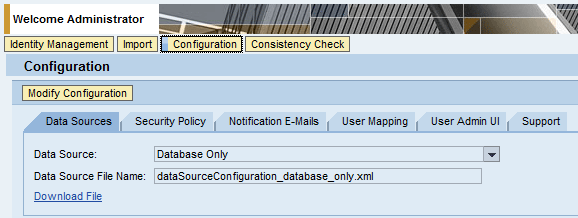
Figure 40
Click the Modify Configuration button

Figure 41
Enter data source details
In the Data Source field, choose the drop-down icon and select ABAP System (Figure 42).
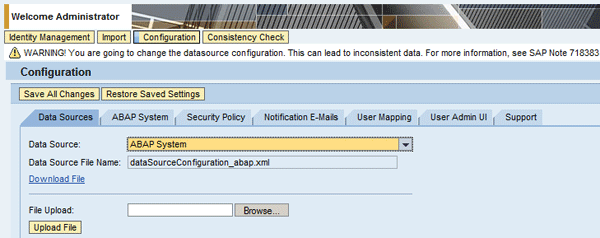
Figure 42
Select ABAP System
This creates a new tab for ABAP System. A warning message is also displayed, recommending you review SAP Note 718383, which can help guide you against having inconsistent data. Choose the ABAP System tab to display the attributes that need to be maintained to connect to the back-end system (Figure 43).
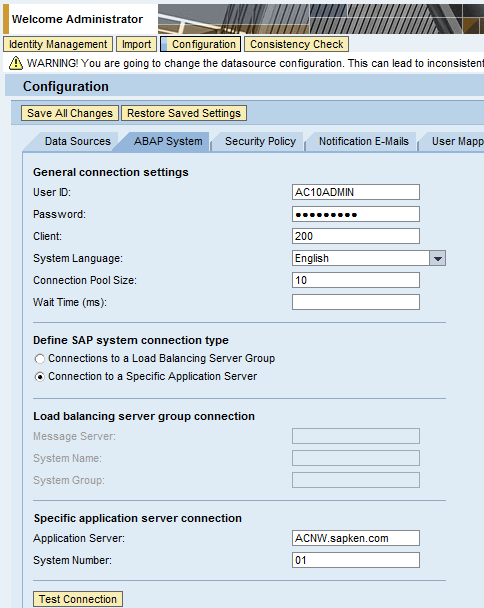
Figure 43
Enter values to establish the connection
Enter values for the following fields to connect to the back-end system:
- User ID (e.g., AC10ADMIN)
- Password (e.g., *********)
- Client (e.g., 200)
- Language (e.g., English)
- Application Server (e.g., ACNW.sapken.com)
- System Number (e.g., 01)
Click the Test Connection button to check the connection to the back-end system. A message should appear telling you it was successful. Then click the Save All Changes button. A message appears telling you that the configuration is saved and that you need to restart the server nodes. You need to restart the application server.
A typical search for users in the identity management engine in SAP NetWeaver Portal is shown in Figure 44 displaying users from different data sources.
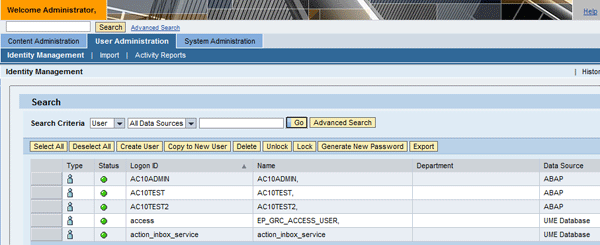
Figure 44
A typical user list in the portal
Maintain the SAP Reference System
In a typical SAP NetWeaver Portal system landscape, the administrators most likely need to maintain defined system aliases as reference systems. This is especially necessary when SSO is implemented and the user ID of the portal user is not the same as the user ID of the SAP BusinessObjects GRC ABAP system. For you to map a user account to that system, you need to define it as the reference system for SAP NetWeaver Portal. The mapped user in the portal is used for accessing the SAP BusinessObjects GRC ABAP system based on the SSO concept.
Access the identity management engine in SAP NetWeaver Portal via the URL https://POAC.sapken.com:50100/useradmin (where POAC.sapken.com is your complete host name and 50100 is your port) (Figure 45). Click the Configuration button to bring up the screen in Figure 46. Then click the Modify Configuration button to bring up the screen in Figure 47. Click the User Mapping tab to bring up the screen in Figure 48.

Figure 45
Access the identity management engine
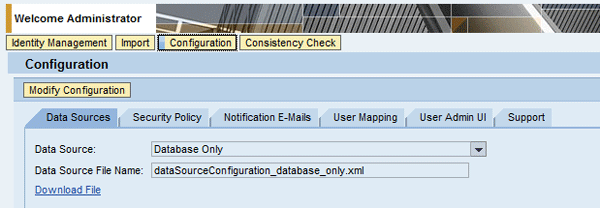
Figure 46
Click Modify Configuration

Figure 47
Click the User Mapping tab

Figure 48
Choose the Reference System drop-down
In the Reference System drop-down, choose SAP-GRC (Figure 49). Then click Save All Changes. A message appears confirming the status of the operation. Once again, you need to restart the application server.

Figure 49
Select SAP-GRC
Add the ERP Common Portal Role to the Everyone Portal Group
The portal role ERP Common is loaded into SAP NetWeaver Portal with the deployment of BP ERP Common Parts 1.51 software component as described. This portal role needs to be assigned to the Everyone group in SAP NetWeaver Portal. The role assigned to the group is consequently provisioned by default to all newly created users in the group assignment phase of user creation process in SAP NetWeaver Portal.
Access the Identity Management engine in SAP NetWeaver Portal via the URL https://POAC.sapken.com:50100/useradmin (where POAC.sapken.com is your complete host name and 50100 is your port) (Figure 50). Choose the Search Criteria drop-down and select Group. In the search field, enter *EVERYONE*. Click the Go button to bring up the screen in Figure 51.
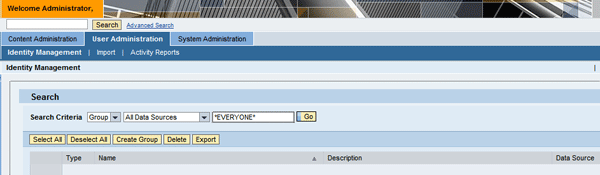
Figure 50
Access the Identity Management engine
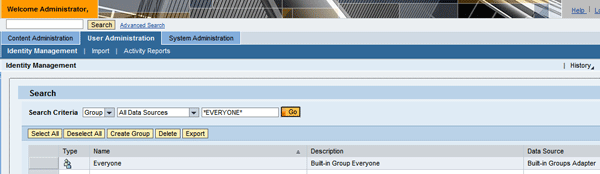
Figure 51
The name Everyone appears
Highlight the group name Everyone and the Details section opens (Figure 52).
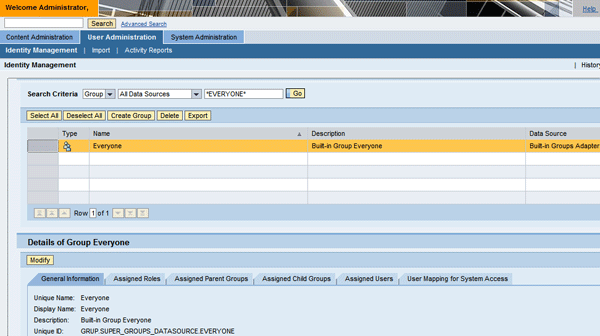
Figure 52
Group details for Everyone
Click the Modify button to go into edit mode. Then choose the Assigned Roles tab (Figure 53). Enter *COMMON* in the search field and click the Go button.

Figure 53
Click the Assigned Roles tab
Figure 54 displays with the result of the search criteria.
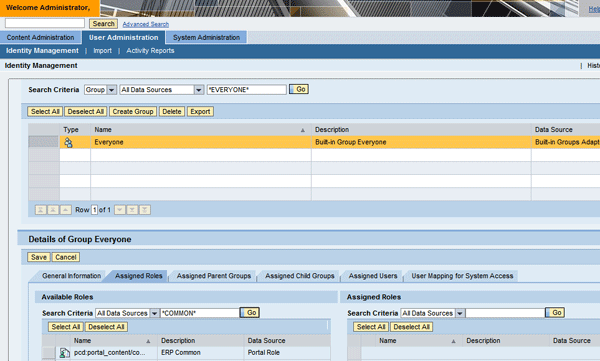
Figure 54
Search results
Highlight the ERP Common role and click the Add button (Figure 55). The role then appears in the Assigned Roles section (Figure 56). Save.
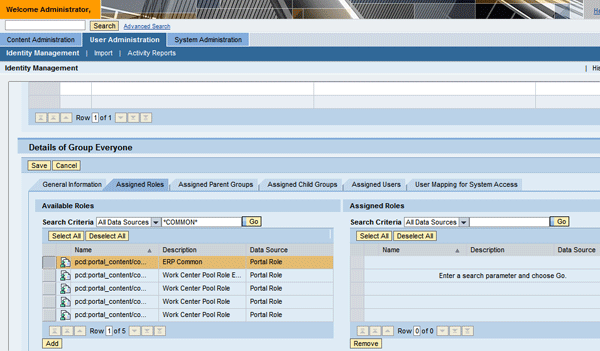
Figure 55
Add the ERP Common role
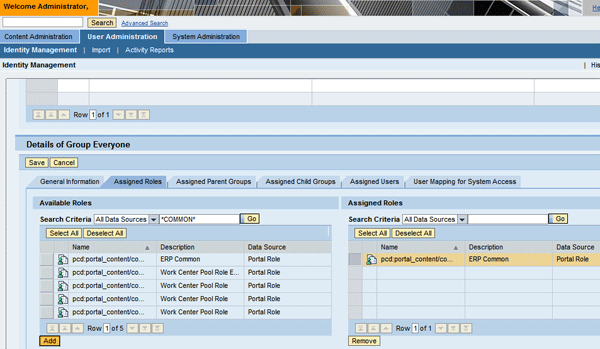
Figure 56
The role is in the Assigned Roles section
Set Up an Initial User in SAP NetWeaver Portal
If the data source used for user management is the ABAP-based SAP BusinessObjects GRC system, then you do not need to create a user explicitly in SAP NetWeaver Portal. However, if this is not the case, you have to explicitly create a user in the portal system and assign appropriate portal roles to the user. The GRC-specific portal role assigned to the user depends on the application component that is activated as described below:
- For an SAP BusinessObjects Access Control 10.0 standalone installation, you need to assign the portal role GRC ACCESS CONTROL (with the unique name pcd:portal_content/com.sap.pct/com.sap.grc.grac/com.sap.grc.ac.roles/com.sap.grc.ac.Role_All) to the user with the GRC ABAP system role SAP_GRAC_ALL (Super Admin for AC). This allows the user to have access to the complete work center in SAP NetWeaver Portal.
- For an integrated installation, you need the assign the portal role GRC SUITE (with the unique name pcd:portal_content/com.sap.pct/com.sap.grc.GRC_Suite/com.sap.grc.GRC_Suite_Role/com.sap.grc.GRC_Suite) to the user with the GRC ABAP system role SAP_GRC_FN_ALL (GRC Power User). This allows the user to have access to the complete work center in SAP NetWeaver Portal.
A portal user can leverage SSO to connect to the back-end system by mapping the portal user ID to the user in the back-end system. This is done by maintaining the mapped user ID and mapped password for the portal user in Identity Management functionality of User Administration. However, a portal user leverages SSO to connect to the back-end system if he has a corresponding user account (with same user ID as the portals’) in the back-end system without user mapping.
Access the Identity Management engine in SAP NetWeaver Portal via the URL https://POAC.sapken.com:50100/useradmin (where POAC.sapken.com is your complete host name and 50100 is your port) (Figure 57).
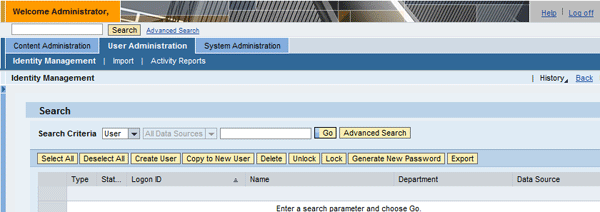
Figure 57
Access the Identity Management engine
Click the Create User button to bring up the screen in Figure 58.
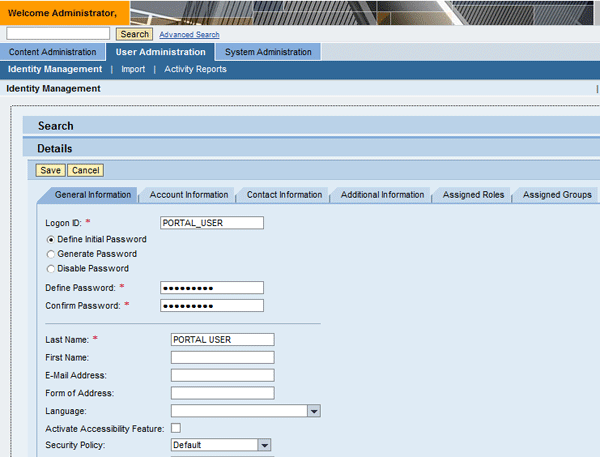
Figure 58
Enter values
Enter values for at least the following fields:
- Login ID (e.g., PORTAL_USER)
- Define Password (e.g., ********)
- Confirm Password (e.g., ********)
- Last Name (e.g., PORTAL USER)
Choose the Assigned Roles tab. In the search criteria field, enter *GRC* and click Go to filter the results (Figure 59).
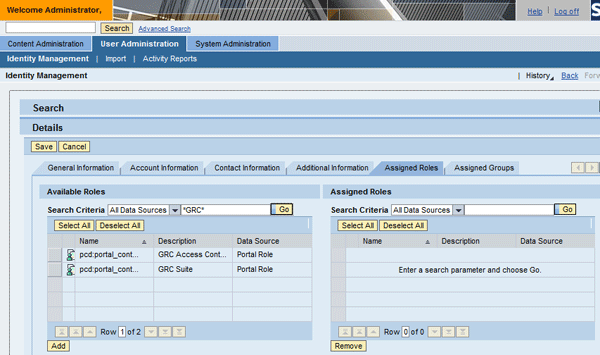
Figure 59
Refine the results
Highlight the role GRC Suite (Figure 60). Click the Add button and the role is moved to the Assigned Roles section (Figure 61). Follow the same procedure to add other roles. Then save and a message appears to tell you the user was created.
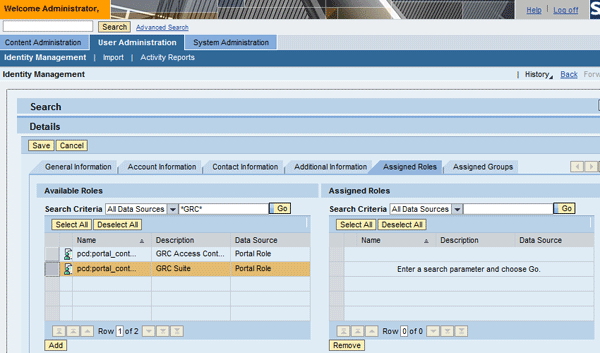
Figure 60
Select the GRC Suite role

Figure 61
Move the role to the Assigned Roles section
Choose the Assigned Groups tab (Figure 62). Notice that the Everyone group you added to the ERP Common portal role is assigned by default, as is the Authenticated Users group, which is by default.

Figure 62
The Everyone group is assigned by default
Choose the menu icon shown in Figure 63 and select User Mapping for System Access. Figure 64 appears, allowing you to assign the reference system and the mapped user details of the back-end system.
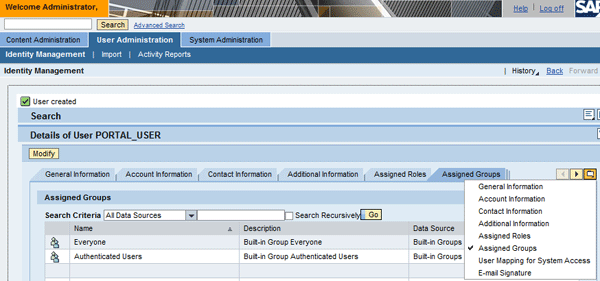
Figure 63
Select User Mapping for System Access

Figure 64
Click the Modify button
Click the Modify button to go into edit mode (Figure 65).

Figure 65
Enter details
Enter values for the following fields:
- System: SAP-GRC (This field contains the list of systems defined in the reference system definition discussed earlier)
- Mapped User ID (e.g., ABAP_USER)
- Mapped Password (e.g., ********)
Note that the ABAP_USER should already exist in the back-end ABAP system (which you can find via transaction SU01) (Figure 66). Save and you get a message confirming the action (Figure 67). Note that the system now has an X next to it, indicating the existing user mapping for the system.

Figure 66
Mapped user in the back-end system

Figure 67
The user attributes have been modified
Access the SAP BusinessObjects GRC 10.0 Work Center via SAP NetWeaver Portal Using SSO
There are two scenarios by which you can access the work center via the portal.
Scenario 1: SSO Using an SAP Logon Ticket with User Mapping
This scenario assumes that:
- The user PORTAL_USER exists in SAP NetWeaver Portal
- The user ABAP_USER exists in the SAP BusinessObjects GRC ABAP system
- The user ABAP_USER is mapped for the user PORTAL_USER
Log on to the portal with the PORTAL_USER credential that you just created (Figure 68).
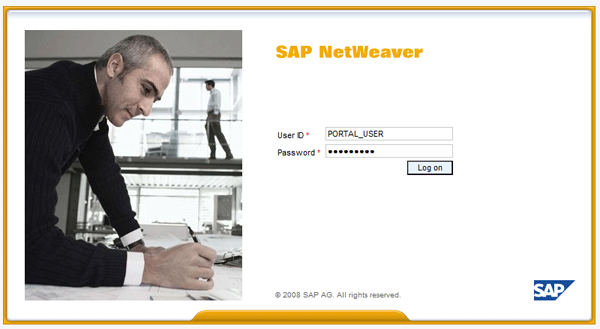
Figure 68
Access the work center
Since this is the first logon attempt by the user, you have to change the initial password (Figure 69). After you change it, the work center appears (Figure 70).
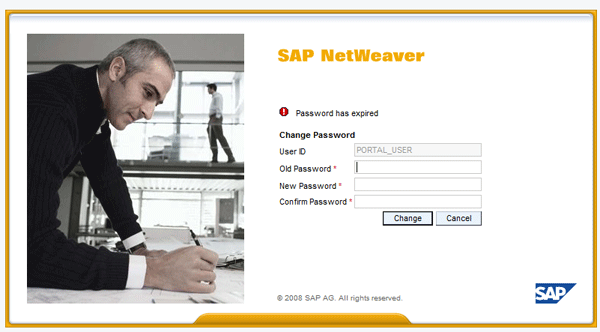
Figure 69
Change the password

Figure 70
Accessing the work center
Note that in the work center environment shown in Figure 70, there are two welcome messages for two different users: Welcome PORTAL USER and Welcome ABAP USER for users from each system, respectively.
Scenario 2: SSO with SAP Logon Ticket without a Mapped User
This scenario assumes that:
- The user EP_GRC exists in SAP NetWeaver Portal (Figure 71)
- The user EP_GRC in SAP NetWeaver Portal has no user mapped to it
- The user EP_GRC exists in the SAP BusinessObjects GRC ABAP system (Figure 72)

Figure 71
User in SAP NetWeaver Portal
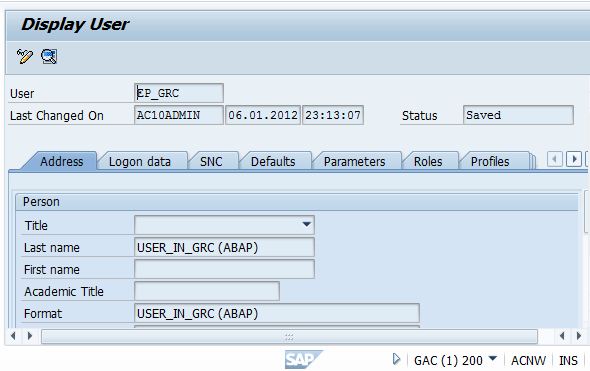
Figure 72
User in the ABAP system
Access SAP NetWeaver Portal and provide authentication credentials and log on (Figure 73).

Figure 73
Testing SSO using a logon ticket without user mapping

Figure 74
SAP BusinessObjects GRC 10.0 work center
Note that in the work center environment shown, there are two welcome messages for two different users: welcome USER_IN_PORTAL and USER_IN_GRC (ABAP) for the users that exist in SAP NetWeaver Portal (EP_GRC) and in the SAP BusinessObjects GRC 10.0 ABAP system (EP_GRC), respectively.
Kehinde Eseyin
Kehinde Eseyin is a security architect. He holds a bachelor’s degree in computer science. He has about 12 years of IT security, governance framework, IS risk, and compliance experience gained by working in numerous global organizations. Over the years, he has demonstrated competencies in security design, information assurance, cyber security, data privacy, threat and vulnerability management, penetration testing, business architecture, project management, IT audit, IS controls framework, and identity and access management.
You may contact the author at eseyinok@gmail.com.
If you have comments about this article or publication, or would like to submit an article idea, please contact the editor.