See improvements made to SAP Financial Closing Cockpit in Enhancement Package 3 that allow it to integrate with SAP Central Process Scheduling by Redwood and to create close tasks in other systems.
Key Concept
SAP Central Process Scheduling by Redwood (SAP CPS) is designed to integrate process automation for SAP and non-SAP applications across distributed and heterogeneous systems. For financial teams this means that you can centralize your close process by using CPS to initiate close tasks, such as a depreciation run or an allocation, in systems other than the SAP ERP Central Component system in which the Closing Cockpit resides.
At the Financials 2008 conference, I noticed a lot of interest in the improvements made to the closing processes in SAP Financial Closing Cockpit with SAP Enhancement Package (EhP) 3. From EhP 3 for SAP ERP 6.0, Closing Cockpit is integrated with SAP Central Process Scheduling for SAP NetWeaver 7.0 by Redwood (SAP CPS). This allows you to set up a central template for all your close tasks in Closing Cockpit and to use SAP CPS to route close tasks from your central SAP ERP Central Component (ECC) 6.0.3 system to other remote systems, whether these are other ECC systems containing Financials data, SAP R/3 systems on lower release levels, or non-SAP systems containing data that affects the close process. SAP CPS is available for installation on the SAP NetWeaver stack from SAP NetWeaver 7.0 Support Package 14.
I’ll explore the cross-client and cross-system scheduling available in the latest EhP in 12 steps. I’ll describe the system I’m working with in the example scenario before going into Closing Cockpit integration features with SAP CPS.
Example System
The recommended system landscape shown in Figure 1 includes one instance of SAP ERP that contains one or more templates that list all the close tasks the company needs to perform. The Financials users work primarily in this system, though they also need user IDs in SAP CPS and in the systems that execute the close tasks to ensure that they have the correct authorization profiles. The ECC 6.0.3 system connects with an SAP NetWeaver server on which SAP CPS is installed and acts as the scheduling monitor. System administrators and other IT users work primarily in SAP CPS. Additional systems are registered in SAP CPS as Queues (Figure 2).

Figure 1
SAP CPS integration with Closing Cockpit

Figure 2
SAP Central Process Scheduling by Redwood home screen
Customizing
I’ll now start going through the 12 steps of customizing you need to perform.
- Step 1. Install SAP CPS and configure system connections
- Step 2. Activate the business function in ECC 6.0
- Step 3. Add a remote task to your template in ECC
- Step 4. Check the job definition in SAP CPS
- Step 5. Enter job parameters for a remote job in ECC
- Step 6. Check job parameters in SAP CPS
- Step 7. Prepare the task list for execution in ECC
- Step 8. Access the task list from SAP NetWeaver Business Client
- Step 9. Execute the remote task from SAP NetWeaver Business Client
- Step 10. Check the status of the remote task in SAP CPS
- Step 11. Check the status of the remote task in SAP NetWeaver Business Client
- Step 12. Check the status of the executed task in ECC
Step 1. Install SAP CPS and configure system connections. When you configure SAP CPS, the system registers each of the relevant systems on the right of Figure 1 as a queue or remote system in SAP CPS. When each job is scheduled from Closing Cockpit, SAP CPS triggers the start of the task according to the schedule in Closing Cockpit and routes the status, processing times, job logs, spool lists, application logs, and so on, back to Closing Cockpit where they are available for analysis by the team monitoring the close.
Step 2. Activate the business function in ECC 6.0. Before I look further at the settings required in SAP CPS, let’s return to ECC. To see a remote task in the close template, you need to activate the business function Local Close (FIN_ACC_ LOCAL_CLOSE). This is the same procedure as for all ERP enhancements. You simply call up the IMG, select the first menu item Activate Business Functions, choose Enterprise Business Functions, and select and activate the FIN_ACC_LOCAL_CLOSE business function. If you are activating a business function for the first time, you should refer to the general information on the EhPs available in SAP Notes 1083576 and 1095233.
You should also confirm with your system administrator that SAP CPS has been installed on the SAP NetWeaver stack. You can find more information about this process by going to the Web site https://www.sdn.sap.com/irj/sdn/nw-scheduling.
Step 3. Add a remote task to your template in ECC. After you have activated the business function in ECC and installed SAP CPS, the next step is to add a remote task to the template. To call up the template in ECC, follow menu path Accounting > Financial Accounting > General Ledger > Periodic Processing > Closing > Closing Cockpit (Manage Templates and Task lists). Gary described how to build the folders and add tasks to the template in some detail in his article, so I’ll focus instead on how to add a remote task to an existing template and then configure it so that it calls a job in another client of ECC.
To add a task to an existing template, select the folder to which you want to add the remote task, right- click on the folder, and choose Add Task (Figure 3). Select the Remote Task radio button. Assuming that you have installed SAP CPS, if you press F4 you can choose one of the job definitions defined in SAP CPS for use with Closing Cockpit. Choose SAP_ClosingCockpit_AbapRun to start programs with variants in the external SAP system. The job definitions are delivered with SAP CPS.
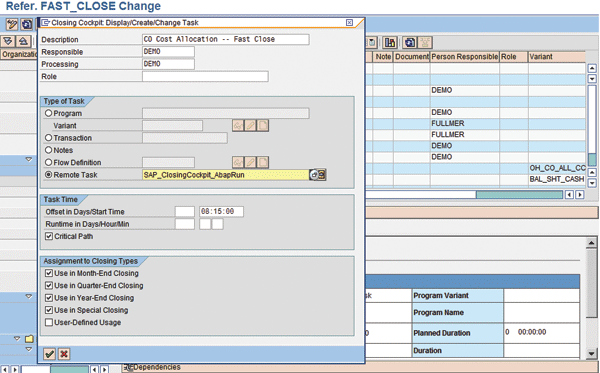
Figure 3
Close task details
Step 4. Check the job definition in SAP CPS. If you are new to this procedure, you may first want to check all the options available to you in SAP CPS. To do this, log on to SAP CPS or ask your administrator to show you. To see the job definitions shown in Closing Cockpit, click on the Job Definitions tab and scroll to the job SAP_ClosingCockpit_AbapRun (Figure 4). The job definition in SAP CPS contains all the technical parameters for scheduling, including the scheduling behavior and runtime behavior for the job. A full description of the scheduling options in SAP CPS is beyond the scope of this article. You should, however, be aware that further job definitions are delivered via SAP CPS for starting SAP NetWeaver Business Intelligence extractions, process chains, jobs in non-SAP systems, and so on.
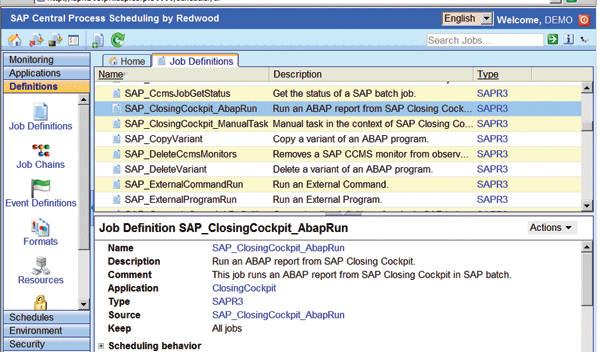
Figure 4
Job definitions in SAP CPS
Step 5. Enter job parameters for a remote job in ECC. The job definition in SAP CPS is simply the wrapper to call the job in the remote system. Before a job can run in the remote system, you have to enter the name of the program that you want to run and the variant to be used to start it in Closing Cockpit. In my example, I’m going to run an allocation cycle for cost center allocations in the remote system.
To do this, return to Closing Cockpit and define the parameters that you use to start the remote task. To access these, click on the icon next to the SAP_ClosingCockpit_AbapRun field in Figure 3. This brings up the parameters shown in Figure 5. In the Queue field, enter the system definition defined in SAP CPS for the system in which you want your remote task to be executed — FIN_Queue in my example.
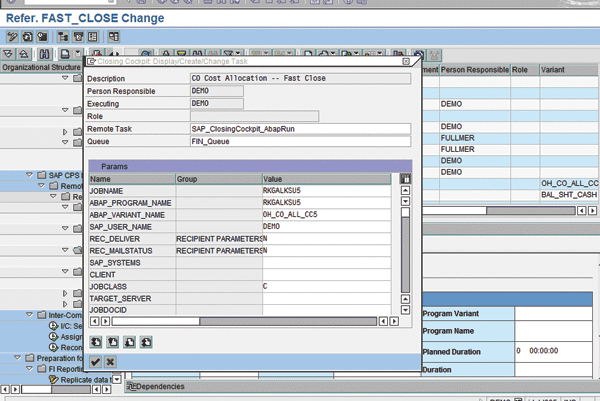
Figure 5
Program parameters for remote task
In the Params block, enter your own text in the field JOBNAME. SAP CPS generates a generic job ID for your job when the task is scheduled, but this description makes it easier to find the job if you are scheduling multiple jobs. Then enter the name of the job to be called in the ABAP_PROGRAM_NAME field. In my example I am running a CO assessment cycle using program RKGALKSU5, but you can enter any executable program. Last, enter the name of the variant that contains the parameters that you use to start the job in the ABAP_VARIANT_NAME field. You also need to specify the target system, but that information is contained in the queue. In my example, I am running a CO assessment cycle, so my variant contains the controlling area, time variables, and the names of the cycles I want to start in the remote system. The other parameters are technical parameters required by SAP CPS, but you can accept the defaults.
Step 6. Check job parameters in SAP CPS. If you want to find out more about these parameters, you can check the details by clicking on the Parameters folder in the job definition in SAP CPS (Figure 6).

Figure 6
Job parameters in SAP CPS
Step 7. Prepare the task list for execution in ECC. After creating a template that includes a remote task, you need to create a task list by choosing Other Template/Task list>Create Tasklist in Closing Cockpit and entering the key date, posting period, and year, as described in Gary’s article. To execute the tasks, you have several options in EhP 3. You can simply have your financial team use transaction CLOCO to access its close tasks or you can use the new Web application delivered as part of the Business Package Closing Cockpit. This includes the Web Dynpro application FAGL_CLOCO_WD, which was designed specifically to enable your users to execute manual close tasks, schedule automatic close tasks, and update their statuses and comments in a Web environment. You can make this application available to your users either via SAP NetWeaver Portal or SAP NetWeaver Business Client. I used the SAP NetWeaver Business Client to capture the screens for this article.
Step 8. Access the task list from SAP NetWeaver Business Client. After you have released this task list, you can display it in a Web application either in SAP NetWeaver Business Client (available from SAP EhP 2 of SAP ERP 6.0) or in SAP NetWeaver Portal. In my example, I’ve installed SAP NetWeaver Business Client on my desktop and assigned the role Work Center Pool Role to my user. The role is the collection point for the delivery of Web content via the portal. Instead of seeing all menu entries in the SAP Easy Menu, the roles ensure that users only see those activities that are assigned to them. Normally you would activate the Business Package Closing Cockpit, found in the Portal Content Directory under Worksets for Reuse in Roles, and assign it to an accounting role. In my example, however, I am using the role as delivered, which means I have a number of irrelevant worksets in the dark blue area of SAP NetWeaver Business Client.
The Closing Cockpit business package provides access to all tasks associated with the local close. The first page contains a Web application that displays all task lists that have been released. The Task Lists in Preparation tab shows those task lists that have been released but not yet scheduled (Figure 7). The Task Lists in Processing tab contains those task lists that are currently in process or scheduled. Finally the Completed Task Lists tab contains those task lists that have been flagged as completed in previous periods. These are not necessarily required by the closing team, but may be useful for compliance checks after the close.
Note
If you prefer not to work with the new Web user interface, you can continue to use transaction CLOCO in the SAP menu. However, this method provides improved usability.
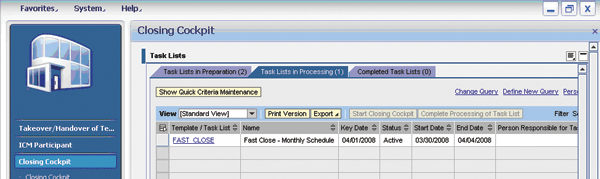
Figure 7
Closing Cockpit business package
Step 9. Execute the remote task from SAP NetWeaver Business Client. If you click on the task list, you see a complete list of the tasks included in the task list, structured by folder. To schedule a task, whether locally or via SAP CPS, mark the task in the list and choose Schedule Task(s) from the Action drop-down list (Figure 8). In my example I am scheduling an assessment cycle in the remote system.
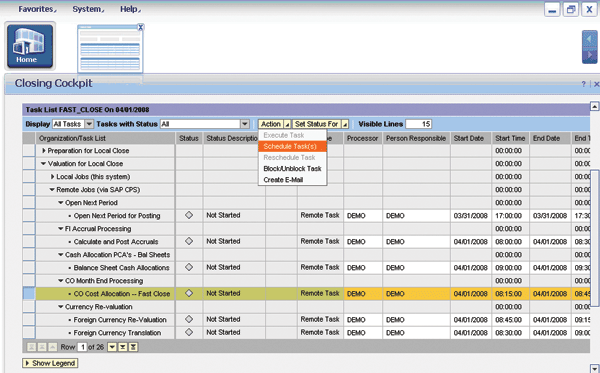
Figure 8
Closing Cockpit details of close tasks
At this point, Closing Cockpit triggers the scheduling of the allocation via SAP CPS and SAP CPS issues a job ID. Financials users can monitor the job from Closing Cockpit, but IT users can find the job in SAP CPS.
Step 10. Check the status of the remote task in SAP CPS. To display the job in SAP CPS, choose the Monitoring bar and click on the Jobs button. The screen shows that the remote task started with the job ID 11327 and has now completed (Figure 9). Click on Files to go to the system logs and error lists generated when the remote system performed the cost allocation.

Figure 9
Closing Cockpit notification of scheduling
Step 11. Check the status of the remote task in SAP NetWeaver Business Client. I will now show you how the same job appears in Closing Cockpit. Figure 10 shows the SAP CPS job ID as a Remote Task and contains the same start and end dates and times. To display the logs created when the allocation was run, click on the Task-related Files tab.

Figure 10
Task details in Closing Cockpit
Figure 11 shows the remote job log and the remote job spool. The system stores the logs in SAP CPS instead of Basis so they can remain there longer than usual. Usually they are archived after less than a week to improve performance, but you may need to keep them in SAP CPS for longer so they are available for auditors checking the close.
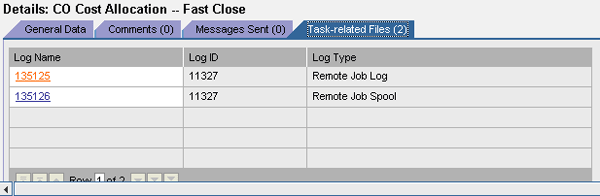
Figure 11
Task files in Closing Cockpit
Finally, click on the remote job spool (file 135126) to display the job details (Figure 12). This displays the actions performed by the allocation cycle in the remote system.
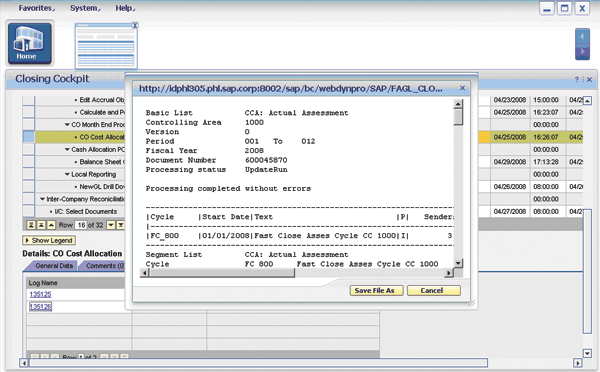
Figure 12
Remote logs in Closing Cockpit
Step 12. Check the status of the executed task in ECC. Note that all I have done is to schedule the cost allocation remotely from another client of ECC using SAP CPS. If I log on to client 800 (the remote system in my example), I can check all the normal documentation concerning whether the allocation cycle ran correctly and which cost centers it updated. The system writes a status to Closing Cockpit. If there are errors, the user can reschedule from Closing Cockpit. If there are errors in the underlying customizing, the user may have to contact somebody in the local system and have them fix the errors first.
Janet Salmon
Janet Salmon joined SAP in 1992. After six months of training on R/2, she began work as a translator, becoming a technical writer for the Product Costing area in 1993. As English speakers with a grasp of German costing methodologies were rare in the early 1990s, she began to hold classes and became a product manager for the Product Costing area in 1996, helping numerous international organizations set up Product Costing. More recently, she has worked on CO content for SAP NetWeaver Business Warehouse, Financial Analytics, and role-based portals. She is currently chief product owner for management accounting. She lives in Speyer, Germany, with her husband and two children.
You may contact the author at janet.dorothy.salmon@sap.com.
If you have comments about this article or publication, or would like to submit an article idea, please contact the editor.