The results for multiple queries are often placed in one Excel worksheet, which is then referenced to other sheets in the workbook. This practice, which is embraced by many, can cause problems, however, if a query changes the cell, column, or row structure in the sheet containing the results areas. The author demonstrates a easy way to change a sheet's structure so it can accommodate new data in one area without altering the rest of the worksheet, allowing you to preserve the cell references used throughout a workbook.
BW users often rely on the results areas for multiple queries residing in a single Excel worksheet to act as data feeders referenced by other sheets in the workbook. Sheets containing elements such as charts, graphs, or data tables commonly reference the various result area cells.
This arrangement is not without drawbacks because it can result in problems if the cell, row, or column structures change in the sheet containing the results areas. When queries are refreshed to provide new information, any changes made to one result area can potentially affect the results areas for the other queries on the sheet.
Allowing the BW system to insert new rows or columns automatically when a query changes can alter the structure of the cells and throw the references out of synch. It is then up to the BW report developer to reset all the references so that the graphs plotted on other sheets are rendered correctly.
Consider the following: A workbook has the result areas for three queries in one sheet (Figure 1). The query that creates Result Area A has been changed globally, and consequently requires a new row structure. Instead of the original four rows used to display the filtered characteristic of three values plus a total, the new structure will contain six entries. It requires two additional rows plus space for changes to the navigation block. If you simply execute the global change and refresh the query, BW will automatically insert a row for the new structure along with an additional blank row into the navigation block. All of the other rows on the sheet — including the result areas —will move down two rows. This will affect the way the data is displayed on any sheets referencing the result areas.

Figure 1
In our example, the initial workbook has the results areas for three queries displaying three sets of data. Note the Navigation Block and Results Areas A, B, and C.
I will show you a straightforward way to alter the structure of the worksheet to display the new data in Results Area A without disturbing Results Areas B and C. Designed to avoid the inconvenience and eliminate the errors this type of change might cause, my approach is simple and direct and does not require employing Visual Basic.
How It’s Done
To accommodate the three new entries to the row structure without interfering with the references in other sheets, take the following steps:
- Manually insert three extra rows into the sheet. Inserting the extra rows just below Results Area A allows native Excel functionality to map the appropriate cells in Results Areas B and C to the graphs and data tables in other sheets.
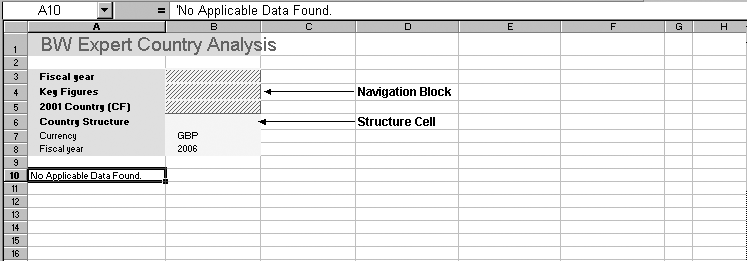
- Refresh the query for Result Area A without data. This will insert a structure cell (Country Structure) into the worksheet with a blank cell beneath it as well as a cell containing the text message No Applicable Data Found (Figure 2). The data in Results Areas B and C will not move, however, because there is no new data to be inserted. Note that the text message is two cells lower than where Results Area A originally started, and the structure cell is below the text element cells Currency and Fiscal Year.

Figure 2
Refreshing the query with a range that has no data such as information for Fiscal 2006 will result in a No Applicable Data Found message
- Drag and drop the structure cell into the main navigation block area.
Note
If the query uses so-called “not ready to input” variables, i.e., those that do not get entered manually on execution, a temporary change may be necessary in the Query Designer. Click on the change icon and go to Change Query (Global Definition) to allow the query to be executed and return the “No Data” message. Change an existing object in the query, e.g., fiscal year, so that it can be input after the query is executed and make sure the Ready for Input flag is checked in BW Variables Editor. Now, right- click on Year to select filter value, left-click on the Variables tab, and right- click on the variable to be changed (Figure 3). Once the workbook formatting change is ready to insert the new cells and rows, the temporary query change can be removed in the Query Designer.

Figure 3
your query requires a variable not ready for input, use this screen in the BW Variables Editor to temporarily change it
- Move No Applicable Data Found cell up two rows to where Results Area A originally began (Figure 4).
- Refresh the query with valid selections. This will prove the query still executes and does not impact Results Areas B and C. No data is displayed, however, because the local view still must be changed to display the structure.
- In the query’s local Change Query mode, unhide the six elements of the row structure, and set formatting as required. Also, move the structure down into the rows and the InfoObject (Country in this example) back up to the free characteristics.
- Click on the green tick mark in the Change Query screen to insert the new view into the results area (Figure 5). The new data is presented without having any impact on the other results areas on the sheet.

Tip!
Refresh the query for a range where there will be no data, e.g. Fiscal Year 2006, so the No Applicable Data Found message will be returned.
Robert Oliver
Robert Oliver is an SAP BI developer working for an investment bank in London. He has been working with SAP R/3 since 1994 and SAP NetWeaver BW since 1999. Since 2005 he has been working with the planning and consolidation systems provided by SAP. Prior to his current role he was an end user and a consultant.
If you have comments about this article or BI Expert, or would like to submit an article idea, contact the BI Expert editor.
You may contact the author at Robert_Oliver@Hotmail.com.
If you have comments about this article or publication, or would like to submit an article idea, please contact the editor.