You can post credit memos to the cost of goods sold without creating an imbalance between FI and Profitability Analysis (CO-PA). However, you have to account for the revenue account determination, cost element categories, pricing procedure components, and how signs are handled in FI and CO-PA.
Key Concept
Creating an invoice is the most fundamental and basic revenue recognition process. In typical situations, the invoice posts to revenue (or discount accounts) during the billing. Credit memos are the opposite of invoices. The basic logic remains the same, except the signs are reversed during credit memo processing. However, under certain circumstances companies might want to post to the cost of goods sold (COGS) account, instead of to the revenue account. Typically, this is required when the business purpose of the process is not revenue recognition but costs reduction.
Typically an invoice posts to revenue (or discount accounts) during the billing process. However, in some industries, companies may want to post to the cost of goods sold (COGS) account instead.
For example, in the high-tech and specialty manufacturing industries, it is common to issue credits to customers based on their volume of business. A manufacturer might issue a credit when the customer orders 100 high-tech machine parts or a purchase credit for every tenth specialty product produced. These situations are similar to rebates.
However, the companies want to treat such credits as a cost of doing business and not as a reduction of revenue. Therefore, for such credits to customers, they would like to post credit memos to financials as Cr Customer; Dr COGS.
The workaround I describe here allows you to post credit memos to CO-PA while still keeping FI and CO-PA in balance. First, let me review some background information.
Revenue Recognition
Dr Customer; Cr Revenues is one of the most basic accounting entries for an invoice posting. For credit memos, Cr Customer; Dr Revenues is the most basic accounting entry for processing. Figure 1 shows the basic entries during billing.
Invoice
|
|
Credit memo
|
Dr
|
Customer A/R
|
100.23
|
|
Cr
|
Customer A/R
|
-100.23
|
Cr
|
Revenues
|
-100.23
|
|
Dr
|
Revenues
|
100.23
|
Figure 1 However, when the business purpose is costs reduction, the accounting entries would be posted at the time the customer is billed, as shown in Figure 2.
Invoice
|
|
Credit memo
|
Dr
|
Customer A/R
|
100.23
|
|
Cr
|
Customer A/R
|
-100.23
|
Cr
|
COGS
|
-100.23
|
|
Dr
|
COGS
|
100.23
|
Figure 2Let's go back to my example of the high-tech and specialty manufacturing industries. During the normal business cycle, they make normal sales to customers at the regular standard price. Depending on their agreement, they issue purchase credits if the customer meets previously agreed-upon milestones. These situations are similar to rebates; however, companies want to treat such credits to customers as a cost of doing business and not as a reduction of revenues. Therefore, for such credits to customers, they want to post credit memos to financials as Cr Customer; Dr COGS.
Inconsistency Caused by Using the COGS Account
In simplified terms, you want to post to the COGS account instead of to the revenue account. The first reaction may be to simply replace the revenue account with the COGS account in revenue account determination configuration (transaction VKOA). Figure 3 shows sample entries.

Figure 3
Revenue account determination configuration
Say you replaced 400001 (revenue account) with 500001 (COGS account) for the relevant row. It may sound simple to use a different account number, but be ready to be shocked when you post the credit memo.
When you try to post a credit memo, the system issues an error message that the G/L accounts are not of the cost element category 11 (revenues) or 12 (sales deductions) type. Typically, you don't change cost element settings on the fly because changing the cost element category can have serious consequences. However, when you change the cost element category for the COGS account to, for example, 12, it posts successfully to the G/L.
The accounting posting is correctly posted as Cr Customer; Dr COGS account. Even the entry posts to the CO- PA ledger. However, although the credit memo was posted to CO-PA, it posted with incorrect signs. Instead of a positive amount for COGS in CO-PA, it posts a negative amount. The value of the amounts is correct, but the signs are opposite. This causes a serious inconsistency between FI and CO-PA.
It may appear that the issue of the incorrect sign in CO-PA is related to the Transfer +/- indicator of transaction KE4I in CO-PA, as shown in Figure 4. Though the symptoms are similar, the cause is not the indicator Transfer +/-. (Refer to my article "The Good and the Bad of CO-PA's Transfer +/- Option," published in May 2004 issue of FI/CO Expert for more information.)
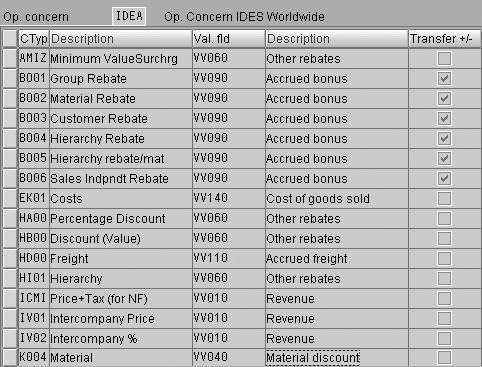
Figure 4
Mapping of SD condition types to CO-PA value fields
For the SD process of billing, mapping to CO-PA value fields is done by the SD condition types, not by the G/L account numbers. Transaction KE4I maps the SD condition types to CO-PA value fields, as shown in Figure 4.
Workaround Solution
The workaround involves some of the little-known and sometimes confusing features of cost element categories, pricing procedure, mapping of SD condition types to CO-PA value fields, and the SD-to-CO-PA interface. Let's first cover the features of the building blocks required as they relate to this article. I'm assuming that readers are familiar with the basic concepts.
- Cost element categories. Cost elements are to the CO module what accounts are to the G/L module. Cost element categories classify the cost elements by, for example, Primary costs (1), Revenues (11), and Sales deduction (12), as shown in Figure 5.
Usually, COGS accounts related to primary costs are created with category 1. Revenue accounts have category 11, and discount accounts have category 12.
- Statistical conditions. SD condition types marked as "Stat," or more popularly known as statistical conditions, are purely for informational purposes. These are not real conditions in that they do not change the net pricing calculations related to billing your customer. The values of these statistical conditions do not post to G/L accounts when the sales order's billing document is generated.
- Alternate calculation type. By default, the R/3 system calculates a value for each condition type by using an access sequence or by manually entering the value.
You can override this by the alternative calculation types (AltCTy) field in the pricing procedure. Alternative calculation types are routines or rules identified by numbers. You can maintain these routines via transaction VOFM, popularly referred to as VOFM routines.
- Subtotals. Subtotals let you calculate and temporarily store subtotals of condition values during the pricing calculations. You enable running subtotals by using the SubTo field and assigning SubTo variables to any row in the pricing procedure. Then that row's value is stored in special fields. Which variable the subtotal is placed into depends on the SubTo code you specify. As shown in Figure 6, the SubTo variable 1 stores the value of row 100 in KOMP-KZWI1.
- SD-to-CO-PA interface. Mapping of SD conditions to CO-PA value fields (transaction KE4I) is the first bridge between the SD and CO-PA modules. For the purpose of my article, only the following conditions are transferred to CO-PA: Revenues and sales deductions conditions whose G/L accounts are created in CO with cost element type 11 = revenue element or 12 = sales deduction (such as revenues or discounts), conditions that are defined as statistical in SD. (Refer to SAP note 20254 to list all specific details about what SD conditions are transferred to CO-PA.)
- SD condition values to CO-PA amounts. Typically, the revenue condition types are stored as positive in SD, both for invoice (F2) and credit memos (G2). For an invoice process, these revenue condition values are stored as positive amounts in CO-PA. For the credit process, the same revenue conditions are stored as negative amounts in CO-PA. In simplified terms, for the credit process, the system reverses signs when posting to CO-PA.
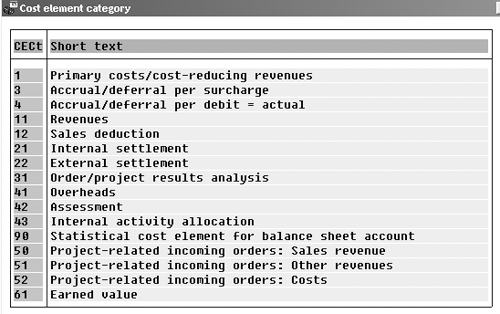
Figure 5
Cost element categories

Figure 6
SubTo variables and corresponding fields
Tip!
SD condition types are mapped to CO-PA value fields. For the SD-to-CO-PA interface, G/L account numbers do not influence which CO-PA value fields these are transferred to. However, cost element categories play an important role.
Implement the Solution
Now I will show you how to use the features of these components as building blocks.
Let's say your current pricing procedure looks like what is shown in Figure 7. Note that the last three columns are not part of the pricing procedure. The values in these columns are for demonstration purposes. The Condition Value of the purchase credit is 100.23, the G/L Account 400001 is a revenue account with cost element category 11, and the condition type is mapped to CO-PA Value Field VV300.

Figure 7
Existing pricing procedure and other components
Now follow these steps:
Step 1. Assign the Sub. To variable to the row with condition type ZPR1. Use transaction V/08 and enter D for row 10. I chose D but you could use one of the other variables shown in Figure 6. Use transaction V/08 to assign Sub. To variables for these rows. This causes the R/3 system to store the total value of ZPR1 in the temporary variable XWORKD. Later, you use this variable in your AltCType calculations. In this case, the variable XWORKD has a value of 100.23. As shown in Figure 6, the Sub. To variable D stores the value of the row in field XWORKD. The objective of this step is to store the total of specific condition type values to a temporary variable, which in turn can be used for further calculations.
Step 2. Use transaction VOFM to create a user-defined condition value formula routine (transaction VOFM> Formulas>Condition value) and assign a customer range number, say 981. Add a code assigning a value to the field XKWERT so that this routine calculates the value as y = -2x, as shown in Figure 8. Assigning a formula to variable XKWERT is SAP's way of creating a condition value formula routine.

Figure 8
VOFM routine 981 for condition value
Save and activate the routine (Edit>Activate). The objective of this step is to calculate the value of -200.46 and store it in a temporary variable.
Step 3. Routines calculate values temporarily only. You need a condition type to store them permanently. In this example, I am calling the condition type ZPR9 and will use it for storing a value. Next, create a condition type ZPR9 (transaction V/06), which stores -200.46.
Because it is always easier to copy the existing condition type, copy the condition type ZPR1. Highlight the ZPR1 row, and choose from menu bar Edit>Copy as. You do not need an access sequence, as its value is calculated separately with the help of a routine, as described in step 2 above. Blank out any value in the access sequence field that was copied into your ZPR9 condition type and then save.
The objective of this step is to use condition type ZPR9 as the placeholder to store - 200.46. The totals of ZPR1 (100.23) and ZPR9 (-200.46) equal -100.23 (i.e., the total of these two conditions is equal and opposite of ZPR1).
Step 4. Use transaction V/08 to tweak your pricing procedure and follow this process. Add a condition type ZPR9 to the pricing procedure as a separate row, say row 850. Mark ZPR9 condition as statistical (check the box Statistical for row 850). You don't want its calculations to adversely influence the pricing calculations. Remember, the statistical conditions do not change the net value calculations and do not post to G/L accounts. Your FI account postings (i.e., revenue account determinations), are not adversely affected. Even though you added a row in the pricing procedure, you did not affect existing settings.
Specify 981 in the Alt CTy field for the row 850, so that the system knows that the value of ZPR9 is derived by an alternative formula. VOFM routine 981 is created earlier in Step 2, which basically assigns the value of -200.46 (0 – 2 * xworkd) to the condition type ZPR9.
Step 5. Use transaction KE4I to map ZPR9 to the same value field as the condition type ZPR1. In my example, map condition type ZPR9 to value field VV300. The objective of this step is to transfer -200.46 to the CO-PA ledger. Note that the condition type ZPR9, in addition to condition type ZPR1, is mapped to VV300. The effect is that the net balance of ZPR1 and ZPR9 is transferred to CO-PA.
Step 6. Create a COGS cost element and set its cost element category to 12 (sales deductions). Preferably, create a new G/L account for the COGS account. The objective of this step is to create a cost element of type 12, as the system allows only types 11 and 12 during billing.
Step 7. Change the revenue account determination procedure and change the corresponding row. Replace the revenue account with the COGS account created in step 6. The objective of this step is to change the mapping to the COGS account, rather than to the revenue account. The revised pricing procedure and related components will look like Figure 9.

Figure 9
Revised pricing procedure and other components
How It Works
As you can see from the revised structure, the total of -100.23 is transferred to the CO-PA ledger. Earlier, +100.23 was transferred to the CO-PA ledger. Now, with the revised components in place, when you process your customer's credit memo, the following FI posting is made:
Cr Customer A/R (100.23)
Dr COGS 100.23
In addition, the CO-PA ledger correctly shows +100.23. Because this is a credit memo, the system reverses the signs when it finally posts to the CO-PA ledger, maintaining consistency between FI and CO-PA. While transferring credit memos to CO-PA, the system reverses signs for the amounts.
Note
It is important that you thoroughly test your business processes and regression test other business processes for consistency. You can use the Computer-Aided Test Tool (CATT). To minimize the potential impact on other processes, you could create a separate pricing procedure just for these kinds of processes. Also, it may be a good idea to test such processes in your sandbox first.

Mitresh Kundalia
Mitresh Kundalia heads the SAP practice at Quality Systems & Software (www.QSandS.com), a consulting firm specializing in SAP S/4HANA, SAP General Ledger, and complex System Landscape Optimization (SLO)-type reorganizations. Mitresh is widely acknowledged as a leading SAP expert, with multiple publications and an SAP-PRESS book to his credit. He has published more than 50 peer-reviewed articles and white papers, and he has given presentations at various SAP conferences and events. Mitresh is the chief solutions architect of General Ledger Migration Optimizer (GLMO), a leading product to accelerate and jump-start the SAP S/4HANA and SAP General Ledger initiatives; SAP Data Reorganization Optimizer (SDRO), an SLO-type product for managing complex system landscape reorganizations; and Group Currency Activation and Conversion (GCAC), a product suite to manage introduction of parallel currencies and conversion of data in a live SAP system.
You may contact the author at Mitresh@QSandS.com.
If you have comments about this article or publication, or would like to submit an article idea, please contact the editor.




 Premium