Use a characteristic text variable to drill down in a cost center report and see the text that goes with the new cost center.
Dear SAP Financials Expert,
We are heavy users of Report Painter and Report Writer reports. Cost center reports are widely used in our organization. Many of our reports have selection criteria for cost center and cost center groups. For example, business users can choose the part of the organization for which they want to display overhead. Accordingly, the cost center group is a part of the selection criteria. Users can choose the range of cost centers or cost center groups and drill down to various levels using the variations functionality.
Within the report design, we have used report texts to display various selection parameters on the report header. That way we know with which parameters the report was executed. For our cost center reports, we have a text variable to show the cost center group the users entered.
The specific problem I have is: The report header shows the cost center group chosen at the time of report execution. However, as I just mentioned, many times we drill down to further levels for more analysis. The report totals for drilled-down levels are correct, but it still shows the text of the original cost center group. It does not show the cost center group of the current drill-down level. This is confusing to users, because the text is incorrect.
Is there a way to choose the cost center group dynamically, depending on the current level of drill-down?
—IT Manager, California
I am glad to know that you have been making good use of text variables. Not only do your reports look much more professional, but they are also more informative and useful. It is always a good idea to display basic information on the report, such as the name and description of the report, who ran it, run date, and other information about the selection parameters entered by the user.
Your question refers to the text variables used within Report Painter or Report Writer reports. So that I can explain the solution, let me demonstrate the situation with an example. Say you execute a report with selection criteria for a cost center group and your cost center group is as shown in Figure 1. Cost center groupMFG-GROUP consists of two subgroups, PLANT-1 and PLANT-2. Cost centers 1000, 2000, and 3000 are assigned to PLANT-1, whereas cost centers 7000, 8000, and 9000 are assigned to PLANT- 2.
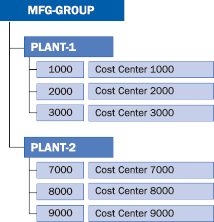
Figure 1
Sample cost center group
When you execute the report, you enter the selection criteria for cost centers as MFG- GROUP. Once the report is displayed, the text on the report header correctly displays the group as MFG-GROUP. When you use variation functions  , when you drill down to the next level, say, PLANT-1, the report still shows the text asMFG- GROUP. The report should show the text as PLANT-1, based on that drill-down level of cost center.
Now that you see the problem, I'll cover some basics. Texts can be displayed at different places within a report, such as report header, report footer, first page, and last page. SAP R/3 offers different types of text variables. Figure 2 shows sample text variables within a typical report layout. Text variables are of four primary types:
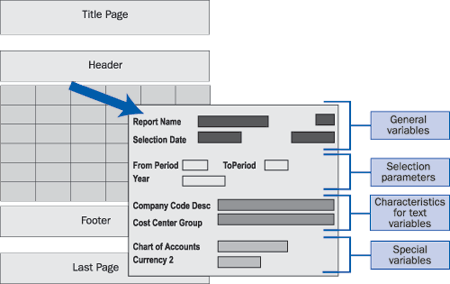
Figure 2
Sample text variables within a typical report layout
• General variables. General text variables provide basic information about the reports — for example, report name, author of the report, various date and time, and page number.
• Selection parameters. As the name suggests, selection parameter variables provide information about the parameter values with which the report was executed. If you have a report with the fiscal year as the selection option, you can choose to have the value of the fiscal year on the report. Typical examples of selection variables are fiscal year-end periods (from and to).
• Special variables. Special text variables are used primarily to provide additional information from the master tables. For example, for cost center reports, you also want to show the field Person responsible, which is available in Cost Center Master. Though Person responsible is not a part of the report definition as row or column blocks, using special variables, you can have additional information. Other examples of special variables are Chart of accounts and Fiscal year variant. To choose special variables, first you must choose the base table and then select the required field. Also, note that the option to select special variables may not be available in all reports.
• Characteristic text variables. Text variables for characteristics can provide details about each characteristic and its values, including value/description of the company code, and value of the cost center group. These variables are updated with the current values, depending upon the drill-down level. For example, the characteristic text variable for cost centers shows the current drill-down level.
Note
In prior releases (Release 4.5 and below), general variables were called standard text variables. In the latest Enterprise release, these characteristic variables are also called Features. This may be a cause of confusion, as one would not expect Features to have text variables for characteristics.
Now that I have covered the background information about different types of text variables, you can see that the report text to show the current cost center groups on the report header can be obtained by choosing characteristic text variables. What you have currently used is a selection variable. As the name suggests, a selection variable shows the cost center group, which was entered at the time of selection. Therefore, even when you drill down to a different cost center group, it still shows the cost center group of the selection.
What you really need is a characteristic variable. As shown in Figure 3, click on Features and change the Variable type to Characteristic-related text variable, the Characteristic to Cost Center, the Text Type to Value, and the Value Type to Value/group. I am sure this will resolve your issue. In my example from Figure 1, use  to drill down to PLANT-1 level. The system shows the report text as PLANT-1.
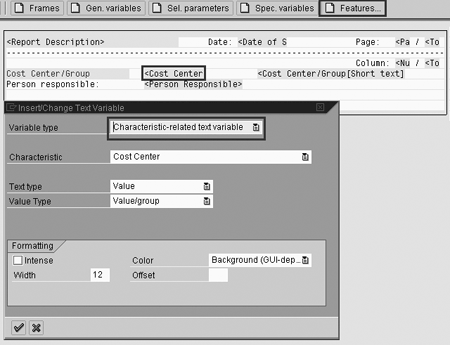
Figure 3
Characteristic-related text variable for cost center in a sample report
Note that although you asked about the cost center, the explanation applies to other characteristics — e.g., cost elements, G/L accounts, or internal orders.

Mitresh Kundalia
Mitresh Kundalia heads the SAP practice at Quality Systems & Software (www.QSandS.com), a consulting firm specializing in SAP S/4HANA, SAP General Ledger, and complex System Landscape Optimization (SLO)-type reorganizations. Mitresh is widely acknowledged as a leading SAP expert, with multiple publications and an SAP-PRESS book to his credit. He has published more than 50 peer-reviewed articles and white papers, and he has given presentations at various SAP conferences and events. Mitresh is the chief solutions architect of General Ledger Migration Optimizer (GLMO), a leading product to accelerate and jump-start the SAP S/4HANA and SAP General Ledger initiatives; SAP Data Reorganization Optimizer (SDRO), an SLO-type product for managing complex system landscape reorganizations; and Group Currency Activation and Conversion (GCAC), a product suite to manage introduction of parallel currencies and conversion of data in a live SAP system.
You may contact the author at Mitresh@QSandS.com.
If you have comments about this article or publication, or would like to submit an article idea, please contact the editor.



 Premium