You can track unused positions in Organizational Management via vacancy processing as a part of an overall position-management process. In the absence of vacancy processing, you can track unused or “open” positions and modify them to display the proper staffing levels in a given organizational unit. Standard reports in R/3 provide the information necessary to manage open positions.
Key Concept
Dear HR Expert,
We don’t currently use vacancies for position management. Is there an efficient way for us to determine and track open or unoccupied positions in our organization structure without using vacancies?
Senior functional analyst – HR/Payroll
Thanks for the question. In R/3, Organizational Management (OM) vacancy processing is an optional functionality that tracks the status of budgeted positions in your organizational structure. Keeping track of open or unused positions can be challenging for R/3 customers who do not use vacancy processing. If not maintained properly, unused, non-delimited positions can clutter an organizational structure, unnecessarily appearing in reports, organizational charts, or managers’ views in self-service applications.
In the absence of vacancy processing, you can identify open positions in a number of ways. To answer your question, let’s look at two reports that are delivered as part of standard OM functionality in R/3. The first of these two reports tracks open positions. Report RHXFILLPOS displays all open positions for the organizational units you specify in the time frame you request. This report is titled “Periods When Positions Are Unoccupied per Organizational Unit.” You access it via transaction S_AHR_61018869 or RE_RHXFILLPOS as well as via standard SAP menu path Human Resources>Organizational Management>Info System>Position.
Report RHXFILLPOS not only identifies the positions that are open for the specified time intervals and organizational units, but also displays the beginning and ending dates of the period during which the position was unoccupied, the names of the new holders at the end of each period (if any), and the sum of the number of days those positions remained unoccupied during that period (Figure 1). If you want to see the detail of any individual line item in the output, highlight the line you wish to view and click on the choose-detail icon (or press Ctrl+Shift+F3). Clicking the choose-detail icon displays a pop-up box (Figure 2) with line item detail, including object IDs that are not displayed in the original output screen.
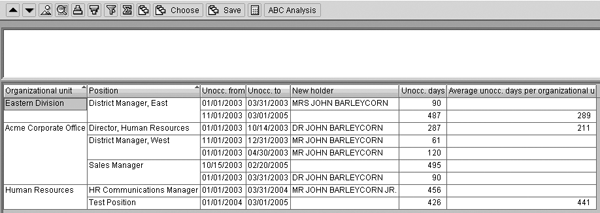
Figure 1
Output of report RHXFILLPOS showing unoccupied positions
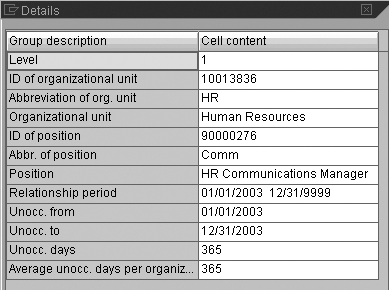
Figure 2
Details of a single line item from RHXFILLPOS
Be careful when selecting the date ranges for your report output. The report displays all positions that were unoccupied during the period you specify. If you choose a date range of “all,” you see all open periods even for those that are currently filled. The report selection screen allows you to choose your own period, whether in the past or future.
A second report that is helpful in identifying positions without holders, or the existence or absence of any relationship between objects, is RHINFAW0 (infotype reporting). It is accessible via transaction S_AHR_61016532 or RE_RHINFAW0 as well as via the standard SAP menu path Human Resources>Organizational Management>Info System>General. RHINFAW0 evaluates OM infotypes based on several selection criteria, including object type, object ID, date range, and infotype/subtype combination.
What makes this report unique is that it allows you to evaluate OM infotypes not only for the existence of a particular infotype or subtype, but also for the absence of the same elements between objects. At the bottom of the report selection screen (Figure 3), note the check box labeled Objects without this infotype. If you check this box and run the report for a specific set of infotype/subtype combinations, the report returns only the objects that did not contain that infotype/subtype set in the time period you requested.
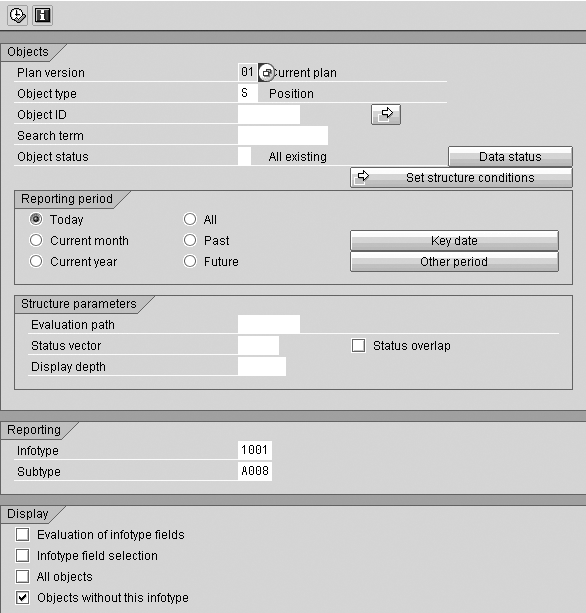
Figure 3
Selection screen for infotype reporting program RHINFAW0
To run RHINFAW0 to return positions without holders, list infotype 1001 and subtype A008 (denotes the “holder” relationship between a position and a person), select the appropriate reporting period, and check the Objects without this infotype box. The resulting output (Figure 4) displays all unoccupied positions in your chosen evaluation path and time period.
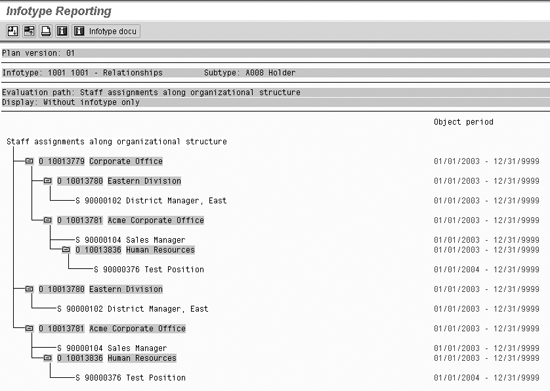
Figure 4
Infotype reporting output showing open positions (without holders)
Both reports I’ve described help you monitor and maintain your open positions in OM. RHRXFILLPOS is a bit more user friendly and easier to follow for the OM novice. RHINFAW00 is powerful, but requires a bit more knowledge of object orientation in R/3 to effectively return the desired results.
A.J. Whalen
A.J. Whalen has successfully combined more than two decades of global business expertise with in-depth experience in the strategic development, management, and delivery of large-scale projects and education for SAP ERP HCM. Prior to his current role as SAP Marketing Director at Velocity Technology Solutions, he served as lead consultant for several global SAP implementations and engagements as well as an SAP Conference Producer for Wellesley Information Services. A.J. has been invited to speak at nine annual SAP educational events and holds an MBA degree from the Stern School of Business at New York University.
You may contact the author at whalen.aj@gmail.com.
If you have comments about this article or publication, or would like to submit an article idea, please contact the editor.




 Premium