MGE covers the following processes:
- Global assignment preparation
- Relocation preparation
- Assignment activation
- Global assignment
- Repatriation
The following are the infotypes activated and used for MGE:
- Global Assignment Details (0710)
- Global Assignment Status (0715)
- Documents (0702)
- Documents on Dependents (0703)
- Information on Dependents (0704)
- Checklist Information (0705)
- Compensation Package Offer (0706)
- Assignment Activation Details (0707)
- Global Commuting Types (0708)
MGE handles movement of employees right from the beginning—from relocation, migration, settlement, host, and migration country payroll stages, on through taxation and repatriation. This article is not intended as an explanation of MGE, but rather as a guide for using only a discrete portion of it to achieve your goals.
In most global companies, where there is payroll outsourced environment in both host and guest countries, it is not necessary to implement a complete suite of MGE. However, HR administrators still may need to maintain a few details, like dependent details, data, and details of the required documentation of their host countries. This article helps HR administrators configure the unused components of MGE partially to gain the functionality they require without having to fully implement MGE.
Note
Not fully implementing MGE at the outset does not present problems for companies that later decide to fully implement MGE. For the purposes of this article, I am not covering the basics of payroll, and I am covering only a few of the available infotypes, which will have no impact on subsequent upgrades.
Note
The only potential impact I can see of not fully implementing MGE is that later you might need more drop-down options other than the ones configured previously. New drop-down options, however, can be added at any time during later implementations. In addition, if some previously configured drop-down options become obsolete, the master data can be deleted from the captured infotypes via mass deletion. The unwanted drop-downs can be deleted by configuration via SPRO using the same menu path used for creating the respective entries.
Using an example scenario, I show how to configure and store the following employee dependent details to meet your legal requirements or to enhance your HCM data for Company A:
- Employee dependent Passport details
- Employee dependent Visa details
- Employee dependent residence permit details
- Dependent residence details (e.g., whether family members reside with the employee in the host country)
- Employee dependent school type details, if they accompany the employee being relocated
- Country-specific local details, if any
Company A Requirements
Company A has a full-fledged SAP ERP HCM system with Personnel Administration, Time Management, and Organizational Management implemented. This company wants the following details (listed in Table 1) to be recorded for all employee dependents.
| Requirements header |
Drop-down options |
Availability in SAP ERP HCM |
| Employee dependent type |
Partner, husband, wife, son, daughter, mother, or father
|
Available as a subtype in infotype 0021
|
Employee dependent name
|
None; data entry field.
|
Available as a field in infotype 0021
|
Date of birth
|
None; data entry field.
|
Available as a field in infotype 0021
|
Country of birth
|
Country of birth
|
Available as a field in infotype 0021
|
Nationality
|
All nationalities
|
Available as a field in infotype 0021
|
Document type
|
Passport, Visa, resident permit, or work permit
|
Available as a drop-down option in infotype 0703
|
Country
|
All countries (the country that issued the document)
|
Available as a field in infotype 0703
|
Number
|
None; entry field (document number).
|
Available as a field in infotype 0703
|
Document issue date
|
None; data entry field.
|
Available as a field in infotype 0703
|
Document issue country
|
The exact country (location) that issues the required document (this is different from the above Country header); this is a customizable drop-down option.
|
Available as a field in infotype 0703
|
Place
|
None; this is an optional data entry field.
|
Available as a field in infotype 0703
|
Document status
|
The accepted, issued, original document, with the employee’s rejected, on-hold, or in-progress status; this is a customizable drop-down option.
|
Available as a field in infotype 0703
|
Document location
|
None; data entry field.
|
Available as a field in infotype 0703
|
Accompanying status
|
None; check box.
|
Available as a field in infotype 0704
|
School type of dependent
|
Different school types available globally; this is a customizable drop-down option.
|
Available as a field in infotype 0704
|
Table 1
Requirements table for Company A
The following steps are required for implementation:
- Update the data in infotype 0021 (family members/dependents)
- Enable or activate infotypes 0703 and 0704
- Create the required drop-down options for infotype 0703 (documents on dependents)
- Create the required drop-down options for infotype 0704 (dependent information)
- Update the master data for infotypes 0703 and 0704
Below I discuss each of these steps in detail.
Step 1. Update the Data in Infotype 0021 (Family Members/Dependents)
This first step is mandatory and must be made before any further configuration can be done. Figure 1 shows a screenprint of infotype 0021 for your reference. To open the screen shown, follow menu path SAP Easy access > Human Resources > Personnel management > Personnel Administration > HR Master Data > Maintain or execute transaction code PA 30.
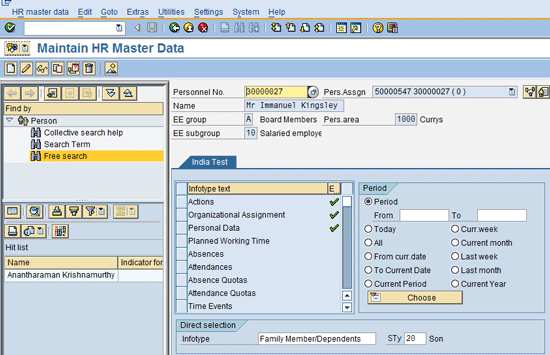
Figure 1
Maintain the HR master data
Enter the infotype name in the Infotype field (Family Member/Dependents) and the number 20 (the standard SAP ERP HCM subtype of infotype 0021) in the subtype field (Sty), as shown in Figure 1. Then click the create icon  , which opens the screen shown in Figure 2, where you can enter the Family Member/Dependents details.

Figure 2
Infotype 0021 – Update the Family Member/Dependents details
Enter the available dependent details in Figure 2, and click the save icon  . (You can upload the dependents’ details through the standard Legacy System Migration Workbench [LSMW] or the Batch Data Communication [BDC] tool for all employees.)
Step 2. Enable or Activate Infotypes 0703 and 0704
Follow menu path SPRO > Personnel management > Management of Global Employees > Activate Management of Global Employees, and click the execute icon  .This opens the screen shown in Figure 3.
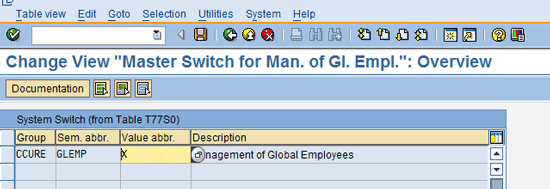
Figure 3
Integration switch for MGE
The Value abbr. column in the standard system is blank. Enter X (as shown) and click the save icon to save your changes and exit the screen. This activates the MGE functionality. By doing this, the related functionalities and infotypes are now made available to your system.
Note
When you try to create infotypes 0703 and 0704 for any dependent, the system allows only for the corresponding record of infotype0021to be created (e.g., if you have a base record in infotype 0021, then you can extend the information to the 0703 and 0704 infotypes). As a result, this becomes the prerequisite for extending dependent information.
Step 3. Create the Required Drop-down Options for Infotype 0703 (Documents on Dependents)
Next, you need to create the required drop-down options for two fields on infotype 0703: the Document Type and Document Status fields. The rest of the fields are either data entry fields or already have standard drop-down options provided by SAP.
To create the required document type options, follow menu path SPRO > Personnel Management > Management of Global Employees > Assignment Preparation > Checklist Items and Documents > Define Checklist Items and Documents. Click the execute icon, which opens the screen in Figure 4.
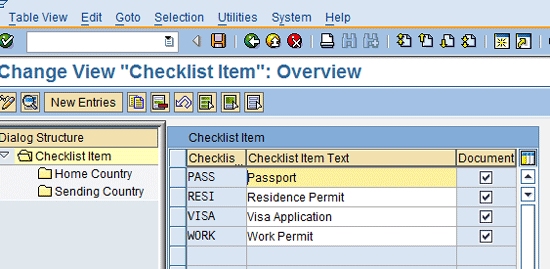
Figure 4
Create view of Checklist Item
Looking at the screen in Figure 4, you see that the standard system has four entries: Passport, Residence Permit, Visa Application, and Work Permit. I show you how to add one more entry to this screen. In my example I am going to create a Labour card details option for a dependent.
Click the New Entries button, which opens the screen in Figure 5 where you enter the following details:
- Checklist Item text – Labour card
- Processor – Choose the required drop-down option; in my example, I have selected international HR Department.
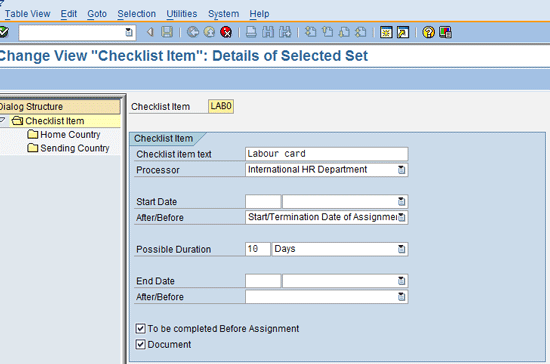
Figure 5
Add your entries for a new checklist item
The rest of the entries you may leave as set by the system because they are only relevant to the extended functionalities of MGE.
If you select the Document check box (Figure 5), the system also automatically creates a subtype entry in infotype 0702 (documents). This enables you to also store the required details for employees themselves in the subtype. In this case, this allows you to manually create a record for an employee in infotype 0702, subtype Labour Card.
Once you make your entries, click the save icon to save your changes, and the new entry (e.g., Labour card) is added in the system for infotypes 0702 and 0703.
Now you need to add the required drop-down options for the Document Status field. Follow menu path SPRO > Personnel Management > Management of Global Employees > Assignment Preparation > Documents > Define Document Statuses, and click the execute icon. This opens the screen shown in Figure 6.
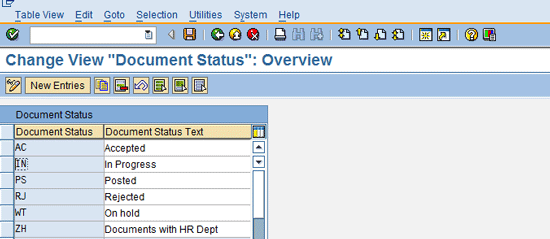
Figure 6
Document Status – Change view
In this step, you are maintaining the document status for further follow-up activities
The first five entries are standard SAP entries on document status and the ZH is added as an example. To add the new entry ZH, as shown in Figure 6, click the New Entries button to create a new status. Click the save icon to save your entries and exit the screen.
Step 4. Create the Required Drop-down Options for Infotype 0704 (Dependent Information)
In this step, you’re creating a drop-down option for infotype 0704. In this case, the option is School type (for the type of school that the dependent is attending). Almost all options are available in standard SAP, but if you need any additional, custom school types, do the following.
Follow menu path SPRO > Management of Global Employees > Assignment of Master data > Define School types, and click the execute icon. The screen in Figure 7 opens, which lists all of the school type entries available in the standard SAP ERP HCM system.
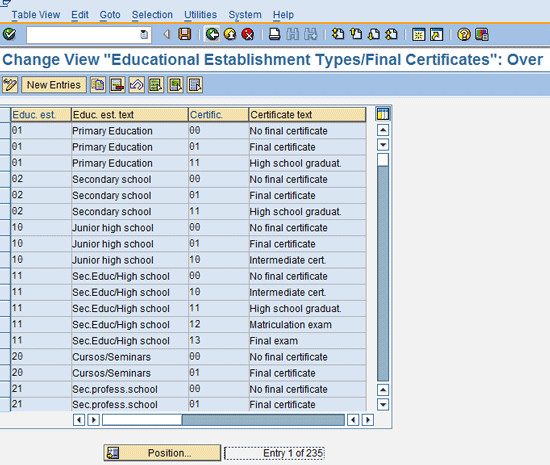
Figure 7
List of all available school types
Click the New Entries button, add your new entry, and click the save icon to save and exit.
Step 5. Update the Master Data for Infotypes 0703 and 0704
Once you are done with the configuration steps above, it’s time to test the system to see if the configured entries are available for data entry. Follow menu path SAP Easy access > Human Resources > Personnel management > Personnel Administration > HR Master Data > Maintain, or execute transaction code PA30. This opens the screen shown in Figure 1. Enter the infotype number (e.g., 0703) in the Infotype field and click the create icon. This results in the screen in Figure 8.
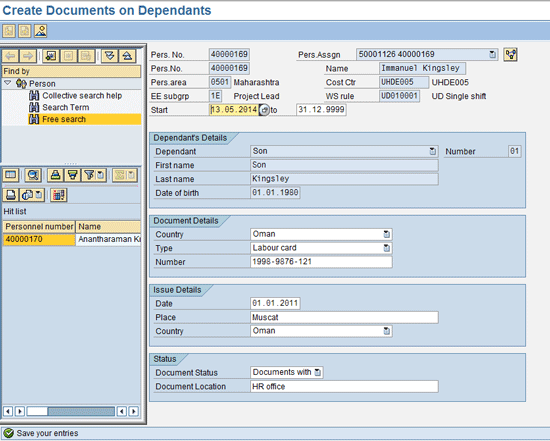
Figure 8
Infotype 0703 (documents on dependents) – Entry view
When you review Figure 8, you see that the new drop-down options for document Type (under Document Details) and Document Status (under Status) have been added to the screen. Enter HR office in the Document Location field, and click the save icon to save your new Labour card data for the employee and exit the screen.
The next step is to store the new data in infotype 0704 (Information on Documents). Follow menu path SAP Easy access > Human Resources > Personnel management > Personnel Administration > HR Master Data > Maintain, or execute transaction code PA30. This again opens the screen shown in Figure 1. Enter 0704 in the infotype box and click the create icon. This results in the screen in Figure 9.
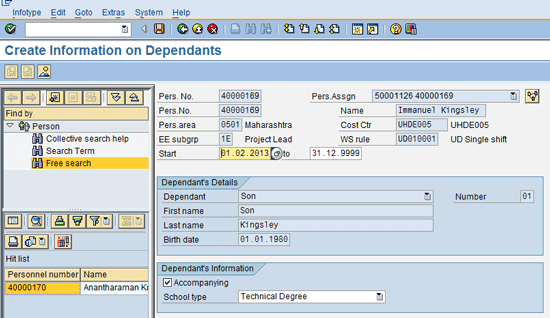
Figure 9
Create view of infotype 0704 – Information on Dependents
Add the school type and accompanying details as shown in Figure 9. Enter these details in the Dependent’s Information section:
- Select the Accompanying check box (if the dependent is accompanying the employee)
- Select the relevant School type from the drop-down options (Technical Degree, in my example)
Click the save icon to save your changes and exit.