See how easily you can enhance External List Management transactions to incorporate virtually any additional requirements to the objects it was designed to process, such as business partners. With just four steps you can customize External List Management to meet your needs.
Key Concept
External List Management (ELM) is an SAP CRM functionality that allows you to create certain objects in SAP CRM that companies can acquire from different data providers — such as business partners and business transactions (e.g., activities or leads) — using different data formats. Data that ELM uses can be prepared in many applications — for example, Excel — which you can then import into SAP CRM.
External List Management (ELM) is a tool that you can use to import CRM-related data (such as business partners). For example, you could use ELM to import files that you procure from other companies. In standard ELM you can select the fields you want to use during the data import, change the order of the fields, and perform some simple mappings to change the imported fields’ values, such as changing the text to capital letters. However, in some cases you will find that you want to do more, such as add custom fields.
Implementing a Business Add-In (BAdI) in ELM allows you to use these custom fields. Very little information exists on this topic, so I will show you how to set this up in SAP CRM (Release 4.0 and later). I will then explain how you can debug the implemented source code. Although you cannot debug standard ELM transactions, I will show you a trick that permits you to debug these transactions easily so you can check if the BAdI code you prepared works as expected.
How ELM Works
The basic process of importing data using ELM can involve the following tasks:
Maintain a mapping format. Specify the business partner fields you want to create and map external data to those fields. Transaction CRMD_MKTLIST_MAP offers you an intuitive way to create a mapping from a file data course (such as Excel files) to SAP tables. You just need to select the target fields you want to use and prepare those fields in the same order in the file.
Maintain import program parameters. Specify the import program parameters, such as data origin, data mapping format, and import start date. These parameters allow you to use transaction CRMD_MKTLIST to upload the file with external data to your CRM system.
Upload a file. This process uploads your file with external data. The system performs this step in the background with a workflow when the time specified in import program parameters occurs.
Map the external data format to the SAP CRM data format. Data can come with different formats (leading zeros, capital letters), so you may need to change the data format to the proper CRM data format
Create business partners. In this step, you create the business partners in your CRM system from the data that came from the file
Analyze the generated output. After the system creates all the business partners from the list, you can check them all directly from ELM
Correct the data or mapping and restart the process. You perform this step when you encounter errors in the mapping or creating business partners process steps. After you correct the data you can restart the process for all records with errors.
The mapping transaction in ELM, CRMD_MKTLIST_MAP, provides you with options to enhance the external data. You can change date formats, assign constant values, and even perform ABAP lookups to value mapping tables (if they exist in your SAP CRM system). You can do it all with standard ELM functions available just beneath the main editor:
- Value assignment: Specify the data based on CRM domains
- Constant assignment: Add a constant value if no value is present in the external data file
- ABAP code: Code much more sophisticated rules for data transformations because you have all the possibilities of an ABAP language available
- Global definitions: Where you can put your global definitions
In standard SAP CRM (mySAP CRM 4.0 and later) you can only create a business partner in one role, the general role. Sometimes, though, this may not be enough. For example, say you want to create a business partner in other roles in addition to the standard general role. You also want to combine the business partner’s identification number with tax data. It turns out that there is a solution for this — you just need to implement a standard BAdI, CRM_MKTLIST_BADI.
BAdI Implementation, Configuration, and Programming
For my example, I want to add one role and two fields to the standard business partner information:
- A new role in which I will create the business partner Prospect with the technical name BUP002
- A new identification, CRM External System Identifier, with the technical name CRM001
- A new tax code for Poland with the technical name PL1
To accommodate the new requirements I need to follow these four steps:
Step 1. Add fields to an SAP standard structure (using the append table)
Step 2. Create a new mapping format using the new fields
Step 3. Create the BAdI implementation
Step 4. Implement the BAdI code
Step 1. Add fields to an SAP standard structure (using the append table). The two fields I need are not available in standard transaction CRMD_MKTLIST_MAP, so first I must enhance CRMT_ MKTLIST_ORG_EXT, which is the structure that stores the fields for this transaction. Use transaction SE11, open structure CRMT_MKTLIST_ORG_EXT, and select GOTO>Append structure from the menu (Figure 1).
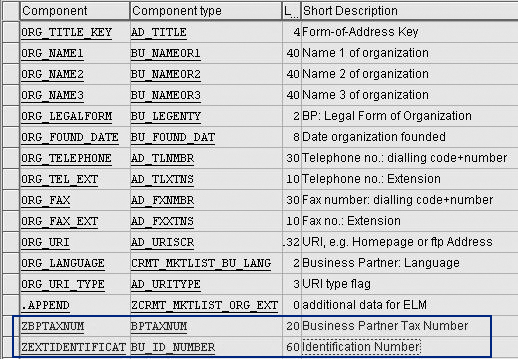
Figure 1
Enhanced structure CRMT_MKTLIST_ORG_EXT
In the screen that appears, create an append structure to structure CRMT_MKTLIST_ORG_EXT using the information shown in Table 1. When you activate the new append structure by clicking on the activate icon CRMT_MKTLIST_ORG_EXT should look as shown in Figure 1.
| ZBPTAXNUM |
BPTAXNUM |
Stores the new tax value |
| ZEXTIDENTIFICAT |
BU_ID_NUMBER |
Stores the new identification number |
| |
| Table 1 |
Append structures to structure CRMT_MKTLIST_ORG_EXT |
Step 2. Create a new mapping format using the new fields. Now you can use the two new fields in mapping transaction CRMD_MKTLIST_MAP by selecting them from the list of available fields from the table on the right. Table 2 shows what your target table (on the left) should look like. Save this mapping format as ZCRM1.
| 1 |
ORG_TITLE_KEY |
| 2 |
ORG_NAME1 |
| 3 |
ORG_NAME2 |
| 4 |
ORG_NAME3 |
| 5 |
ORG_COUNTRYISO |
| 6 |
ZEXTIDENTIFICAT |
| 7 |
ZBPTAXNUM |
Step 3. Create the BAdI implementation. Start with transaction SE19. Create the BAdI ZCRM_MKTLIST_BADI001 implementation by selecting the BAdI CRM_MKTLIST_BADI and clicking on the Create Impl. button (Figure 2). Enter a new name for your BAdI implementation on the pop-up screen.

Figure 2
Create ZCRM_MKTLIST_BADI in transaction SE19
This BAdI is filter dependent (the system starts it only when some conditions defined in the filter occur). You first need to define a filter. In the case of this BAdI (CRM_MKTLIST_BADI), the filter is the mapping format specified in transaction CRMD_MKTLIST_MAP. For my example, I use the format I created in step 2, ZCRM1 (Figure 3).

Figure 3
Defining the mapping format filter
Note
The system executes filter dependent BAdIs only when the filter conditions are met. You may have many BAdI implementations of the same BAdI with different filters.
Step 4. Implement the BAdI code. This code is similar to the default code — you just have to add processing of your special enhancements. For this reason, it’s best to first copy the default code.
Open transaction SE18 and enter the name of the original BAdI CRM_MKTLIST_BADI. Select GOTO>Default code>Display to view the delivered code for the BAdI. Copy the code for two methods: MAP_AND_CONVERT_DATA and CREATE_BUSINESS_PARTNERS.
You also need to create one private method in BAdI class CREATE_ORGANIZATION. The BAdI does not have this private method in its interface and you need it in place to allow SAP’s default code to work. Remember to copy all the method’s parameters (as in the provided default code for method CREATE_ ORGANIZATION). You can do this by clicking on the parameters icon while selecting your new class. You also must copy the method’s attributes so default code works properly. Before activating the BAdI code make sure to remove the following private method calls from the CREATE_ORGANIZATION method:
- UPDATE ORG
- CREATE PERSON
- UPDATE PERSON
- ADD_INTL_ADDR_VERSION
You do not need these method calls for the example I use because I only want to create a business partner. The method calls above are used for business partner update or person create/update.
Next you need to add the coding shown in Figure 4, which inserts your additional fields during business partner’s creation. This code also adds the new role Prospect as an option. Add the code before the section that is responsible for BP update: “3. Add External ID” in the CREATE_ORGANIZATION method by double-clicking on it.
*         Check for errors
            LOOP AT et_return TRANSPORTING NO FIELDS WHERE type CA ‘AEX’ .
*           Errors occurred while adding identification
              RETURN. “ leave method
            ENDLOOP.

*----------------------------------------------------------------------*
* add3. Add additional tax
*----------------------------------------------------------------------*

  DATA: ls_bupa_tax type BAPIBUS1006TAX.
  DATA: lt_bapiret type table of BAPIRET2.
  DATA: ls_bapiret type BAPIRET2.

        ls_bupa_tax-taxtype = ‘PL1’.
        ls_bupa_tax-taxnumber = wa_cc_org-ZBPTAXNUM.

            CALL FUNCTION ‘BAPI_BUPA_TAX_ADD’
              EXPORTING
                BUSINESSPARTNER = ev_bp_org
                TAXTYPE         = ls_bupa_tax-taxtype
                TAXNUMBER       = ls_bupa_tax-taxnumber
              TABLES
                RETURN          = lt_bapiret.

            loop at lt_bapiret into ls_bapiret where type CA ‘E’.

              ls_bapiret-parameter = iv_c_head_guid.

              append ls_bapiret to et_return.

            endloop.

*         Check for errors
            LOOP AT et_return TRANSPORTING NO FIELDS WHERE type CA ‘AEX’ .
*           Errors occurred while adding identification
              RETURN. “ leave method
            ENDLOOP.
|
| Figure 4 |
Code to add the two new fields and the new role to the business partner master data |
Make sure you also add the checks for errors by checking the et_return table. This way if an error occurs in any of the new functionalities, then you will see it in transaction CRMD_MKTLIST. You can activate your methods, but remember to activate your BAdI as well. To do this you need to go back (press F3) to the BAdI definition from the CREATE_ORGANIZATION method. Otherwise the system does not call the BAdI and does not populate your new fields. After you finish coding your BAdI, you can try it out by running standard ELM transaction CRMD_MKTLIST, which I describe how to do in the next section.
Testing
Start transaction CRMD_MKTLIST to test the enhancement. To start file upload you need to add the parameters for the upload. In the Basic Data tab, enter the information shown in Figure 5. For Origin, select the origin of the external list. For the Type, select the list you want to use — in my example this is 02 Rented.
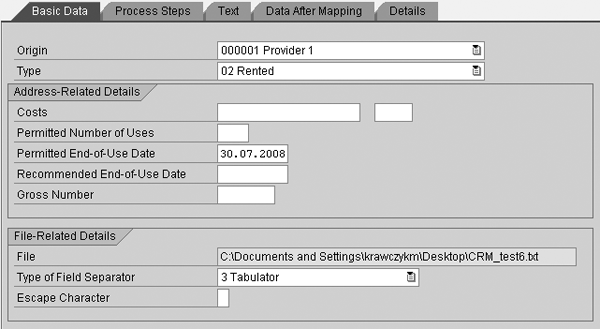
Figure 5
CRMD_MKTLIST transaction — Basic Data tab
Note
You can define the drop-down menu selections for the Origin and Type fields in customizing.
The Permitted End-of-Use Date is the latest date for which you can use the list. Specify your input file in the File field. Then select the Type of Field Separator. Depending on the source file, you can select different types of field separators, such as a tabulator or semicolon. For this example, you do not need to add anything to the other fields on the screen.
When you finish with the Basic Data tab, click on the Process Steps tab to add the parameters (Figure 6). Select the Upload File check box to upload the file that you specified in the File-Related Details section of the Basic Data tab. Also select the Map Data check box to select the predefined mapping for the file (separation of different records with the specified separator). Select the Maintain Business Partner check box so that the system executes your BAdI’s CREATE_BUSINESS_PARTNER method, which processes the standard and new fields. For all three options, the system populates the fields to the right automatically.

Figure 6
CRMD_MKTLIST transaction — Processing Steps tab
In the Step-Related Data section, enter the mapping format (prepared in step 2) in the Mapping Format field. Make sure that this name is also the one used in the BAdI as a filter. Then select when you want to start the data processing. I chose Immediately so that the processing starts as soon as I save the list, but you can specify a date and time on which the upload should start.
After you save the list, the system creates the new business partners. You can see their numbers in the Data After Mapping tab. You should see the new Prospect role — which you defined and hard-coded in the BAdI code in Figure 4 — in the drop-down menu for Change in BP role in transaction BP when you select the new partner’s number (Figure 7). You should also see the new Identification Numbers and Tax Numbers sections (Figure 8) when you use transaction BP and click on the Identification tab for a given business partner.

Figure 7
The new business role Prospect (Maintained) is now available

Figure 8
Identification tab of a business partner
Tip!
If you experience any problems with External List Management check SAP Note 708557 (“ELM: Troubleshooting”). This SAP Note contains solutions for common errors.
Debugging
The ELM process occurs in the background via workflow, so you cannot put a simple breakpoint in the BAdI’s method code to start debugging this process. However, if you add the user parameter CRM_DEBUG_CODE with the value MKTLIST in transaction SU01 (user maintenance), you can debug in standard SAP CRM (Figure 9).

Figure 9
dd the user parameter CRM_DEBUG_CODE with the value MKTLIST in transaction SU01
Now when you start transaction CRMD_MKTLIST and save your new external list, a standard debugger opens and you can check every processing step of the transaction.
Michal Krawczyk
Michal Krawczyk is an SAP consultant for BCC Poland. He works with SAP XI/PI, ALE/EDI, CRM middleware, and other SAP interface-related technologies. He was presented the Top Contributor award in the XI/PI area on SDN in 2005, 2006, and 2007, and the SAP Mentor award in 2007. He has published more than 60 articles about SAP XI and MDM on SDN and has written a book about PI published by SAP PRESS. He is also an SAP Professional Journal author.
You may contact the author at sap.integration@gmail.com.
If you have comments about this article or publication, or would like to submit an article idea, please contact the editor.