Barcodes are a way to use storage scenarios in SAP.
Many companies use the barcode functionality to have vendor invoices attached to SAP vendor invoice in form of PDF, TIFF, or JPEG to have proper audit controls on vendor invoice submission and approvals.
Barcode is activated for SAP Document Types; vendor papers invoices are scanned, or invoice attachments are extracted from vendor emails; images/attachments are archived and linked to SAP Documents. Invoices are on their way for approvals and payments. VOILA! Sounds simple and easy.
But in the whole process, there are plenty of
challenges involved. Examples:
- Bar code number disappearance after SAP Document and scanned/PDF/JPEG/TIFF invoices are linked.
- Auditors demand for the linkage between barcodes and SAP Documents.
- Often there are orphan scanned images/PDFs leading to extra data storage.
- Deletion of wrong barcode records from table, leading to unlinked SAP documents and scanned images/PDFs.
- ArchiveLink jobs issue delaying the approval of SAP Invoices.
- Blaming game between BASIS, Security or AP Processor when scanned images are lost.
- Minor yet huge ArchiveLink jobs issue mistake during System refresh leading to potential deletion of scanned images from Production.
This article will explain how to overcome all the above issues, make Accounts Payable (AP) processing and invoice approval faster; avoid any penalties and keep your vendors happy by paying on time!
Let’s first understand how
barcode set up works in SAP and then we will dig into the challenges.
Bar code config for vendor invoices is done with few simple steps by going to SPRO menu path:
SPRO->Activate Business Functions -> Application Server -> Basis Services -> ArchiveLink -> Bar Code Scenarios
Along the way, I will recommend
which team should own the config.
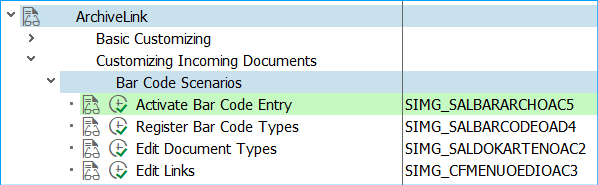 Figure 1 – ArchiveLink/Bar Code configuration
1) Register Bar Code Entry
Figure 1 – ArchiveLink/Bar Code configuration
1) Register Bar Code Entry –>
OAD4 SAP provides five bar code types. You can change the bar code types supplied and add new ones. Check with your storage system supplier which bar code types are supported by the scan software. This should be owned by BASIS.
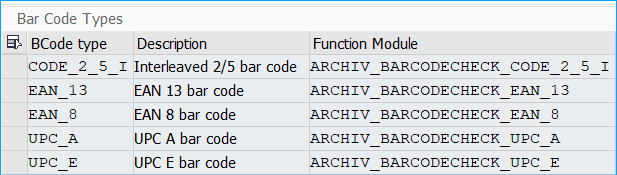
Figure 2 – Barcode Types (Tcode OAD4)
Define Content Repository -> OAC0
Activate Business Functions -> Application Server -> Basis Services -> ArchiveLink
Define Content Repositories
Content repositories are logical units within your storage system. This activity is performed by BASIS.
This should be owned by BASIS.
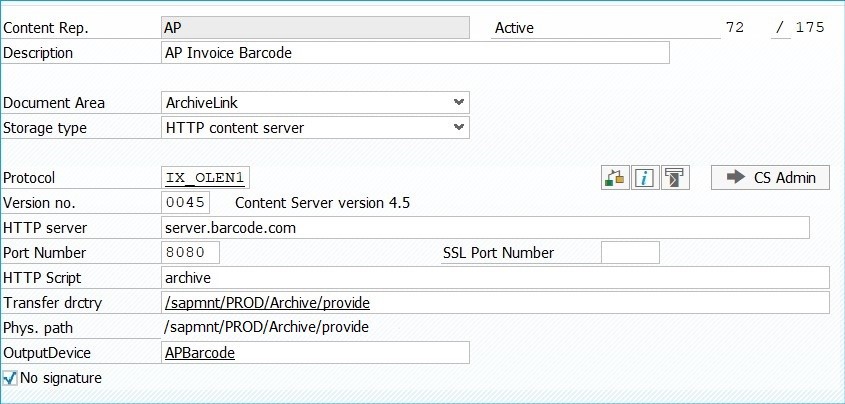
Figure 3 – Content Repository (Tcode OAC0)
Edit (Maintain) Document Types -> OAC2
These document types are for the purposes of archiving.
Data Element: SAEOBJART, Domain: SADC10_DV, Data Type: CHAR, Length: 10
So don’t confuse them with the regular SAP lingo on document types
Data Element: BLART, Domain: BLART, Data Type: CHAR, Length: 2.
The document type influences the storage process because some of the customizing settings are related to the document type. Each document must be assigned to a document type before it is stored, so that the correct processing for the document is triggered.
SAP provides standard document types. For Incoming vendor invoice FIIINVOICE is provided. However, you should make a copy of it and store a new document type starting with Z. Example ZIIINVOICE. Follow the standards that SAP also suggests in the standard SPRO documentation.
Each document type has exactly one document class. A document class can be assigned to any number of document types. Example ZIIINVOICE cannot be assigned to Document class FAX and PDF. It can be assigned only to FAX or PDF or any other valid Document Class.
This config should be owned by BASIS.
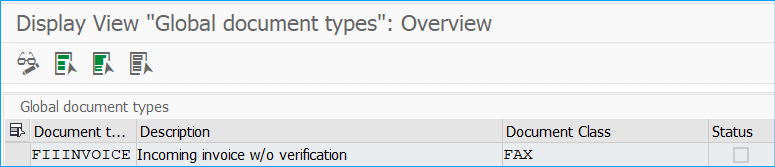

Figure 4 – Document Types (Tcode OAC2)
Maintain Links -> OAC3
ArchiveLink enters the link entries between stored documents and the corresponding application documents.
SAP supplies the following link tables:
TOA01, TOA02, TOA03 (general link tables),
While this activity should be owned by BASIS but if you are defining a new link table, then need to work closely with the Functional analyst.


Figure 5 – Maintain/Edit Links (Tcode OAC3)
Control Parameters for Bar code entry -> OAC5
SPRO -> Financial Accounting (New) -> Financial Accounting Global Settings (New) -> Specify Control Parameters for Bar Code Entry
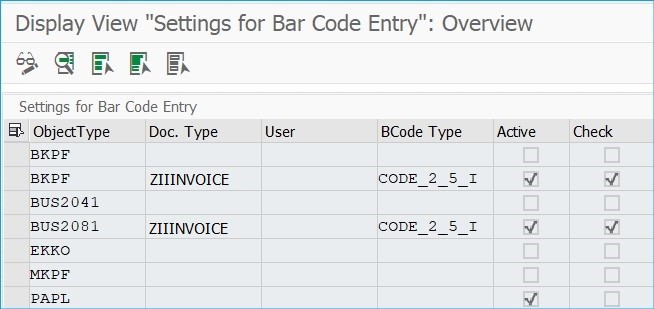
Figure 6 – Maintain/Edit Links (Tcode OAC5)
Document Bar Code Entry -> OBD5
SPRO -> Financial Accounting (New) -> Financial Accounting Global Settings (New) -> Document
Bar Code Entry
This config should be owned by Finance.
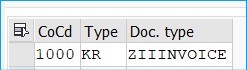
Figure 7 – Linking SAP Document type to Document Type (Tcode OBD5)
Once the above setup is complete, below steps will link the scanned image to SAP document:
- When SAP invoice is created say using FB01 Tcode, then for the document type configured (refer to figure 7, a pop up will ask for a barcode number (e.g., 12345678) that AP processor will input, this entry will go into BDS_BAR_IN (Business Document Service: Internal Bar Codes) table
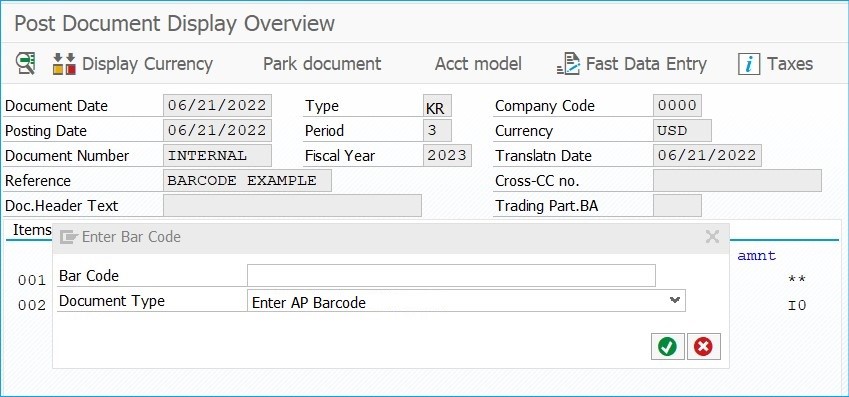
- When an actual scanned image comes into SAP system with the same barcode number (12345678), another entry will be made to BDS_BAR_EX (Business Document Service: External Bar Codes).
- When ArchiveLink job runs, it will match the entries in BDS_BAR_IN and BDS_BAR_EX and will enter one entry into TOA01 link table and delete all the entries in BDS_BAR_IN and BDS_BAR_EX. The catch here is that TOA01 won’t save barcode number anywhere. It will link the SAP document to scanned image, but barcode number disappears in the process.
How to view the attached documents in SAP or over a browser:
- View the attached/scanned images in SAP by displaying the document inside FB03 transaction Go to FB03 -> Services for Object -> Attachment List

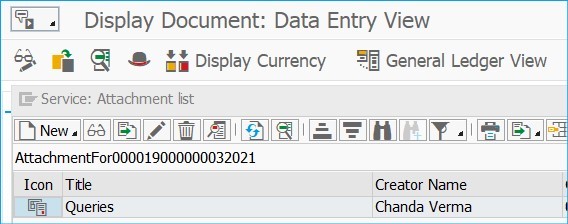
Figure 8 - Document Display/Attachment List (FB03)
2. While you can view the images from SAP, you can also view them from any browser by creating a dynamic link.
https://VariableA/archive?get&pVersion=VariableB&contRep=VariableC&docid=VariableD
VariableA = Server Name
VariableC = Content Server Version e.g., 0045
VariableB = Content Repository e.g., AP
VairableC = Logical address found in link table e.g., aaxqjaqkxt2d1drtvyj4zwk1iyfau
Many companies develop their custom web-based tools and sometimes this dynamic link comes in handy.
You can build the dynamic link using ARCHIV_GET_CONNECTIONS RFC.
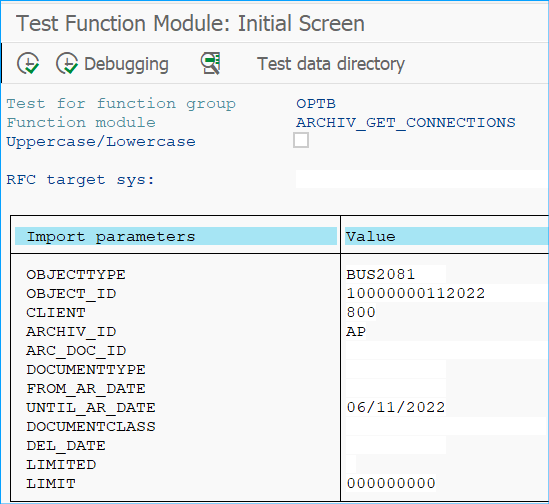
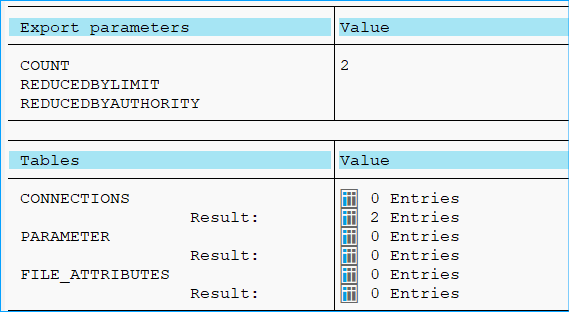
Figure 9 – Archive Link Get Connections RFC

Figure 10 – RFC output fields
SAP provides many useful inbuilt RFCs.
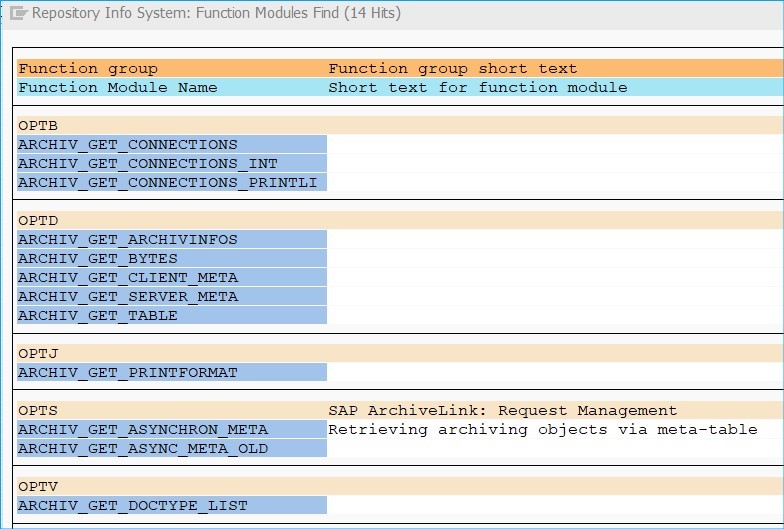
Figure 11 – Standard SAP Archive RFCs
Now that we have configured the AP SAP Invoices for barcode entry, let’s see what challenges are faced and how to resolve them.
Challenges:
1) Barcode number disappeared
Oh yes, they disappear after successful marriage between BDS_BAR_IN and BDS-BAR_EX with common denominator being “barcode”. And happily married after!
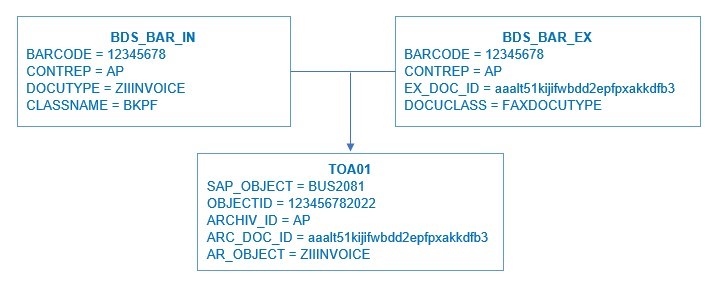
Figure 12 – Linkage explained
For the obvious reasons, entries are deleted in BDS* tables and one single entry is made to TOA01. Do you really see any reason why the records should still stay in BDS* tables?! Well, not really.
And now bar code number can be reused down the line too.
Tips: To find any SAP document that has image attachments, you can go to the link tables like TOA01 and objectID field can help.
For MIRO invoices, ObjectType BUS2081 saves ObjectID as
SAPDocumentNumber+FiscalYear
For non-MIRO invoices, ObjectType BKPF saves ObjectID as CompanyCode+DocumentNumber+FiscalYear.
2) Auditors demand for the linkage between barcodes and SAP Documents.
Well SAP doesn’t really think that barcodes should be saved after the SAP Document and Scanned images are linked. But can you always avoid those auditors?!
Saving barcode numbers could be useful for doing more search with actual paper invoices that were received in the postal mail. I will explain this in detail in my future article.
Barcode numbers can be saved in Extras -> Text.
While it can be easy for non-PO based invoice entries made using FB01, FB60 etc. but for PO Based entries using MIRO, it could be a little more effort but it’s doable if you know which BTE (Business Transaction Events) to target.
Tips: If at all barcode numbers must be saved for whatever reasons, then that’s a good place to be at.
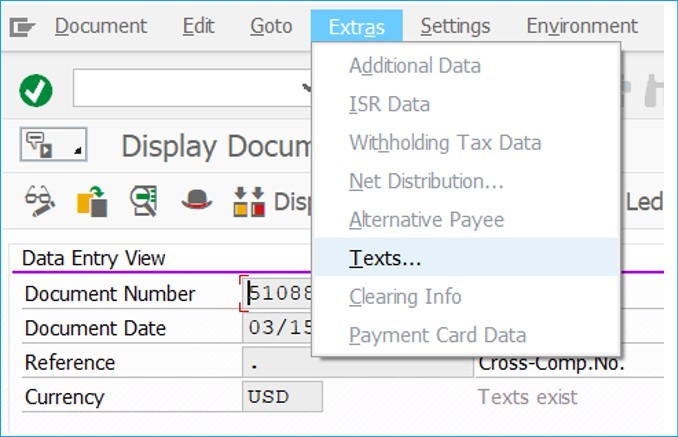
Figure 13 – FB03 Extras
3) Often there are
orphan scanned images/PDFs leading to extra data storage.
We saw in Figure 12 how SAP Document and scanned image entries enter to TOA01 table. But what if AP processor input 12345678 while creating SAP document and scanned image came as 03107713.
The linkage will never happen, and the records will just sit in tables unless someone reviews them. This can be handled in two ways.
- Go to SDBS3 (Open External Bar codes). Open the record that needs to be adjusted and adjust the barcode number to 12345678.
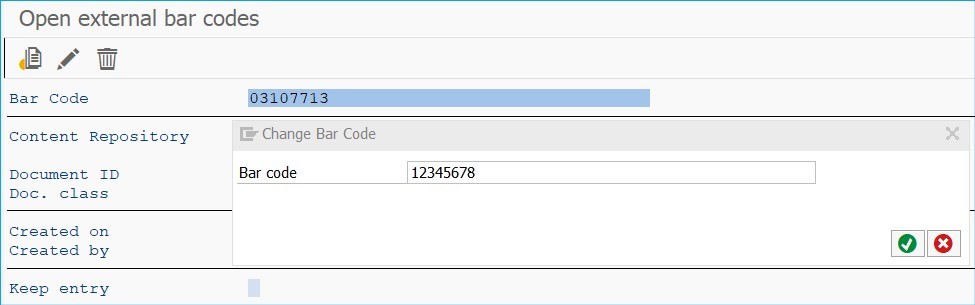
Figure 14 – SBDS3
And now if you don’t really know what exact record in SBDS3 to be updated, then the image must be scanned again and have right barcode number input or delete the record.
4) Deletion of wrong barcode records from table, leading to unlinked SAP documents and scanned images/PDFs.
While deletion of an orphan image in the above step seemed easy to resolve the issue, what if someone deletes the valid image. Deletion should be controlled via proper authorization. Create the security roles with proper authorization to specific group of people in AP processing team. Human errors can still happen.
Tips: Do not leave the access wide open for SBDS2/SBDS3 Tcode to everyone. Have proper security roles.
5) ArchiveLink jobs issue delaying the approval of SAP Invoices.
ArchiveLink job should be scheduled to run often throughout the day. For any troubleshooting issues, the best place to start is OAM1 (ArchiveLink: monitor) Tcode. One screen that leads to all. BASIS usually troubleshoots the issues starting from here.
While all buttons/link are very useful on the monitor, my go-to links are:
ArchiveLink Job, Internal, External, Confirmation.
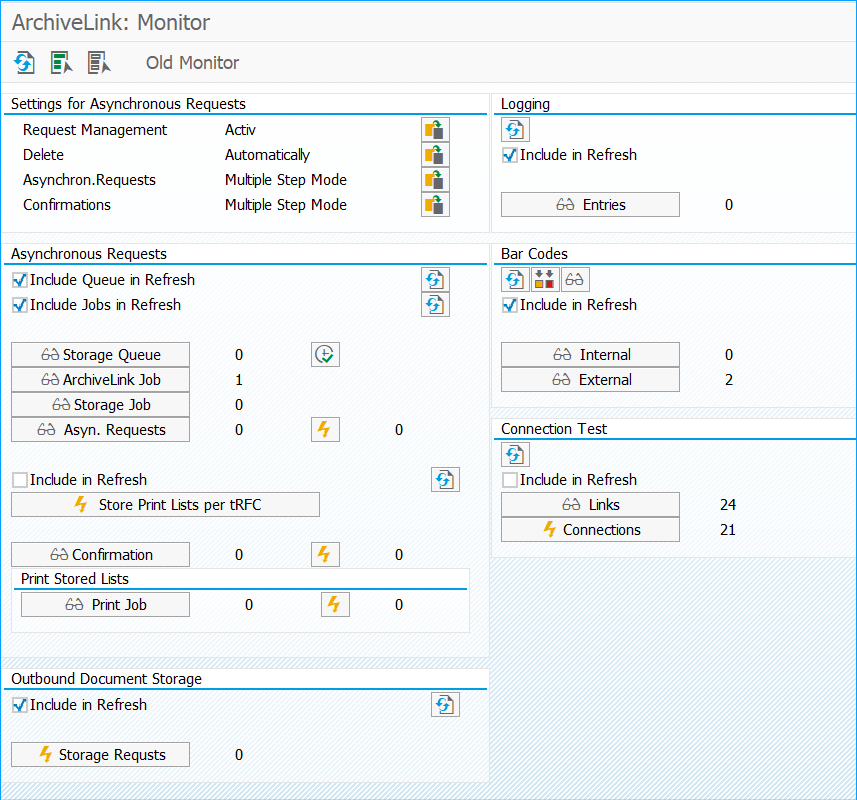
Figure 15- Archive Link Monitor (OAM1)
ArchiveLink Job: This is standard functionality provided by SAP. The job needs to be scheduled based on your requirements.
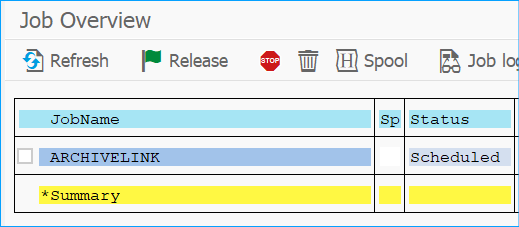
Figure 16 – Scheduled ArchiveLink job
Confirmation: If confirmation link shows lots of records, means linkage between BDS_BAR_IN and BDS_BAR_EX is still pending.
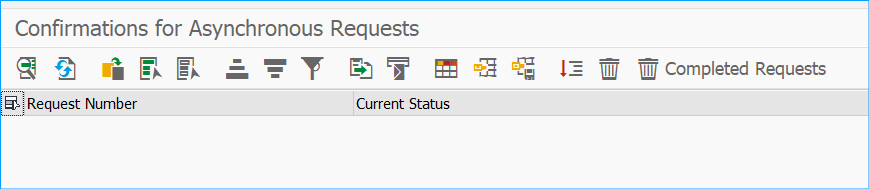
Figure 17 – Confirmation of Request
For whatever reasons, ArchiveLink job didn’t run, you can check “Confirmation” and if there are any items waiting there for long time, then the job needs to be investigated.
Internal: It calls SBDS2 (Monitoring open bar code entries) Tcode (or behind the scenes BDS_BAR_IN table). Or without clicking internal button, with the number next to it, you can see how many SAP documents were created with barcode number but have not been linked yet to the scanned images.
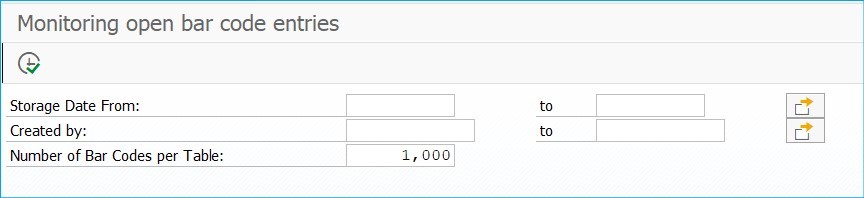
Figure 18 – SBDS2 (Internal table call)
External: Calls SBDS3 (Monitoring open bar code entries) Tcode (or behind the scenes BDS_BAR_EX table). In Figure 12, you can see 2 images are waiting to be linked. Meaning the scanned images probably came in before the SAP document was even created.
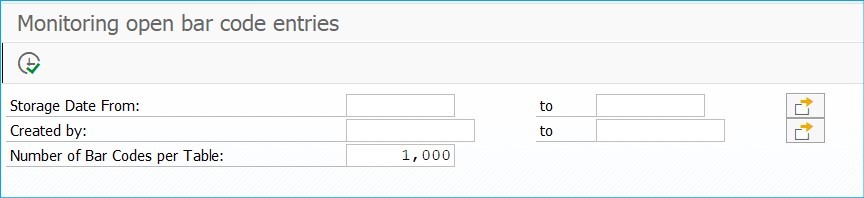
Figure 19 – SBDS3 (External Table Call)
Both Figure 18 and 19 look the same but they call different tables.
Also, this is the location where you can adjust the wrong barcode images as explained in step 3 for orphan scanned images.
As you saw in above steps that there are so many ways to trouble shoot the problem, ArchiveLink job, investigating in the tables, checking the queue, checking the repository connection and so on.
6) Blaming game between BASIS, Security or AP Processor when scanned images are lost, deleted, or never attached to SAP document.
All along the way, I recommended who should own the tasks. At the same time, every company has their own needs so whatever works best for you.
All the areas that I described above should be investigated by respective teams.
7) Minor yet huge mistake during
System refresh leading to potential deletion of scanned images from Production.
Most of the times when system refresh happens, the content repository set up pointing to production images also gets copied over into the development system.
After system refresh, if there are entries in BDS_BAR_EX table pointing to production system repository and someone deletes the records, chances are images from production can get deleted.
There are plenty of ways that BASIS can really work on-
- Go to OACO and delete the Content Repository setting pointing to production
- Do not delete anything in BDS_BAR_EX table
Bar code is a very efficient functionality provided by SAP for various modules.
There are wide variety of pre-built SAP barcode transactions, that can be used in custom control reports or even web-based tools.
If configured properly and know where exactly to investigate to troubleshoot the issue, invoice approvals and payments will not delay.