Deciding where to apply the unit of measure (UoM) conversion logic in your BEx queries in your SAP NetWeaver BW 7.0 system requires the consideration of factors such as performance during query runtime. Discover four options you have for applying UoMs, from using a central table conversion with table T006 to enabling users to select the UoM variable during query runtime.
Key Concept
The use of unit of measure (UoM) conversion functionality inside BEx queries allows for conversion of UoMs during query runtime. Quantity UOM conversion functionality is included as a feature in SAP NetWeaver BW 7.0. The conversion of quantities can occur in the back end with the converted values stored with the source transactional data in an InfoProvider. Alternatively, you can keep the converted values in the source UoM, with the full UoM conversion occurring during the query runtime.
The main concern with conversion during query processing can be the significant processing that must occur during query rendering. In a typical unit of measure (UoM) conversion, the system must look at the data at a very granular material level, determine the conversion factors, and apply it to the data. Therefore, this can be a substantial performance concern, depending on the volume of data. As a general rule, if you have more than one million rows of data in an InfoProvider or if the query requested will bring back several hundred thousand records, UoM conversion during runtime could significantly affect performance.
If substantial data volume is anticipated, moving the UoM conversion to the back end and performing UoM conversion while loading data into the InfoProvider might aid performance. However, shifting the UoM conversion to loading time lends itself to potential issues with restatement of data if the UoM conversion factors for materials are dynamic. Determining which place to apply the UoM conversion logic requires weighing the restatement concern against the performance cost during query runtime.
In this article I will concentrate only on the UoM conversions during query runtime. There are several common scenarios that are typically used in UoM conversions at query runtime:
- Conversion using UoM central table conversion: The central UoM table T006 converts data from one UoM to another. For example, source sales data is in pounds and a conversion is needed to kilograms.
- Conversion to a fixed UoM: Convert quantities to a UoM (e.g., cases) during query runtime. This UoM is static and specified in the UoM conversion type record and included in the query.
- Specify a UoM during query runtime: Convert to a fixed UoM specified in the key figure during query creation
- Variable entry of UoM: User variable entry of the target UoM during query runtime
Choosing among the scenarios listed depends on the presentation needs of the query. I will walk through the setup of all four scenarios.
Conversion Using UoM Central Table Conversion
This scenario is the most basic. The system applies a static multiplier to a key figure value. You would use this scenario when converting from constant UoM values, such as from kilogram to pound or each to dozen. These conversion factors are not based on the individual material and never change. In this scenario, the system reads the constant values from table T006, which stores the common conversion values. In my example, I will convert the source data from kilograms to pounds.
The first step in any UoM conversion process is to establish a quantity conversion type, which allows the system to understand the source, destination, and method of UoM conversion. You can set up quantity conversion types for each conversion scenario, depending on the various conversion requirements. In my example, I will use them during query creation to tell the system how to perform the quantity conversion. The quantity conversion type allows you to specify the fields to use as the source and target, and where to obtain the conversion factor.
Use transaction RSUOM to set up the quantity conversion type (Figure 1). First, you need to enter a technical name, such as ZCONVLB. Then click the create icon or press F5.
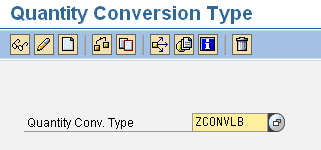
Figure 1
Enter the quantity conversion type name, such as ZCONVLB
The next screen shows the Conversion Factors tab. The system prompts for the field to locate the conversion factor — this is the method that the system should use to perform the conversion. In my example, I want the system to use table T006 for the conversion, so I set the value for Dynamic Determination of Conversion Factor to Using Central Units of Measure (T006) as shown in Figure 2. Table T006 contains the values to convert from the source of kilograms to the target of pounds. The system stores the conversion factor in this table.
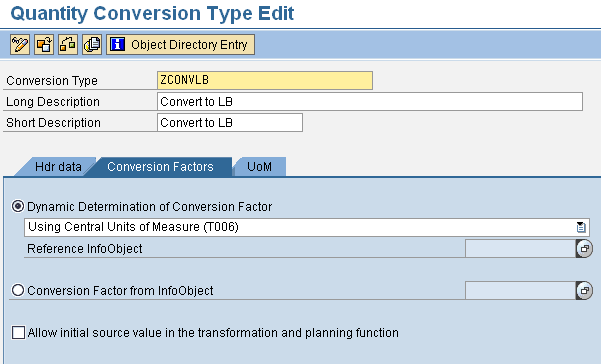
Figure 2
Set the Dynamic Determination of Conversion Factor to T006 in transaction RSUOM
The next step is to establish the UoM for the target. In my example, the source data comes in a base quantity of kilograms and I always want to convert to pounds. I need to set the target Fixed Unit of Measure to Pounds, so I select LB (Figure 3). The system can now use this quantity conversion type in the transformation to provide the conversion from kilograms to pounds.
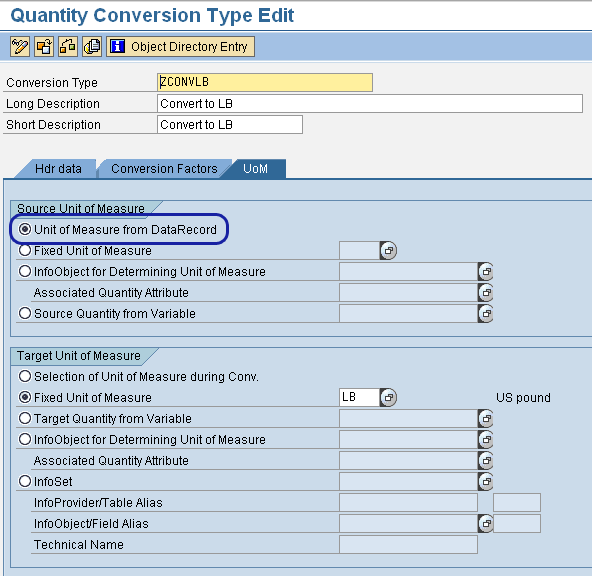
Figure 3
The Fixed Unit of Measure is set to pounds in transaction RSUOM
I am now ready to use the quantity conversion type in my query. In BEx Query Designer, when I drag the source key figure over to the Key Figure column, the system allows me to choose a Conversion Type in the Unit Conversion area of the Conversions tab (Figure 4). I choose the quantity conversion type ZCONVLB that I previously created. The system then fills in the target unit of LB into the Target Unit field and dynamically applies the kilogram to pound conversion factor on every material at query runtime.
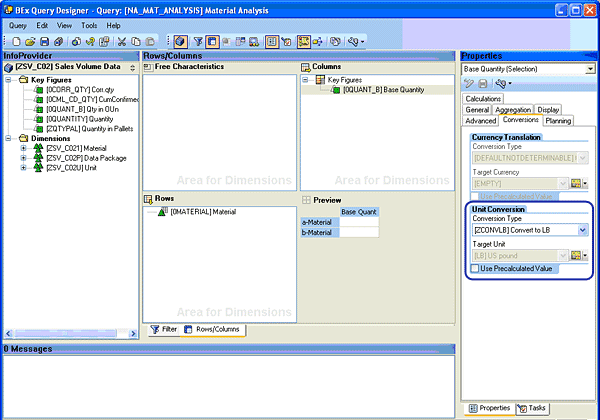
Figure 4
Use the ZCONVLB quantity conversion type to convert from kilograms to pounds
This is the most basic example of UoM conversion. Using the system functionality to provide the UoM conversion of a standard multiplier accomplishes the same thing as simply adding a formula and multiplying by that constant to provide the converted value. I could simply set up a key figure based on a UoM of pounds and use a formula to multiply by the conversion factor of 0.4536 rather than use the standard UoM functionality and accomplish the same result.
The quantity conversion becomes much more difficult if the quantity conversion is based on a dynamic conversion factor, such as a conversion to case with multiple materials that differ on their case quantities. In the next example, I will explore that conversion process.
Conversion to a Fixed UoM
The source for material UoM conversion data is found in the SAP ERP Central Component (SAP ECC) source system in the material master table MARM. This table is filled via the material master maintenance transaction MM02. This UoM maintenance screen allows multiple UoM values and their value translation from the material’s base UoM. One material can have multiple UoM value translations. For example, one material might be set up to convert to each, case, and pallet. It is in this screen that the conversion factors are also established from the one UoM to another. To use the UoM conversion values found in table MARM, you must load these values from SAP ERP Central Component (ECC) to SAP NetWeaver BW. As part of the UoM conversion functionality, you must activate the system-defined standard DataStore object (DSO) UOM0MATE. You can then map this DSO to the SAP ECC source data via a transformation and load it with the UoM values.
Note
For details on activation of UOM0MATE and loading of this DSO from the SAP ECC source system see my previous BI Expert article “Overcome Challenges with Unit of Measure Conversion During Transformations.”
Once the UOM0MATE DSO has been activated, mapped, and loaded from the SAP ECC source system, the conversion values are available for use during UoM conversion. This sets the different value conversions among various materials. Using transaction SE16, you can view table /BIC/AUOM0MATE00 (Figure 5). This table is needed because it is common that materials have different packaging values for cases and pallets, for example. The data in the table represents the numerator and denominator to provide the conversion factors. Note that these factors differ based on the material and UoM.
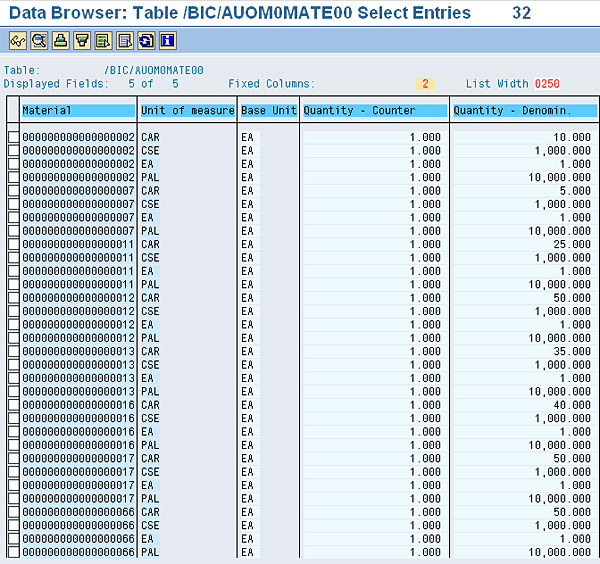
Figure 5
Sample data in the UOM0MATE DSO
To start the conversion in the query, I must establish a quantity conversion type in transaction RSUOM to allow the system to perform the conversion (Figure 6). In the Conversion Factors tab of the quantity conversion type, I need to specify that the conversion should use the 0MATERIAL field as a reference InfoObject to look up the material UoM conversion values (Figure 7). This means that during query processing, the system looks at the code in 0MATERIAL and looks to the UOM0MATE DSO to find the conversion ratios.
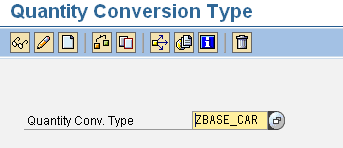
Figure 6
Create the quantity conversion type ZBASE_CAR in transaction RSUOM
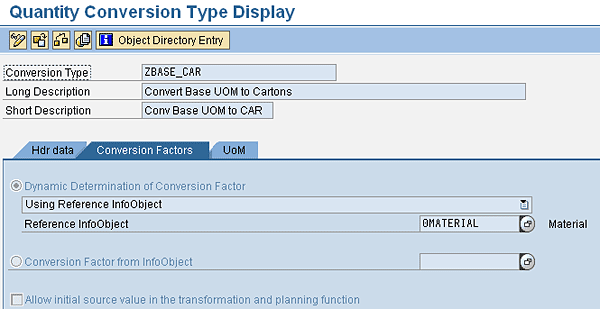
Figure 7
Set the Dynamic Determination of Conversion Factor to Using a Reference InfoObject (0MATERIAL)
In the UoM tab of the quantity conversion type I need to specify where the system should find the source and target values. In my example in Figure 8, I am converting the source quantity data to a fixed UoM of cartons (CAR). When using this quantity conversion type, the system takes the source value from the key figure in the query and converts the material’s source quantity to cartons using the values stored in the UOM0MATE DSO. I can now save the quantity conversion type.
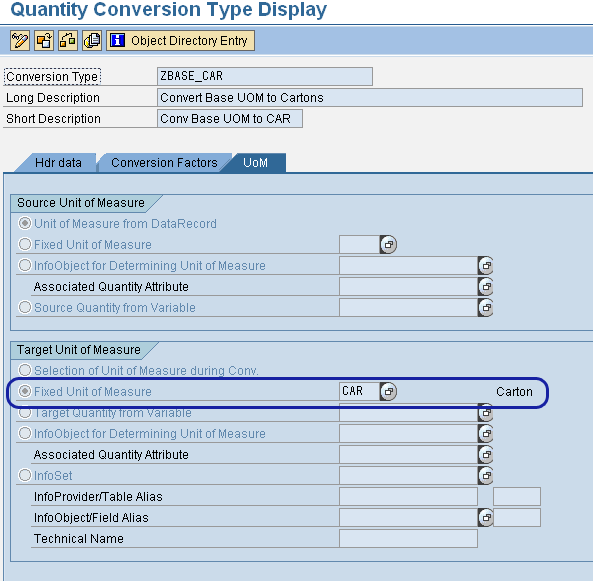
Figure 8
Cartons (CAR) as the fixed UoM
Now that the quantity conversion type is established, I can use it in the query. Each quantity key figure has a Conversions tab. In the Unit Conversion section, choose the source quantity key figure and select the quantity conversion type previously created (Figure 9). The system then defaults the Target Unit field to Cartons.
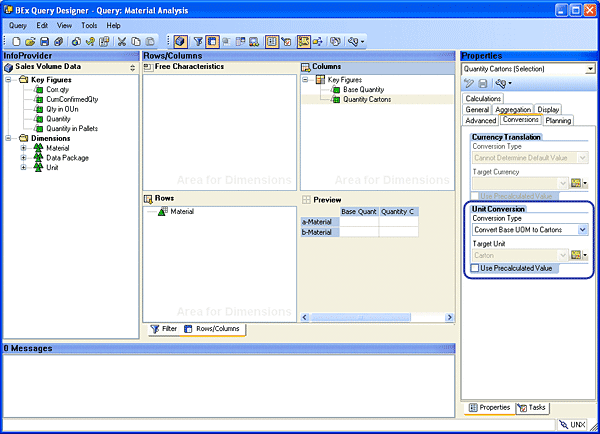
Figure 9
Set the quantity conversion type and target unit
During query processing, the system takes the source key figure value and dynamically reads the UOM0MATE DSO to convert the values using the multiplier in the UOM0MATE DSO. If no conversion factors are available for a material, the system leaves the value in the source UOM.
The query output shows the base quantity and the converted quantity (Figure 10).
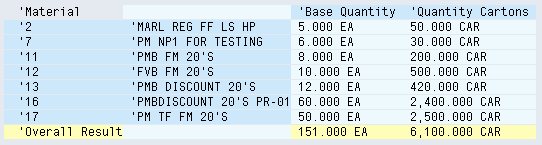
Figure 10
Query output showing the results of the query in the source (Base Quantity) and target (Quantity Cartons)
Specify a UoM During Query Runtime
It is also possible to create a quantity conversion type that allows the query creator to specify a UoM for each key figure, rather than having the UoM hardcoded as in the previous example. The first step is to create a new quantity conversion type in transaction RSUOM. The reference InfoObject is 0MATERIAL in the Conversion Factors tab (Figure 11). The source comes from the UoM tab in the data record (Figure 12). The target is from the selection of the UoM during data conversion.
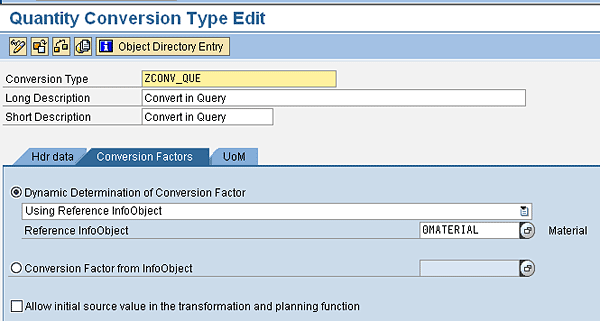
Figure 11
The Reference InfoObject is 0MATERIAL

Figure 12
The source comes from the UoM tab in the data record
During query creation, when using a quantity key figure value, I can choose the conversion type created. Rather than defaulting the target UoM, the system now allows me to enter any target UoM in the Target Unit field. In this example, I set this to Cartons (Figure 13). The system looks at the value entered into the Target Unit field in the query and converts the key figure value using the DSO UOM0MATE (Figure 14).
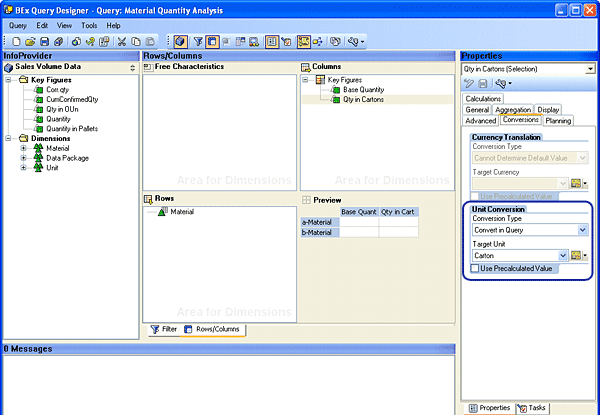
Figure 13
Conversion Type and Target Unit filled in during the creation of the query
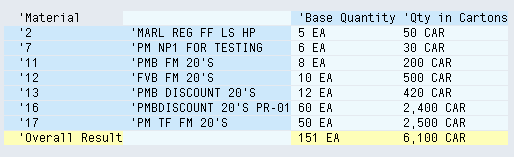
Figure 14
Query output showing the source Base Quantity in eaches and the target quantity in cartons
Variable Entry of UoM
In some situations, you may need to prompt end users for the UoMs they would like to use. In this example, the system prompts the user for a UoM variable during the query processing. The user can enter a UoM into this variable that the system then uses as a target to perform the conversion.
To use a UoM conversion with a variable, you first need to create the variable. In BEx Query Designer, go the Unit of Measure characteristic, right-click, and select New Variable from the context menu. In the General tab, create the variable to allow manual entry of a single value (Figure 15). In the Details tab, you can set the variable to optional or mandatory, depending on the needs of the query (Figure 16).
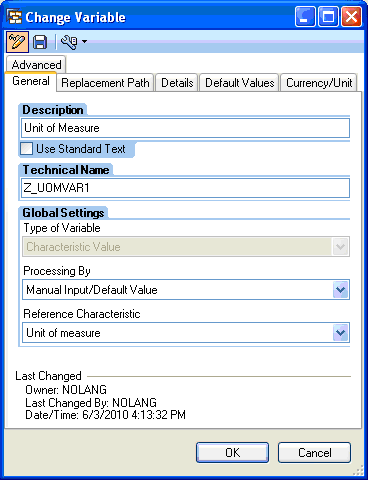
Figure 15
Variable allowing for manual input of UoM
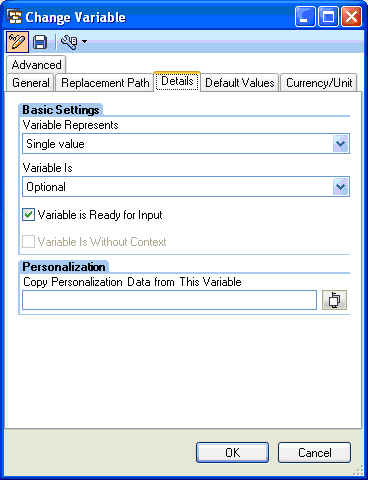
Figure 16
Single-value UoM variable entry
Now I need a new quantity conversion type based on 0MATERIAL that allows for a variable entry using the new variable I created. In transaction RSUOM in the UoM tab, I need to specify the variable I created in the Target Quantity from Variable field (Figure 17).
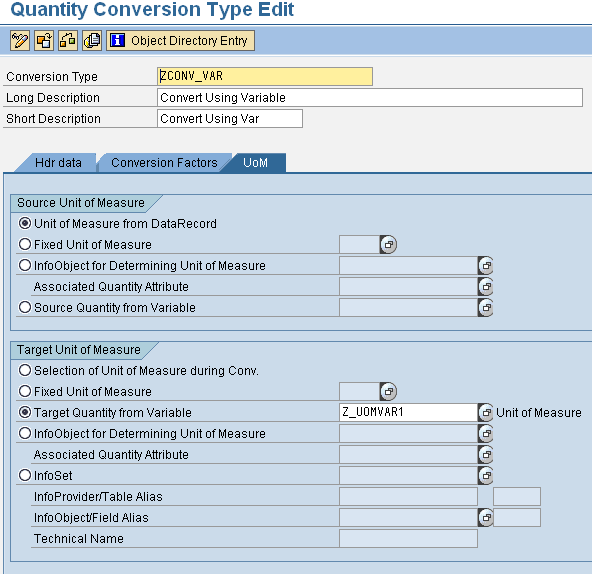
Figure 17
Enter the variable Z_UOMVAR1 in the Target Quantity from Variable field
I can now use the quantity conversion type in the key figure when creating the query using the BEx Query Designer (Figure 18). When running the query, the system prompts for the target UoM and converts the data to it, if possible (Figure 19). Figure 20 shows the results of the query with converted variables to pallets in the Variable Quantity field. Those materials that were not converted do not have a conversion factor in the UOM0MATE DSO.
Note
There are performance concerns when using the quantity conversion during query processing if there is a high volume of data in the result set. To improve the performance, review the suggestions in SAP Note 1449073 (Performance improvement for quantity conversion).
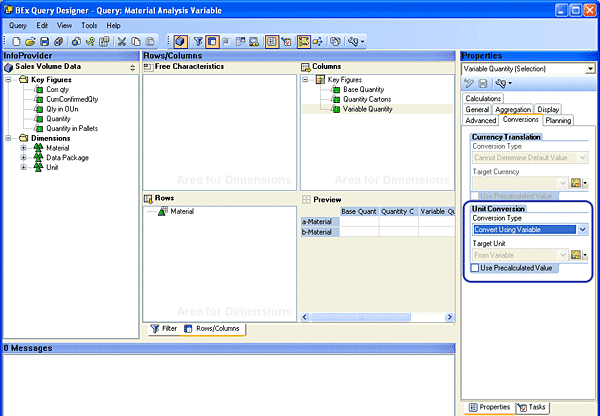
Figure 18
Quantity conversion type using a variable in BEx Query Designer
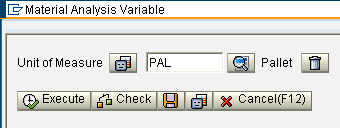
Figure 19
Prompt for a UoM
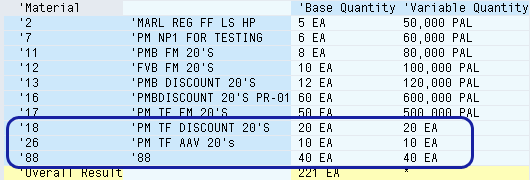
Figure 20
If no entries are available for the target UoM in the UOM0MATE DSO, the system leaves the value as its source UoM