The item category of a sales document primarily controls how the sales item is processed within SD. However, some of the settings have a significant influence on the FI module.
The "higher-level" and "lower-level" item category relationships in a sales order are among the most commonly misunderstood settings in R/3. You might think that the item category (see the sidebar, "SD Item Category") of a sales document is purely a Sales and Distribution (SD) function. It’s true that it primarily controls how the sales item is processed within SD. However, some of the settings have a significant influence on the FI module.
If you take the steps required to activate higher vs. lower relationships in a sales order, you also create the possibility for two different approaches to gross margin analysis in CO-PA. This allows you to bring profit values into CO-PA in two ways — the revenues and costs of the finished good or the revenues and costs of each of the components of the finished product.
In simple terms, the lower-level item (or sub-item) is assigned to the higher-level item (or main item) to form a hierarchy structure. Accordingly, item categories are assigned for both the items: a higher-level item category for the main item and a lower-level item category for the sub-item.
The reasons to create such relationships include:
- Product substitution: During sales-order processing, material determination enables the automatic substitution of materials in a sales order. For example, during a holiday promotion, you want to send a product with a special wrapper. When the customer orders the product, the R/3 system substitutes the special product. You create the product with the special wrapper as a sub-item to the product the customer ordered (Figure 1).
- Free goods: It is common to give free products when the customer buys certain products. For example, if the customer buys two coffee machines, he gets a packet of coffee free. The free product (packet of coffee) is assigned as a sub-item to the product the customer ordered (coffee machine), the main item.
- Sales BOM (bill of material): In high-tech industries—selling computers, for example—you create a bill of material for sales to process the main computer and its components. The components (sub-items) are attached to the main item in a hierarchical relationship.
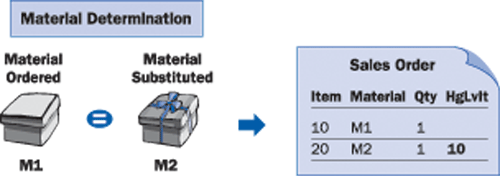
Figure 1
Material M1 entered in Sales Order Item 10. The system substitutes Material M2 (product with special wrapper) and creates a sub-item 20 assigned to main item 10.
Higher-Level Item Category for Sales BOM
I’ll use the example of a sales BOM to illustrate the role the "higher-level item" category plays in determining what values are posted to financial ledgers.
Say that a product is made up of various components, and you sell it as a whole. Technically, this list of components is a bill of material (BOM). The main item identifies the BOM, and components or sub-items are linked to the main item. Take the example of a personal computer, which is made up of a hard drive, monitor, and keyboard (Figure 2).
The business sells this computer as a whole, including the components. It also could sell the individual components separately, a common practice in the high-tech, make-to-order, and apparel industries.
R/3 can be made to look for—and automatically explode—a BOM during sales order processing. It enters components as sub-items of the main item when you enter the material number of the main item. The advantage of creating a sales BOM is that you don’t need to enter all the materials in the sales order.
For the Sales Order Create process (transaction code VA01), for example, you enter the material number of the main item and the system automatically fills in sub-items representing components. Here’s how it works:
- The system checks whether a BOM exists for the material number entered by the end user.
- If a sales-related BOM exists, the system reads the BOM structure and identifies the components.
- R/3 enters these components as additional items in the sales order for you.
To correctly reflect the structure of the BOM, R/3 assigns the item number of the main item. See the HgLvIt (higher-level item) column in the BOM structure shown in Figure 3.
Note that in Figure 3, column ItCa is automatically filled with TAQ for the main item and TAE for components. Typically, the user does not enter the item category during sales order processing. The R/3 system automatically determines the item category from the item category group of the material master (Sales 2 view) and the sales order type1 entered by the end user. See Figure 4.
Figure 5 shows allowed item categories for a standard order type (OR) and item category group ERLA (category group for items sold as one unit).
Item category TAQ designates the main item, as shown in the first row of the configuration. The sub-items are assigned to the main item. Therefore, the components are item category TAE. (In R/3, TAE is a dummy item category, not relevant for pricing or costs.) Here’s how to read the second row in the table: If the higher-level item category is TAQ, then you assign TAE to lower-level items, if they exist.
In the example of the sales BOM, the main item (sales order item 10) is assigned as item category TAQ and the components (sales order items 20 onwards) are item category TAE. All the sales order items are processed according to their respective definitions of item categories.
Tip!
The Structural scope indicator defined in the item category controls whether the BOM is exploded or not, and to what extent (Figure 6).
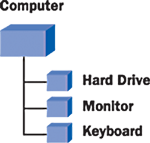
Figure 2
Typical BOM for a computer with a main item (computer) consisting of components (hard drive, monitor, and keyboard)
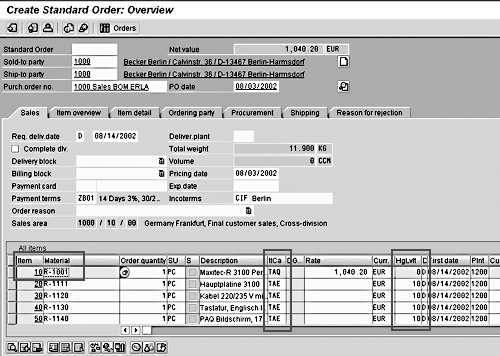
Figure 3
During the Sales Order Create process, the end user enters material number R-1001 as item 10. The system automatically enters items 20 onward. Note that the HgLvIt for items 20 and up is set to 10.

Figure 4
Combination of sales order type and item category group from the material master determines the item category. Values in parentheses are typical examples.
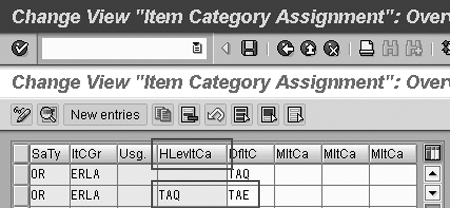
Figure 5
Item categories for a standard order type (IMG>Sales and Distribution>Sales>Sales Documents>Sales Document Item>Assign Item Categories)
SD Item Category
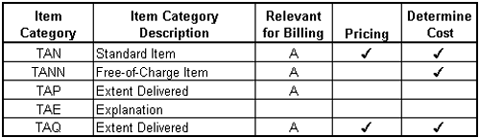
Item category, a configuration in the Sales and Distribution (SD) module, is assigned to every sales order item. (See the table below for some common item categories.) Item category controls how the item is processed, such as type and scope for inventory postings, transfer requirements, pricing, billings, and credit control checks.
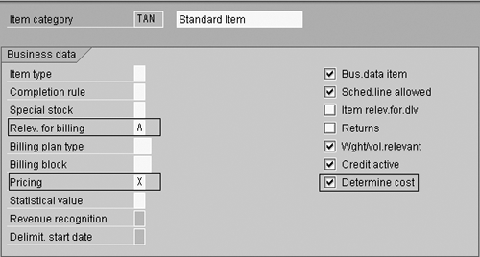
The figure below shows some of the important item category settings that influence financials.
- Relev. for Billing: If the item is checked as relevant for billing, you can see whether it is delivery-related or order-related. For example, “delivery-related” billing means that the invoice should be created after the product is shipped. In the case of a credit or debit memo that is not related to a delivery, you set the billing relevancy to “order-related.”
- Pricing: The pricing checkbox determines whether pricing calculations are carried out. If the checkbox is marked with an X, item category TAN is relevant for pricing, and the customer is charged. A free-of-charge product should not be priced. Item category TANN is typically used for free items.
- Determine Cost: If this checkbox is set, the R/3 system reads the standard cost of the product from the material master and copies the value in the sales order item’s pricing screen. Typically, the cost is stored in condition type VPRS (with condition category G costs) in the pricing procedure.
Figure
Item category settings for TAN (IMG>Sales and Distribution>Sales>Sales Documents>Sales Document Item>Define Item Categories)
Table
Configuration settings for typical item categories
Postings to Financials
With a basic understanding of item categories and how sales BOMs are processed, you can see how these settings influence which postings are made to FI. In my example of the personal computer, I am assuming the sales BOM2 is already created and the appropriate settings for sales order processing are in place.
As a FI/CO analyst, you have two options for reporting profitability:
- Revenues and costs at the main-item level
- Revenues and costs at the sub-item level (components)
Option 1: Revenues and costs posted at main-item level
In this case, you want only the main item to be posted to FI with revenues and costs of the main computer. In sales-order processing, the components act just for data-entry help and are not posted to FI.
The simple solution is to have the higher-level item category relevant for prices and costs. The lower-level item category for the components should not be relevant for prices and costs. In a standard R/3 system, the item category group ERLA is defined for this purpose.
Solution: Enter item category group ERLA in the material master (transaction code MM02, Sales 2 view) of the personal computer. Once an invoice is created for this sales order, revenues and costs for the main item only are posted to the CO-PA ledger. You are able to do gross margin analysis at the main-item level. See Figure 7.
Tip!
If the components can also be sold separately, the item category group for the components should be NORM. In that case, you should have an additional record present in the configuration table for the combination of order type and NORM as shown in the third line of Figure 8.
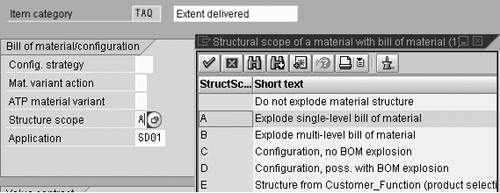
Figure 6
The structural scope (StructScpe) indicator of the item category controls BOM explosion in order processing.
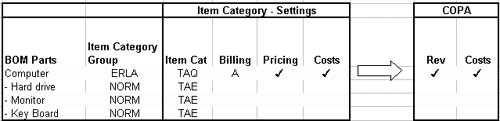
Figure 7
In the CO-PA ledger, revenues and costs are posted at the main-item level, so you can do gross margin analysis at the main-item level.
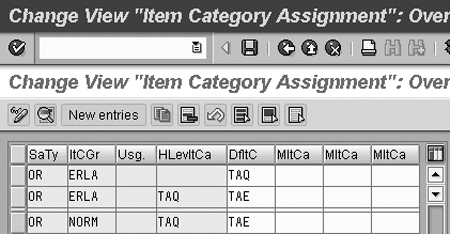
Figure 8
Item category group ERLA with item category TAQ for the main item and TAE for components. TAQ is relevant for prices and costs, whereas TAE is not.
Did You Know?
In the apparel industry, sales BOMs are widely known as “prepacks” or “assortments.” “Prepack” is an IS-AFS (Industry Solution for Apparel and Footwear Systems) term for managing pricing, inventory, and delivery at the main-item level. “Assortment” indicates processing is done at the components level. A suit, a typical example of a sales BOM from the apparel industry, might consists of coat, vest, and trousers. In the case of prepacks, the CO-PA ledger shows profitability at the suit level. In the case of assortments, you can determine profitability at, for instance, the trousers level.
Option 2: Revenues and costs posted at the components level
In this case, you want to post the component details3 to FI with revenues and costs. The lower-level item category is relevant for prices and costs. The standard R/3 system defines item category group LUMF, which posts component details to FI with revenues and costs for this purpose.
Solution: Enter item category group LUMF (Figure 9) in the material master of the personal computer (transaction code MM02, Sales 2 view).
Item category group LUMF makes CO-PA postings at the components level. In the CO-PA ledger, you can determine gross margin analysis for individual components. See Figure 10.
Now you see how SD item categories, including relationships of higher- and lower-level item categories, influence the flow of revenues and costs data to FI. With the help of pre-defined item category groups (ERLA or LUMF) and item categories, you are able to view profitability in CO-PA at both the main-item and components levels.
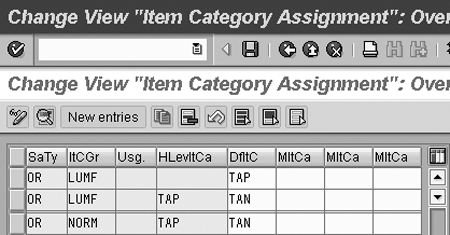
Figure 9
Item category group LUMF with item category TAP for the main item and TAN for components. TAP is not relevant for prices and costs, whereas TAN is.
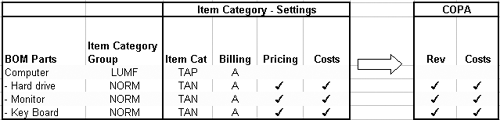
Figure 10
Revenues and costs posted at the sub-item level in the CO-PA ledger
1

Mitresh Kundalia
Mitresh Kundalia heads the SAP practice at Quality Systems & Software (www.QSandS.com), a consulting firm specializing in SAP S/4HANA, SAP General Ledger, and complex System Landscape Optimization (SLO)-type reorganizations. Mitresh is widely acknowledged as a leading SAP expert, with multiple publications and an SAP-PRESS book to his credit. He has published more than 50 peer-reviewed articles and white papers, and he has given presentations at various SAP conferences and events. Mitresh is the chief solutions architect of General Ledger Migration Optimizer (GLMO), a leading product to accelerate and jump-start the SAP S/4HANA and SAP General Ledger initiatives; SAP Data Reorganization Optimizer (SDRO), an SLO-type product for managing complex system landscape reorganizations; and Group Currency Activation and Conversion (GCAC), a product suite to manage introduction of parallel currencies and conversion of data in a live SAP system.
You may contact the author at Mitresh@QSandS.com.
If you have comments about this article or publication, or would like to submit an article idea, please contact the editor.



 Premium