/IT
The Web-based environment of SAP NetWeaver Portal provides business users in your organization secure access to a wide array of SAP and non-SAP applications, information, and services, such as SAP ERP, analytics, business intelligence, and document repositories. The diversity of content delivered to your business users through SAP NetWeaver Portal may come with user access-related risks to analyze, monitor, and mitigate. Learn how to integrate SAP NetWeaver Portal into SAP BusinessObjects Access Control 5.3 and include it in your risk analysis and risk mitigation.
Key Concept
SAP BusinessObjects Access Control 5.3 comes with a Java component containing an SAP NetWeaver Portalreal-time agent called the Enterprise Portal Real-Time-Agent (EPRTA), which you have to deploy on your portal server. The EPRTA, which is what it is called in SAP BusinessObjects documentation, provides connectivity between your SAP BusinessObjects Access Control server and your SAP NetWeaver Portal 7.0 Support Package 12 or higher for real-time risk analysis and user provisioning. Portal content is accessed through iViews, which represent the smallest unit of the portal user interface. iViews are granted to portal users and groups via portal roles. In addition, the portal runs on a SAP NetWeaver Application Server Java, which employs the User Management Engine (UME) to store user-related data.
SAP NetWeaver Portal provides unified access to SAP, third-party, and custom or legacy applications. This includes Single Sign-On (SSO) capabilities and role-based access for your business users to these applications. From a GRC perspective, this comes with additional access-related risks and opportunities for better control.
On one hand, access to a large variety of applications may also include access to confidential data or additional segregation of duties (SoD) issues that arise from lightweight Web-enabled applications, which aren’t very well-covered in your risk analysis and reporting setup.
On the other hand, the Enterprise Portal Real-Time-Agent (EPRTA) offers the opportunity to include these applications in a simple manner into your risk analysis and risk mitigation. This is possible as long as the applications don’t come with an intrinsic authorization concept that you must take into account during risk analysis. The EPRTA only reports on access to iViews and User Management Engine (UME) actions resulting in SoD and critical action risks. It is unaware of the details of the applications running in these iViews. For example, if iViews contain SAP applications that are secured via the ABAP authorization concept in your SAP back-end systems, then there is little value in adding a second layer of risk analysis on the iView level in SAP NetWeaver Portal. Instead, you should include these applications in the risk analysis you run directly against these SAP back-end systems.
In summary, the EPRTA comes with the following business benefits:
- Simple integration of a variety of Web-enabled applications into your risk analysis
- Risk mitigation for these applications
- Simple reporting of access to critical roles in the portal such as roles for super-administrators, user administrators, and content administrators
- Real-time reporting using the standard SAP BusinessObjects Access Control reporting capabilities already known to your internal control and security team
I’ll provide some background information on the organization of content in the SAP NetWeaver Portal, which helps in understanding the rest of the article. Then, I’ll focus on the integration of the portal into the Risk Analysis and Remediation (RAR) capability. For more a high-level overview of RAR, refer to my article “Get Your System Clean with Risk Analysis and Remediation”.
Application Integration with SAP NetWeaver Portal
SAP NetWeaver Portal provides an intuitive user interface to your business users (Figure 1). Its main elements are top-level and second-level navigation, detailed navigation on the left side of the screen, and pages consisting of multiple iViews, each displaying portal content such as news, reports, applications, and collaboration features. For example, Figure 1 displays a portal page consisting of two iViews. The first one contains news and the other one runs the application ITelO Sales, which reports on the latest order volumes in different countries. You can make a wide array of applications accessible through the portal this way.

Figure 1
Diverse applications run integrated as iViews in SAP NetWeaver Portal
Users are granted role-based access to the portal. This means that portal roles assigned to users determine the items users find available in the portal’s user interface and the navigation in the portal. As depicted in Figure 2, portal roles consist of the following types of portal content objects:
- Portal roles (optional): A role defines a person’s responsibilities and authorizations in your organization. Technically, portal roles can include other portal roles.
- Worksets (optional): A workset is a cluster of related tasks and can contain other worksets, pages, and iViews
- Pages: A page defines the arrangement of included elements and contains iViews
- iViews: iViews are the smallest units in the portal user interface and provide access to applications, reports, services, and information needed to complete a task. iViews can be interactive to perform business functions and can display information in any format and from any data source.
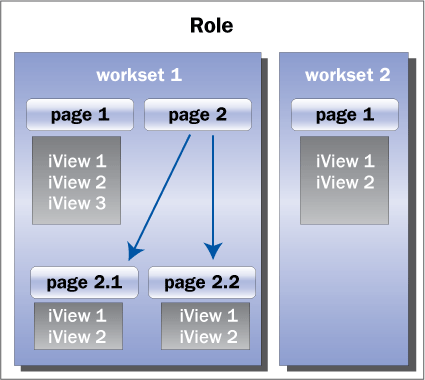
Figure 2
Portal roles consist of other portal roles (not shown), worksets, pages, and iViews
All portal content objects are organized in the Portal Content Directory (PCD) and identified by an object ID consisting of the path where you can find the object in the directory tree of the PCD. The concept of object IDs in the PCD is important to understand for risks based on access to portal iViews. For example, the object ID of the User Admin iView is:
pcd:portal_content/com.sap.pct/admin.templates/iviews/com.sap.portal.umeAdminWD
If portal content objects such as User Admin iView are inserted in other objects such as pages, worksets, or roles via copy or delta-link — the latter being an object reference — then they get an additional object ID made up by the additional path where you can find the object in the page, workset, or role. For example, the user_admin role in the portal has the object ID:
pcd:portal_content/administrator/user_admin/user_admin_role
This role contains a workset called User Administration with object ID:
pcd:portal_content/administrator/user_admin/user_admin_role/com.sap.portal.user_admin_wd_ws
Because User Admin iView is included in this workset, it has the additional object ID:
pcd:portal_content/administrator/user_admin/user_admin_role/com.sap.portal.user_admin_wd_ws/com.sap.portal.umeAdminWD
Consequently, listing all object IDs of a given iView requires identification of all content objects in which the iView has been inserted. Note that in comparison, the concept of transaction codes in SAP systems works quite differently: Each business transaction comes with a unique transaction code — no matter to which authorization role you add the transaction (e.g., SU01 for ABAP stack user maintenance).
You can assign portal roles and UME roles directly to users, but it is best practice to assign the roles first to groups and then include users in the groups. EPRTA fully supports this kind of indirect assignment of roles to users through group memberships for risk analysis. In addition, it is possible to request group memberships in CUP access requests. During request approval, the risk analysis also includes the roles assigned to the requested and existing groups.
RAR with SAP NetWeaver Portal
Let’s take a deeper look into risk analysis in RAR executed against the SAP NetWeaver Portal and learn more about the necessary steps for configuration and risk definition.
Run a Risk Analysis
You execute a risk analysis against an SAP NetWeaver Portal in RAR in the same way as a risk analysis against any other ERP system connected with an EPRTA — one of two manners:
- Batch risk analysis: You can schedule the batch risk analysis in RAR as a batch job. It requires a user and role synchronization first — also scheduled as a batch job — and is the prerequisite for the generation of management reports.
- Ad hoc risk analysis: You can execute the ad hoc risk analysis by going to RAR > Informer > Risk Analysis and use it to produce rapid reports on a smaller number of users or roles
Figure 3 shows the result of a user-level ad hoc risk analysis at permission level listing two SoD violations corresponding to the risk EP02 – UME User & Role Administration. The report reveals that the role UME_ALL assigned to the user contains UME actions belonging to the two conflicting functions:
- UME01: UME user management
- UME02: UME role management
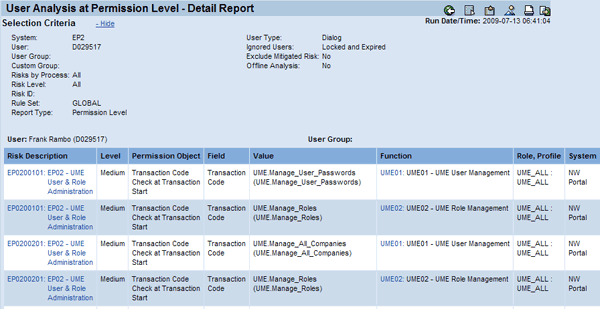
Figure 3
User Analysis at Permission Level - Detail Report displaying SoD violations
Figure 4 shows the result of an ad hoc User Critical Actions Detail Report listing four critical actions all belonging to the same risk — EP03 - UME Critical Actions. The critical actions are UME actions contained in the roles UME_ALL and Administrator that are assigned to the user.

Figure 4
User Critical Actions Details Report
Figure 5 displays an example for the ad hoc User Critical Roles/Profiles Report. It lists the critical role SAP_JAVA_NWADMIN_CENTRAL assigned to the user D029517.
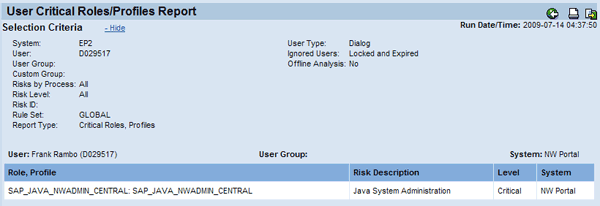
Figure 5
User Critical Roles/Profiles Report
Deploy the EPRTA
Download the latest Support Package of the software component VIREPRTA_530_700 from SAP Service Marketplace and deploy it with the Java Support Package Manager (JSPM) on all instances of your portal server. Note that your SAP BusinessObjects Access Control system needs to be on the same Support Package level with all RTAs connected to it. This also applies to the EPRTA: SAP currently supports the RTA only with SAP NetWeaver Portal 7.0 Support Package 12 or higher. This means you need to install at least usage type EP Core — usage type AS Java is not sufficient. Once deployed, the software component VIREPRTA and its Support Package level are listed under http(s)://<portal-server>:<port> > System Information and clicking all components. In the Web Services Navigator you also find the following new Web services CCRTAWS and UserRoleSearchForAEService_5_3.
After the deployment of the EPRTA, you need to perform the master data download from the portal server. The master data download utility is accessible with the URL http(s)://<portal_server>:<port>/webdynpro/dispatcher/sap.com/grc~cceprta/DownloadData.
Click the Download File! link and store the file MasterData.txt (Figure 6). It contains all object IDs of all the iViews and all UME actions from your portal server. This data is later uploaded into RAR and is needed for risk definition.

Figure 6
Download master data from the portal
Note
You need to repeat the master data download from the portal and upload to RAR each time you create new iViews, add existing iViews to roles, or deploy a Web Dynpro application that comes with new UME actions you want to include in your risk analysis.
Create a Connector
Create a connector in RAR > Configuration > Connectors pointing to SAP NetWeaver Portal (Figure 7). You need to provide the following data:
- System: This entry defines the connector ID and appears as the system in all RAR reports
- System Name: The more descriptive system name also appears in RAR reports
- System Type: Portal
- Connection Type: Web Service
- URL: <portal_server>:<port>/ CCRTAWS/Config1?wsdl&style=document
- User ID: Portal user with super_admin role in the portal
- Password: Password of the above user
- Server Name: Server name of the portal
- Port Number: Port number of the portal service

Figure 7
Create a connector to your SAP NetWeaver Portal in RAR
If you have multiple portal servers, follow RAR > Configuration > Logical Systems and define a logical system and assign the portal connectors to it. This way, multiple portals can later share the same functions and risks.
Once you have created the connector, it is a good idea to test it with the debugger. Start the debugger with the URL:
http:<AC_server>:<port>/webdynpro/dispatcher/sap.com/grc~ccappcomp/CCDebugger
Select the portal connector from the Debugger drop-down list in Figure 8. Then, for example, select as Obj. Type User, enter as Obj. ID a user that exists on the portal server, and click the Search Obj button. If the connector is working properly, it should display the user in the lower part of screen.

Figure 8
Test your connector
Define Functions with Portal iViews
SAP BusinessObjects does not include pre-defined risks for SAP NetWeaver Portal — you have to define risks yourself. Before you can start doing this, you need to upload the master data text file you previously downloaded from the portal in RAR > Configuration > Upload Objects > Text Objects. Select the portal connector from the drop-down list and enter the location of the file MasterData.txt on your local computer as the Local File. Then click Foreground to start the quick upload.
You can define critical action risks by a single function and SoD risks by multiple functions. Consequently, you need to create functions prior to risks. Functions contain a set of actions in a particular system, which can also be a logical system, and are assigned a business process. Actions can be either object IDs of iViews or UME actions. Let’s focus first on iViews. Create functions by following menu path RAR > Rule Architect > Functions > Create (Figure 9).

Figure 9
Create a function using iViews as actions
I created a function called EPUM01 and added all object IDs of the User Admin iView as actions. Remember that the iView comes with multiple object IDs because it is used in multiple roles. If you missed some of the object IDs, then RAR won’t detect all risk violations based on the User Admin iView. You do not need to maintain permissions in the Permissions tab.
Define Functions with UME Actions
Alternatively, you can also add UME actions as actions to your functions. Unlike iViews, UME actions have unique IDs always starting with UME (e.g., UME.Manage_All) (Figure 10). UME actions can secure certain tasks in the context of the administration of the SAP NetWeaver Application Server Java or in Web Dynpro business applications. They are not specific to SAP NetWeaver Portal.
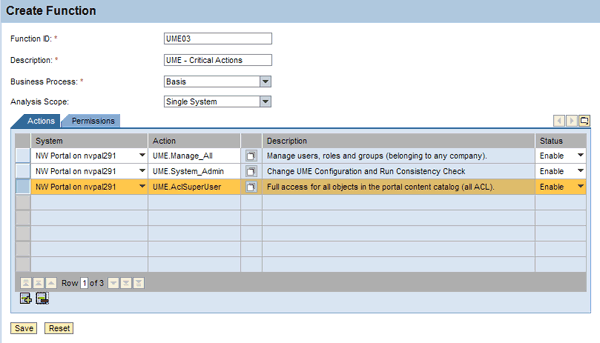
Figure 10
Create a function using UME actions
Define SoD and Critical Action Risks
You’re now ready to use your functions and define SoD and critical action risks. Create risks by following menu path RAR > Rule Architect > Risks > Create. Figure 11 shows an example of an SoD risk based on the two functions EPUM01 – Portal User Administration and EPCA01 – Portal Content Catalog. For each risk, you need to assign:
- Risk ID: Four-digit ID
- Description: Description of the risk
- Risk Type: Segregation of Duties or Critical Action
- Risk Level: Critical, High, Medium, or Low
- Business Process: Business process affected by the risk
- Status: Enable or Disable
- Relevant Function(s): One or multiple functions for critical action and SoD risks, respectively
- Detailed Description: More details on the risk
- Control Objective: Details on the control objective
- Risk Owners: They can act as approvers for changes to the risk definition if approval workflows in CUP are set up
- Rule Sets: List of rule sets in which you want to include the risk. It is a best practice to use only one rule set.
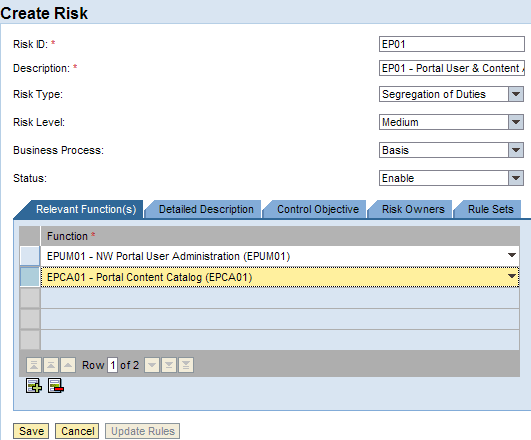
Figure 11
Create an SoD risk based on two functions containing iViews and UME actions
Figure 12 shows an example of a critical action risk based on the single function UME03 – UME Critical Actions. When you create a new risk or change the functions of an existing risk, you also have to update the corresponding rules used for detection of risk violations during a risk analysis. You find the corresponding button Update Rules with the risks and functions in the Rule Architect. Alternatively, you can also regenerate all rules across all risks and connected systems in RAR > Configuration > Rule Upload > Generate Rules or, if you’re using logical systems, go to RAR > Configuration > Logical Systems > Generate Rules.

Figure 12
Create a critical-action risk based on a function containing UME actions
Define Critical Roles
If you also want to report on assignments of critical roles, then you need to define the list of roles that are critical to you by following menu path RAR > Rule Architect > Critical Roles > Create (Figure 13). However, before you can do this, you need to run a full role synchronization for the portal connector first. You can schedule this as a background job in RAR > Configuration > Background Jobs > Schedule. This shouldn’t take longer than a few minutes. The job loads all role names from the portal into the database of your SAP BusinessObjects Access Control server and makes them available for the creation of critical roles in RAR.

Figure 13
Create a critical role
Frank Rambo, PhD
Frank Rambo, PhD, is managing a team within SAP’s Customer Solution Adoption (CSA) organization working with customers in the SAP analytics area with the objective to drive adoption of new, innovative solutions. Prior to this position, he worked eight years for SAP Germany as a senior consultant focusing on SAP security and identity management. Before he joined SAP in 1999, Frank worked as a physicist in an international research team. He lives in Hamburg, Germany.
You may contact the author at frank.rambo@sap.com.
If you have comments about this article or publication, or would like to submit an article idea, please contact the editor.