Management
SAP recently announced the general availability of SAP ERP HCM Succession Management enhancement package 5. The SAP Talent Visualization application by Nakisa (3.0) was released last year, for compatibility with enhancement package 5. Learn about the changes that have been made, as well as the new functionalities and enhancements that are available in HCM Talent Management enhancement package 5 and Nakisa 3.0.
Talent management is becoming increasingly critical for many employers. In today’s competitive job market, employers are focusing more on identifying and retaining their best employees. With SAP ERP HCM Talent Management, users can identify their top talent/high potentials, perform talent calibration, conduct profile match-ups, identify key positions, and build bench strength for key positions. SAP ERP HCM Talent Management enhancement package 5 has a number of new functionalities — which I discuss in detail — that users can leverage to make their implementation easy and more efficient.
SAP Talent Visualization Application by Nakisa 3.0
Users of the SAP Talent Visualization application by Nakisa 3.0 are aware of its organizational chart tools; however, very few are aware of its functionalities. When users plan SAP ERP HCM Talent Management implementations, two commonly asked questions are: “Is Nakisa required for Talent Management implementation?” and “What functionalities are available in SAP Talent Visualization?”
Note
SAP ERP HCM Succession Management and SAP ERP HCM Talent Management are used interchangeably and both refer to the same module. SAP Talent Visualization by Nakisa is used by the users of SAP ERP HCM Talent Management to visualize the talent data and to perform talent management activities.
SAP recommends using the SAP Talent Visualization application for data visualization and talent management activities. Without implementing SAP Talent Visualization, it is cumbersome to implement SAP ERP HCM Talent Management. For example, to implement job architecture in SAP ERP HCM, you are required to use SAP Talent Visualization. The alternative would be to develop a job architecture using transaction code HRTMC_PPOM. The downside of doing so, however, is that you lose out on the visualization and you have to manually create the required relationships.
SAP Talent Visualization is comprised of two modules: Talent Planning and Career Planning. In this section, I discuss the functionalities and how to derive maximum benefits from these two modules.
Tip!
The Talent Planning module is primarily used by executives, HR personnel, HR business partners, line-of-business employees, and shared services. The Career Planning module is made available to all employees to enable them to plan their careers. The Career Planning module is a new module in SAP Talent Visualization 3.0, and is not available in earlier releases.
SAP Talent Visualization Talent Planning Module
The Talent Planning module is used by the HR team and managers who are involved in talent management. Talent planning consists of:
1. Talent Framework: Using Talent Framework you can perform the following:
- Determine the requirements of the positions in the organization
- Assign competencies to the positions in the organization
- At the job family (object JF) level, you can develop successor pools
2. Organizational Modeler: You can use the Organizational Modeler to visualize your organizational structure. You can develop organizational charts for your organization to get a deeper view of the reporting structures and the people occupying those positions. Organizational modeling is particularly useful during mergers and acquisitions, when you have to merge two different organizations and you want to visualize what the new organizational structure looks like.
3. Succession Planning: In the Succession Planning module of SAP Talent Visualization, a guided process is available to conduct succession planning (Figure 1). This guided process tells you what is accomplished so far and what is required to be completed. You can use Succession Planning to:
- Identify key positions in your organization
- Build sufficient bench strength for the key positions
- Conduct profile match-ups
- Identify positions that do not have sufficient bench strength

Figure 1
The SAP Talent Visualization application by Nakisa (Succession Planning module)
4. Talent Dashboard: You can use the talent dashboard to view the different key performance indicators and drill down to view the details.
SAP Talent Visualization Career Planning Module
The Career Planning module has two options: My Career Plan and Explore Career (Figure 2).

Figure 2
The SAP Talent Visualization application by Nakisa (Career Planning module)
Using these functionalities, the employee can visualize the following:
- Where am I? This enables visualization of the employee’s current job and the listing of the employee’s competency as enabled in the system. It is the employee’s responsibility to update the competencies, so they accurately reflect the employee’s current competency level.
- Where do I want to be? This identifies positions that are of interest to the employee. Using the Explore Career option, employees can search job listings, explore by job hierarchy, select jobs that match their competencies, and add to their career plan.
- How do I get there? This performs a profile match-up between the employee’s competency and the identified target position. SAP Talent Visualization displays the deficiencies that need to be fulfilled to occupy the target position.
- How do I keep a record? Employees can print a copy of their career plans and their profiles (identifying the gaps that are required to be fulfilled), so they can work with their manager to initiate career development plans.
What’s New in Enhancement Package 5?
The new functionalities in enhancement package 5 are related to user interface and usability. In this section, I review the new functionalities, how to make the settings, and where they can be used.
Talent Calibration: In enhancement package 5, it is possible to conduct talent calibration with incomplete performance or potential rankings. During the talent review meeting, talents with incomplete performance or potential rankings are displayed in the Open Assessment box in the calibration grid.
To include talents with incomplete rankings, you have to complete configuration settings in transaction SPRO. The menu path for the configuration setting is SPRO > Talent Management and Talent Development > Talent Review Meeting > Make additional settings for Talent Review Meetings. Here, you provide a value to the parameter SUPPORT_UNAPPRAISED_TALENTS. The possible values for this parameter are shown in Figure 3.
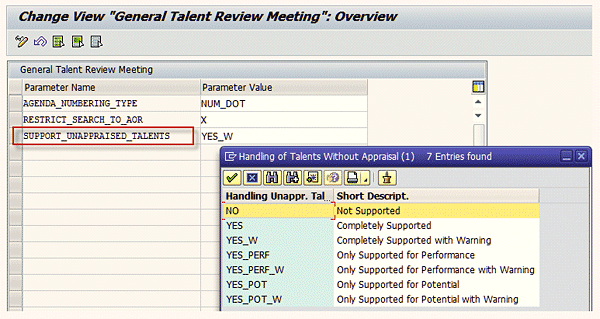
Figure 3
Make additional settings for the General Talent Review Meeting
In the calibration grid, you are able to calibrate the talents in the open assessment box by dragging and dropping the talents into the calibration grid. Here, you can also access the detailed talent information and perform a side-by-side talent comparison (Figure 4).
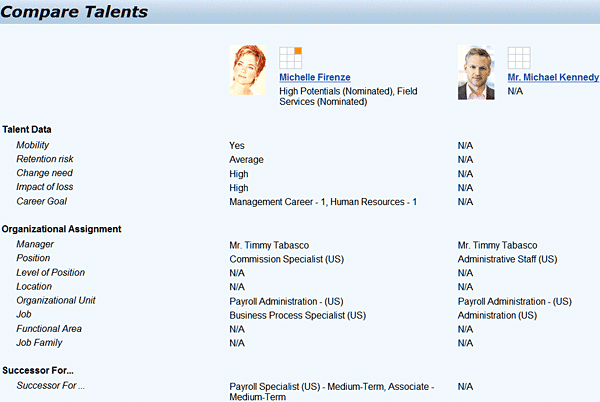
Figure 4
Talent comparison
Tip!
In SAP ERP HCM Talent Management, it is possible for managers and talent management specialists to display talent profiles side-by-side and conduct talent comparisons. For example, you can use this functionality to compare a talent with your top talent (higher performer/high potential) and identify potential areas for improvement.
You can also enhance the content being displayed in the list zoom-in box for open assessment. Follow menu path SPRO > Talent Management and Talent Development > Basic Settings > Adjusting the user interfaces > Configurations for data retrieval > Assign configuration for user interface. In that table, assign the required values to the parameter RM_UNAPPRAISED_BOX_ZOOM_LIST (see Figure 5 for possible values that can be assigned).

Figure 5
Assign configuration for user interface (possible values for parameter RM_UNAPPRAISED_BOX_ZOOM_LIST)
By enhancing the search criteria, you can determine what fields need to be displayed while searching for talents with incomplete rankings. This functionality enables you to display fields that contain information that you frequently refer to, while determining and identifying the top talents. Follow menu path SPRO > Talent Management and Talent Development > Basic Settings > Search > Define Search Configurations. In this customizing activity, you define the search configurations, as well as the fields to be displayed.
After you have created a new search configuration, you need to assign it by following menu path SPRO > Talent Management and Talent Development > Basic Settings > Search > Assign search configurations.
Note
In enhancement package 5, it is possible to print the detailed or short-profile information of talents. This print capability is available only for manager and talent management specialists. The print capability is not available for employees (e.g., employees cannot print their own talent profiles).
You can create your own custom forms and assign them to the TALENT_PROFILE and TALENT_SHORT_PROFILE parameters by following menu path SPRO > Talent Management and Talent Development > Basic Settings > PDF-Based documents in Talent Management > Assign application forms to elements of PDF-Based Documents.
Similarly, in enhancement package 5 you can print the calibration grid by creating custom forms for the calibration grid and assigning them to the parameter CALIBRATION_GRID. In addition to the new talent calibration features, enhancement package 5 enables managers to transfer competencies to employee profiles.
Transfer Competencies to Employees’ Profiles: After a manager has completed the competency assessment, you can transfer the competencies to the talent profile.
You can enhance Business Add-In (BAdI) HRHAP00_FOLLOW_UP to include any customer requirements. If there is more than one assessment for the same competency, then the BAdI calculates the average of the assessments. After you complete the customer implementation, you are required to define the filter value of the customer implementation. You can do that by following menu path SPRO > Talent Management and Talent Development > Talent Assessment > Make further settings for talent assessment, and assigning the filter value of the customer implementation to the parameter COMPETENCY_FOLLOW_UP.
In the same table, you can define a value for the parameter READ_COMPS_FROM_SKILLPROFILE. If the parameter has a value X, then the system reads the competencies from the qualifications profile. If there is no value, then the system reads the competencies from the appraisal document.
You can execute the report RPTMC_COMPETENCY_FOLLOW_UP to retroactively transfer competencies from completed appraisal documents. You can also access this report by following menu path SPRO > Talent Management and Talent Development > Talent Assessment > Retroactively Transfer Competencies to Qualifications Profile.

Venki Krishnamoorthy
Venki Krishnamoorthy is an author, speaker, and SAP ERP HCM talent management solutions subject-matter expert. He is currently an independent SAP ERP HCM functional consultant. Venki has over 10 years of experience as a functional lead, project manager, and program manager in the HCM space. Besides implementing SAP HCM solutions, he has implemented and acted as a trusted advisor on SAP ERP HCM talent management implementations, including E-Recruiting, HCM Performance Management, Succession Planning, SAP Talent Visualization by Nakisa, Learning Solutions, and Employee Self-Service and Manager Self-Services. He is the coauthor of three books: E-Recruiting with SAP ERP HCM, SAP ERP HCM Infotypes: Your Quick Reference to HR Infotypes,
and SAP Transaction Codes: Your Quick Reference to T-Codes in SAP ERP.
You may contact the author at krish.venki1@gmail.com.
If you have comments about this article or publication, or would like to submit an article idea, please contact the editor.



 Premium