Demand planners always had to manually identify different classes of products by value from their portfolios and then assign relevant statistical forecast profiles for forecast generation. SAP Advanced Planning and Optimization (APO) Demand Planning (DP) includes ABC-XYZ classification functionality that enables you to classify products by demand value (ABC) as well as demand volatility (XYZ).
The ABC-XYZ classification of products is then used for automatic assignment of the most suitable forecasting model from a pre-defined set of statistical forecast models for the best possible forecast generation that minimizes error measures. With this process, enterprise organizations do not need to analyze sales history and assign appropriate statistical forecasting models to products manually; the process is automated. This functionality is available with SCM 7.0, enhancement package 2. This out-of-box functionality classifies products based on historical sales quantity and also the sales volatility over a period of time.
Classifying products by relative importance by way of sales quantity results in ABC classification, while classification by sales volatility results in XYZ classification. Combining the two provides classification of products by volume and volatility ranging from high importance by volume (A class items) with low variability (X) to low importance by volume (C class items) but with high demand variability (Z). The statistical forecast models with forecast parameters (for example, alpha, beta, and gamma) need to be different to generate an appropriate forecast for such disparate types of products so that the lowest forecast error measures are generated. As such, this analysis is often done outside of the APO system by statisticians and then a suitable forecast method is assigned to groups of products.
With SCM 7.0 enhancement package 2, however, demand planners can use SAP APO DP for carrying out ABC-XYZ analysis of products based on sales volume with variability and subsequent forecast model selection based on generated ABC-XYZ classification. This functionality provides an automated way for product classification and forecast model assignment, resulting in a better way to generate a statistical forecast plan for products being planned. The entire activity can be set up to run as a background job, thereby allowing demand planners to focus on more value-add activity than doing routine analysis and optimal statistical forecast generation for a large set of products.
I discuss the ABC-XYZ classification and forecast optimization functionality and then walk you through the requisite steps to set it up. I also share some useful tips on this functionality and how the classification results can be extended for use in other APO functionalities.
The ABC-XYZ Classification Concept
ABC-XYZ classification functionality introduced in SCM 7.0, enhancement package 2 comprises two broad capabilities:
- Mathematical variance- and value-based calculation through an SAP standard report to classify products in ABC and XYZ combination pairs based on sales history data
- Use of the ABC-XYZ classification value for optimum statistical forecasting method selection from assigned composite forecast profile
Note
The sales history data source for doing statistical forecasting is liveCache data residing in the DP area at a suitable planning level that is used to classify products into ABC and XYZ class values. The sales history data available at different characteristic aggregation levels, such as product or SKU, product group, sales office, or customer (sold to and ship to), is useful for determining a suitable planning level and ABC-XYZ classification based on the business knowledge and acumen of demand planners.
For example, fast-moving products may be forecast at the product or SKU level, whereas slower moving or products with lower value may be forecast at the aggregated product group level. Subsequent product or SKU level disaggregation is done based on prior history proportions. Likewise, for top-tier customers, forecasting may be done at the customer (sold to) level, while forecasting for the rest of the customers is done at the sales office (grouping of customers by geography or generated business volume) level. These product classifications can be used to automatically determine a best-suited statistical forecast profile during a forecast optimization background run.
The product planning objects are dually classified based on volume or value (ABC) and sales demand volatility (XYZ). A-class products have high volume or value compared with C-class products, whereas X-class products are with minimum variability (coefficient of variance) compared with Z-class products that have high variability of historical sales quantity. This ABC-XYZ classification is stored internally in APO (refer to the sidebar, “Some ABC-XYZ Classification Tips”) at the defined planning level and is available in the Selection Profile shuffler selection option to select suitable planning or characteristics value combinations. This ABC-XYZ classification is also used for selection of a best-suited statistical forecasting model, resulting in improved forecast accuracy without the need for user intervention.
Prerequisite Setup Steps
For using ABC-XYZ classification there are two prerequisites:
- Activate business function SCM_APO_FORECASTING_1 in the APO system
- Set up SAP NetWeaver Business Client (NWBC) if it is not already set up
To activate the business function SCM_APO_FORECASTING_1 in the APO system, execute transaction code SFW5, and in the screen that appears, click the ENTERPRISE_BUSINESS_FUNCTIONS folder (not shown) to scroll down to the business function. Select the check box under the Planned Status column and then click the Activate Changes button to initiate activation of the business function (Figure 1). Once the business function is successfully activated, the Planned Status changes to Business func. remains activated; this message means the status is non-reversible.

Figure 1
Activate the SCM_APO_FORECASTING_1 business function in the switch framework
Setting up the SAP NWBC is Basis administrator activity. Essentially, it requires activation of relevant Webdynpro Services accessed using transaction code SICF. ABC Classification Service DP_CLASS_APP is available under menu path default_host > sap > bc > webdynpro > sapapo (Figure 2). When the service is not activated, it is grayed out. In the screen shown in Figure 2, the DP_CLASS_APP service is activated. To confirm that this service is activated, you can select the service (e.g., DP_CLASS_APP) and in the drop-down menu, right-click where the Activate Service option is grayed out while Deactivate Service is available.
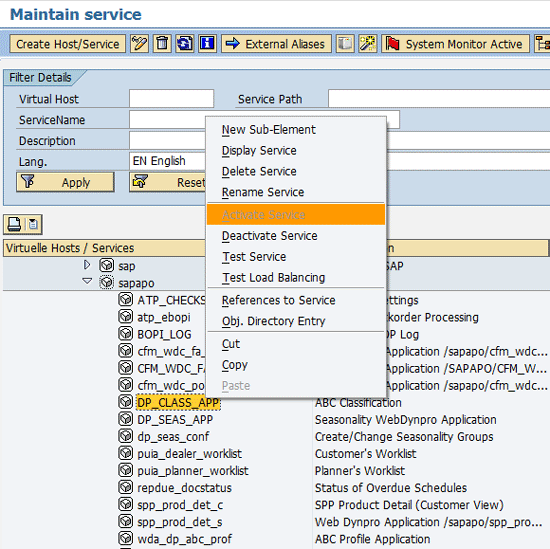
Figure 2
Service activation under webdynpro/sapapo for ABC-XYZ classification details
Additionally, the SAP_SCM_FCS_PLN_EXP_2 role or the SAP_SCM_FCS_PLN_STD_2 role needs to be assigned to the user ID who will access ABC-XYZ classification and related functionality through NWBC (Figure 3). Your Basis security team does this role assignment.
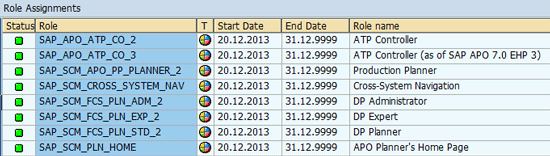
Figure 3
Roles assignment to user ID for NWBC user interface
Upon activation of the SCM_APO_FORECASTING_1 business function, new entries are available in the SAP Easy Access screen. Follow menu path Advanced Planning & Optimization > Demand Planning > Environment > Current Settings > Specify Planning Levels for ABC/XYZ Classification > Environment. You have options for the following new entries:
- Demand Planning Worklist
- ABC/XYZ classification and forecast optimization
- Display ABC/XYZ classification results
The user ID needs to be assigned to one of the following roles for accessing the DP worklist. This is a new SAP NWBC user interface used in ABC-XYZ classification management and display of the output:
- DP Expert (SAP_SCM_FCS_PLN_EXP_2)
- DP Administrator (SAP_SCM_FCS_PLN_ADM_2)
- DP Planner (SAP_SCM_FCS_PLN_STD_2)
Steps for ABC-XYZ Classification
Here are the steps required for ABC-XYZ classification:
- Specify planning levels
- Assign a planning level to a planning area
- Define ABC-XYZ analysis profiles in the Demand Planning Worklist
- Define a classification profile in the Demand Planning Worklist
- Execute an ABC-XYZ classification report
- Review results in the Demand Planning Worklist
Step 1. Specify Planning Levels
You need to define two planning levels: one for ABC and another for XYZ classification with suitable characteristics from the planning area. The same planning level can be used, such as a product-only characteristic. To create the planning levels access IMG Configuration from transaction code SPRO and follow menu path APO > Supply Chain Planning > Supply Chain Planning > Demand Planning > Basic Settings > Specify Planning Levels.
In the screen that appears, select the Planning Level folder and populate the Planning Area for which Planning Level is required and Planning Level field with name of the Planning Level as shown in Figure 4. Add a description of the Planning Level and click the save icon.
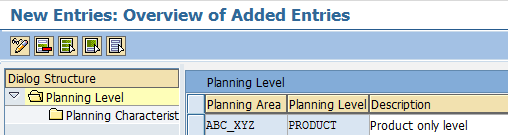
Figure 4
Enter values for the planning level
Now click the Planning Characteristics folder (Figure 5). Enter a sequence number in the Seq. No. column (e.g., 1) and the characteristics value (e.g., 9AMATNR) available in the Planning Area under Characteristics. Click the save icon. This action defines a planning level with characteristics in it. In my example, the PRODUCT planning level has only one characteristic (9AMATNR) assigned to it. It is possible to assign multiple characteristics, but that means ABC-XYZ classification is executed at a detailed planning level instead of just at the product planning level.
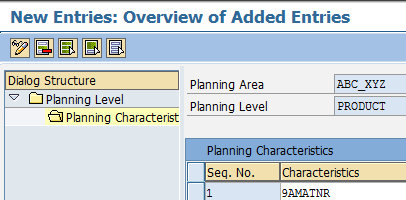
Figure 5
Enter values for the planning characteristics
Step 2. Assign a Planning Level to a Planning Area
After creating the planning levels, you assign ABC and XYZ planning levels to the DP planning area. To complete this step, execute transaction code SPRO and follow menu path Advanced Planning and Optimization > Supply Chain Planning > Demand Planning > Basic Settings > ABC/XYZ Classification. Click the execute icon beside Specify Planning Levels for ABC/XYZ Classification.
The screen now displays your Planning Area to which ABC and XYZ planning levels need to be assigned. I assign to both entries the PRODUCT planning level that I created earlier (Figure 6).
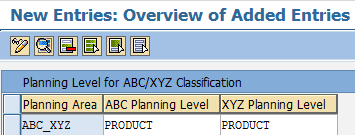
Figure 6
Configuration for planning level management and assignment to planning area
Note that it is possible to have a detailed planning level at the product-customer-location level as shown in Figure 7. In such a case, ABC-XYZ classification would not be at the product level, but at the product-customer-location combination level.

Figure 7
Alternate assignment of detailed planning level to planning area
Step 3. Define ABC-XYZ Analysis Profiles in the DP WorkList
To complete this step, you first need to access the Demand Planning Worklist. Execute transaction code /SAPAPO/DP_WORKLIST or follow menu path Advanced Planning and Optimization > Demand Planning > Environment. The Demand Planning Worklist opens a web browser screen as shown in Figure 8. To create a new ABC and XYZ analysis profile, click the New button.
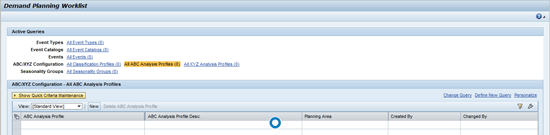
Figure 8
The Demand Planning WorkList showing ABC-XYZ configuration
In the next screen (Figure 9) populate the Planning Area, ABC Analysis Profile, and Source Key Figure, and ABC Classification Criteria fields. In the ABC Classes section, enter suitable threshold values (absolute quantity or percentage value) for A, B, and C classes. You may add your own class (e.g., D) by clicking the Add Class button or remove existing classes by clicking the Delete Class button.
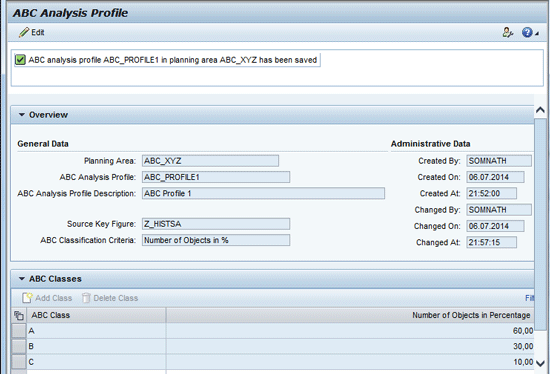
Figure 9
Demand Planning Worklist and ABC Analysis Profile management
The different ABC classification criteria options are:
- Usage Value in %
- Usage Value
- Number of Objects in %
- Number of Objects
I recommend that you provide percentage values if the number of planning combinations is not known in advance, if there are too many, or if they could change in count. Start with the Number of Objects in % option. This option assigns the a % of total planning levels to the A class, the b % to the B class, and the c % to the C class based on the source key figure (for example, sales history total volume).
Create a new XYZ analysis profile similarly with one of four XYZ classification criteria in the same Demand Planning Worklist transaction. In the Demand Planning Worklist screen, click the New button (refer back to Figure 8):
- Variance in % Steps
- Variance Coefficient
- Number of Objects in %
- Number of Objects
For example, when you use the Number of Objects in % option, x % of the total planning levels are assigned to the X class, y % to the Y class, and z % to the Z class based on the thresholds by an ascending order of the coefficient of variance calculated based on the source key figure, such as sales history quantity (Figure 10).
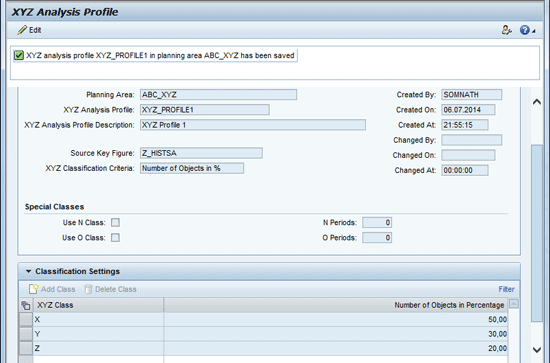
Figure 10
XYZ Analysis Profile maintenance
Note
For the XYZ Analysis Profile you can maintain special classes for newly introduced products (N class) defined by history data as being available less than the number of periods specified in the N Period field. Similarly, end-of-life or obsolete products (O class) are defined when no history data is available for at least the number of periods as specified in the O Periods field.
Step 4. Define a Classification Profile in the Demand Planning Worklist
To complete this step, execute transaction code /SAPAPO/MC96B or follow menu path Advanced Planning and Optimization > Demand Planning > Environment. In the Classification Profile screen (Figure 11), you need to assign the newly created combination of the ABC classification profile and the XYZ classification profile to the planning area.
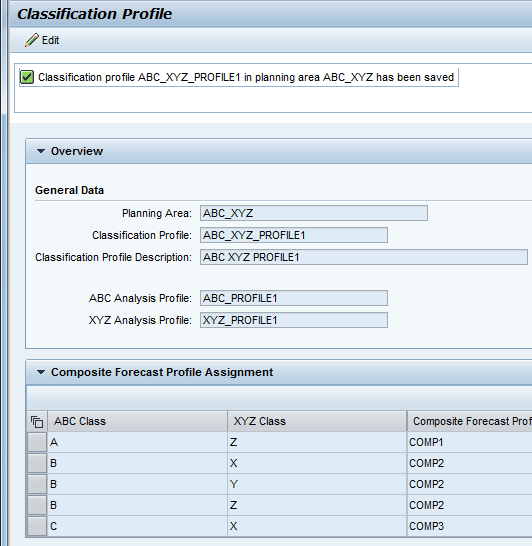
Figure 11
Classification Profile management in the Demand Planning Worklist
Note
In this classification profile, assignment of appropriate composite forecast profiles is required. The composite forecast profiles have assignment of the suitable univariate statistical forecast profiles that need to be set up or created in advance. I do not describe how to create composite and univariate forecast profiles because this topic is beyond the scope of this article. For information on this process, refer to SAP Help documentation.
After you complete this step, the initial setup of ABC-XYZ classification and associated forecast optimisation processes is finished. The next step is actual execution of ABC-XYZ classification. Before I describe that step, however, I outline the logic for it in the sidebar, “Logic for ABC-XYZ Classification” and discuss forecast optimization features in the sidebar, “Forecast Optimization Using ABC-XYZ Classification.”
Logic for ABC-XYZ Classification
ABC classification is based on the ranking of planning levels by volume or usage value across all planning levels considering an input key figure data point within a specified time horizon. The analysis ranks in descending order according to the value contributions based on an input key figure (such as sales history or contribution margin). During ABC classification, the system assigns each planning level with one of the following indicators:
- A: The most value, or given number of objects that produce greatest value (by volume when number of objects option is chosen)
- B: Less value, or given number of objects that produce less value
C: The least value, or given number of objects that produce the least value
Similarly, XYZ classification is based on demand variability that is determined by calculating the variance of the coefficient of an input key figure (such as actual sales history) within a specified time horizon. During XYZ classification, the system assigns each planning level with one of the following indicators with sorting based on an ascending order of the coefficient of variance:
X: Very little variation (including no variation, Covar of 0)
Y: Some variation
Z: Most variation
For XYZ classification, sorting is done in ascending order by the coefficient of variance for planning levels with the maximum coefficient of variance taken as 100 percent. This sorting of planning levels in ascending order of the coefficient of variance forms the basis of which planning levels are to be assigned to the different XYZ class values based on thresholds maintained in the XYZ analysis profile. Therefore, a planning level combination with zero or the lowest coefficient of variance is assigned to the X class, whereas that with the highest coefficient of variant (fractional value closest to 1) is assigned to the Z class.
Therefore, a planning combination with ABC-XYZ classification as B-Y means that the particular planning level combination is of medium value by volume or value with some variation, such as trend or seasonal demand. Similarly, a planning combination A-X means high volume or value, but low variation or demand volatility, such as almost constant or low trend demand. Finally, C-Z means low volume or value, but with high demand variability.
Note
Classification is done based on sequence of assignment in the ABC or XYZ classification profile. Also, during XYZ classification, N and O classified products are removed from further classification consideration.
Forecast Optimization Using ABC-XYZ Classification
After you classify product planning objects as ABC-XYZ, forecast optimization features enable automatic forecast profile assignment. Forecast optimization allows a best-fit univariate or multiple linear regression (MLR) statistical forecast profile to be selected from composite forecast profiles assigned for each ABC-XYZ classification pair as maintained in the classification profile. The forecast profile assignment is based on the lowest error measure among the available univariate or MLR forecast profiles.
You now need to complete these two steps:
- Set up forecast profiles for optimization
- Execute statistical forecast considering ABC-XYZ classification
For each of ABC-XYZ class combinations there is one composite forecast profile assigned in the classification profile. Each composite forecast profile in turn has assignment of multiple univariate or MLR forecast profiles along with error measure. During a forecast optimization run, an ABC-XYZ classification value is read for each planning object, and a composite forecast profile is picked based on the classification profile. Next, statistical forecasting is executed based on the univariate or MLR forecast profiles maintained in the composite forecast profiles. For each of the statistical forecasts computed, error measure is determined. The system automatically selects and assigns the forecast profile with the smallest error to the planning combination.
Finally, the system automatically generates a master forecast profile and assigns the selected forecast profile to it. For each planning combination, the system assigns a forecast key figure specified in the Forecast Key Figure field, and the number of future periods as specified in the Number of Future Periods field of the Selection Actions section of the ABC-XYZ classification and forecast optimization report (refer back to Figure 8).
Thus, the system automatically selects a different forecast profile for each planning object based on little volume or value and high volatility (CZ) versus for a planning object with high volume or value and low volatility (AX).
Table A is an example of forecast profile selection for planning levels of a test dataset. For each planning level that is a by-product, ABC and XYZ class values are determined based on an input key figure. Forecast optimization then selects one of the forecast models from the composite forecast profile assigned to each of the ABC-XYZ classification pairs for which forecast error measure is the lowest.
Planning Level
|
ABC |
XYZ |
ABC Basis = SUM |
XYZ Basis = Coefficient of Variable |
Forecast Profile
|
Forecast model
|
| PRODUCT1 |
A |
X |
185583 |
0.438964535 |
UFP3 |
(Season) |
| PRODUCT10 |
A |
Y |
156819 |
0.48650397 |
UFP3 |
(Season)
|
| PRODUCT2 |
A |
X |
166848 |
0 UFP1
|
10 |
(Constant) |
| PRODUCT3 |
A |
Z |
76873 |
0.553307291 |
UFP3 30
|
(Season)
|
| PRODUCT4 |
A |
Y |
73094 |
0.534872662 |
UFP3 30
|
(Season)
|
| PRODUCT5 |
A |
Z |
69561 |
0.73494406 |
UFP3 30
|
(Season)
|
| PRODUCT6 |
B |
Y |
51633 |
0.476994054 |
UFP6 31
|
(Season –winter's)
|
| PRODUCT7 |
B |
X |
48000 |
0 UFP4
|
11 |
(First order exponential smoothening) |
| PRODUCT8 |
B |
X |
34771 |
0.207864446 |
UFP6 |
(Season – winter's) |
| PRODUCT9 |
C |
X |
6245 |
0.152813738 |
UFP9 |
(Season + linear regression) |
Table A A sample dataset showing the basis of ABC-XYZ classification followed by forecast profiles assigned
In the example shown in Table A, C-class items in the classification profile had a composite forecast profile COMP3 assigned that had three univariate forecast profiles as follows:
- UFP7 : Statistical method 12 - Constant with alpha adaptation
- UFP8 : Statistical method 22 - Second Order Exponential Smoothing
- UFP9 : Statistical method 35 - Season + Linear Regression
From these univariate forecast profiles, the system selects UFP9 (univariate forecast method 35) for the C class over Constant and Second Order Exponential Smoothing.
Step 5. Execute an ABC-XYZ Classification Report
To execute an ABC-XYZ classification report, follow menu path Advanced Planning and Optimization > Demand Planning > Environment > ABC/XYZ Classification and Forecast Optimization or execute transaction code /SAPAPO/ABC_XYZ.
In the Source section of the screen that appears (Figure 12), specify the Planning Area, Planning Version, and Selection Profile for Planning Objects to be classified along with Classification Profile (a combination of ABC and XYZ Classification Profile) to be used.
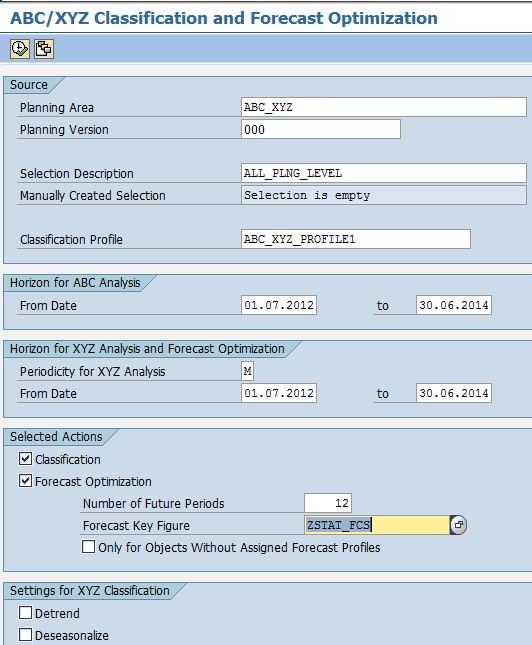
Figure 12
The ABC-XYZ classification report input selection screen
The Horizon for ABC Analysis section requires beginning and end dates of the time period to be considered for determining ABC classification. The Horizon for XYZ Analysis and Forecast Optimization section requires a beginning period and an end period along with the periodicity for which you want to run XYZ classification. Normally, the periodicity for the XYZ and ABC analysis horizons is the same.
Finally, in the Selection Actions section, you specify if only classification or forecast optimization is to be carried out. In case of forecast optimization, the forecast key figure and number of future periods need to be provided. This data is used for statistical forecast computation to calculate the error measure and select the most suitable statistical forecast method. Note that there is an option check box to select Forecast Optimization only for objects without assigned forecast profiles so that already assigned profiles are not overwritten.
The ABC/XYZ classification log (Figure 13) displays the number of planning combinations used to generate the ABC-XYZ classification along with runtime. To display this log click the execute icon shown in Figure 12.

Figure 13
Output of a typical ABC-XYZ classification run
Step 6. Review Results in the Demand Planning Worklist
You can view the result of the ABC-XYZ classification run in a web browser screen. To access this screen, execute transaction code /SAPAPO/DP_CLASS or follow menu path Advanced Planning and Optimization > Demand Planning > Environment > Display ABC/XYZ Classification Results
(
Figure 14).
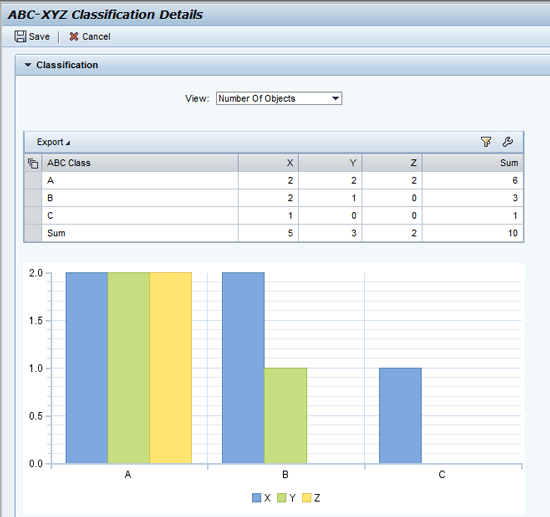
Figure 14
Display of ABC-XYZ classification (count of planning levels for each pair)
The Web Dynpro screen displays data in three sections: Selection Parameters, Classification View in tabular and chart format, and Details View showing each planning level combination with the ABC-XYZ classification pair assigned along with the forecast profile selected from the composite forecast profile assigned in the Classification Profile (Figure 15).
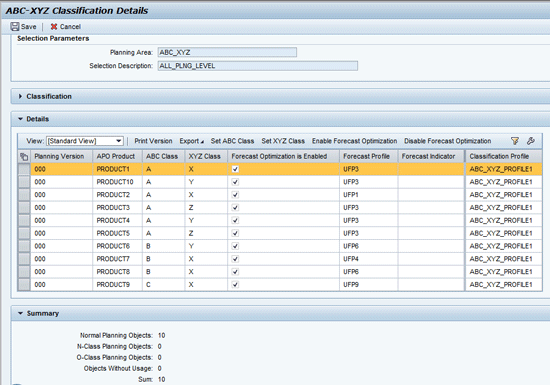
Figure 15
ABC-XYZ classification and forecast assignment results
In this web-browser-based screen, you can change system-determined ABC and XYZ classification values and save your entries by clicking the Set ABC Class and Set XYZ Class buttons. It is also possible to disable forecast optimization for a selected planning object in future forecast optimization runs by clicking the Disable Forecast Optimization button. You can export the ABC-XYZ classification results into Excel format for offline analysis. You can also include the display of value used to determine the ABC and XYZ classification for reference (not present in the default output layout) as seen in Figure 16.
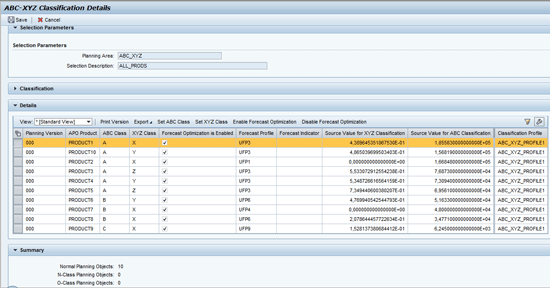
Figure 16
ABC-XYZ classification output display with value used for determination
Now that ABC-XYZ classification is carried out, you can load data in an interactive planning desktop for planning objects (or characteristic value combinations) for a particular combination of ABC and XYZ class values. This is possible in Shuffler selection. After you select Show by Planning Level for ABC – XYZ Classification, in Object Selection enter the ABC- or XYZ-class values in the selection condition.
Note
If ABC planning level is entered in the header, then only ABC-class values can be maintained in the selection condition. In Figure 17, the common planning level Product is selected in the Show field, thus allowing a combination of both ABC- and XYZ-class values in selection.
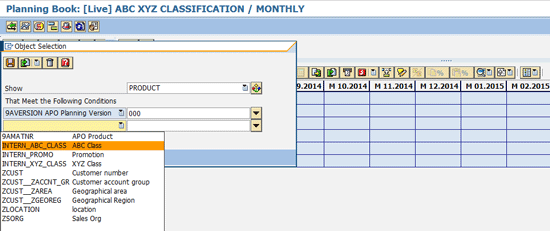
Figure 17
Object selection by ABC-XYZ class values in an interactive planning desktop
After you load data in the planning desktop for the selected planning object combinations, switch to the forecast view to display a system-generated master forecast profile and assignment of a univariate or MLR forecast profile as shown in Figure 18. Exiting from this interactive forecast planning screen automatically saves the statistical forecast based on the Univariate Forecast Profile (such as the forecast method and associated parameters). On the other hand, a background run of the statistical forecast for all the planning combinations would also save the statistical forecast based on the Univariate Forecast Profile.
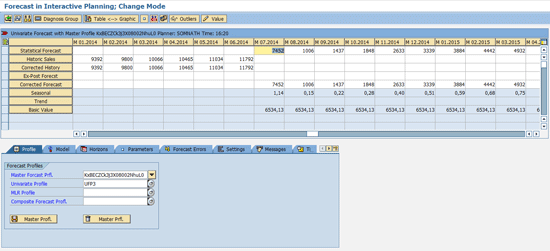
Figure 18
A master forecast profile assigned to a planning level based on ABC-XYZ classification and associated forecast optimization
Some ABC-XYZ Classification Tips
The ABC-XYZ classification value can be used as key master data element in other APO modules such as Supply Network Planning (SNP) and Production Planning (PP). This functionality is most relevant for an organization’s DP business process. It enhances the statistical forecasting method selection process based on the product classification carried out considering sales history data variance.
From /SAPAPO/TSAREATE table for a given DP Planning Area (PAREAID field), the CLASSTAB field value provides a system-generated classification table (/1APO/ Axxxxxxxxx) as shown in Figure A.
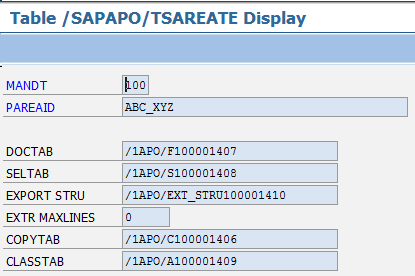
Figure A
/SAPAPO/TSAREATE table
Further, you can display contents of CLASSTAB table /1APO/A1000001409 obtained from /SAPAPO/TSAREATE table in transaction SE16 as shown in Figure B. This system-generated table contains the entire data for ABC-XYZ class values, the values used to determine ABC-XYZ classes, selection ID with assigned characteristic value of planning level in this case only ABC_9AMATNR.
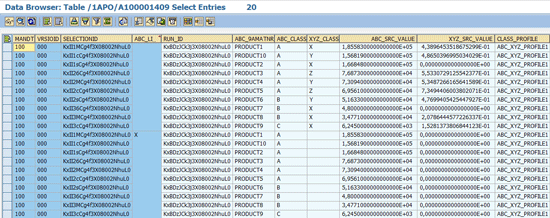
Figure B
ABC-XYZ classification value stored in a system-generated table identified from the planning area settings table
The ABC and XYZ classification value for each planning level combination can be further read by a custom program and written to product or product-location master data extra fields. Subsequently, SNP or Production Planning and Detailed Scheduling (PPDS) can use this ABC-XYZ classification value maintained in the product or product-location master data for subsequent planning action.
SAP provides three business add-ins (BAdIs) to enhance standard system behavior:
- /SAPAPO/BADI_DP_ABCXYZ_CHANGE: Change of ABC/XYZ Classes as determined by ABC/XYZ Classification
- /SAPAPO/BADI_DP_ABCXYZ_FPRFCHG: Change of Forecast Profile Assignment Before Fcst. Optimization
- /SAPAPO/BADI_DP_ABCXYZ_OWNVARI: Define own Variation Coefficient Calculation Logic during XYZ Classification