The European Union’s efforts to prevent tax fraud have led to a change in its value added tax (VAT) — the reverse charge VAT.
Key Concept
Value Added Tax (VAT) is a common tax system in the EU. Tax authorities are revamping the system to combat fraud. The original principles used for local VAT are being abandoned, with reverse charge VAT now being adopted particularly in certain industries, such as the telecommunications industry.
Throughout the supply chain in the European Union (EU), you have had to pay a value added tax (VAT) for each purchase or sale, and claim it to or from tax authorities. In recent years, however, tax authorities have altered VAT for specific industries because of significant fraud. Instead of the normal VAT, these branches (e.g., construction industry) have to use what is called reverse charge VAT. It changes who pays the tax, and requires modification of the sales invoice and tax condition records.
I’ll explain what reverse charge VAT is and how you need to set it up in your SAP system. I’ll provide a few SAP Notes for further information about specific situations. For information on the changeover process from normal VAT to reverse charge VAT, see the sidebar “Changeover Process.”
Basic Principles of Traditional VAT
For local sales or purchases (i.e., sales or purchases within the country’s borders), the supplier of the goods or services has to pay VAT to the tax authorities for the value that he adds to a product.
Figure 1 shows an example for a standard local VAT. A customer orders a product from a sales company (Sales Company XYZ). The price of the product without VAT is €150. The applicable VAT percentage is 20%. Therefore the customer has to pay €180 — (€150 + €30 VAT). Sales Company XYZ has to order the product from another company (Supplying Company ABC). If Supplying Company ABC charges €100 for the product (the price without VAT) then Sales Company XYZ must pay €120 (€100 + €20 VAT) to Supplying Company ABC.

Figure 1
Local VAT principles
Supplying Company ABC receives €20 VAT from Sales Company XYZ and must in turn pay it to the tax authorities. Sales Company XYZ receives €30 from the End customer and has to pay €20 to Supplying Company ABC. Sales Company XYZ can reclaim the €20 from the tax authorities, but has to pay the €30 that it received from the end customer to the tax authorities. In total, Sales Company XYZ pays €10 to the tax authorities because it added €50 to the value of the product — bought for €100 and sold for €150 — and it must account for the added value by paying 20% of it (€10) in VAT. The tax authorities receive in total €30, which is 20% of €150. This is the basic principle of local VAT.
Reverse Charge VAT
I’ll continue with the same example I used to show you the basic principles of reverse charge VAT (Figure 2). For the end customer, nothing changes. However, Supplying Company ABC must send an invoice to Sales Company XYZ without VAT, so it only needs to charge the net amount of €100. Sales Company XYZ also only has to pay €100 to Supplying Company ABC. Supplying Company ABC no longer pays VAT to the authorities nor receives VAT from Sales Company XYZ.

Figure 2
Reverse charge VAT
In this situation, Sales Company XYZ has to pay the additional €20 to the tax authorities — in the original example, Supplying Company ABC paid this. In total, Sales Company XYZ pays €30 to the tax authorities — €50 going to the tax authorities, with €20 coming back to it. This means that Sales Company XYZ is not only paying tax over the value it added to the product, but pays all the VAT to the tax authorities.
This way of working assures the tax authorities that they receive the total tax amount of €30 and thus solves the issues that could have arisen if Supplying Company ABC didn’t pay the tax — for example, if it went (deliberately) broke.
Reverse Charge in the SAP System
You’ll need to make some adjustments to your SAP system upon using reverse charge VAT. First, the sales invoice must contain text indicating that the reverse charge rules apply. The precise wording is not prescribed in law, but you need to include either the amount or the VAT percentage in the text. You can also use SAP Note 647781 (about EU directive texts) to print the reverse charge supplies’ text on the invoice.
Note
You can refer to several SAP Notes for more information on reverse charge VAT related to specific business processes. You can view SAP Note 647781 to learn how to print additional text on a sales invoice in case of tax exemption; SAP Note 733976 to see how the transfer of tax liability in the construction industry in Germany works; SAP Note 758227 for the setup of reverse charge tax for Germany applying a threshold of €500; SAP Note 1053963 for the setup of reverse charge tax for the UK applying a threshold of £5000; and SAP Note 1062665 to see how to implement the reverse charge sales list for the UK.
The sales invoice must contain a correct VAT code for the VAT report. This requires that the tax condition records within the Sales and Distribution (SD) module derive the correct code. The tax percentage must be 0% because you aren’t charging a VAT at this point. Leaving it blank is not sufficient; you must set it to zero. You need to set up the tax code using transaction code FTXP or by following menu path Financial Accounting > Financial Accounting Global Settings > Tax on Sales/purchases > Calculation > Define Tax Codes for Sales and Purchases (Figure 3).

Figure 3
Transaction FTXP, reverse charge purchase VAT
When you start transaction FTXP, a pop-up screen appears. Enter the country for which the tax code applies. Then another pop-up screen appears; enter the tax code on this screen.
Incoming Invoices
When you receive an invoice with reverse charge VAT, you need to use a special VAT code as it requires two posting lines: one for the tax amount to be paid to the tax authorities and one for the tax amount to be reclaimed from the tax authorities. You set up the tax codes via transaction FTXP (Figure 3). My example follows the VAT regulations in Austria where the VAT rate is 20%. Although the settings for the reverse charge are the same for each individual country, the percentages change.
Because the reverse charge VAT consists of two posting lines, you need to enter two percentages. The way that the tax rates are built up differs per country, but tax keys MWS and VST are used for all countries.
When the screen in Figure 3 comes up, enter the two percentages in the Output Tax and Input Tax fields. In my example, I set the output tax (to be paid to the tax authorities) to 20% with a minus sign, which is required to derive the correct credit posting. I set the input tax (to be reclaimed from the tax authorities) to 20%. SAP recommends using MWS and VST as tax keys. The tax keys determine the G/L accounts that you’ll use to post the VAT. Alternatively, you could use tax keys ESA and ESE, but SAP recommends reserving these keys for the EU acquisition taxes.
Click on the Properties button in transaction FTXP to bring up a pop-up screen that contains the EU code field (Figure 4). For technical reasons, SAP advises setting the EU code for the reverse charge code to 9. This ensures that the calculated tax always equals zero. If the indicator is not set, rounding errors may cause the total tax to not equal zero. See SAP Note 911113 for further information on the EU code field.

Figure 4
Set the EU code to 9
In Figure 4, you can see that the tax type has been set up as Input tax (Tax type is set to V). You can set the tax accounts that you’ll use by clicking on the Tax accounts button. As this is part of standard VAT customizing, I won’t cover these settings.
An Example in the SAP System
After customizing the tax code, it is now possible to create an example. Figure 5 shows transaction FB01 containing a financial document composed of two lines. The first line is relevant for reverse charge. After posting the document, the system adds the additional posting lines for the VAT. Figure 6 shows the complete document, including two lines (lines 3 and 4) for the reverse charge.

Figure 5
Transaction FB01, example posting with reverse charge VAT code
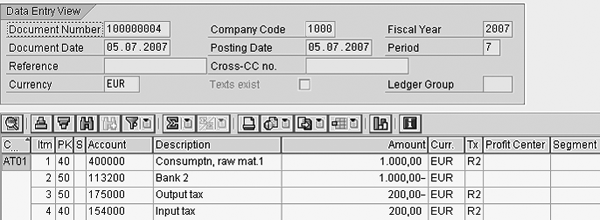
Figure 6
Transaction FB03, document with reverse charge items
Figure 7 shows the standard tax report, report RFUMSV00, for Austria. To show the result for the tax reporting, I’ve selected only the example document. The report shows a total of tax to be paid of €200 and a total of deductible (reclaimable) tax of also €200. Therefore, the example company pays nothing and receives nothing; this is confirmed in the Balance column.
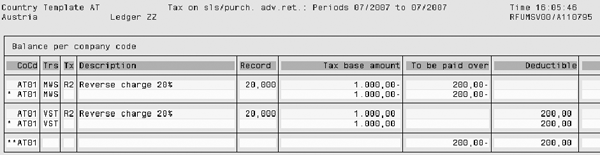
Figure 7
VAT reporting
Changeover Process
You must ensure that from a particular date onward, for example January 1, 2008, the automatic tax code derivation is correct. This is mainly a sales issue because you enter the tax code manually for purchasing.
To make sure that the tax derivation is correct, you could use the following steps. Note that this is only a short description of a possible changeover scenario. All transactions used are standard Sales and Distribution (SD) transactions.
- Define a new material tax classification for reverse charge, tax category MWST. Use, for example, tax classification R for reverse charge. You can use transaction code OVK4 to create the tax classification.
- Set up new sales condition records for condition type MWST for local sales tax using transaction VK11. You need to create a new condition record for material tax classification R that ends just before the reverse charge tax becomes valid (Figure A). These condition records must derive the tax code that is currently valid for local tax.

Figure A
New condition record for tax classification with current VAT percentage
You also need to create a new condition record for material tax classification R that begins on the day the reverse charge tax goes into effect (Figure B). This condition must derive the reverse tax code.

Figure B
New condition record for tax classification with reverse charge tax
- Change the material master (sales view) for those materials that will be relevant for reverse charge tax
The pricing procedures in SD now take care of deriving the correct code.
Kees van Westerop
Kees van Westerop has been working as an SAP consultant for more than 25 years. He has an MBA degree in mathematics and a degree in finance. Kees has been concentrating on the financial modules, especially in general ledger accounting, cost center accounting, and consolidation. He also has a great deal of experience with rollouts of kernel systems and integrating finance and logistics.
You may contact the author at keesvanwesterop@hotmail.com.
If you have comments about this article or publication, or would like to submit an article idea, please contact the editor.