You probably know that manufacturing costs are charged to production orders using an activity rate for the time worked. What you might not realize is that since Release 4.0, it has been possible to set up an alternative cost component split to view primary costs such as energy, wages, and depreciation. Without the split, these costs are subsumed in the activity rate and are simply grouped as manufacturing costs in product costing and Profitability Analysis (PA).
You probably know that manufacturing costs are charged to production orders using an activity rate for the time worked. What you might not realize is that since Release 4.0, it has been possible to set up a primary cost component split to view primary costs1 such as energy, wages, and depreciation. When people ask me why they can assign only six activity types to one operation in the routing within the Production Planning module, I often find myself pointing them to the primary cost component split.
This allows you to see the impact of any changes to your primary costs – increases in energy prices, higher wage costs, or changes in depreciation rules – on the product profitability. You can look not just at how many hours of manufacturing your product has consumed, but at a wide variety of factors that impact your product costs in order to determine whether your product will continue to be profitable.
Without the split, these costs are subsumed in the activity rate and are simply grouped as manufacturing costs in product costing and Profitability Analysis (PA).
This function is relatively unknown for two reasons. The first is that the documentation and Customizing steps are spread across three applications – Cost Center Accounting (CO-CCA), Product Cost Controlling (CO-PC), and Profitability Analysis (CO-PA). Therefore, it’s not easy to see what needs to be set up where.
The second is that when companies start with product costing, they tend to use externally calculated activity rates until they "get comfortable" with the system. While an Excel work sheet helps you calculate a cost rate per hour, it doesn’t assign the costs underlying this rate to cost components and roll them through your production cycle. To use this function, you need to stop having Excel calculate your activity rates and have R/3 calculate them for you.
The primary cost component split provides more detailed information by exploding the activity rate into its cost components. Using the example of a CD recording, I’ll show you how to set up and use this functionality. Then you can see both the costs of recording the CD and the costs to provide the recording activity – the wages and salaries of the people involved, the energy consumed by the recording equipment, the depreciation on the recording equipment, and more.
Cost Accounting in R/3 Using the Primary Cost-Splitting Function
To understand why you might want a cost center split, visualize how costs move through the Controlling modules:
- CO-CCA saves where the costs are incurred (manufacturing, maintenance, corporate services, and so on). The focus here is on the type of costs (wages, salaries, facility costs, depreciation, operating supplies) and how these costs are passed on to other areas of the organization (from the maintenance to the manufacturing cost center or from the manufacturing cost center to the product).
- CO-PC calculates the product costs, with the raw material costs being calculated via the bill of material and the manufacturing costs via the routing.
- CO-PA looks at, among other things, product profitability. It compares the revenue and sales deductions for the product with the raw materials, manufacturing, and overhead used to make that product.
Figure 1 shows how costs move from CO-CCA to CO-PC and CO-PA.
You can see that as the costs move from CO-CCA to CO-PC, the activity type prevails. All you can analyze in this example are the labor costs and machine costs in CO-PC and CO-PA. (See, "Routing in the Production Planning Module" below.)
To bring more transparency into CO-PC, you start in CO-CCA and "explain" the activity price. This price is calculated by taking all the costs flowing onto the cost center, such as wages, salaries, depreciation, energy, and operating supplies, and dividing by the number of hours worked in the period. This rate is then used to place a dollar value on the number of hours confirmed in production.
To get more than a dollar rate per hour, you assign the cost inputs to up to 40 cost components, the "cost component split." This cost component split then can be used to "explain" costs as they occur in your organization. Every time one cost center provides an activity to another cost center, it passes its cost component split to the next cost center. When a manufacturing activity is used in CO-PC, it passes its cost component split to the product costs. When the product cost estimate is used to calculate a contribution margin in CO-PA, this cost component split is passed along too. The result, shown in Figure 2, is that you can view wages, salaries, depreciation, energy, operating supplies, and so on, instead of manufacturing costs in CO-PC and CO-PA.

Figure 1
Cost flow — traditional view
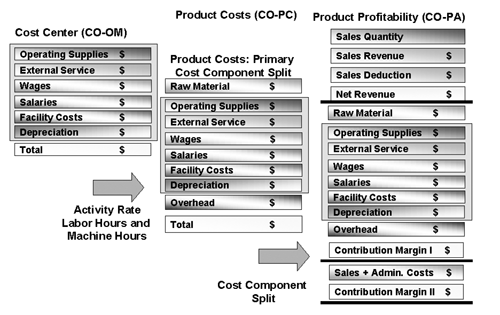
Figure 2
Cost flow, primary cost component split
Cost Component Splits
The cost component split is not a new concept. If you have worked with product costing, you are familiar with the way that the cost component split breaks out the costs for each material in the bill of material, showing the raw material, internal activities, and overhead inputs for each product. As intermediate products are used in the next production level, their costs are transferred as a cost component split, ensuring comparability across all products.
The same concept extends to CO-CCA. Here, you take the primary costs for the cost center (wages, salaries, benefits, depreciation) and assign them to cost components that show the primary costs for your manufacturing activities. As one cost center (e.g., manufacturing) receives activity from another cost center (e.g., maintenance), the maintenance costs appear as secondary costs in the cost element reports, but as primary costs in the activity rate for the manufacturing cost center. This process of passing on the cost component split continues throughout the allocation chain, provided that you use activities as a basis for the allocation.
How to Use the Cost Component Split
If you have decided to use the cost component split throughout your organization, you can refer to the following step-by-step instructions, which I’ll illustrate using the example of the production of a CD:
- Define a cost component split for the activity rate. This ensures that all costs are assigned to cost components during activity price calculation (and process price calculation, if you are using activity-based costing). Assign this split to the planning version. The planning version combines for each fiscal year all the parameters affecting planning. It determines which methods are used for the calculation of the activity price, whether a revaluation can take place using actual costs, and whether the price will be split into its primary cost components.
- Define an alternative cost component split for the product costs that handles machine hours not as internal activities (secondary), but as the cost components behind the activity price (primary). Use a transfer structure to map the first cost component split into the primary cost component split.
- Extend the valuation strategy for the transfer of product costs to CO-PA to ensure that both the cost of goods manufactured and the primary cost component split are transferred.
Example: Cost Center Accounting Applied to CD Production
The purpose of activity price calculation is to determine a rate for machine hours, maintenance hours, and so on. The activity price for recording the CD in my example (Figure 3) is 66.46 pesos per seven hours, and for CD label printing, it is 23.01 pesos per seven hours. The price unit is 10 in each case.
The primary cost components behind this activity rate include wages, salaries, benefits, material costs, imputed costs, and external processing. (See Figure 4.) These costs are truly primary — that is, they are a grouping of the primary cost elements posted to the cost centers. Sometimes organizations will choose not to break out all their activity costs into their primary cost components. In this example, the organization has decided that energy and maintenance are so important to their decision making, that they want to see them "unbroken" in their cost component split. For this purpose, two further cost components, Energy by CCtr. and Maintenance by CCtr., have been defined to "switch" energy and maintenance costs, rather than break them out into their primary costs. Finally, a component for Other costs catches any costs that arrive on the cost center — for instance, as a result of assessment cycles. (See, "Limitations of the Cost Component Split" below.)
The first task is to assign all the primary cost elements to be posted to your cost centers to cost components. To do this, in Customizing choose menu path Cost Center Accounting> Actual Postings>Period-End Closing>Activity Allocation> Price Calculation>Settings for Cost Component Split> Define Cost Component Structure. As you can see from Figure 5, this path takes you to all the cost component splits. In this example, I’m using IE (IDES Europe) as the cost component structure for the activity types, ML as the traditional cost component structure for the CD product costs, and MX as the primary cost component structure for the product costs.
To create the cost component structure IE, define a key for the cost component split and the components you need, and assign the relevant cost elements to the components. The parameters for stock valuation on the cost component only apply to product cost structures (ML and MX in my example) and can be ignored for the activity type.
Figure 6 shows how to assign each cost element in your chart of accounts to cost components. Don’t forget to include a final cost component for all the secondary costs arriving via assessment cycles (cost component 90 Other Costs, in my example).
When you have finished, set the active checkbox and assign the split to the planning version for the next fiscal year. To do this, in Customizing choose the menu path Controlling> General Controlling>Organization>Maintain Versions. Select the planning version you are using in CO-CCA and choose Settings by fiscal year as shown in Figure 7.

Figure 3
Activity price for CD recording and CD label printing

Figure 4
Cost component split for CD recording
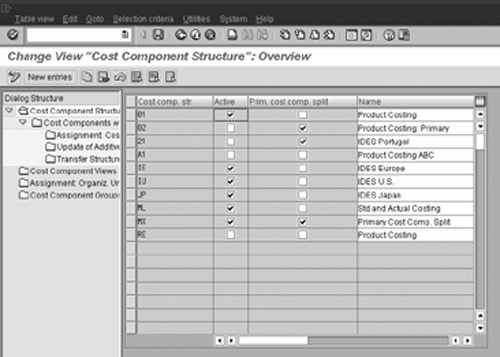
Figure 5
Cost component structures

Figure 6
Assigning cost elements to cost components

Figure 7
Cost component structure in planning version
Routing in the Production Planning Module
In the logistics and Controlling modules, you can assign only six activity types to one operation in the routing. In the Production Planning module, the routing (or master recipe in the process industry) lists the operations required to manufacture the product. Each operation is performed at a work center, and this work center contains a formula to calculate the time required to perform the operation. The costs are calculated by linking this operation with up to six activity types, each of which carries an activity rate (a dollar value for the time to be worked). When a company confirms completion of an operation, it confirms the number of machine hours or wage hours worked, and the Controlling module records the costs associated with providing the machine hours or wage hours.
Example: Product Costing
The activity price is used to value the work provided to the product. In this example, to manufacture 100 demo CDs requires one hour of CD recording and one hour of CD label printing. (See Figure 8.) This is calculated by defining standard values in the routing and setting a formula in the work center to calculate how long it takes to perform the operation. To calculate the cost for the operation, link the work center, at which the operation is to be performed, with a cost center and one or more activity types.
To view the primary cost component split, click on Type of cost component split (Figure 9) in the cost component report and switch to Auxiliary cost component split.
After you switch to the alternative cost component split, instead of seeing the manufacturing costs as labor, setup, and machine costs (the activity types), you see the wages, salaries, energy, and depreciation behind the activity prices, as shown in Figure 10.
To create this cost component structure, in Customizing follow the menu path Controlling>Product Cost Controlling>Product Cost Planning>Basic Settings for Material Costing>Define Cost Component Structure. This takes you to the same tables you used earlier for the activity rate. However, this time you are going to look at cost component structure MX. Note that you cannot use exactly the same structure, because you need to capture other costs (such as overhead) for the product that are not coming via the activity rate.
It helps to think of three main blocks to be captured in this structure: the raw materials issued to the production orders (rather than operating supplies issued to the cost center), the activities to be confirmed (now in their primary, rather than secondary form), and the overhead surcharges (secondary). You need to define a transfer structure, which maps the cost component structure for the activity rate to the cost component structure for the product. The assignment from the cost component structure IE for the activity rate to the cost component structure MX for the product costs in my example is illustrated in Table 1.
Typically, the transfer structure keeps most of the detail in the activity rate, but might group some elements more tightly. To do this, select the cost component structure IE and choose Transfer Structure. This is illustrated in Figure 11.
Finally, you need to activate the second cost component split for the company code and costing variant. To do this, choose Assignment: Organiz. Units - Cost Component Structure (Figure 12).

Figure 8
Itemization of product costs for demo CD
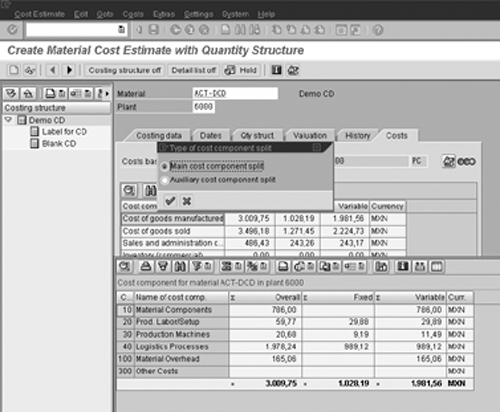
Figure 9
Finding the primary cost component split

Figure 10
Product costs, primary cost component split
| Cost Component in IE |
Name |
Cost component in MX |
Name |
| 10 |
Wages |
20 |
Wages and salaries |
| 20 |
Salaries |
20 |
Wages and salaries |
| 30 |
Employee benefits |
20 |
Wages and salaries |
| 40 |
Material costs |
10 |
Material components |
| 50 |
Imputed costs |
40 |
Depreciation |
| 60 |
External processing |
10 |
Material components |
| 70 |
Energy by CCtr |
30 |
Energy |
| 80 |
Maintenance by CCtr |
20 |
Wages and salaries |
| 90 |
Other costs |
300 |
Other costs |
|
| Table 1 |
Transfer structure for product cost assignment |

Figure 11
Transfer Structure from IE (activity) to MX (product)

Figure 12
Activating the auxiliary cost component structure
Example: Profitability Analysis
Now that you have set up the primary cost component split as a second (or auxiliary) cost component split in CO-PC, you need to extend the valuation strategy in CO-PA, to ensure that this second split is transferred as well.
The valuation function in CO-PA accesses the cost component split for the product sold, in order to show the contribution margins for variable and fixed costs. Figure 13 shows a typical contribution margin report.
If you transfer the auxiliary cost component split from CO-PC, you need to set up a second contribution margin structure in reporting to show the wages, salaries, and so on behind the activity price instead of the manufacturing costs. (See Figure 14.)
In order to be able to build a report like this, you configure the valuation functions to pick up both the main and the auxiliary cost component split. To activate the transfer, choose Profitability Analysis>Master Data>Valuation> Set Up Valuation Using Material Cost Estimate>Define Access to Standard Cost Estimates in Customizing. Set the checkbox Transfer aux. CC split as shown in Figure 15.
You also need to map each of the primary cost components to value fields. To do this, choose Set Up Valuation Using Material Cost Estimate>Assign Value Fields. Include these value fields in your CO-PA reports. (See Figure 16.)
Setting up the primary cost component split may seem like a long haul through CO Customizing, but it provides a detailed understanding of the factors driving your manufacturing costs.

Figure 13
Contribution margins

Figure 14
Contribution margins, primary cost components

Figure 15
Activating the auxiliary split in CO-PA

Figure 16
Linking the cost components to value fields
Limitations of the Cost Component Split
The cost component split can only be used to break out activity costs. There are two situations where this can be a problem: assessment cycles and overhead surcharges.
- Most companies use assessment cycles to assign general overhead between cost centers. General overhead appears on the manufacturing and maintenance cost centers as secondary costs (assessment cost elements) that cannot be exploded further. If primary costs are your focus, then instead of using assessment cost elements in your assessment cycles, you should define an allocation structure that has a similar structure to your cost component split. This ensures a similar degree of transparency in your overhead costs.
- Most companies also use a percentage overhead to assign factory overhead to their products. This appears in the product cost estimate as a secondary cost (overhead cost element) that cannot be exploded further. If primary costs are your focus, then you need to keep these percentages as low as possible, and assign as much overhead as possible via activity types (or processes).
1
Janet Salmon
Janet Salmon joined SAP in 1992. After six months of training on R/2, she began work as a translator, becoming a technical writer for the Product Costing area in 1993. As English speakers with a grasp of German costing methodologies were rare in the early 1990s, she began to hold classes and became a product manager for the Product Costing area in 1996, helping numerous international organizations set up Product Costing. More recently, she has worked on CO content for SAP NetWeaver Business Warehouse, Financial Analytics, and role-based portals. She is currently chief product owner for management accounting. She lives in Speyer, Germany, with her husband and two children.
You may contact the author at janet.dorothy.salmon@sap.com.
If you have comments about this article or publication, or would like to submit an article idea, please contact the editor.