F4 search is a popular tool to find characteristics for filtering. It generates a list of values that can be used for limiting query results so that users can find just what they're looking for. While popular, F4 can add to your system overhead and cause end-user dissatisfaction if proper maintenance is not observed.
Key Concept
Defining InfoObjects correctly in the Administrator Workbench is crucial if your F4 search is to function properly. Settings available on the Business Explorer (BEx) tab of the InfoObject maintenance screen determine how certain calls are made on the database when InfoObjects are used to filters, which affects F4 functionality.
Filtering is critical to query runs because they allow users to limit their reports to specific areas of interest such as material, customers, or regions. Pressing the F4 key launches a function that searches the system and lists all the characteristic values relevant for a particular query’s filtering. While F4 searches are common, they gobble up precious processing resources. Any problems with the F4 feature can be exacerbated quickly because often this search tool is used over and over as query results are reevaluated with filtering.
In addition to system overhead penalties, generating F4 lists can be a sore spot with users. BW system administrators are familiar with users grumbling when they attempt to find codes and filter values with the F4 search. “I want to filter a particular material value but the list did not provide it,” they moan, while others lament, “I was forced to memorize the material codes because it takes too long for F4 to provide a list.” Using F4 search also can be excruciatingly slow, so end-user dissatisfaction has the potential of being a real problem.
The time it takes your BW system to generate an F4 list depends on a variety of different settings and options. Its ability to return a list ranges from very quickly to very slowly depending in part on the settings made when creating or maintaining an InfoObject.
You can improve your F4 search response time and alleviate end-user suffering when designing InfoObjects. You can take additional steps to enhance F4 search performance when creating and maintaining a query or Web application.
We have detailed the options available at the InfoObject level that enhance F4 search performance along with settings for InfoProviders that allow F4 to run better. We also give you a clear understanding of what your system is doing when it generates these lists so you can optimize your strategy. In the “Additional Ways to Improve F4 Performance” sidebar below, we show you some things to be aware of when creating queries that influence the F4 search, along with options available in the Web Application Designer (Web AD) that can affect F4 performance.
InfoObject Design
The F4 search is affected by settings made on the BEx tab in InfoObject maintenance screen, which is accessed via the Administrator Workbench using transaction code RSD1 (Figure 1). You can also follow the path RSA1>Modeling>InfoObject and choose Change in the Context menu after selecting the appropriate InfoObject to access the screen.
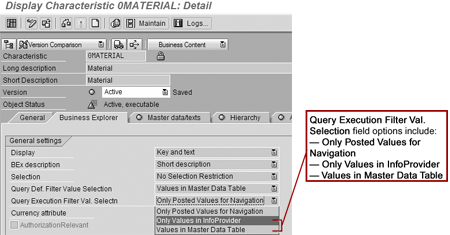
Figure 1
InfoObject settings on the BEx tab affect the search response time
Three options are available for the Query Execution Filter Val. Selection field on the BEx tab that directly affect F4 searches. Let’s look at the various settings and see what advantages and disadvantages each option offers. We will then explain why the system behaves differently for each setting.
The Only Posted Values for Navigation setting limits an F4 search to the values related to the query’s navigation state. It is the recommended setting if you’re working with less savvy BW end users who may have trouble identifying applicable values or are confused when faced with long lists of characteristics. This setting yields the slowest performance in terms of the F4 search.
Only Values in InfoProvider is a better option if you need a list of characteristic values for a variable that is limited to the transactional records in the InfoProvider that a query is being executed against. This setting is ideal for restricting users to the appropriate source when data is available in different InfoProviders with different values. For example, let’s say you have an InfoCube with billing data for Europe and another for the US. Each sales office will have different values, so by using this setting a variable can be restricted to the correct values.
The Values in Master Data Table setting allows users to list all possible characteristic values when they run F4. We recommend that you use it when you have transactional records for almost all the values across InfoProviders and users are aware of the relevance of the values for the navigation state.
While the Values in Master Data Table setting is the fastest F4 search setting, you need to be aware of a couple of situations when using it. Users with authorization restrictions may have an F4 list returned with all the values from the master data table, but a subsequent query may not report the result. Instead it will generate an error message informing the user of the authorization restriction. Likewise, users may select values from the master data table that are not valid for the current query due to other restrictions. There may not be any records for an InfoObject in its underlying InfoProvider designed for a query, so the system returns a “no applicable data found” message.
F4 and InfoProviders
You can also define the F4 search capabilities for a specific InfoProvider by selecting the Structure Specific InfoObject Properties option (Figure 2) in the Extras menu of the Edit InfoCube screen (Figure 3). The options are set in the F4 query column and do not require a global change at the InfoObject level.
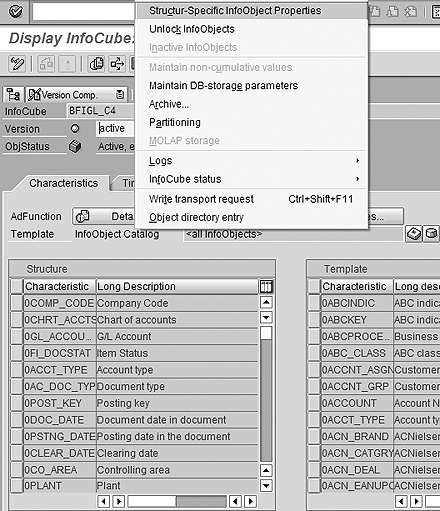
Figure 2
Define the F4 search capabilities for a specific InfoProvider

Figure 3
Settings correspond to BEx tab options
The Values in Master Data Table setting lists all the values from the master data table and is designated with an M in the F4 query column. The D setting corresponds to the Only Values in InfoProvider option and provides the values in the dimension table. Values are restricted to the navigational state of a query and designated with a Q for the Only Posted Values for Navigation option.
Settings in Action
Let’s look at the role the settings play in the internal behavior of your BW system to understand how and why they affect F4 search times.
For this demonstration, we are using InfoCubes as InfoProviders. We designed three different InfoCubes each with the characteristic ZA_CUS representing Customer and ZA_LOC for Location both with master data and text. In addition, the three InfoCubes have the time characteristic 0CALMONTH and a key figure Quantity.
We included one more characteristic for Material with master data and text in each InfoCube. To illustrate how F4 searches perform differently, we used three different InfoObject settings for the Material characteristic. The InfoObject ZA_MAT represents the Only Posted Values for Navigation setting. The ZC_MAT InfoObject is set to Only Values in InfoProvider and ZD_MAT signifies the Values in Master Data Table InfoCube setting. The Material master data loaded into the three InfoObjects is identical.
Table 1 illustrates the master data values and text for InfoObjects ZA_CUS, ZA_LOC, and ZA_MAT (as well as ZC_MAT and ZD_MAT). We show the values in just one table for the sake of this demonstration. In reality, master data is stored in a number of tables depending on the settings used for an InfoObject when it’s created. Likewise, the SID values are not shown to keep the example from being too complicated.
| Customer |
Text |
Location |
Text |
Material |
Text |
| 100100 |
Customer 100100 |
1000 |
Location 1000 |
10000 |
Material 10000 |
| 100111 |
Customer 100111 |
2000 |
Location 2000 |
20000 |
Material 20000 |
| 100112 |
Customer 100112 |
3000 |
Location 3000 |
30000 |
Material 30000 |
| 100113 |
Customer 100113 |
4000 |
Location 4000 |
40000 |
Material 40000 |
| 100114 |
Customer 100114 |
5000 |
Location 5000 |
50000 |
Material 50000 |
| 100115 |
Customer 100115 |
6000 |
Location 6000 |
60000 |
Material 60000 |
| 100116 |
Customer 100116 |
7000 |
Location 7000 |
70000 |
Material 70000 |
| 100117 |
Customer 100117 |
8000 |
Location 8000 |
80000 |
Material 80000 |
| 100118 |
Customer 100118 |
9000 |
Location 9000 |
90000 |
Material 90000 |
| 100119 |
Customer 100119 |
|
|
|
|
| 100120 |
Customer 100120 |
|
|
|
|
| 100121 |
Customer 100121 |
|
|
|
|
| 100122 |
Customer 100122 |
|
|
|
|
| 100123 |
Customer 100123 |
|
|
|
|
| 100124 |
Customer 100124 |
|
|
|
|
| 100125 |
Customer 100125 |
|
|
|
|
| 100126 |
Customer 100126 |
|
|
|
|
| 100127 |
Customer 100127 |
|
|
|
|
| 100128 |
Customer 100128 |
|
|
|
|
| 100129 |
Customer 100129 |
|
|
|
|
| 100130 |
Customer 100130 |
|
|
|
|
| 100131 |
Customer 100131 |
|
|
|
|
| 100132 |
Customer 100132 |
|
|
|
|
| 100133 |
Customer 100133 |
|
|
|
|
| 100134 |
Customer 100134 |
|
|
|
|
|
| Table 1 |
InfoObject master data values with text |
The fact table contains the following:
Customer transactions are from 100100 to 100125 and from 100131 to 100135
Locations transactions include 1000, 2000, 2500, and 8000
Material transactions are 10000, 20000, 50000, 55000, 70000, and 90000
CALMON values are all 200401;QTY values all equal 100
Three Queries
We also created three queries, one for each Material InfoObject. We restricted the Customer characteristics to the values 100100 to 100114. We used Location and Calendar Month to define rows, Quantity for the lone key figure, and Material as a free characteristic.
The Material characteristics were changed for each query run. Initially we used InfoObject ZA_MAT, replaced it with ZC_MAT in the second query, and finally ZD_MAT. After executing the query (Figure 4), we filtered for specific values to demonstrate the influence of the different settings.
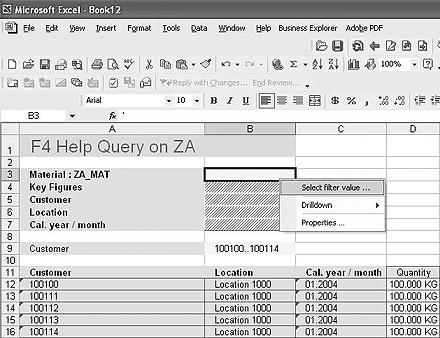
Figure 4
Initial query results prior to filtering
When we filter using InfoObject ZA_MAT, the system limits the list of values to two (Figure 5) because of the settings made in the BEx tab. In the Only Posted Values for Navigation, the system checks the current navigational status of results of the query when the filter for Material values is applied. It discovers that there is a filter on Customer code (ZA_CUS), which, as noted earlier, filters on values 100100 to 100114.

Figure 5
Filter result for Only Posted Values for Navigation setting
When users filter on ZA_MAT, the system first takes the ZA_CUS filter navigational step, and then retrieves the values for material. The values for ZA_CUS in Table 1 show that customers 100100 to 100114 have only transacted for materials 10000 and 20000. The results of this sequence are displayed in Figure 5 and the system ignores all the other material codes.
In the background, the Only Posted Values for Navigation setting (like all BEx tab settings) determines the search strategy the system uses to locate master data values when the query output is filtered with ZA_MAT. All database calls including the search strategy are SQL-based. The SQL statements for each of three Material InfoObjects are available for download via this link.
When data is retrieved from the database, an SQL statement joins the appropriate tables. Depending on the number of tables involved, these SQL statements can be complex and data retrieval time may be long. SQL statements are generated by the system and are transparent to the user.
Filtering on ZA_MAT, the system accommodates the navigational steps and creates temporary tables to collect the filtered values. It creates a temporary table and stores SID values for the Material codes to be filtered after the appropriate join is made on various tables in the database for the InfoObject ZA_CUS. Temporary tables are created by the system and named automatically. Again, the procedure is transparent to user.
When executing the second query, which is designed with exactly the same characteristics and key figures, ZA_MAT is replaced with InfoObject ZC_MAT. It is set to Only Values in InfoProvider in the BEx tab. When we filter on Material using this InfoObject, the system returns the values shown in Figure 6, which correspond to Material records in the fact table.
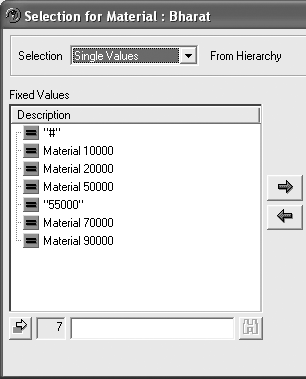
Figure 6
Filter result for setting Only Values in InfoProvider
Filtering on ZC_MAT, the system ignores the navigational steps and locates the SID information from the master data referring to the dimension table value. Overhead is reduced because the system does not create a temporary table.
Executing the last query and filtering on ZD_MAT, the system returns the values in Figure 7. Once again, the query is designed with same characteristics and key figures as the earlier ones, but ZD_MAT is defined using the Values in Master Data Table option. This time the system has to perform less joins to retrieve the list of values for material. It does not need to check the InfoProvider data or current navigational steps.

Figure 7
Filter result for Values in Master Data Table
Table 2 displays the results of the three BEx tab settings. Note that the number of records is inversely proportional to the amount of time it took for system to return its F4 search list.
| Only Posted Values for Navigation |
2
|
15.321
|
| Only Values in InfoProvider |
7
|
5.536
|
| Values in Master Data Table |
11
|
4.507
|
|
| Table 2 |
Response time for BEx tab settings |
Remember that this comparison is for a very small number of entries in the master data table, dimension table, and fact table. In real life, the table sizes are very large and hence the response time taken by the system to return the list of values will be much different in each of the three settings.
Additional Ways to Improve F4 Performance
In addition to the InfoObject
Query Execution Filter Val. Selection settings, you have other ways to improve F4 search performance. The
Query Def. Filter Value Selection field in the BEx tab (
Figure 1) controls the default values for characteristics when selecting the filter values for query definition. If the
Only Values in InfoProvider setting is used, then the F4 search list is limited to the characteristic values available in the InfoProvider at the time of query definition. When the
Values in Master Data Table setting is used, all the master data is listed for query definition.
Note that when a filter is defined in the BEx Query Designer, the F4 search list corresponds to the Query Def. Filter Value Selection setting on the BEx tab. When performing query maintenance in the BEx Query Designer, the Only Values in InfoProvider flag is set automatically in the Selection Condition screen for a filter (Figure 2) when the Only Values in InfoProvider option is selected. You can click on the Only Values in InfoProvider flag and remove it to view the entire list of master data values using F4.
Web AD provides another avenue for defining the F4 list values. When using the Generic Navigation Block Web item to design Web application templates, the Read Mode option allows you to set the same M, D, and Q values available for defining an InfoObject (Figure 3). Like with the InfoProvider setting, these Web AD values do not require a global change at the InfoObject level, only at the Web application level.
For more information concerning F4 performance, see the following SAP notes:
| 748623 |
Input help (F4) has a very long runtime—recommendations |
| 661251 |
Filter value selection displays too few/too many values |
| 581802 |
Variable dialog boxes: performance of the F4 help |
| 581079 |
Performance for the F4 help of navigation attributes |
| 626887 |
F4 variables and InfoObject settings. |
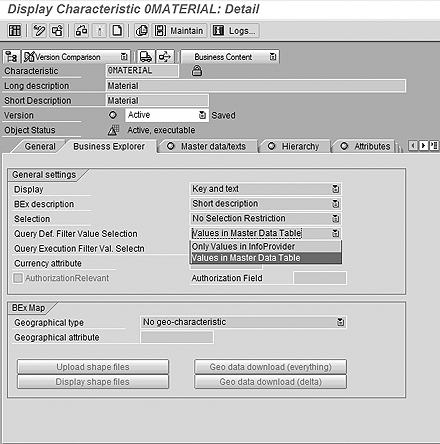
Figure 1
The Business Explorer tab provides Query Def. filter Value Selection options mirrored in the BEx Query Designer

Figure 2
The F4 list of characteristic values can be changed by setting the flag in filter Selection Condition screen in the Query Designer

Figure 3
Web AD provides another avenue to make F4 search settings specific to a Web application
Bharat Patel
Bharat Patel is experienced in managing data warehouse technology for the petroleum industry. He is an SAP-certified BW and ABAP consultant, has authored a book on SAP BW, and teaches courses on BW and ABAP at the Sapient Academy and SAP Labs India. Bharat has presented papers about BW at Business Intelligence India Group (BIIG) conferences. He presently manages the SAP BW system at Bharat Petroleum, India.
You may contact the author at patelb@bharatpetroleum.com.
If you have comments about this article or publication, or would like to submit an article idea, please contact the editor.

Shreekant W. Shiralkar
Shreekant W. Shiralkar is a senior management professional with experience on leading and managing business functions as well as technology consulting. He has authored best selling books and published many white papers on technology. He also holds patents for innovations. Presently he is global head of the SAP Analytics Centre of Excellence at Tata Consultancy.
You may contact the author at s-shiralkar@yahoo.com.
If you have comments about this article or publication, or would like to submit an article idea, please contact the editor.