This article identifies a creative use of standard R/3 functionality that allows a single end-user transaction (SD Billing) to simultaneously act as the "Cost of Goods Sold" source for both your G/L and Costing-Based CO-PA ledgers. After a brief explanation of why the "single source" design is not the main option offered by the SAP R/3 application, the article briefly describes how the single-source design pieces are interconnected, and then shows you, step by step, how you can set your system up for single-sourcing using 100 percent standard R/3 functionality.
The typical sales cycle as performed in an SAP R/3 system consists of three unique end-user transactions (sometimes executed by three unique groups of people in the company):
1. Create and save a sales order.
2. With reference to that sales order, create a delivery, and post the "Goods Issue" of the material(s) to the delivery that the customer ordered.
3. With reference to that delivery document, create and save an SD Billing document.
In this article, I will identify a creative use of standard R/3 functionality that allows a single end-user transaction (SD Billing) to simultaneously act as the "Cost of Goods Sold" source for both your G/L and your Costing-Based CO-PA ledger. This might prove to be a useful option for some R/3 sites where the traditional design is in place (i.e., where the "Goods Issue to Delivery" acts as the "Cost of Goods Sold" source for your G/L, but the SD Billing transaction acts as the source for Costing-Based CO-PA).
I will begin with a brief background as to why the "single source" design is not the main option offered by the SAP R/3 application. Then, I’ll describe how to set your system up for single- sourcing using 100 percent standard functionality.
It is assumed that readers have at least a basic understanding of the following SD-to-FI/CO areas of customization: Pricing Procedures, Condition Types, Automatic Inventory Accounting, and Automatic Revenue Accounting.
Why the "Single Source" Design Is Not the Main Option
I would bet that more than a few US-based FI/CO consultants have heard the following more than once throughout their illustrious careers: "I cannot believe that SAP designed this financial process to work in such a bizarre way."
Well, the reason for most strange occurrences within SAP is not the work of some sadistic programmer, but rather European accounting principles. In Europe, the Cost of Goods Manufactured is the normal measurement to match to revenues at period-end closing. In the US, the accepted standard is the Cost of Goods Sold.
This fact, alone, accounts for most of the inconsistencies you find within the "Americanized" version of R/3, including the timing difference in the standard setup of Profitability Analysis and FI (when the "Goods Issue to SD Delivery" is saved, the sales order’s Cost of Goods Sold gets updated to the General Ledger, but not to Costing-Based CO-PA until the sales order’s Billing document is generated).
Of course, this design allows for your G/L and Costing-Based CO-PA ledger to fall out of synch anytime gaps or handoff errors exist between the processing of the "Goods Issue to Delivery" and "SD Billing" transactions.
Setting Your System Up for Single-Source Updates to Cost of Goods Sold
In the world of SAP, most challenges can be solved if you are aware of how the design pieces connect to one another. The design option I’ll show you here addresses the timing issue for the posting of Cost of Goods Sold, by allowing the ledgers in FI and in Profitability Analysis to both be updated at the same time (see
Figure 1). The source transaction becomes the SD Billing step. No crazy workarounds or modifications are needed.
The secret is to create, and then debit, a new balance sheet account called "Unbilled Shipments," as the offset to the credit to the "Finished Goods Inventory" account that will occur when your end users save a "Goods Issue to SD Delivery" transaction.
Then, by activating a non-statistical costing SD Condition Type such as ZPRS (i.e., a copy that you will make of VPRS) in your SD Billing document’s pricing procedure, your "Create SD Billing Document" transactions can be set up to automatically debit your "Cost of Goods Sold" and relieve (credit) your "Unbilled Shipments" G/L accounts, at the same time your "Cost of Goods Sold" Value Field is updated in Costing-Based CO-PA.
Thus, your two ledgers now get their Cost of Goods Sold updates at the same time, from the same source.
You can realize this design in six steps as follows:
1
| Source Transaction |
FI Updates |
Costing-Based CO-PA Updates |
| Goods Issue
to SD Delivery |
Dr. Unbilled Shipments (B/S)
Cr. Fin. Goods Stock (B/S) |
$100
$100 |
(None) |
| SD Billing |
Dr. Customer A/R (B/S)
Cr. Sales Revenue (P+L)
Dr. Cost of Goods Sold (P+L)
Cr. Unbilled Shipments (B/S) |
$250
$250
$100
$100 |
Value Field:
> Sales Qty
> Sales Unit
> Sales Revenue
> Standard Cost of Goods Sold |
5
"Box"
$250
$100 |
|
| Figure 1 |
Example of Updates under the "Single-Source" Design |
Step 1: Create an "Unbilled Shipment" G/L Account Master
This account should be set up as a balance sheet account. Typically, it would appear in your month-end financial statements along with the Inventory accounts. It will be used to represent the financial value of inventory sold and shipped to the customer, but for which there is not yet a recorded matching sales revenue.
Step 2: Link the "Unbilled Shipment" G/L Account # to the "Goods Issue to Delivery" Transaction
You create this link via the Automatic G/L Inventory Accounting table, as follows:
1. Execute the "FBKP" transaction code.
2. Double-click on the "Material Management Postings" row.
3. Double-click on "GBB" (offsetting entries for inventory postings).
4. Enter the newly created "Unbilled Shipment" account # on the rows in this table that are invoked when executing the Post Goods Issue step in the SD Delivery document process — this will involve "GBB" Modifiers VAX and VAY, as well as the different Value Class codes you are using in the material masters of products that could end up in a sales order.
Step 3: Create and Enable a Copy of SD Condition Type VPRS
Use the following path in the IMG to create a copy of the Condition Type VPRS (you can name it "ZPRS"): Sales and Distribution / Basic Functions / Pricing / Pricing Control / Define Condition Type.
To enable the copy of VPRS:
1. Highlight the VPRS row, and then click once on the "Copy As" button.
2. Type in the code you want to use for this copy (e.g., ZPRS).
3. Set up your copy to act as an accrual (two balanced line items that will net to 0.00, and that will appear in the same billing-related FI document as the debit to Accounts Receivable, and as the credit to Sales).
You do this by checking the "Accruals" check box in the "Controlling Data 2" section of the Condition Type’s maintenance screen, as shown in
Figure 2.
4. Use transaction code "KE4I" to copy the mapping of your VPRS Condition Type to your CO-PA "Cost of Goods Sold" Value Field.
5. Delete the VPRS row from this "KE4I" table. (Otherwise, if any of your SD Billing documents end up with both the VPRS and ZPRS conditions, you risk double-posting.) Then Save.
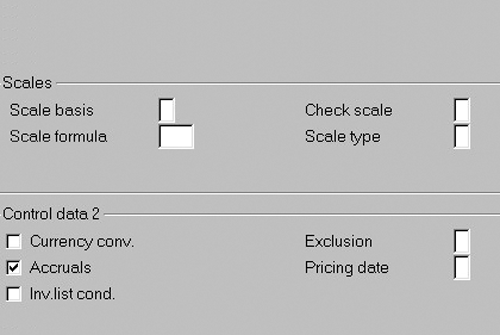
Figure 2
Activating the "Accruals" Function of Any Condition Type
Step 4: Create and Enable a New "Account Key"
Use the following path in the IMG to access a screen where you can create a new account key: Sales and Distribution / Account Assignment / Revenue Account Assignment / Define and Assign Account Keys. Create a new entry there. You can name it with a code such as "Z03."
Once you have saved this new Account Key:
1. Access your automatic G/L Revenue Accounting tables.
2
2. Create the needed rows for the new Account Key.
3. In the final two columns of each new row you create, fill in the "Unbilled Shipment Account" that you created during Step 1 in the first "G/L Account" column, and your true "Cost of Goods Sold" account # in the second column.
Warning:
The chart in Figure 3 is optional reading — it is intended solely for readers with hands-on experience customizing R/3’s SD-to-FI/CO integration points. Briefly though (warning notwithstanding), the chart shows the relationships of the "single sourcing" pieces and is read left-to-right and top-to-bottom. As with any series of customization settings, the first step is the source transaction (a.k.a. end-user transaction), when an end user tries to save something — for example, issuing x units of a product to a Delivery Document. The second column identifies which customization settings R/3 looks at first, immediately after the end user clicks on the SAVE button of the source transaction, etc., until in the fourth column, the chain of events ends with some G/L accounts being automatically derived for the G/L posting, and in the fifth column, the "Value Fields" being automatically derived for the CO-PA posting.
| Source Transaction |
Customization Settings #1 |
Customization Settings #2 |
G/L Update |
CO-PA Updates |
| Goods Issue to SD Delivery |
Schedule Line Category from the Sales Order’s line item(s) links to one MM Movement Type (e.g., 601). |
Tables T156, T156S, T156W, and T156X convert the data from the source transaction (including the MM Movement Type) into an automatic accounting path (e.g., GBB > VAY). |
Table T030A allows a mapping of a G/L Account # to a combination of a found automatic accounting path (e.g., GBB > VAY) and a sold material’s Material Master “Value Class.” |
For the Costing-Based version of CO-PA, there is no update. |
| SD Billing |
The “Billing Type” of the document helps to link the document to one and only one SD Pricing Procedure. |
The linked Pricing Procedure is defined as a series of variables called “Condition Types.” Based on data from the source transaction, one or more of those Condition Types will be active. For Condition Types set up as “Costing” related (e.g., VPRS), the financial value is automatically populated, and comes from the sold material’s Material Master rate (standard or moving average). |
In the Pricing Procedure, each G/L-relevant row will have both a Condition Type and an Account Key. The Condition Type is there to allow a financial value in the source document. The Account Key is there to help link any financial value to one specific G/L account via a series of mapping tables known as “Automatic Revenue Determination.” For an “Accrual” Condition Type, the link is to two specific G/L accounts (the debit and the credit). |
In the Pricing Procedure, most rows will have a Condition Type, even if they are not G/L-relevant. Each of these Condition Types can be linked to a CO-PA “Value Field” via a mapping table found using transaction code “ke4I.” |
|
| Figure 3 |
Relationship of the Needed "Single-Sourcing" Design Pieces |
Step 5: Update Your SD Pricing Procedure(s)
In each "In Scope" pricing procedure that is used in Delivery-based Billings, the ZPRS Condition Type must be given its own row, and the account key you created in Step 4 (e.g., "Z03") must be set in that row’s "Accrls" column, as you see in
Figure 4 (next page).
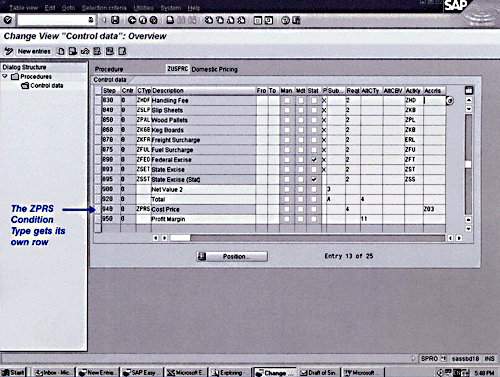
Figure 4
Giving Your ZPRS Condition Type Its Own Row in Your SD Pricing Procedure(s)
Step 6: Create a Cost Element Master for Your Cost of Goods Sold Account
Your Cost of Goods Sold G/L account was probably never set up as a cost element in the CO module. Remember, in the traditional method of configuration, the update to Costing- Based CO-PA from the billing document relied on the Condition Type VPRS, which is set as a statistical condition.
Thus, no G/L accounting comes from that particular Condition Type. And, thus, no need for a cost element.
Your copy of VPRS (e.g., ZPRS), however, will link to a G/L account. And, if this G/L account # does not also exist in the CO module as a "Type 11" or "Type 12" Primary Cost Element, Costing-Based CO-PA will refuse to recognize the cost value.
Therefore, you will need to go ahead and create the master data for it in CO.
Final Results
Once you have completed these six steps and all of your customization is in place, the FI and CO-PA updates will be automatically generated from your SD Billing transactions, as you saw back in Figure 1.
Summary
The SAP R/3 accounting system was originally based on the European convention of matching Sales Revenues to Cost of Goods Manufactured, rather than to Cost of Goods Sold. This led to some processes that seem odd and clumsy to US-based companies, such as having two Cost of Goods Sold sources — one for your G/L (the "Goods Issue to Delivery" transaction), and one for your Costing-Based CO-PA ledger (the SD Billing transaction).
If you have a basic knowledge of which design pieces are interconnected, then for any given source transaction, options become visible.
This solution, for instance, required only basic knowledge about how the Pricing Procedure and Condition Type connect with your G/L (the Automatic G/L Revenue Account tables) and with your Costing-Based CO-PA ledger (the Condition Type to Value Field mapping table).
The few configuration changes I’ve recommended here demonstrate how you can use this awareness to design an option that allows your Cost of Goods Sold updates to be single-sourced, and therefore, always synchronized in both the General Ledger and Costing-Based Profitability Analysis ledger.
If you have questions or feedback for me about this design, you can contact me at the e-mail address below.
1
Chris Kupczyk
Christopher Kupczyk of EDS has spent the last fifteen years installing financial systems throughout the US As a certified SAP FI/CO consultant, he has implemented most every accounting-based module, with Profitability Analysis being his personal favorite. When not out on the road, he can be found at his new home in Mesa, Arizona avoiding saguaro cactus on his mountain bike and enjoying the "dry heat" with his wife and two girls.
You may contact the author at
chriskup@aol.com.
If you have comments about this article or publication, or would like to submit an article idea, please contact the
editor.