Follow these steps if you need to load archived SAP R/3 or mySAP ERP Central Component data back into BW.
Key Concept
You typically use the BW setup programs in the R/3 system to fill the transactional data setup tables for a BW new implementation. You can also use the programs to fill setup tables with data that the R/3 process team previously archived in the R/3 system. This allows you to directly load the archived data into BW from these setup tables.
To cope with the increasing size of your transactional system, you can periodically archive data in your SAP R/3 or mySAP ERP system. This process selects a subset of data, writes this data to a file, and removes it from the system. Sometimes you need to load this archived data into BW.
For example, a company has been live on R/3 for five years without implementing BW. Because of the large sales volume, it archived the first two years of order data. It then decided to implement BW. The BW users demanded five years of detailed order data in BW. This posed a problem because these orders were already archived in the R/3 source system.
The company could take the archived R/3 data and reload it back into the transactional system and then load the data into BW. However, this can be a time-consuming task that would take considerable R/3 system resources to accomplish. Plus, once the load over to BW is complete, you usually have to re-archive the data.
I’m going to show you a better way. BW Release 3.0B and later allows you to read the actual archive files in certain cases via use of the setup programs in R/3. This removes the need to reload these archived records back into R/3.
In my example above to read order data, you would run the statistical setup job in R/3 and choose the archive file. The system reads directly from this archive file and fills the setup tables. You then use these R/3 setup tables to load BW InfoProviders.
I recommend this process only for data that was previously archived and you now need to load into BW. You should not archive R/3 data for the sole purpose of loading data into BW. If you have non-archived data in R/3 to archive that BW also requires, you should load it into BW InfoProviders before beginning the archiving process in R/3.
Not all R/3 applications support the direct reading of archived data. If an application does not, you must bring the archived data back into the R/3 source system, load this data into BW, and re-archive the data. SAP has announced plans to allow more DataSources to process archived data in future BW releases. Table 1 shows the applications that can read archived data. See Table 2 for a list of DataSources that can read archived data.
| Program name |
Description |
| 2LIS_02 |
Purchasing |
| 2LIS_03 |
Inventory controlling |
| 2LIS_11 |
Sales and Distribution (SD) sales |
| 2LIS_12 |
SD shipping |
| 2LIS_13 |
SD billing |
| 2LIS_45 |
Agency business (pooled payment, credit card management, and brokerage) |
|
| Table 1 |
Applications that can read archived data |
| Area |
DataSource |
Description |
| Purchasing |
2LIS_02_CGR |
Delivery of confirmations |
|
2LIS_02_HDR |
Purchasing data (header level) |
|
2LIS_02_ITM |
Purchasing data (item level) |
|
2LIS_02_SCL |
Purchasing data (schedule-line level) |
|
2LIS_02_SCN |
Confirmation of schedules |
|
2LIS_02_SGR |
Delivery of schedule lines |
| Inventory |
2LIS_03_BF |
Goods movements from inventory management |
|
2LIS_03_BX |
Stock initialization for inventory management |
|
2LIS_03_UM |
Revaluations |
| Sales Order |
2LIS_11_VAHDR |
Sales document header |
|
2LIS_11_VAITM |
Sales document item |
|
2LIS_11_VASCL |
Sales document schedule line |
|
2LIS_11_VASTH |
Order header status |
|
2LIS_11_VASTI |
Order item status |
|
2LIS_11_V_ITM |
Sales-shipping allocation item data |
|
2LIS_11_V_SCL |
Sales-shipping allocation schedule line |
|
2LIS_11_V_SSL |
Order delivery |
| Delivery |
2LIS_12_VCHDR |
Delivery header data |
|
2LIS_12_VCITM |
Delivery item data |
|
2LIS_12_VCSCL |
Schedule line delivery |
| Billing |
2LIS_13_VDHDR |
Billing document header data |
|
2LIS_13_VDITM |
Billing document item data |
|
2LIS_13_VDKON |
Billing document condition |
| Agency |
2LIS_45_HDR |
Agency document header data |
|
2LIS_45_ITM |
Agency document item data |
|
2LIS_45_LST |
Agency document remuneration list |
|
| Table 2 |
All DataSources that you can use to read archived R/3 data |
Tip!
Some mySAP CRM DataSources are able to accept archived information. See SAP note 643541 for details.
Analyze Archives
The first step in loading any archived data is to determine which archive files to reload. You can see all the archive details by using the Archive Administration screen (transaction SARA) in the R/3 system.
In Archive Administration the system prompts for the object name. The object name is the logical grouping of the archives. The user chose the object name at the time the archive file was created. In my example, I’m using the object name SD_VBAK for the R/3 Sales and Distribution (SD) sales order archives (Figure 1). If you wish to see all archived objects for any archive runs in your system, you can use transaction SE16 to view table ADMI_RUN.

Figure 1
Archive Administration using transaction SARA on the R/3 system
The next step is to choose the Management button in Figure 1. This provides the details about all archiving performed for the object name entered — for example, when the archive was run, the file name, and any notes associated with the archive’s creation (Figure 2). You can now analyze the archive files to determine which files are relevant for loading into BW.
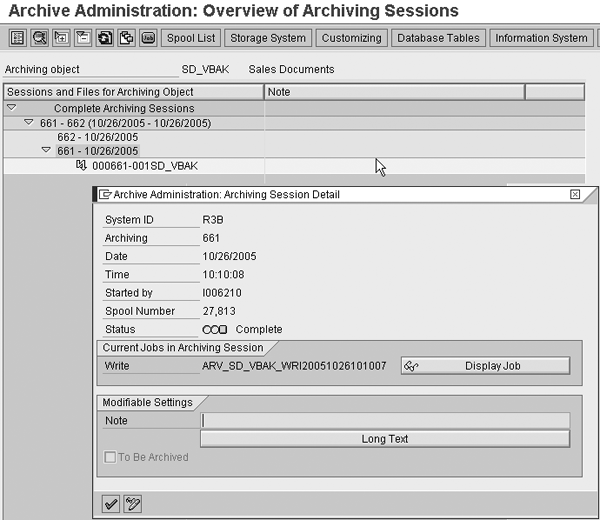
Figure 2
Archive details in Archive Administration management
Run the Setup and Load the Archived Data
You must remove all the data in the setup tables before you can load the archived data into the setup tables.
You delete the setup tables via the application number associated with the extractors using transaction LBWG (Figure 3). For a list of the application numbers, press F4 while in the Application field.

Figure 3
Delete the setup table using transaction LBWG
Once you delete the setup tables from your archived application, you are ready to check for outstanding delta records. It is vital that you ensure your application has no unprocessed delta records; otherwise, the system does not allow you to run the relevant setup program. Use transaction RSA7 to see the active delta queues on your R/3 source system. Load these delta records into BW using the associated BW InfoPackages.
Now that there are no outstanding delta records, you are ready to fill the setup tables in the R/3 system. You can use transaction SBIW in the R/3 system to show the BW IMG in R/3. In the BW IMG, you can fill the setup tables with the archiving data. You have several options depending on the type of data you are loading. Thus, you need to choose the setup transaction that corresponds to the archive data you are reloading. You can reach the setup screen by following menu path Settings for Application-Specific DataSources (PI) >Logistics>Initialization>Filling in the Setup Table>Application-Specific Setup of Statistical Data (Figure 4).

Figure 4
Transaction SBIW (setup table population) with numerous loading options
Choose the setup table that you wish to populate. In my example, I am loading SD sales orders. Select the archive to use for loading. The first option on the setup screen is the Archiving session field (Figure 5). If you remember the archiving session number the system assigned when you created the archive, you can fill it in manually. Check Figure 2 to see the archiving number for this session, which is 661. You can also press F4 to see the list of the archiving session numbers in your system.

Figure 5
Setup table for sales orders loading archive session 661
You can load several archive sessions at once by filling in multiple values. However, you cannot run the setup for a subset of the archive, or the system loads the entire archive to the setup table.
You must populate the field Name of run with the run name, as shown in Figure 5. You can select any name. Set the Termination date as a date in the future and execute the job. I recommend that you run it in the background because it typically takes a long time to load an archive. A foreground job would likely time out.
You now can load the data into BW using the business content DataSources shown in Table 2. You can then fill the archived data into InfoProviders based on your BW reporting requirements.