SAP CRM Marketing allows you to send email campaigns to large numbers of contacts, who may be located in different countries. Learn how to control the language of outbound marketing campaigns so that contacts receive the email messages in their preferred languages.
Key Concept
SAP CRM Marketing provides all the tools you need to translate an email form before using it in a campaign. When the translated form is tied to a campaign, the system uses a standard set of rules to determine each recipient’s language. The corresponding translation of that form is then sent to the contact. You can override the standard rules for language determination to meet your specific business requirements.
In 2006, Dow Corning Corporation implemented SAP CRM 2005 as a foundation for our Sales and Marketing functionality. We now use this solution for all of our global email-based marketing campaigns.
Our contacts are located in many countries and speak many languages. We often need to send a marketing campaign to contacts in different countries. We want each person to receive the message in his or her local language.
For example, a campaign might target thousands of recipients located through-out North and Central America. Contacts in the United States must receive the email in English, while those in Mexico and Central America receive Spanish emails, unless they have indicated that they prefer to receive English. In addition, we might have contacts in Quebec who have specified French as their language preference. You can configure SAP CRM Marketing to handle these types of scenarios. Let me show you how we translate the content of our campaigns and control the language for each recipient.
Creating the Mail Form
The first step in executing any email campaign is to determine what the message should be. In SAP CRM, you create the email message template, or mail form, in transaction CRMD_EMAIL. Figure 1 shows the main screen of this transaction.

Figure 1
Create a simple mail form in transaction CRMD_EMAIL
The Design tab allows the user to create the content of the email message. This form, named Z_SAMPLE, is a simplified example of a mail form. The form for an actual campaign would most likely include your company logo, images, and fonts. Forms can utilize virtually any HTML content, so you have a tremendous amount of flexibility in designing your email content. You can import HTML into a mail form using transaction CRMD_EMAIL. If you choose to outsource the development of your email content, the creative content can be developed externally and imported into the mail form by an SAP CRM Marketing user.
After you create the mail form, you can see its attributes by clicking on the form name in transaction CRMD_EMAIL. Note that the form is assigned a base language that matches the logon language of the user who created the form (Figure 2).
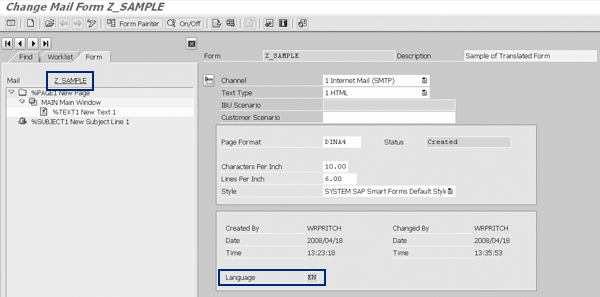
Figure 2
Click on the mail form name, Z_SAMPLE in this case, to see its attributes
Translate the Form
Use transaction CRMD_TRANSLATE to translate the mail form into the required languages. Figure 3 shows the main screen of this transaction. To translate the form, you specify the “To” language in the lower section of the screen and update the content for that language. If your mail form contains graphics, tables, or other items that you want to copy into the translated versions of the form, you can go into the Source tab, copy the entire HTML content onto your clipboard, and paste it into the Source tab of the “To” language. The translator can then return to the Design tab to enter the text in the specified language. In this example the English content is being translated to French.

Figure 3
Transaction CRMD_TRANSLATE allows you specify the “From” and “To” languages for your translation
As you can see in Figure 4, the CRMD_TRANSLATE transaction allows you to translate the subject line of the email form in addition to the main form. Do not forget this important step; otherwise, your contacts will receive an email with the subject line in one language and the content in another. If your contacts receive a message and the subject line is not in their local language, they are likely to delete the email without ever opening it.

Figure 4
Remember to translate the subject line for the mail form
At a technical level, SAP CRM simply updates the STXFTXT table each time you translate the body of a mail form or its subject line. If you look carefully at Figure 5, you can see that each line of the body has been duplicated, with language (SPRAS) E for the English content and F for the French. The subject line has also been duplicated, with the language indicator added to the key. In the next section I will show you how to call a function module that references this table to determine the languages of the mail form.

Figure 5
The contents of STXFTXT shown after the English/French translation of mail form Z_SAMPLE
After I complete the French translation, I must repeat these steps for the Spanish translation so that the campaign can be sent in three languages. When I complete the translation with English as the “From” language and Spanish as the “To” language, the STXFTXT table will have six additional lines related to the Z_SAMPLE form. The new lines have a language (SPRAS) of S and my Spanish content in the TDLINE field.
Control the Language for Each Recipient
When you execute the marketing campaign, SAP CRM determines the language for each recipient based on a standard set of rules. (See SAP Note 708355 for additional details.) The system selects the language based on the following priority:
1. The contact’s correspondence language
2. The contact company’s language
3. The language for verbal communication, as specified on the contact record
4. The logon language
If these rules do not meet your requirements, SAP provides a Business Add-In (BAdI) named CRM_IM_GET_LANGUAGE, which allows you to specify your own logic for language determination. When you implement the BAdI using transaction SE19, you can see that it has only one method, GET_LANGUAGE_AND_NATION. This method is called once for each recipient of the email campaign. By setting the value of the export parameter EV_LANGU, you can control the language of the email for each recipient. The method has several input parameters that can be referenced in your custom code.
In my sample scenario, I want to use the contact’s correspondence language to control the language of the email, if this has been set. If no language is specified, I want to use the contact’s country to specify the language, which is different than SAP standard functionality.
To implement these rules, I need to consider just two of the method’s import parameters: IS_BPARTNER and IV_SMARTFORM. The first parameter, IS_BPARTNER, is a structure that contains information about the business partner. The IV_SMARTFORM parameter contains the name of the mail form for the campaign. Rather than implement our custom logic directly in the BAdI, I’ll instead insert a call to my own function module as shown in Figure 6.
METHOD if_ex_crm_im_get_language~get_language_and_nation. CALL FUNCTION ‘ZCRM_LANGUAGE_DETERMINATION’
EXPORTING
iv_partner = is_bpartner-cp_number
iv_formname = iv_smartform
IMPORTING
ev_langu = ev_langu. ENDMETHOD.
|
| Figure 6 |
Insert the call to your function module into the BAdI |
The function module ZCRM_LANGUAGE_DETERMINATION contains the ABAP code that sets the language. There are several advantages to using this approach:
- Testing is streamlined, because you can test the logic in the function module quickly in transaction SE37, rather than through the execution of a test campaign
- The function module can be easily called from routines outside of the BAdI method. As you will see later, I will implement a modification so that my custom language determination rules are used when I send the mail form in test mode.
I send the function module two parameters: IS_BPARTNER-CP_NUMBER, which contains the number of the business partner, and IV_SMARTFORM, the mail form name. The function module returns EV_LANGU, which is also the output parameter of the method. You may choose to use the sample code shown in the following figures as a starting point for developing your own language determination routine.
If you analyze the sample code, you can see that the first section of the function module initializes EV_LANGU and performs a lookup to see if the correspondence language of the contact is known (Figure 7). The code sets the EV_LANGU parameter to the correspondence language value if the lookup returns a language. If no correspondence language is specified, the logic checks the contact’s country, as outlined in our language determination rules. This section of code first reads the BUT021_FS table to get the ADDRNUMBER of the contact’s default address. Once this value is found, it is used to find the contact’s address on table ADRC.
ev_langu = space.  SELECT SINGLE * FROM but000 WHERE partner = iv_partner.
  IF sy-subrc = 0.
* Use Correspondence Language if specified
    IF but000-langu_corr NE space.
      ev_langu = but000-langu_corr.
    ELSE.
|
| Figure 7 |
Code that looks up the correspondence language |
After finding the country code, the routine performs a lookup on a table named ZVALUE (Figure 8). This is a generic table of values that is used to associated groups of codes and lookup values. Figure 9 shows a subset of the records that read when the ZVALUE table is accessed. If this lookup finds a language that is associated with the contact’s country, that language is assigned to EV_LANGU.
* Next, use Country to determine language
      SELECT SINGLE * FROM but021_fs
        WHERE partner = iv_partner
        AND adr_kind = ‘XXDEFAULT’.
      IF sy-subrc = 0.
        SELECT SINGLE * FROM adrc
             WHERE addrnumber = but021_fs-addrnumber.
        IF sy-subrc = 0.
          SELECT SINGLE * FROM zvalue
            WHERE type = ‘CONTACT_LANG_DET_CTRY’
            AND code = adrc-country.
          IF sy-subrc = 0.
            ev_langu = zvalue-value.
          ENDIF.
        ENDIF.
      ENDIF.
    ENDIF.
  ENDIF.
|
| Figure 8 |
Code that performs the lookup on the ZVALUE table |
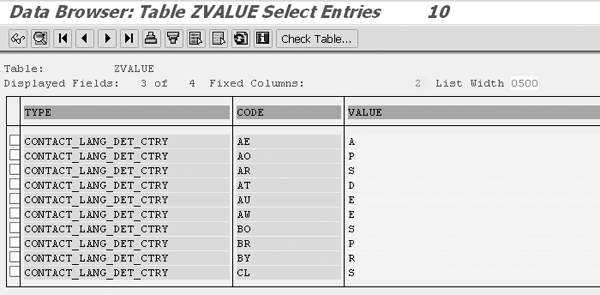
Figure 9
Entries in the ZVALUE table associate a country in the Code column with a language in the Value column
* Get languages for current form
  CALL FUNCTION ‘CRM_IM_FORM_DETAIL’
    EXPORTING
      i_formname   = iv_formname
    IMPORTING
      et_languages = it_languages.
|
| Figure 10 |
Code that calls CRM_IM_FORM_DETAIL |
Finally, the routine verifies that the selected language is also one of the translation languages of the form (Figure 11). If it is not, the system sets EV_LANGU to the system language. This logic covers situations in which the language of the contact does not match the languages of the mail form. For example, if my sample campaign included a contact in Brazil (BR on the ZVALUE table), I set the language to Portuguese (P). However, I only translated my form from English to French and Spanish, so I can only assign one of those three languages to EV_LANGU. If your routine selects a language that is different than the base language of the mail form (and any translation languages for the form), the system defaults to the base language.
* See if form has been translated to determined language
* Value for ev_langu may still be blank at this point
LOOP AT it_languages INTO lt_languages WHERE langu = ev_langu.
ENDLOOP.
* If not, use system language
IF sy-subrc = 4.
ev_langu = sy-langu.
ENDIF. ENDFUNCTION.
|
| Figure 11 |
Code to verify the selected language |
After you implement and activate the BAdI, your custom logic for language determination becomes active. Whenever you execute an email campaign, the system calls the BAdI and your function module overrides the language setting for each recipient.
Set the Language for Channel Tests
When you edit a mail form in transaction CRMD_EMAIL, use the Channel Test option to send the form to a test email address. The standard SAP system does not call the CRM_IM_GET_LANGUAGE BAdI during a channel test because some of the input parameters for method GET_LANGUAGE_AND_NATION are not populated in the test scenario.
However, the two parameters I used in my example, business partner number and mail form name, are known so I can modify SAP’s standard code to include a call to my function module. This simple modification forces the language determination to be the same in both the channel test and an actual campaign. To do this, edit the code for the function module CRM_IM_PRINT_ PREVIEW as shown in Figure 12.
*** CONTEXT ***
* -> language of mail
    IF NOT iv_langu IS INITIAL.
      lv_langu = iv_langu.
    ELSEIF NOT ls_data_person-correspondlanguage IS INITIAL.
      lv_langu = ls_data_person-correspondlanguage.
    ELSEIF NOT ls_address-langu IS INITIAL.
      lv_langu = ls_address-langu.
    ELSEIF NOT ls_data_person-correspondlanguage IS INITIAL.
      lv_langu = ls_data_person-correspondlanguage.
    ELSE.
      lv_langu = sy-langu.
    ENDIF.
*** START OF INSERT ***
* BAdI CRM_IM_GET_LANGUAGE is not called during channel test to do
* language determination. Call FM that is called from the BAdI so
* that language determination rules are followed during channel test
    IF ls_bpartner-cp_number <> space.
      CALL FUNCTION ‘ZCRM_LANGUAGE_DETERMINATION’
        EXPORTING
          iv_partner  = ls_bpartner-cp_number
          iv_formname = iv_formname
        IMPORTING
          ev_langu    = lv_langu.
    ENDIF.
*** END OF INSERT ***
|
| Figure 12 |
Modify the SAP standard code to include a call to ZCRM_LANGUAGE_DETERMINATION |
In the context block, SAP’s standard logic sets LV_LANGU, which is the language for the channel test. Immediately after the standard logic sets this variable, you override it with the value that is determined by the custom routine. Be sure to test your modification carefully, and document it thoroughly. Documentation of modifications is important, because your changes may conflict with a future Support Package, SAP Note, or system upgrade.
By controlling the language of outbound email messages, you can ensure that each contact receives your company’s campaigns in his or her local language. Personalizing the message in this way increases the effectiveness of your campaigns and helps you gain the maximum value from SAP CRM Marketing.
Note
Although
SAP Note 708355 (“Language priority in the campaign execution”) is listed as valid for mySAP CRM 3.0 and 4.0, it still applies to SAP CRM 2005.
Note
I have simplified the sample code to explain how you can develop a language determination routine. This code has not been optimized for performance. If you plan to send campaigns to large target groups, the campaign will execute faster if you use internal tables to buffer data, rather than performance direct reads on the database tables.
William R. Pritchett
William (Bill) Pritchett has more than 25 years of IT industry experience and has worked at Dow Corning Corporation for the past 16 years. Over the past eight years he has focused on the company’s CRM systems and processes. His current responsibilities include expanding the capabilities of Dow Corning’s SAP CRM 7.0 system.
You may contact the author at bill.pritchett@dowcorning.com.
If you have comments about this article or publication, or would like to submit an article idea, please contact the editor.