Though immensely useful, time-dependent attributes have limitations that can lead to inaccurate reports. The author explains the benefits of virtual characteristics and key figures, which use programmable BW user exits. He then walks you through five steps that will allow you to make the most of virtual characteristics and key figures.
In the SAP BW 2.x and 3.x environment, time-dependent attributes in the master data are very useful to display values for a characteristic back in time. Time-dependent attributes, however, can only show a characteristic’s value at one given point in time per query execution. This can limit the system’s ability to report on more dynamic situations.
To understand how limited time-dependent attributes can be, consider the following: A time-dependent attribute is created to represent a salesperson responsible for a certain customer. The corresponding characteristic is exclusively for the individual salesperson responsible at the key date1 that is specified for the query. If more than one salesperson shared responsibilities for the account over time, the resulting report would be historically inaccurate because it can show only the salesperson responsible on the date reflected in the key date. Unless you are willing to load the data as a characteristic in each transaction record, a BW query cannot show the appropriate sales representative.
Using virtual characteristics can solve this problem, because they make it possible to calculate values at the execution time of the query.
Key figures can be as limiting as time-dependent attributes and pose similar problems for the system. Often in BW, there is a need to operate with key figures based on time-dependent values that are calculated when a query is executed, because the values the calculation is based on are only known upon execution. If a user runs a query where the data that the key figures are based on has changed, the result will be inaccurate or limited reports.
The problems inherent in the system are apparent in the following scenario. A user wants to review the cost to produce a certain quantity of material, the so-called cost amount, for a product and generates a report. However, the cost price, which is the cost to produce one unit of material (cost price = cost amount / quantity), has changed since the last upload, resulting in an inaccurate report. A reload would solve the problem and make the report accurate, but this approach is not practical because of loading time and it is only a temporary fix. What if the user then wants to compare cost pricing for the past two years with cost pricing for the current year along with actual sales? The problem becomes compounded because now the cost-price-per-year figures must be uploaded along with the other information to the InfoCube, which requires even more loading time and extra disk space. Moreover, what happens when the user next wants to see the cost price three years back in time, or if the type of cost price has to be eliminated for internal sales within the company?
Virtual key figures can be used to solve these types of problems because they make it possible to calculate values at query execution time. Virtual characteristics and key figures make queries very dynamic and resolve some of the issues that make normal calculated key figures or standard characteristics inappropriate.
I’ll show you how you can use virtual characteristics and key figures in these and similar scenarios. In particular, I will:
- Describe virtual characteristics and key figures.
- Provide a step-by-step guide to implement virtual key figures, including an example.
- Discuss some things to be aware of when using virtual characteristics and key figures.
What Are Virtual Characteristics and Key Figures?
Virtual characteristics and key figures appear to the user like their normal counterparts, yet they are calculated in standard BW user exits, where you can program your own logic. This complex logic, which must be created in ABAP, is executed at the same time as the query. Although the virtual characteristics and key figures are not actually populated in the database, they are incorporated into an InfoCube data model so the objects can be selected when designing a query. Like other normal characteristics, virtual characteristics must also be incorporated into the appropriate dimension.
The following example describes how to implement virtual key figures, and these principles also apply for setting up virtual characteristics.
A query request comes in that will allow the sales department to provide different cost amounts (quantity × cost) in their sales reports to simulate different net incomes. The sales department provides cost price information.
The cost price depends on the material and the plant producing the item. However, if no cost price exists for the material and the plant, then the global cost price at material level l should be used (global cost price is where plant = blank).
The query should be able to compare cost amount between two different years and compare and calculate two cost prices: annual cost price (ACP) and the current cost price (CCP).
Step 1: Define characteristics and key figures. You need to define several characteristics and key figures in the Administrator Workbench under InfoObjects (transaction code RSA1) to operate with the virtual key figures that meet the above query request. You can also use transaction code RSD1. Table 1 shows the objects that need to be created.
| Name |
Type |
Definition |
Definition |
| Cost price ID 1 |
Characteristic |
PR_ID1 |
CHAR 4 without master data, with texts |
| Cost price ID 2 |
Characteristic |
PR_ID2 |
Reference to PR_ID1 |
| Cost price year 1 |
Characteristic |
PR_YEAR1 |
NUMC 4 with master data, without texts 2
|
| Cost price year 2 |
Characteristic |
PR_YEAR2 |
Reference to PR_YEAR1 |
| Cost price currency 1 |
Unit |
PR_CURR1 |
Unit Currency |
| Cost price currency 2 |
Unit |
PR_CURR2 |
Unit Currency |
| Cost amount 1 |
Key Figure |
AMOUNT1 |
Amount, currency = PR_CURR1 |
| Cost amount 2 |
Key Figure |
AMOUNT2 |
Amount, currency = PR_CURR2 |
|
| Table 1 |
Virtual characteristics and key figures to create |
|
Step 2: Allocate the objects to the InfoCube. Allocate the characteristics and key figures from Table 1 to the relevant InfoCube. In this example, you are using the standard InfoCube 0SD_C03 Sales Overview. Units are automatically allocated when the key figures AMOUNT1 and AMOUNT2 are allocated. Characteristics are assigned to a relevant dimension, which could be a dimension only for virtual characteristics. Remember that the values for the characteristics are blank in the InfoCube.
Save and generate the InfoCube. The virtual characteristics and key figures are now ready for query design. The characteristics will be used in the query selection screen, while the key figures will be shown in the query results. No update is required for virtual key figures; however, the related update rules need to be refreshed. In the update rule, assign initial value (blank) to the virtual characteristics.
Step 3: Set up cost price table. You need to store the prices in Table 2 to perform the query. The table can be an ODS or a standard table. I recommend an ODS, especially if the data will be interfaced with another system. The table is independent for the solution. The table key consists of Cost Price Id, Cost Price Year, Material, and Plant.3 Remember to maintain the master data for the InfoObject with the appropriate ID and text otherwise, it is not possible to select the values from the query (e.g., ACP for Cost Price Id). Cost Price Id and Cost Price Year are always used in the query. To preselect the cost prices to an internal table, Cost Price Id and Cost Price Year need to be in the first and second key fields, which enhances performance as you will see later. If the Plant cell is blank, it means that the cost price is for all other plants that do not have their own cost price. You need to know which currency the cost price is in as well as for how many units and the unit of measure. For example, material 4711 for plant 1100 has an ACP for year 2003 of 2.10 USD per 1 KG. The InfoCube and cost price table are now ready, but you must still maintain the user exits and query before you can complete the query request.
| Cost Price Id |
Cost Price Year |
Material |
Plant |
Cost Price |
Currency |
Per |
Unit |
| ACP |
2002 |
4711 |
|
1.12 |
USD |
1 |
KG |
| ACP |
2002 |
4711 |
1050 |
1.40 |
USD |
1 |
KG |
| ACP |
2002 |
4711 |
1100 |
1.60 |
USD |
1 |
KG |
| ACP |
2003 |
4711 |
|
1.75 |
USD |
1 |
KG |
| ACP |
2003 |
4711 |
1050 |
1.80 |
USD |
1 |
KG |
| ACP |
2003 |
4711 |
1100 |
2.10 |
USD |
1 |
KG |
| CCP |
0000 |
4711 |
|
1.80 |
USD |
1 |
KG |
| CCP |
0000 |
4711 |
1050 |
1.90 |
USD |
1 |
KG |
| CCP |
0000 |
4711 |
1100 |
2.05 |
USD |
1 |
KG |
|
|
Step 4: Maintain user exits. User exits are where the ABAP code is added to calculate virtual key figures at query runtime. Their maintenance is a technical exercise and requires that an ABAP programmer be part of the development. In addition to the following narrative and step-by-step guide, I have posted the actual code at this link. The sidebar at the bottom of this article, “The ABAP Code Explained,” describes what the code does.
You must maintain two user exits (see Table 3) and both are within the same function group. This means that you can use the data set across programs. Use transaction CMOD to create a project, and assign and activate enhancements RSR00001 and RSR00002 to the project. Type in the project name and click on Create. Then type in the project name again and click on Enhancement assignments. Click on Yes to save data. When prompted for transport number, enter enhancements RSR00001 and RSR00002. You can display the documentation for the enhancement by clicking on Display documentation. Click on Components to be able to save data and click on Yes to save. Now the two user exits are listed. To activate the components, click on Activate. Use transaction SMOD to see any documentation for the enhancement.
| User Exit |
Description |
|
EXIT_SAPMRSRU_001
Enhancement: RSR00001
|
Definition of virtual characteristic and key figure
Contains global data definitions, virtual field settings, and the programming logic per InfoCube record
|
|
EXIT_SAPLRRS0_001
Enhancement: RSR00002
|
Customer exit global variables in reporting
This user exit is activated after the selection screen is filled for a query and F8 is pressed. It is not necessary to employ this user exit for implementing virtual characteristics or key figures; however, it allows for better performance.
In this example, you know which Cost Price Id and Cost Price Year must be selected; therefore, the relevant cost price data will be selected and appended to an internal sorted table for later lookup. When calculating larger cost price amounts (e.g., 200,000 cost prices), this may improve the reading of the cost prices by a factor of 25 to 50.
|
|
| Table 3 |
Maintaining the two user exits |
|
Step 5: Create query. Variables need to be defined for the two Cost Price Id virtual characteristics and for the two Cost Price Year virtual key figures. The variables in this example are a single value, so the user only is required to type in one value at query execution time.
In some cases, a range of user entry/default values variables can be used. In BW 2.x, variables are created using transaction RSZV. In BW 3.x, variables are created from within the query.
In Query Builder, insert the objects as free characteristics so the user is able to select Cost Price Id and Cost Price Year (Figure 1). Insert Quantity, Cost Amount 1, and Cost Amount 2 as columns along with the following Cost Price formulas: Cost Price 1 = Cost Amount 1 / Quantity and Cost Price 2 = Cost Amount 2 / Quantity. Material and Plant are inserted as rows. You also need to insert the appropriate currency for the two price objects or the amounts will not be shown.
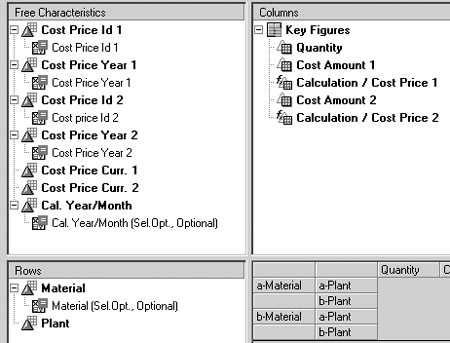
Figure 1
The query built and ready to run
The query now is ready to run. It provides you with a flexible way to display and compare different cost prices from different years for the same material and plant. Figure 2 compares annual cost amount for selected plants and materials in 2002 to the current cost amount. The total for the cost price is an average, and cost prices per material/plant reconcile with the prices used in Table 2 as well as the rules to calculate the cost prices listed in the query request. You can now fulfill the original query request from the sales department to provide different cost amounts in their sales reports to simulate different net incomes.

Figure 2
Output annual cost amount 2002 and current cost amount query
Limitations
There are issues related to setting up and running queries like the one in the above example that you should be aware of. Virtual characteristics and key figures do not work with aggregates, because aggregates may not contain all relevant fields necessary to support them in the user exit. In the example above, for instance, the material and plant information is critical. So if BW selects data from an aggregate lacking that information, it is impossible to get the material value in the user exit. This would prevent the cost price from being calculated. Using virtual characteristics or key figures does not prevent you from operating with aggregates. You can still create and use them as long as queries do not contain virtual characteristics or key figures. A query will use an aggregate for material, plant, and quantity information in the example; however, if a virtual key figure such as cost price is added, then it will not.
Cache functionality should be avoided when using virtual characteristics and key figures. With caching employed, the system attempts to reuse extracted data rather than rereading InfoCube each time the query runs. In the cost price example, the cache would cause problems, because the query must be completely executed and the user exits processed each time. Otherwise, the second run will show no amounts. Memory problems might also arise. When processing many records (e.g., 200,000 records) into internal tables, the internal memory is used. If many users — say, 100 or more — run the same query at the same time, it could lead to memory overflow.
Because the query makes calculations every time it is executed, system performance could degrade when using virtual characteristics and key figures. I have provided tips on how to avoid this, and many other documents have been written about optimizing system performance. I recommend “Performance Analysis in a Nutshell,” available at the SAP Service Marketplace site (websmp203.sap-ag.de/abap). The article gives an overview of ABAP and tells how performance can be optimized.
You should also be aware that the ABAP programming needed for virtual characteristics and key figures can only be done for one InfoCube at a time. Additional code is required even if the same functionality is being reused with another InfoCube. If you make sure that your ABAP syntax is structured in such a way that does not require many extra programming lines, it takes only a few hours to implement and test the same functionality for another InfoCube.
The ABAP Code Explained
The ABAP program has four parts:
Declare global values for each virtual characteristic and key figure (program ZXRSRTOP). In this example, you need to get information about Plant and Material for each record in the fact table. The Plant and Material information is then be used for reading the cost price from the cost price table. This means that Plant and Material also need to be defined as global variables or you cannot retrieve the values for Plant and Material in the user exit (explained later). The variables must be in the form:
g_pos_<InfoCube>_<object> type i.
Program ZXRSRTOP also contains other global data for later processing such as a definition of an internal table to hold cost prices.
Make virtual field settings (program ZXRSRU02). Here, the custom ABAP program inserts the virtual characteristics and key figures into predefined tables, which are processed only when changing or activating the query. Note that if fields in the InfoCube other than the virtual fields need to be accessed during the user exit, these fields also need to be inserted. Apart from virtual characteristics and key figures in the example, Plant and Material must be able to read the cost price table, and Quantity also must be able to send back the cost amount.
The task of inserting the virtual characteristics and key figures into tables depends on the InfoCube I_S_RKB1D-INFOCUBE. Characteristics have to be stored in table E_T_CHANM:
E_T_CHANM–CHANM = <object
If the characteristics must be changed, then use:
E_T_CHANM-MODE = RRKE_C_MODE-NO_SELECTION
If the characteristics should only be read, then use:
E_T_CHANM-MODE = RRKE_C_MODE-READ.
Key figures have to be stored in table E_T_KYFNM:
E_T_KYFNM-KYFNM = <object>.
When activating the query, BW goes through the ABAP code stored in ZXRSRU02 and compares the characteristics and key figures used in the query with the characteristics and key figures stored in ZXRSRU02. If the query contains a characteristic that can be changed or a key figure that exists in ZXRSRU02, then the query is marked to execute the user exit to calculate virtual characteristics or key figures.
Program the code for mass selection (program ZXRSRU01). This ABAP code is processed just after the query selection screen and determines the selections to be made for the query. If the query contains virtual figures and it needs to select a huge amount of data (e.g., 100,000 cost prices), then the query can be done using this code. The ABAP code also determines the defaults values for variables.
The user exit contains several parameters. Only those relevant for the query request are described here.
i_s_rkb1d-infocube contains the technical name of the InfoCube.
i_vartyp contains 0 for characteristics.
i_t_var_rang contains the values from the selection screen
Here is the code itself:
case i_vartyp.

when ‘0’.

case i_s_rkb1d-infocube.

when <InfoCube>

loop i_t_var_range and find relevant

values for mass selection

perform mass_selection …

endcase.
Program the code to calculate the virtual figures per InfoCube record (program ZXRSRZZZ). In this last section, the ABAP is processed for every InfoCube record. The program contains the actual user exit where the virtual characteristics and key figures are calculated. A standard ABAP form needs to be defined for each InfoCube in the following form:
FORM user_<InfoCube>
USING i_s_rkb1d TYPE rsr_s_rkb1d
CHANGING c_s_data TYPE any.
field-symbols: <l_object>,…
assign component g_pos_<InfoCube>_<object>
of structure c_s_data
to <l_object>,…
*Calculation
read table…
<l_object> = cost price…
ENDFORM.
Structure i_s_rkbld contains information about InfoCube and query. Structure c_s_data contains the values from the InfoCube and represents a record from the fact table. It is from here that the Material, Plant, and Quantity are read and the values are inserted back to the query.
It is necessary to define a field symbol for each virtual characteristic and key figure to access the values in the InfoCube record (c_s_data). This equals the number of global variables in program ZXRSRTOP.
The assigned statement says that the value of field number g_pos_<InfoCube>_<object> in structure c_s_data should be inserted into <l_object>. This is the way to capture values from the InfoCube. The values appear in the field symbols and are therefore available for further processing.
After calculating the virtual key figure, the results are sent back to the query by updating the field symbol that represents the virtual key figure. If a characteristic has to be modified, then E_T_CHANM-MODE = RRKE_C_MODE-NO_SELECTION needs to be set in program ZXRSRU02 for that particular characteristic.
Jens Nissen
Jens Nissen is an SAP BW/SEM manager within NNIT A/S, a large Danish consulting firm providing, development, operations, and hosting of IT solutions including SAP solutions (www.nnit.com). He has worked with SAP for the last 15 years – including three years with SAP BW. He has participated in major SAP projects in Europe and the U. S. in such roles as programmer, customizing consultant, and project manager. Prior to joining NNIT A/S, Jens worked in the UK as an SAP contractor and as an SAP consultant for Ernst & Young.
You may contact the author at jsns@nnit.com.
If you have comments about this article or publication, or would like to submit an article idea, please contact the editor.