Manager
Learn how to manage your background job scheduling while maintaining accurate and up-to-date documentation on job requests and associated changes.
Key Concept
You now have three options for managing jobs in SAP Solution Manager. You have the SAP Central Process Scheduling by Redwood (SAP CPS), which you can run from your SAP Solution Manager system or a separate SAP NetWeaver system. You also now have SAP Solution Manager’s Job Scheduling Management (JSM) toolset, which provides great control over the scheduling and management of jobs. Your third option comes from the integration of SAP CPS in SAP Solution Manager for automated data exchange and data consistency in the various functionalities.
You can now manage your jobs from one central point using the job documentation capabilities provided by SAP Solution Manager’s Job Scheduling Management (JSM). It offers a lean or fully extended workflow, including flexible job scheduling and management capabilities. With the integration of SAP Central Process Scheduling by Redwood (SAP CPS) in SAP Solution Manager, you can now import all the existing jobs from SAP CPS and the related managed systems and then take advantage of the functionality of JSM.
Note
SAP Central Process Scheduling by Redwood (SAP CPS) was released November 2008.
To use JSM in SAP Solution Manager, you have two options: the SAP Easy Access menu or the newly developed SAP Solution Manager work centers. You can use the SAP Easy Access menu (available with SAP Solution Manager SP 15); however, SAP recommends using SAP Solution Manager Work Center (SAP Solution Manager SP 17 is recommended), which provides more than 10 role-based work centers. The work centers give you a better overview of the available functionalities via the new user interface.
Integrate JSM with SAP CPS
Although several job scheduling tools have been in the market for years, the importance of job scheduling management has recently increased drastically. Even midsize companies need to manage the increasing number of background jobs and achieve transparency in how they affect their core business process. However, they have to juggle these needs with strong limiting factors such as few available time slots for maintenance activities, complex job dependencies, the unclear impact of job changes on business processes, and a decreasing IT budget.
To add to those challenges, many deficiencies might have organizational root causes, including these examples:
- Application and technology units are often separated. There’s no common view that shows which jobs support critical business processes, who’s responsible, what to do in case of errors, or how critical the jobs are for the business.
- A single experienced administrator might schedule jobs and use hardware resources efficiently, but what if he has to accommodate the demands of other team members who add to the jobs already scheduled or run programs that tax hardware that is already working overtime?
- One administrator handles hundreds or thousands of jobs without accurate information on the resources available and the tasks to be performed.
- One administrator must accurately assess the most critical jobs after changes have been made to a schedule or to the request itself.
To address this broader set of challenges, you can integrate JSM with SAP CPS as of SAP NetWeaver 7.0 (Figure 1).

Figure 1
SAP CPS Integration in SAP Solution Manager via PS Adapter
You have the option of running SAP CPS either from the same system as SAP Solution Manager or on a separate SAP NetWeaver system. SAP CPS is the only scheduler that is integrated with the central job documentation of SAP Solution Manager. Besides the automated exchange of data, this integration schedules jobs from the job documentation without having to log on to SAP CPS. The integration is realized via the PS Adapter for SAP Solution Manager. PS Adapter allows the automated exchange of all job-related information among the various JSM capabilities — job request, Service Desk, Change Request Management (ChaRM), job documentation, SAP CPS, and Business Process Monitoring (BPM) (Figure 2). This automated capability reduces maintenance efforts and minimizes the risk of getting inconsistent data. JSM integrated with SAP CPS enables companies to request, approve, document, schedule, and monitor jobs.

Figure 2
Overview of SAP Solution Manager JSM capabilities
You can schedule jobs either directly out of the documentation or via access to the linked SAP CPS. You can also manage job requests that come from users, key users, or administrators. The management and approval process of those requests go through Service Desk and Change Request Management, which are not the focus of this article.
SAP CPS is available in two versions. The free-of-charge version supports the monitoring of all single-client scheduling for SAP systems. The chargeable SAP CPS version supports the scheduling of cross-client and cross-system job chains and can support non-SAP systems.
The next section describes at a high level all the JSM capabilities.
Import Existing Job Information to Get Basic Job Documentation
You can import existing jobs directly from any SAP system or indirectly via an SAP CPS system. If you use SAP CPS as an information source, you can also get job information from the non-SAP systems connected to SAP CPS into the job documentation of SAP Solution Manager.
Use transaction SOLMAN_WORKCENTERS to open SAP Solution Manager Work Center (Figure 3), which provides a standardized, accessible user interface. Switch to the Job Management tab to view the common tasks related to managing jobs.

Figure 3
Job Management Work Center
The Overview panel on the left side of the screen summarizes the most relevant information about the work center capabilities for the selected work center, which is Job Management in this example. Below the work center capabilities are the common tasks (see the “SAP Solution Manager Work Centers” sidebar for more information). The tasks provide links to commonly used functionalities, which when selected appear on the right.
SAP Solution Manager Work Centers
The Work Center approach in SAP Solution Manager helps customers efficiently manage their SAP-centric solutions with SAP’s Standards for Solution Operations. Work centers enable easy navigation through a role-specific navigation bar with access to a list of work centers associated with the role and assigned to the end user. The top-level navigation groups all functions and information so the users of a role can focus on their relevant work.
Work centers:
- Provide easy navigation through central role-based access points
- Provide a tailored and role-based user environment to simplify your work
- Provide common structures (e.g., navigation bar) and content elements (e.g., work areas), which are easy to learn
- Improve collaboration through common Inboxes, work lists, and status reporting
For more information on work centers, go to the SAP Service Marketplace at www.service.sap.com/rkt-solman and follow menu path SAP Solution Manager 7.0 > Work Centers for SAP Solution Manager.
To begin the import process, click the Import Jobs common task. An import wizard guides you through the process of importing all the job requests from a specific system or jobs related to specific processes and process steps (Figure 4).
In step 1 (System Selection) of the wizard, specify the values for the Solution, Business Process, and Logical Component. To move to the next step, click the Continue button.

Figure 4
Wizard for the initial import/upload of jobs from SAP CPS
In step 2 (Scheduler Selection), select the source of your jobs: SAP CPS or an SAP system. In step 3 (Job Selection), select the jobs you want to import into the central job documentation functionality of SAP Solution Manager. Finally, in step 4 (Import), import the jobs. See the sidebar “Minimum Job Documentation” for more information.
Minimum Job Documentation
Because each company has different documentation needs, you can choose a basic or extended request and approval process, or choose no documentation at all. You can also choose between a basic documentation procedure in which an administrator documents some basic information (e.g., the job name, system, and requester) or an extended documentation (e.g., error handling, responsible persons, monitoring information) (see Figure 2).
For this minimum documentation, you only need the job documentation functionality and, if you work with SAP CPS, PS Adapter for the automated data exchange and scheduling possibilities out of the job documentation (see section “Schedule a Job Request in SAP CPS”). Request form, Service Desk, ChaRM, and BPM are not needed for this minimum documentation process. You decide if, and to what extent, you want to integrate those capabilities in your process.
Figure A shows a simple documentation workflow. In this scenario, an end user of an application calls the responsible administrator by phone, who directly documents the new job in the job documentation and automatically schedules it from there in SAP CPS. This lean process ensures that the administrator keeps an overview of which jobs run in which system and who’s responsible from the application side.

Figure A
Workflow for minimum job documentation and job scheduling
For more information and import details, go to the SAP Service Marketplace at www.service.sap.com/rkt-solman and follow menu path SAP Solution Manager Extensions > Process Scheduling Adapter for SAP Solution Manager.
Note
Because SAP Solution Manager is the central storage place for your technical and business related information, you can reuse this information without searching and maintaining it several times. In this scenario, the strength of the SAP Solution Manager architecture with its reusable logical components, including systems dedicated to an application or business process, becomes visible. At the least, you should document all critical jobs supporting your core business processes in the job documentation.
Request or Adjust a Job Using the Web Form
Now that you have basic documentation in SAP Solution Manager, you can manage new requests using the Web form provided by JSM (rather than creating customer inquires which can be time consuming). This form is the standard vehicle for requesting new jobs, adjusting existing jobs, or deleting old jobs. Open the Web form in a browser window by clicking the Create Job Request common task in the JSM work center (Figure 3). Here you maintain your job request data via a browser-based message.
You can choose between a basic (via clicking on the Basic View button) and a detailed Web form, depending on your skill level. In this example, I’m requesting a basic view of the job SM:SCHEDULER (Figure 5).
You must enter values in fields that are marked with asterisks (*). For example, you must enter the name of the job (Job Name). You also have to enter information about the system (System) and client (Client) where the job should be scheduled. This information is the minimum documentation required. You also need to enter basic scheduling information, such as the number of times to repeat a job (Frequency) and the start date and time (Start Date, Start Time). Most of the data can be maintained using the application help, so you benefit from the information available in SAP Solution Manager.
There is additional information that can be maintained if the requester already has detailed knowledge. Maintaining this information in the beginning of the JSM process accelerates the approval, documentation, scheduling, and monitoring of the requested job with much less communication between all of the involved parties.

Figure 6
View jobs to be approved or rejected
Process the Job Request for Approval
After you fill out the Web form, send the job request (in the example, SM:SCHEDULER) to SAP Solution Manager by clicking on the Send or Update (for updating an existing request) button. Now you can close the Job Request browser window. Click Job Requests in the Overview panel of SAP Solution Manager Work Center (Figure 6).
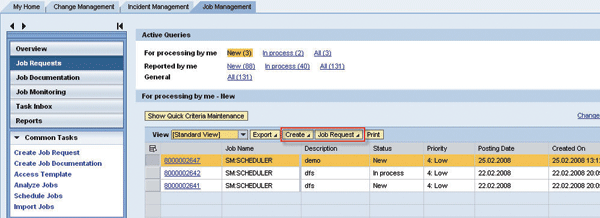
Figure 7
Edit a job request
To create a new change request or to display or edit an existing job documentation entry, switch to the Job Management tab, and then mark the change request, or documentation, and edit it. For example, click on Transaction ID 8000002647, which enables the Job Request button, and then click on Edit from the drop-down menu (Figure 7).
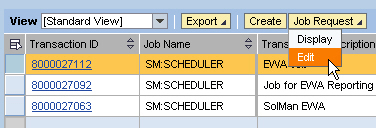
Figure 8
Create a change to a job request
Editing a job request occurs in the Service Desk of SAP Solution Manager. Click the Action button, and in the drop-down menu, you find the transaction types and dedicated actions associated with the job request that you selected, from updating a job request to creating a change request (Figure 8).
Note
Service Desk is not covered here. Look for information about Service Desk in upcoming articles, or go to
www.service.cap.com/rkt-solman for more information.
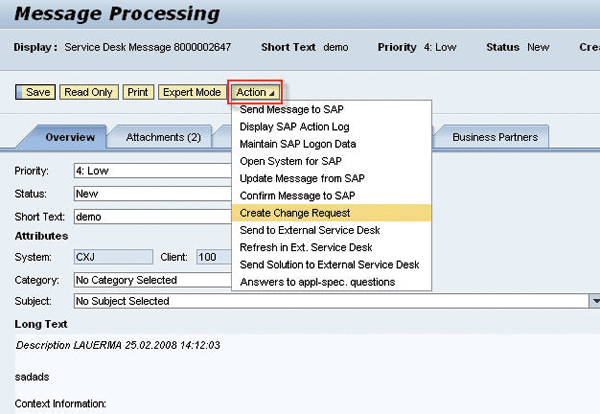
Figure 9
Search for the documented jobs using Show Quick Criteria Maintenance
The further change request management process is supported by a specific job scheduling SAP CRM transaction (SLFJ) adjusted to the specific needs of the JSM process. PS Adapter is a prerequisite for using this transaction with the job management change request template, including the automated data transfer to job documentation for further processing of the job request. For more detail, go to the detailed workflow description at www.service.sap.com/rkt-solman and follow menu path SAP Solution Manager Extensions > Process Scheduling Adapter for SAP Solution Manager.
Document the Job in the Central Job Documentation
Because you have many jobs documented, you need to find the job you want to process. Click on Job Documentation in the SAP Solution Manager Work Center, and then click on Show Quick Criteria Maintenance (Figure 9).
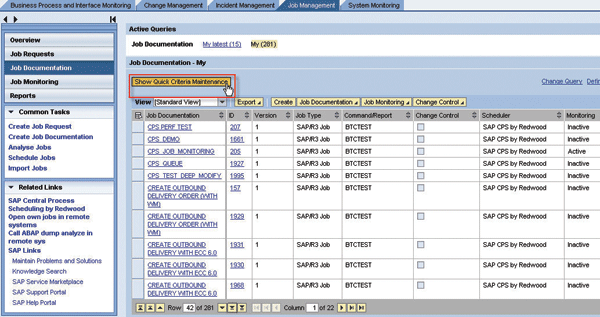
Figure 10
Enter the job-related search criteria
Enter the name of the job (SM:SCHEDULER) in the pop-up screen (Figure 10).
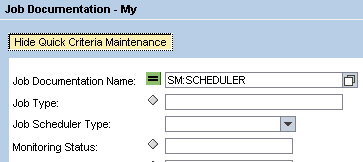
Figure 11
Display the job documentation for selected jobs
Click on your job to display the job documentation (Figure 11). Because you are using PS Adapter, the data shown in the lower section of the screen is populated automatically.
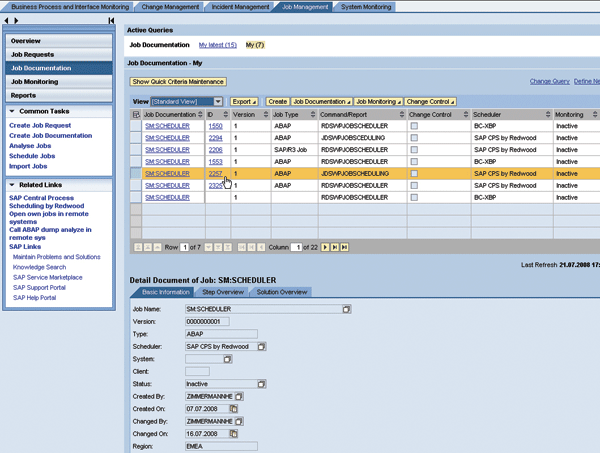
Figure 12
Select the logical component and get the system details
Next, select the system for which you want to schedule the job. Switch to the System Landscape tab, and then select the logical component (Log. Comp.), which in the example is Z_MONI_SOLMAN, and its dedicated solution (Solution), which in the example is Job Monitoring_Template_Solution for ST SER 700 2008 (Figure 12).

Figure 13
Schedule jobs
Schedule a Job Request in SAP CPS
To get to the screen with the scheduling information you want to maintain to schedule the jobs in SAP CPS, click the Schedule button in the job documentation (Figure 12). As you can see in Figure 13, you can schedule a job with this screen, and you can also analyze it using the available analysis methods, such as Job Selection (transaction 37), Runtime Errors (transaction ST22), and Job Analysis (transaction ST13). In many cases, this makes access to the CPS expert tool obsolete and again combines all the information in this central place.
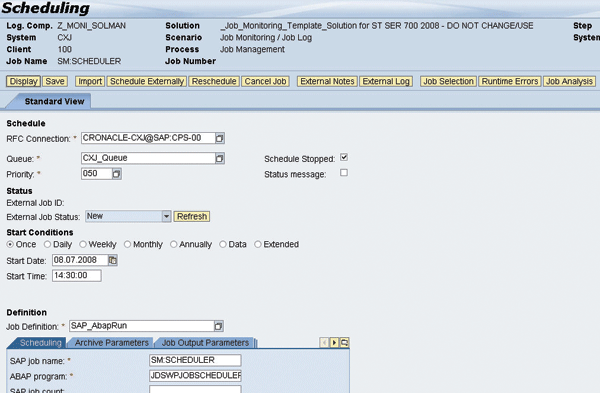
Figure 14
BPM/Job Monitoring configuration
In practice, you are free to choose JSM’s capabilities. You might start with the lean documentation/SAP CPS scenario and extend it step by step as needed.
Monitor a Job
With the help of BPM, you can monitor your scheduled and productive jobs. By using the Monitoring button in Figure 12, you can also maintain and activate BPM in the job documentation without the need to go to the BPM setup session in SAP Solution Manager. Define your alert criteria for yellow and red alerts and the way you want to be notified (e.g., via mail or service desk message) (Figure 14).
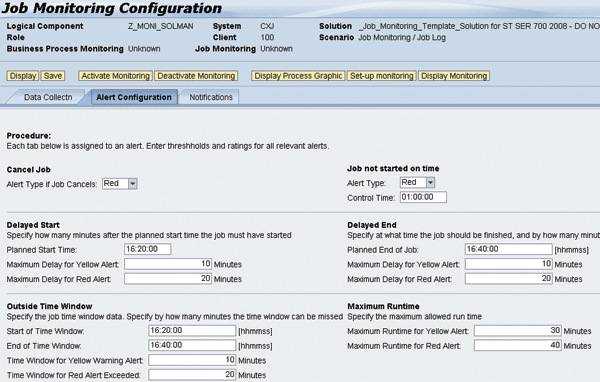
Figure 15
Select and display your job status
There are two ways to use BPM in relation to your critical jobs. The fast one is to maintain one business process including all critical jobs. This method ensures appropriate alerts and notification. The other possibility is to reuse your maintained core business processes and process steps and dedicate the jobs to each of them. This method shows upcoming errors in direct relation to the business they support so that the critical nature of the error is immediately visible and makes the after-effects directly visible.
In the Job Monitoring section of the Job Management Work Center, you have an overview of your documented and scheduled jobs (Figure 15). You can select and display your job status in relation to your solution, business scenario, or business process.

Figure 16
Detailed job information
Figure 16 displays the jobs of your selection and contains all the relevant information to decide if an alert is critical. For example, you find out for each job if there are open alerts, which means the job status changed, how often it changed, the current status of the job, and the business processes to which it is dedicated.

Figure 17
Reporting possibilities
By clicking the alert name, you can navigate to the BPM service session and make a deeper analysis of the root causes or measures to be taken. BPM is not covered in this article. Look for upcoming articles about BPM, or go to www.service.cap.com/rkt-solman for more information.
Job Request and Job Documentation Reporting
In the Reports section of the Job Management Work Center, you find several reporting possibilities (Figure 17).

Figure 18
Job documentation ad hoc reporting
To make ad hoc checks of job documentation entries, choose the Job Reports option in the navigation panel, and then choose Job Documentation Reporting. You get a selection screen with various selection possibilities to specify your search (Figure 18). Choose a Job Documentation Name and press the Enter key.
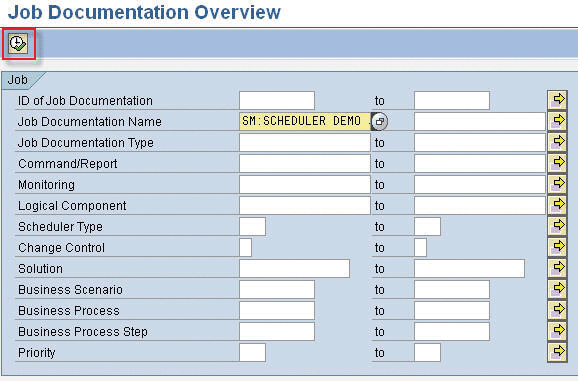
Figure 19
Results
As a result, you get the job documentation entry, which you can now check for correctness, persons responsible, related business process, and technical data (Figure 19).

Henrik Zimmermann
Henrik Zimmermann studied geography at the University of Heidelberg and the Freie Universität Berlin in Germany, where he concentrated on collaborative development and digital image processing. From 1998 to 2000, he was responsible for setting up the geomarketing area at Cartogis. From May 2000 to December 2001, he worked at SAP as a Supply Chain Management developer in the master data area. Since January 2002, Henrik has been a product manager for SAP Solution Manager, focusing on monitoring, IT reporting, service delivery, knowledge transfer, integration of testing and job scheduling partner products, and solution documentation.
You may contact the author at henrik.zimmermann@sap.com.
If you have comments about this article or publication, or would like to submit an article idea, please contact the editor.