Learn how to implement the material inventory valuation process to meet the requirements of different accounting principles, including International Financial Reporting Standards (IFRS) and US Generally Accepted Accounting Principles (GAAP). Implementing this process enables you to automate the process of inventory valuation based on commonly used valuation methods.
Key Concept
Some of the most commonly used methods for material inventory valuation are Last In First Out (LIFO) and First In First Out (FIFO). Of these methods, FIFO is more commonly used and is also acceptable to both the International Financials Reporting Standards (IRFS) and Generally Accepted Accounting Principles (GAAP). Inventory valuation based on LIFO is acceptable to US GAAP only.
All publicly listed companies need to state their material inventory values on the balance sheet in compliance with one or more accounting standards such as US Generally Accepted Accounting Principles (GAAP) or International Financials Reporting Standards (IFRS). Accounting standards generally require companies to follow either a Last In First Out (LIFO) or First In First Out (FIFO) method of inventory valuation. Many privately listed companies also valuate their inventories as it allows inventory values to be stated consistently.
In the absence of implementation of the SAP functionality for inventory valuation, business users are required to use an external database to store valuation relevant data and set up inventory valuation rules outside the SAP system to carry out inventory valuation. This process is inherently cumbersome, error prone, and, more importantly, not auditor friendly.
By contrast, in an SAP system-based process, rules for inventory valuation are set up in the system. The system uses SAP tables to prepare and store inventory valuation data. Finally, the inventory valuation process provides detailed data that explains the basis valuation for each material. This makes the entire process more transparent and thereby easier to audit.
Accounting standards, namely US GAAP and IFRS, require that organizations record the values of receipts and issues of material inventory using certain acceptable methods. For example, IFRS requires that goods receipts be valuated using a lower of cost or market (LCM) rule (i.e., goods receipts are valuated at cost or market, whichever is lower) and goods issues be valuated using a FIFO method.
However, in most accounting systems, to keep accounting simpler, both goods receipts and goods issues are valuated based on a notional price such as standard price or a moving average price (MAP), depending on the price control indicator specified in the material master record. Because this valuation is different from the requirements of the accounting standards, it is necessary to re-valuate material inventory so that an organization’s financial statements meet the requirements of the accounting standards.
SAP provides a functionality that automates the process of inventory valuation. Using this functionality, you can set up inventory valuation using various methods, including LIFO and FIFO. However, because FIFO is used widely by companies and also because it is the only method allowed by IFRS, I discuss setting up inventory valuation using a FIFO method.
Configuration Settings to Implement Inventory Valuation
Many configuration settings are common to both the LIFO and FIFO methods, but whenever the settings are method specific, I illustrate the configuration to implement a FIFO method for the reason that I mentioned earlier. I assume that you understand how material movements are valuated in an SAP system and the concept of movement types.
To enable the process of inventory valuation, you need to complete these steps:
- Activate LIFO or FIFO valuation
- Define LIFO or FIFO valuation levels
- Define LIFO or FIFO relevant movement types
- Define LIFO or FIFO methods
- Configure FIFO valuation areas
Step 1. Activate LIFO or FIFO Valuation
In this step, you define whether you want to use LIFO valuation or FIFO valuation in your company. SAP recommends that you always activate both LIFO and FIFO valuation, irrespective of which procedure you want to use.
Use transaction code OMWE or follow IMG menu path Materials Management > Valuation and Account Assignment > Balance Sheet Valuation Procedures > Configure LIFO/FIFO Methods > General Information > Activate/Deactivate LIFO/FIFO Valuation (Figure 1). In my example, I select the LIFO valuation active radio button to make this method active and then click the save icon to save the settings.
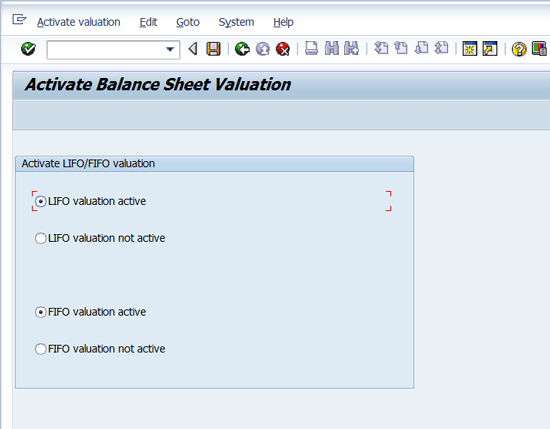
Figure 1
Activate or deactivate LIFO/FIFO valuation
Note
You need to create these settings in each client in the transport path as this setting is not transported using the transport request.
Step 2. Define LIFO or FIFO Valuation Levels
In this step, you define if you carry out FIFO valuation at a valuation area (plant) level or at a company code level.
A plant is commonly defined as a valuation area for material movement valuation purposes. I assume that in your system, valuation area is also a plant. Given this situation, you can specify a LIFO/FIFO valuation level at either the company code or at a valuation area.
If you specify valuation at company code level, then for a material, receipts of all plants in a company code relevant for FIFO valuation are considered for calculation of a FIFO price that results in one FIFO price for a material in a company code. Stock of a material in all the plants are valuated at the same FIFO price.
Instead, if you choose valuation area as the valuation level, then in each plant, the FIFO price is calculated based on the receipts for the specific plant, resulting in a different FIFO price for a material in each plant. Material stock in each plant therefore is valuated with a FIFO price specific for that plant.
In my example, I selected the option for LIFO valuation at valuation area level.
To complete this step, use transaction code OMWL or follow IMG menu path Materials Management > Valuation and Account Assignment > Balance Sheet Valuation Procedures > Configure LIFO/FIFO methods > General Information > Define LIFO/FIFO Valuation Levels (Figure 2).
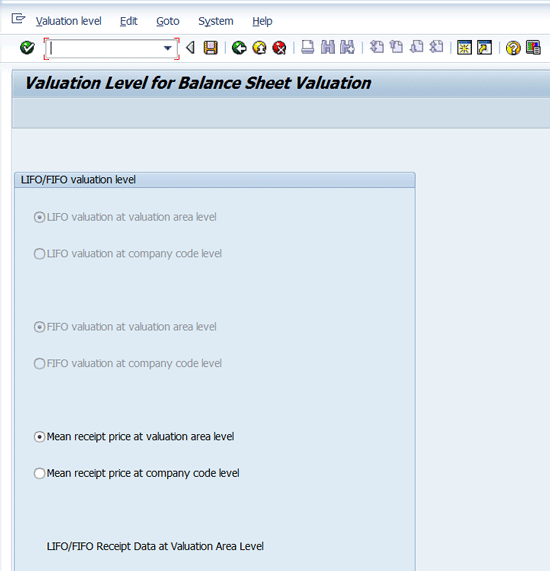
Figure 2
Define LIFO/FIFO valuation levels
Select the LIFO valuation at valuation area level radio button. Optionally, you can also choose the FIFO valuation at valuation area level radio button. Click the save icon to save your entries.
Note
After you have defined the valuation level, you can’t change it anymore. SAP has provided a program to change the valuation level with transaction code MRLH. However, when executed, this program sends the following error message: Function Currently not possible. According to SAP Note 192664, this program is not yet released and it can be used as a template to build a custom program.
Just as you did in configuration step 1, you need to create this setting in each client in the transport path, as this setting is not transported using the transport request.
Step 3. Define LIFO or FIFO Relevant Movement Types
In this step, you define which movement types are relevant for LIFO or FIFO valuation. To calculate inventory values using either LIFO or FIFO methods, the system creates separate data based on the goods receipts during a given period. To create this data, the system considers receipts with only those movement types that are selected in this configuration step.
SAP Note 167330 provides detailed guidance on selecting movement types for this configuration step.
Use transaction code OMW4 or follow IMG menu path Materials Management > Valuation and Account Assignment > Balance Sheet Valuation Procedures > Configure LIFO/FIFO methods > General Information > Define LIFO/FIFO Relevant Movement Types (Figure 3). Select the check box for each movement type you need to include in the LIFO or FIFO price calculation. Note that the column heading for the check box column is LIFO, but it is relevant for the FIFO method as well.

Figure 3
Select movement types for LIFO or FIFO valuation
Step 4. Define LIFO or FIFO Methods
In this configuration step, I discuss how to define methods for LIFO or FIFO valuation. Although you can define valuation methods both for LIFO and FIFO valuation, as I have mentioned at the beginning of the article, I discuss inventory valuation using a FIFO method.
When you run a process for LIFO or FIFO valuation, you need to specify a valuation method in the selection screen. A valuation method contains parameters for carrying out inventory valuation. A user running an inventory valuation process cannot change the parameters contained in the valuation method. As result, you ensure that the inventory valuation is performed consistently over a period of time.
Note that results of FIFO valuation are updated in the database with reference to the FIFO method used. Afterward, you can no longer change the FIFO method affected.
To create a valuation method, use transaction code OMWP or follow IMG menu path Materials Management > Valuation and Account Assignment > Balance Sheet Valuation Procedures > Configure LIFO/FIFO methods > General Information > Define LIFO/FIFO Methods.
In the screen that appears (Figure 4), click the New Entries button.
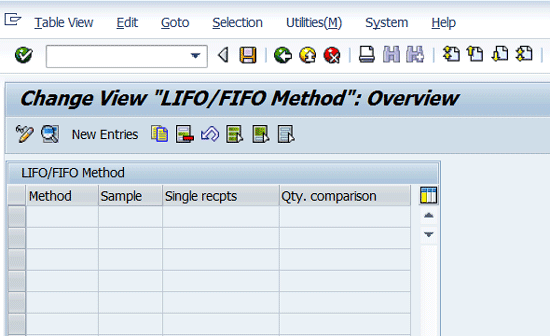
Figure 4
Define a LIFO or FIFO method
In the next screen (Figure 5), assign a suitable name to a valuation method (e.g., FIEXPT). To define a FIFO valuation method, select 01 in the Sample field from the drop-down list. Note that this is the only option available for defining FIFO methods. The Single receipts check box specifies whether the system should create a separate receipt record for each relevant transaction. If you do not select the check box, then receipt data is created in a summarized manner. If you choose not to select the Single receipts check box, then for each period, one record is created for a valuation area or company code and a material. Click the green arrow icon to save your data.

Figure 5
Define a FIFO valuation method
I recommend creating two FIFO valuation methods: one with a single receipt indicator turned on and the other with summarized data (indicator is not turned on). The first FIFO method creates individual receipt records and is helpful to explain valuation results to the business stakeholders (or auditors) during user acceptance testing and initial implementation period.
Once users are comfortable with the valuation results, you can switch to use the valuation method with summarized data. The benefit of using the summarized data method is less data volume and that the system creates receipt data automatically, whereas in the single receipt method, you need to run the receipt data creation process in every period.
You also need to populate the Qty. comparison field. Enter the value VOM, which means FIFO valuation valuates the closing stock of the previous month.
Step 5. Configure FIFO Valuation Areas
In this step, you configure all the plants for which FIFO valuation should take place. Note that in configuration step 2, I specified FIFO valuation level at a valuation area.
To complete this step, follow IMG menu path Materials Management > Valuation and Account Assignment > Balance Sheet Valuation Procedures > Configure LIFO/FIFO methods > FIFO > Configure FIFO Valuation Areas. This menu opens the screen shown in Figure 6. Click the New Entries button. In the fields under the FIFO Valuation Level column, add the plants you want to be included in FIFO valuation (e.g., 0001 and 0002). In the column Base Year, specify the year from which FIFO valuation should commence (e.g., 2014).
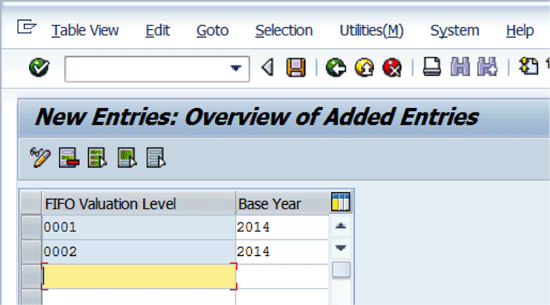
Figure 6
Specify FIFO valuation areas
This concludes configuration for setting up the FIFO valuation method. I now discuss steps to be carried for preparation of data relevant for carrying out inventory valuation.
Initial Data Preparation
Before you run FIFO valuation for the first time, you need to carry out two steps:
- Update material master data with a LIFO/FIFO relevant indicator
- Create receipt data
To update material master data with a LIFO/FIFO relevant indicator, you can either execute transaction code MRF4 or follow menu path Logistics > Materials Management > Valuation > Balance Sheet Valuation > FIFO Valuation > Prepare. In the selection screen that appears (Figure 7), enter the company code that is a mandatory field. Depending on your material master data volume, enter either a specific plant in the Plant field or keep it wide open for a company code. For new implementations you may prefer to run this transaction in a test mode. Uncheck the indicator Material Master and FIFO Index Table to run this transaction without updating the database. After you validate the potential change, you then select this indicator to update the database. Other selections are self-explanatory.

Figure 7
The selection screen for setting the LIFO/FIFO indicator
Execute this transaction in the background either by clicking F9 or following application menu Program > Execute in Background. Based on my experience of previous implementation, I recommend that you run this program at a time when only a few users are using the system, as this process takes a substantial amount of time and also needs a lock on material master data. After you execute this transaction, the system creates a log (Figure 8) that provides information on the update of material master data.
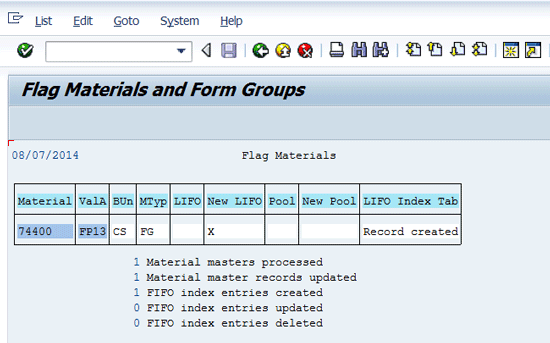
Figure 8
Log of setting LIFO/FIFO flag on material master
Note that I have run this process just for one material for demonstration purposes. However, in an actual update run, this log is available in a spool after the background job is successfully completed.
As a result of the above process, material master data is updated as shown Figure 9.
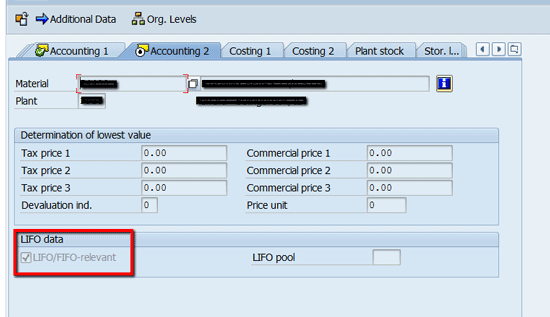
Figure 9
Setting up of LIFO/FIFO relevant flag
Note that after the initial data setup, new material masters should be created with these indicators turned on to include these materials in the valuation process.
Create a Summarized Receipt Extract
If you are using a summarized data option, then the receipt extract needs to be populated only once (that is, the first time FIFO/LIFO valuation is carried out). After the initial receipt data creation, the system creates or updates the receipt data automatically each time a relevant value movement takes place. However, if you have chosen a single receipt data option, after the initial data extract you need to run this process for each period.
It is likely that you have implemented this process in the middle of the fiscal year and there is a substantial receipt data to be created. Therefore, this process takes a long time to complete, and you need to run it in the background. Execute transaction code MRF3 or follow SAP menu path Logistics > Materials Management > Valuation > Balance Sheet Valuation > FIFO Valuation > Prepare > Create Document Extract.
Enter the FIFO valuation method you have created in the configuration step 4 earlier (e.g., FIEXPT) in the FIFO Method field in the selection screen that appears (Figure 10). In the Company Code field, enter a code. Other data-restrictive selections are optional. For Time Restrictions, although you can enter any start date, I suggest entering the first date of a fiscal year to create data in a fiscal year. Select all three check boxes in the Options section. You can select the Receipt Data indicator in the Update section to run this process in a test mode.
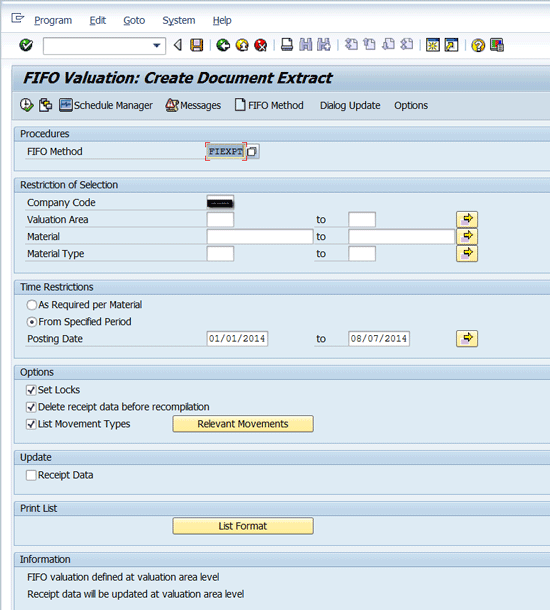
Figure 10
Create receipt data
After the above transaction is successfully run, the system creates a log of receipt data. Figure 11 displays a log of summarized receipt data creation. This log is displayed if you run the process in the foreground. Because you are running this process in the background, this log is created in a spool request.
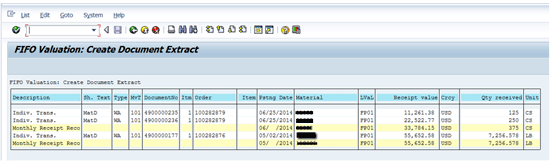
Figure 11
Log of summarized receipt data
If you use a FIFO method with single receipt data, then the system creates data in the format shown in Figure 12.

Figure 12
Log of single receipt data
This completes the steps for creation of valuation relevant data. After successful completion of these steps, you may commence the actual FIFO valuation process.
The FIFO Valuation Process
For FIFO valuation, you can either execute transaction code MRF1 or follow menu path Logistics > Materials Management > Valuation > Balance Sheet Valuation > FIFO Valuation > Perform Check. Executing this transaction takes you to a selection screen (Figure 13).
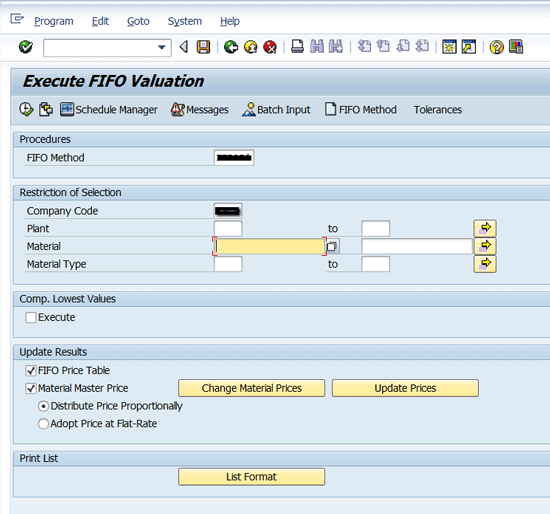
Figure 13
FIFO valuation selection screen
In the selection screen, specify the same FIFO valuation method that you used to create the receipts data. Indicating the company code for which you would want to run the FIFO valuation is mandatory. Note that you can run the FIFO valuation for only one company code at a time.
There are more options on how you would like to process FIFO valuation in your organization. You can combine FIFO valuation with the lowest value principle by selecting the Execute checkbox in the Compare Lowest Values section. If you select this option, the system compares the gross FIFO price with the reference price from the material master and the lower of these two prices is the net FIFO price.
To select this option, select the Execute check box, the button Price Selection appears next to the Execute check box. If you click this button, a pop-up screen appears (Figure 14) that allows you to choose one of the tax prices or commercial prices as a reference price.
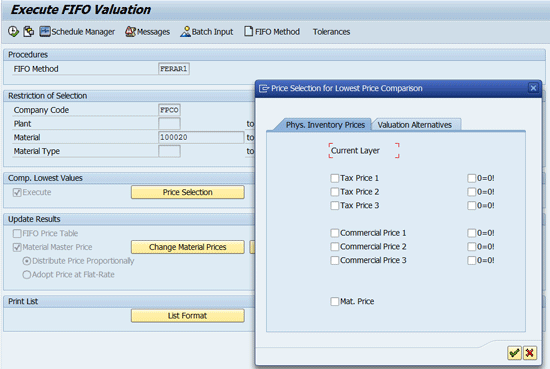
Figure 14
Selection of lowest value principle price
In my example, I run the FIFO valuation process without combining it with the lowest value principle.
In the Update Results section of Figure 13, you can choose to update:
- FIFO price table
- Material Master Price
If you want to run this transaction in test mode, do not select either of these check boxes. After the results of FIFO valuation are accepted, then you can choose to select one or both of the check boxes.
By selecting the check box Material Master Price, you can update the material master with the FIFO price. Selecting this check box makes the Change Material Prices and Update Prices buttons visible on the screen (Figure 15).

Figure 15
Update of material prices
If you click the Update Prices button, a pop-up screen appears (Figure 16) in which you select check boxes for one of the tax, commercial, or plan prices to be used for updating the FIFO price. This update is for information purposes only and does not change stock value. However, you also have an option to update the material price and valuate the stock using the FIFO price. For this, click the Change Material Prices button. In the pop-up screen, select a radio button Batch Update or Direct Update to update the material price and post an accounting document with a price difference.

Figure 16
Choose material price update field
After successful execution of the FIFO valuation process, the system provides a log in the format shown in Figure 17. Because this process takes a substantial amount of time, you should run it in the background.

Figure 17
Log of FIFO valuation process
In the log, the system displays closing stock quantity and closing stock value for each material and plant as well as the stock value based on FIFO price and the difference between the two. Additionally, summary totals for each valuation area or company code by material stock account is also displayed.
Finally, for correct calculation of a FIFO price, there should be enough receipts in a period to cover the closing stock. However, if the total receipts in a period are less than the closing stock, then you need to set tolerances to still be able to calculate the FIFO price.
On the selection screen in the application tool bar, click the Tolerances button (Figure 13). In the pop-up screen that appears (Figure 18), define how much shortfall of receipts should be tolerated and how receipt value should be determined for this shortfall.
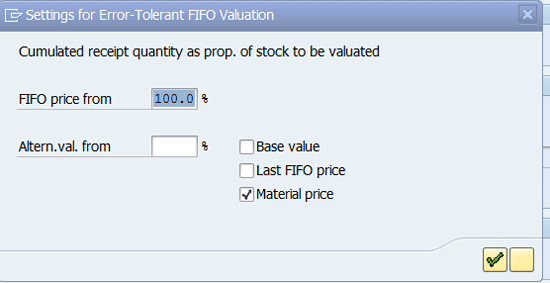
Figure 18
Tolerances for receipt shortfall
In Figure 18, the field FIFO price from is used to set an upper tolerance percentage. The system uses a percentage specified in this field to determine an acceptable shortfall in receipts and therefore the calculated FIFO price is used as is. For example, if I set this tolerance as 90%, and if the receipts are only 91% of the closing inventory, then the system ignores the shortfall and still uses the calculated FIFO price.
The Altern.val. from (Alternative value from) field is used to set a lower tolerance percentage. If the receipts shortfall is between the percentage specified in this field and the upper tolerance percentage, then the system calculates the FIFO price by valuating the shortfall using one of the following options:
- Base value (use the oldest available receipt in a period to valuate)
- Last FIFO price (use the last FIFO price)
- Material price (use the material price)
The FIFO price is not calculated for materials with a receipt shortfall below the lower tolerance percentage level.
To review some of the steps described in this article, refer to the following video:
Set Up Inventory Valuation to Help Prepare Financial Statements in Compliance with Accounting Standards
Sanjay Wagh
Sanjay Wagh has 28 years of professional experience in manufacturing, banking, and consulting in global companies. Sanjay started as a product engineer and corporate finance specialist and seamlessly transitioned to a consultant, assisting other companies in implementing software systems. Sanjay combines his experience in manufacturing and finance with consulting experience to help clients design and implement business processes using best practices in a cost-efficient, risk-free manner with a long-term perspective. Sanjay has 16 years of SAP software implementation experience in the areas of FI and CO along with several end-to-end SAP project life cycles. He has participated in conducting requirements gathering and business blueprinting workshops, realization, testing, end-user training preparation and delivery, and post-implementation support. He is a certified SAP solution consultant.
You may contact the author at wagh65@yahoo.com.
If you have comments about this article or publication, or would like to submit an article idea, please contact the editor.