If you require more flexible communication with your employees than what infotype 0128 offers, then text modules and rules might better fit your needs. Customize this technique to meet your company’s requirements.
Key Concept
Text modules in HR Form Editor (transaction PE51) represent literal text on a payslip. Rules exert logical control over the appearance and selection of data. You can use rules to build simple IF statements for conditions without using ABAP code. The rule table is flexible enough to configure various simple business scenarios. You can pull data from tables (e.g., BNKA [bank data]; RT [result table]; infotype tables P0001, P0002 and P0041; constant table T511K; and TAXPR [tax authority]) and build IF statements.
HR departments frequently need to communicate a generic message about payroll, benefits, or an upcoming holiday to all employees. Although you can use infotype 0128 for this purpose, you have to configure text and maintain the infotype for all active employees to whom you intend to send the communication. In addition, you cannot adapt this infotype to meet specific business rules. This two-step process of preselecting and assigning employees is time consuming.
Instead, you can deliver the same results by using standard SAP functionality of text modules and rules in HR Form Editor, transaction PE51. Rules give the flexibility of printing text messages based on the logic you build to create them. For example, my client recently wanted to send payslip messages to all active employees only for the last two pay periods of the year (pay periods 25 and 26). These messages asked employees to check their mailing address and fill in a W-4 form for 2007. The payslip looks like Figure 1. You can adapt this technique to fit your own business requirements.
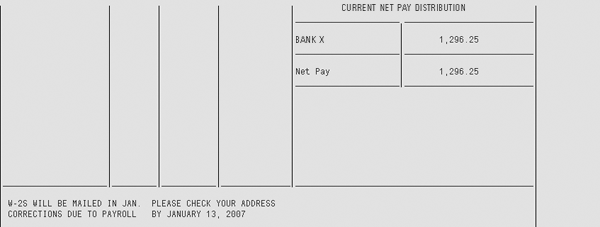
Figure 1
Finished payslip message
While you could meet this requirement using infotype 0128, I saved time and the client saved money by using text modules and rules. Keep in mind that you should perform a detailed analysis of both methods before deciding. I implemented this technique with R/3 4.5B to 4.7 Extension Set 1.10. As long as your release of R/3 or mySAP ERP Central Component (ECC) has standard PE51 functionality and SAPscript, this technique should work.
Using text modules and rules offered several advantages. The back-end configuration of SAP text modules and rules in transaction PE51 is standard, so I didn’t need ABAP development or an upload template and program. In addition, I had no need to filter active employees from infotype 0001/0000 (the first step for using infotype 0128). This technique offers flexibility to change logic by fine- tuning rules in transaction PE51. The end users aren’t involved in the process. There’s no need to upload anything (which you must do when using infotype 0128). However, this technique comes with a couple of drawbacks. It requires an experienced consultant to build rules in transaction PE51 and customization for transporting every change.
Detailed Steps
Step 1. Configure common text. Start by creating blank text using SAP text modules by using transaction code PE51 or following menu path SPRO>SAP Ref IMG>Payroll>Payroll USA>Forms>Remuneration statement>Set up Remuneration statement. The ELSE condition of the IF statement is to print blank text if the current pay period falls between the last two pay periods. Enter the Country grouping (10 for US) and the name of the form that configures payslips, ZF03 (Figure 2). Next, select Text modules and click on the Change button to see Figure 3.
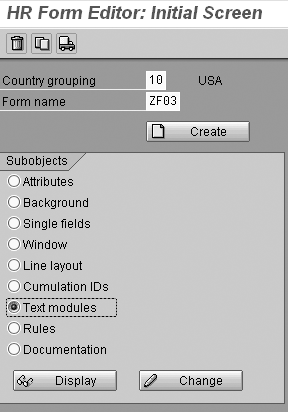
Figure 2
Enter Form name ZF03 in transaction PE51

Figure 3
Create text lines
Step 2. Set up text modules. Create two sets of text modules. The first set includes lines M1 and M2 and the second set consists of ME and MF. To add a line, use the add line icon  . Use the M1 and M2 lines as blank text. When you create lines, they are blank by default. In the ME and MF lines, type the text message to print on the payslip (Figure 3).
Step 3. Set up blank text modules M1 and M2 in single fields. Assigning newly created text modules M1 and M2 to single fields enables you to print messages at the appropriate position on the payslip. Fixed coordinates define each position on the payslip (e.g., 81, 3 indicates line 81 and column 3). You must add the single field at particular coordinates on the payslip.
Standard payslips consist of different windows. Window 4 (W4) normally prints text messages, so let’s use W4 to position the single field and text messages M1 and M2. Go back to the main screen of PE51 and select the Single fields button. Position your cursor to the line and column number where you want to insert text, lines 81 and 82 in my example (Figure 4).
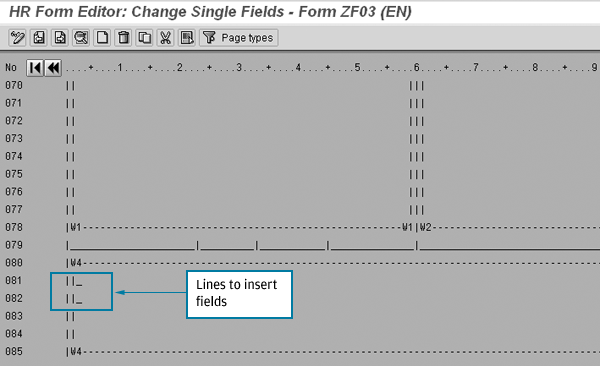
Figure 4
Window W4 to add single field
Read the coordinates of the cursor (81, 3) to select the position to add the M1 text module. Click on the create icon in Figure 4 to get to the screen in Figure 5. Enter EP (meaning print the content on each page) as the Page type, 81 and 3 (indicating line 81, column 3) as the Position, and M1 as the Text module. Repeat the procedure to add the M2 text module on the next line with coordinates 82 and 3.

Figure 5
Add text module M1 at position 81, 3
Step 4. Create a rule. Let’s use the rule for printing the payslip message only for the last two pay periods. Use the pay dates of the last two pay periods from table (T549S) and use rules to build IF statements.
First, I must decide on the program conditions for the IF statement. I use the following business logic: If the pay date falls in between the last two pay periods, then replace and print text modules M1 and M2 by ME and MF, respectively. Or else, print M1 and M2. M1 and M2 are blank text, so nothing will print for the first two pay periods.
To build program conditions to meet this business logic, go to transaction PE51 and click on the Rules button, then click on the Change button. R/3 takes you to a screen to change rules (Figure 6). Use the add line icon to add rules Z3 and Z4.
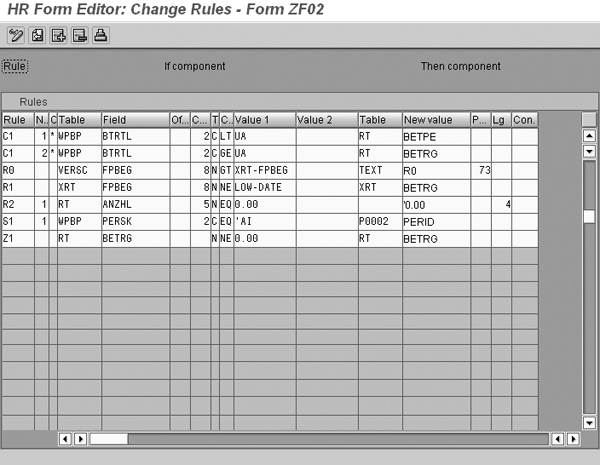
Figure 6
Change or create rules
Create rule Z3 to replace the text module M1 with ME if the pay period falls between the last two pay periods. Rule Z3 pulls pay dates from table VERSC and field PAYDT and compares numeric value (N) of the pay date with the first and second comparison values (i.e., 20061215 and 20061229). If PAYDT falls between (BE) comparison values, then the new value ME replaces the blank text line from table TEXT.
To configure each column of the rule table for rule Z3, enter these parameters (Figure 7):
- Rule: Z3
- Sequence Number: 1
- Subsequent rule indicator: *
- Table: VARSC (to get pay dates)
- Field: PAYDT (of table VARSC)
- Offset: blank
- Comparison length: 1
- Comparison type: N (denotes a numeric comparison is carried out)
- Relational Operator: BE (for between)
- First comparison value: 20061215 (pay date for period 25, note the date format YYYYMMDD)
- Second comparison value: 20061229 (pay date for period 26)
- Table name: TEXT (to be replaced) New value (if condition): TRUE (to replace with ME)
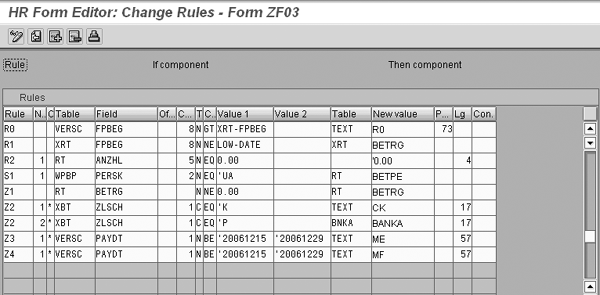
Figure 7
Build rules Z3 and Z4
Follow the same sequence to create rule Z4 to replace M2 by MF.
Step 5. Link rule with the text module and single field. Now let’s link rules Z3 and Z4 to single fields M1 and M2. Go back to main transaction PE51 and select the Single field button. Click on the Change button. Select the exact coordinates of the M1 field (81, 3) by entering 81 and 3 in the Line and Column fields, respectively (Figure 8). Press enter to place the cursor on these coordinates. Once you position your cursor on 81 and 3, select the details icon to see single field M1 (Figure 9). Insert rule Z3 in the Rule field of the Print options section in the Change Single Field window. Figure 10 shows the selected coordinates of field M1 and rule Z3.
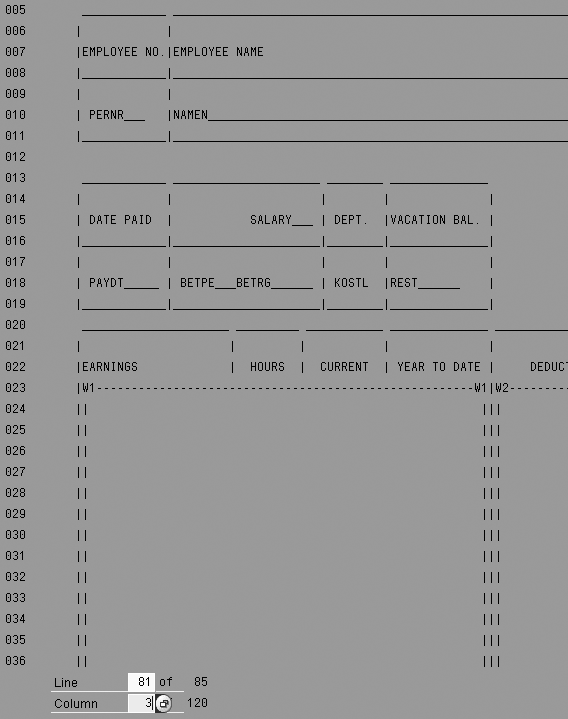
Figure 8
Enter the coordinates of the M1 field

Figure 9
Details of single field M1
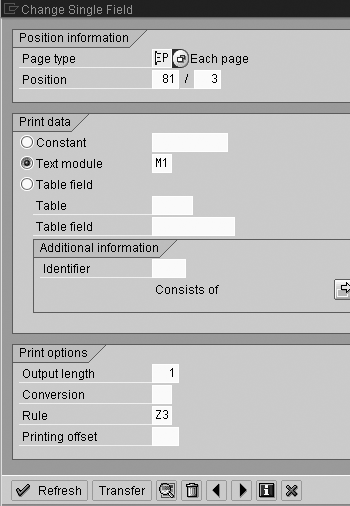
Figure 10
Link Z3 to M1 in single field 1
This completes all the steps of configuring text modules and rules for printing the message only for pay periods 25 and 26 for all payroll areas. A customizing request stores all of the above changes. You need to ask your transport manager or Basis support person to transport the request to the quality client (QA) for testing.
During your test, expect these results: Pay period 24 should print blank text from lines M1 and M2 (Figure 11). Pay period 25 and 26 should print the message you added to lines ME and MF (Figure 12). Pay period 01 of year 2007 should have blank text. If your test results differ from what you expected, then examine rules Z3 and Z4 for correctness.

Figure 11
No text appears at the bottom of the payslip

Figure 12
Year-end messages appear at the bottom of the payslip
Edit Rule Maintenance
It’s effortless to maintain your new rule for later years. Change the date range per pay dates of the year (e.g., 2007) in table T549S via transaction SM31, view V_T549S. Get the pay dates for your pay period of that year. In transaction PE51, click on the Rules button, then click on the Change button. Change the date range in the comparison Value 1 and Value 2 columns of the rule table according to the new dates (Figure 13).
Abhijit Parab
Abhijit Parab is a certified SAP HR consultant. He works as a senior SAP HR consultant with Fujitsu Consulting. He has a master’s degree in human resources management and has 15 years of business experience. He has implemented and supported SAP Payroll (USA and India) and the Personnel Time Management module.
You may contact the author at abhijit.parab@us.fujitsu.com.
If you have comments about this article or publication, or would like to submit an article idea, please contact the editor.