The report-report interface supports drill-through functionality to jump from one report to another. The author explains how more robust filtering can be added via the interface as users drill through two reports.
Key Concept
The report-report interface lets you link together reports that contain a limited number of characteristics so that you can report on a number of different combinations of data online. This helps you to avoid the problem of having particularly large reports with volumes of data that they cannot be constructed online and have to be planned as a background job.
Recently, a client came to me looking for a way to monitor complaint messages after they were opened. The client added a twist by requesting the ability to identify additional complaints received after the initial problem was corrected via drill-through functionality. This required a little ingenuity.
The solution I came up with offers end users a great tool that provides enhanced filtering. I built two reports — a sender and a receiver. The reports have the ability to interact with each other so users can drill into a report and learn if other complaints are registered after a problem is resolved. Using my approach, end users are able to apply characteristic values that differ from the characteristic values that were just filtered. To do this, BEx technology and the Web Application Designer (Web AD) need to work in concert via the report-report interface.
The sender report I created passes filter parameters to the receiver according to the appropriate navigation results. For example, if during navigation the sender report is filtered by the parameters Cal. Year/Month = 04.2003 and Attendee = 00029032, then these parameters are delivered as filtered to the receiver report when an end user drills through the sender. My client wanted the Cal. Year/Month parameter delivered in such a way that the receiver would apply the filter itself to all values less then or equal to 04.2003 (e.g., Cal. Year/Month <= 04.2003) instead of just being filtered by 04.2003 (e.g., Cal. Year/Month = 04.2003).
First, I’ll show you the problem I faced in the BEx environment, when I’ll expand the focus to the Web AD implementation.
The BEx Solution
Before I detail the solution, you’ll need some background information. My client had BW 3.0B with Patch 11 implemented, but my approach can be used with all BW 3.x systems. I used InfoCube 0PE_C02 (Professional Training Provider) and both the sender and receiver reports in this example have identical structures to demonstrate the drill-through parameters in each.
First, create a receiver report and insert the Date characteristic in either the Free Characteristic, Filter, Rows, or Columns of the BEx Query Designer. I used characteristic 0CALMONTH in this case.
Next, I created the variable ZRECEIVE to restrict the Date characteristic by setting the Processing by field to User Entry / Default Value. The variable properties are presented in Figure 1.
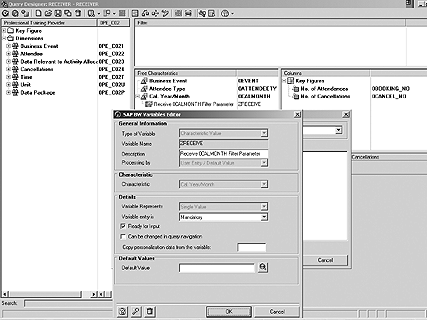
Figure 1
Set the Processing by field to User Entry / Default Value when you create your custom variable (ZRECEIVE)
Restrict the Date characteristic in step 1 with the variable established in step 2. The Selection field must be set to Value Range but the selection restriction can vary. Depending on your needs, restriction options can include Between, Greater than or equal to, Less than or equal to, Greater than, or Less than. I used the Less than or equal to option to receive filter parameter Cal. Year/Month = 04.2003 and filtered it such that Cal. Year/Month <= 04.2003.
Now, create the sender report with the same Date characteristic used for the receiver report. Define it as the report sending parameters and the receiver as the one receiving them via transaction RSBBS. Run the sender report and filter it by a single date value (0CALMONTH = 04.2003) while navigating (Figure 2).

Figure 2
Run the sender report and filter it while navigating
Drill through the sender to jump to the receiver report. Because the variable is inserted into the Free Characteristics area in the BEx Query Designer, you cannot see how the 0CALMONTH characteristic is filtered after bringing up the results. To show the filter, follow the menu path Layout>Display text elements>Filters in the BEx toolbar. Figure 3 shows that the receiver report is filtered on a Date characteristic and the filter definition is 0CALMONTH <= 04.2003.
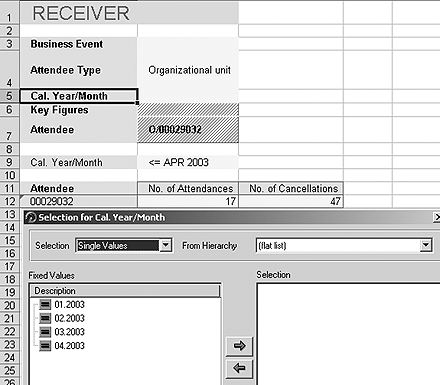
Figure 3
The receiver report is filtered on a Date characteristic
Note that if you drill through the receiver report without first filtering on a Date characteristic in the sender report, the receiver will prompt you to enter a date. This is because the report did not receive a Date parameter from the sender report and its variable is defined as Mandatory and Ready for Input, so it must receive a Date parameter. You will get the same prompt if you run the receiver report alone.
The Web AD Solution
Instead of launching sender and receiver queries in a Web browser from within BEx environment, I created two Web reports — one for the sender and one for the receiver — in the Web AD that are independent of the BEx reports. In addition to enhanced query performance, this approach allows for a better front-end architecture and easier access to the reports repository.
Open the Web AD and create the report SENDER_WEB. Select the BEx sender report as DATAPROVIDER and create the RECEIVER_WEB report based on the corresponding BEx report.
In the BW environment, execute RSBBS and access the Maintain Sender/Receiver Assignment screen. The BEx sender report is listed in the Query tab along with the BEx receiver report, which was previously defined. It is located in the Receiver section of the screen.
Press Shift+F4 for the Report Assignment prompt and select the BW Web Application option under the Report Type tab. In the Report section, locate the RECEIVER_WEB report (Figure 4), and press F8 to transfer your selection.
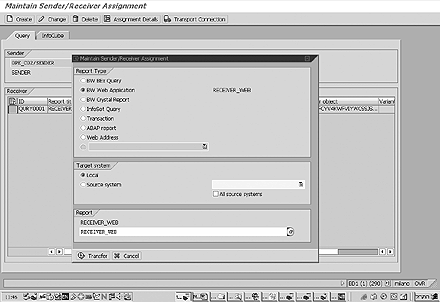
Figure 4
Locate the RECEIVER_WEB report and transfer selection
Now you are able to drill through from your SENDER_WEB report to the two queries in Figure 5. The difference between the two is that RECEIVER_WEB report is custom designed to meet the customer’s needs.

Figure 5
You can add more Web AD elements to enhance your reports
You can add more Web AD elements and enhance the RECEIVER_WEB report. For example, you could add a filter element like I did to the report template to display how the report is filtered. Various other options are also available via the Web AD including changing the visual appearance of the report. The BEx receiver report is available in the Goto option of the SENDER_WEB report and can be displayed through a Web browser. This is the default option and based on a standard SAP template that cannot be changed or edited.
Iliya Ruvinsky
Iliya Ruvinsky is a managing partner at Skywind Consulting Ltd., Israel. He is an SAP-certified BW consultant and instructor with more than 12 years of experience working with SAP BW and SAP BusinessObjects. He is an implementation and project management expert, serving for more than eight years as a trusted advisor to a wide range of Israeli enterprises, including in the insurance, energy, sales, and logistics industries. He is a graduate of the University of Tel Aviv, Israel, holding an MBA in information systems analysis.
You may contact the author at iliya.r@skywind.co.il.
If you have comments about this article or publication, or would like to submit an article idea, please contact the editor.