Manager
Learn how you can use a Thread Dump Analysis in SAP Solution Manager to identify performance problems in the Java stack and isolate the problem to a specific Java package or application.
Key Concept
An important part of performance tuning on the Java stack is to create and perform a Thread Dump Analysis. Thread Dump Analysis is one of the tools integrated into Solution Manager Diagnostics, and it provides valuable insights into the status of your system’s Java thread activity.
If a Java application is performing slowly or the average response time per user click is not acceptable, you can start with some initial performance-tuning activities to determine the problem. After using End-to-End Workload Analysis to determine that the component causing a problem is a Java component, the next step is to identify any possible resource bottlenecks (e.g., CPU, disk, or memory problems). If these are not the problem, you can then use Thread Dump Analysis to examine the state of the Java thread activity and find threads that might be blocked or in a deadlock.
Why is a Thread Dump Analysis the next logical step? The answer involves the fact that SAP NetWeaver Java Application Server is multi-threaded. When an application is executed on the Java stack, a number of threads are created and destroyed as required by that application. Threads allow a sequence of executing instructions to run independently from other threads, but they can also share data with other threads. If there is a performance problem on the server process, it is only possible to monitor the status of the server process using standard tools. You cannot monitor thread statuses with standard tools, however. This is because threads exist within a server process in the Java application server, and information about these threads is not easily available. To solve this, Thread Dump Analysis allows you to take a “snapshot” of the state of all Java threads in the server process at a particular time. Using this information, you can identify the particular Java application that may be causing problems.
Threads and Thread Dump Analysis
Multi-threaded execution is an essential feature of the Java platform. Every application has at least one thread, the main thread. This thread has the ability to create additional threads as required. A Java thread dump can determine what every thread in the Java Virtual Machine (JVM) is doing at a particular point in time.
Thread Dump Analysis is useful because it creates a view of the activities of all the Java threads in a server node. This information is particularly important for a Java environment because it gives you a complete overview of what the threads are doing. It’s the equivalent of transaction SM50 (Work Process Overview) in ABAP terms. However, unlike the ABAP stack — which allows you to monitor work processes and end a process if necessary — there is no equivalent tool in Java that allows you to actually monitor the Java threads. Therefore, you need to trigger a series of thread dumps in short intervals to determine the status of the Java threads. This will help you discover why the system or some requests are slow or simply not responding to requests. I’ll review this next.
Note
Solution Manager Diagnostics is part of SAP Solution Manager 7.0. It offers all the functions to analyze and monitor an SAP NetWeaver system landscape — and Java functions in particular. The screenshots and navigation paths in this article are based on Solution Manager Diagnostics 7.0 with Support Package Stack 15.
Perform a Thread Dump Analysis
Access the Thread Dump Analysis by following menu path Root Cause Analysis > Workload > Java > Thread Dump Analysis or Root Cause Analysis > Exceptions > Java > Thread Dump Analysis. Figure 1 shows the three options for triggering a thread dump:
- Trigger Dump – Trigger a single thread dump for immediate ad hoc analysis
- Trigger a Series of Full Thread Dumps (Start Now) – Trigger a series of thread dumps over a short interval, such as 10 thread dumps every 20 seconds
- Schedule ThreadDumpTask – Trigger a thread dump or series of thread dumps to run at a scheduled time using the details specified

Figure 1
Entry screen for Thread Dump Analysis and the various triggering options
I recommend using the second or third option. They are basically the same, except that option 2 runs immediately while option 3 can run at a later time.
Once you have created the thread dumps, you can analyze them using the Analyze button. You’ll be able to view a list of the thread dumps in the detailed selection screen (Figure 2). This gives you a summary of all the thread dumps that have been created on that server node and any events that might have occurred in that server node, such as a restart or a deadlock situation. You can also analyze the details of a single thread dump, view deadlocks that occurred, and see any threads that might be part of custom code created within your organization. As you can see in Figure 2, there are problems with deadlock in my example.
Note
Custom code refers to code that was developed by a particular company. It’s easier to fix custom code because it was developed internally and the source code is available. If it is SAP code, then it cannot be changed easily and you will likely have to request a fix from SAP.

Figure 2
List of thread dumps
Deadlock
Deadlock is a situation in which two or more threads are blocked as they wait for each other. This means that each thread is holding on to or locking a resource that the other thread needs. As a result, neither is able to proceed with the application. The user, in the meantime, experiences a standstill situation with the application he or she is trying to run.
Figure 3 displays a deadlock situation that was detected in Thread Dump 11. It is marked with a red triangle. You can download this information into a text file by clicking the “click here to download data” link. The file typically looks like the example shown in Figure 4.
Found one Java-level deadlock: ============================= "Thread-2": waiting to lock monitor 0xb48d8 (object 0xf203fe18, a java.lang.Object), which is held by "Thread-1" "Thread-1": waiting to lock monitor 0xb48a0 (object 0xf6112a88, a java.lang.String), which is held by "Thread-2" Java stack information for the threads listed above: =================================================== "Thread-2": at Locker.run(Deadlock.java:98) - waiting to lock (a java.lang.Object) - locked (a java.lang.String) "Thread-1": at Locker.run(Deadlock.java:98) - waiting to lock (a java.lang.String) - locked (a java.lang.Object)
|
| Figure 4 |
Deadlock information on two threads |
In the simple example shown in Figure 4, two threads are affected. The thread names are Thread-1 and Thread-2. The name of the affected application is Deadlock.java. Without a Thread Dump Analysis, this information is difficult to obtain.
Once a deadlock situation has been identified, it is necessary to restart the server node. When the name of the application has been identified, you must make changes to the Java code to prevent the deadlock. You can use methods such as lock ordering and lock timeouts. Lock ordering ensures that all locks are always taken in the same order by any thread so that deadlocks cannot occur. Lock timeouts put a timeout on lock attempts, which means that a thread trying to obtain a lock only tries for so long before it times out.
Thread Conditions
It is also important to analyze the condition of the threads in the thread dump. Figure 5 displays a single thread dump, which you can find under the Single Dump tab.
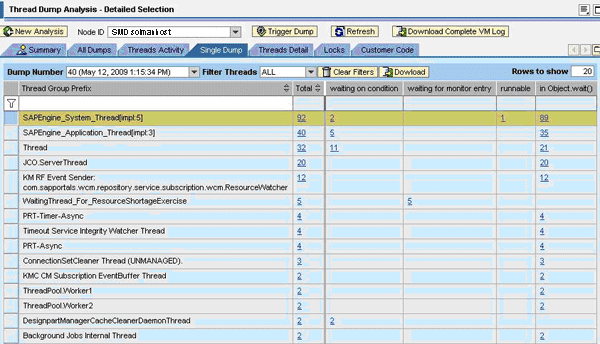
The example in Figure 5 shows all the different thread categories with some of the conditions of the threads when the “snapshot” was taken. Your analysis should be primarily focused on the application threads, as they process the application logic. You should also check every single thread dump for threads with the “waiting for monitor entry” condition. These threads are waiting to enter a synchronized block or method to get a Java monitor that is blocked by another thread. This has a serious impact on the performance of the application and is considered a critical condition.
In the Locks tab, you can select the threads that are in “waiting for monitor entry condition” and determine the lock holder and lock waiters to determine what’s blocking the thread (Figure 6).
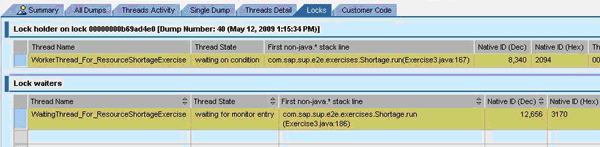
If this is not possible, then you can return to the Single Dump tab and check the threads that are in the “runnable” condition, which means that they are currently executing in the JVM but might be waiting for other resources from the operating system, such as CPU.
Thread Dump Analysis allows you to review the state of a multitude of Java threads and narrow down a performance problem to a specific Java package or application. Therefore, it is recommended that you create a sequence of thread dumps to check long-running threads. In each thread dump, you should look for threads with the “waiting for monitor entry” condition. Also, check for the existence of a deadlock situation and identify any high activity in custom coding sections. The limitation of the thread dump is that it does not show CPU or memory consumptions of the threads. However, the information that you can obtain from the Thread Dump Analysis points you in the right direction if there is a performance problem with a specific package or application in the Java stack.

Shanthi Sivasubramaniam
Shanthi Sivasubramaniam is an independent trainer and consultant based in the United Kingdom with more than 13 years of SAP experience. During this time, she has held positions as a technical consultant and trainer with KPMG Malaysia, Logica, and SAP UK. She has worked on numerous SAP projects in Europe and Asia and has delivered SAP training courses all over Europe, South Africa, and the Middle East, focusing specifically on SAP administration and SAP Solution Manager courses. Shanthi has been working with SAP Solution Manager from the time it was first introduced and has helped numerous customers install and configure the various functionalities available. She has a degree in information technology and business information systems and is an SAP-certified technology professional and associate for platform technology with SAP NetWeaver 7.0, a solution consultant for SAP Solution Manager 7.0 operations, E2E application management expert in Root Cause Analysis, change control management, process integration, and automation optimization, and has a number of other SAP certifications.
You may contact the author at info@sustainsystems.com.
If you have comments about this article or publication, or would like to submit an article idea, please contact the editor.