User groups are a convenient technique to group users and treat them as one entity in terms of their privileges and behavior. See a method for setting them up in your system with some considerations from a security and user administration perspective.
Key Concept
Users can be grouped in different combinations such as those associated with a particular set of common business processes. For example, if you have a set of buyers that uses the purchasing/procurement functionality in SAP Materials Management (MM), you can put them in the same user group and then treat them as a single entity. There is no restriction on the number of user groups to which a user can be assigned, but there is some rationale in doing so in a manner that doesn’t cause Segregation of Duties conflicts.
Often, you need to carry out the same change for a number of users. This mass user change becomes tedious if you have a large number of users in your system that needs the same changes. To avoid this problem, you can set up user groups. Instead of selecting users one at a time, you can select all that belong to a particular group and then apply this mass change in transaction SU10.
A good example of this is the temporary locking of regular users when certain system maintenance activities, such as the application of Support Packages, are carried out. You may have four user groups in your system: end users, developers, configurators, and administrators. You can choose users in the first three groups and lock them out. Other examples are adding or deleting parameter IDs (PIDs) or system defaults. Or imagine this example in the security administration realm. If you want to provide a set of users with similar privileges, you can add this particular role to the user group in this mass change process instead of having to do so individually. Similarly, if you need to make a change to an existing privilege to the same group, all you need to do is tweak the role to affect the entire group.
You can also delegate user administration tasks to other individuals. This is especially helpful when you have a large user community and maintenance of users on an individual level becomes onerous. You can make certain individuals — other than your SAP NetWeaver administrators — responsible for one or more of the user groups. This delegation helps in better load balancing among your administrators. Also, because the person that is delegated to be the administrator of a particular user group is likely to understand the needs of that particular user group better, this delegation aids in better decision making.
Note
User groups are best used for mass changes, not as a complete replacement for assigning roles to users. The major reason is that even among individual users of the same kind there are different roles. Think of an end user: An end user in finance has a significantly different set of roles than one in purchasing. Even within the same department, users have different roles. If the number of users in each department or sub-department is small, creating user groups is overkill. Individual user maintenance might make more sense.
Though the concept of user groups applies to other areas, I’ll be discussing user groups from a security or user administration perspective. All the screenprints in this article are based on an SAP NetWeaver 7.0 system running SAP ERP Central Component (ECC) 6.0.
I’ll start with a step-by-step process to set up user groups and then look at some considerations to keep in mind.
User Group and Mass Maintenance in Action
For my example, I’ll keep the number of users small. Your organization has four developers and you need to add a new IDoc administration role (technical name SAP_BC_MID_ALE_IDOC_ADMIN) to all the developers. When this request is taken to your SAP NetWeaver administrator, he decides that he needs to create a new user group (called DEVELOPER), that all the developers should be assigned to this user group, and that this new role should be added to this group. Here are the steps that he needs to take.
Step 1. Create a new user group. Create the user group called DEVELOPER in transaction SUGR (Figure 1).
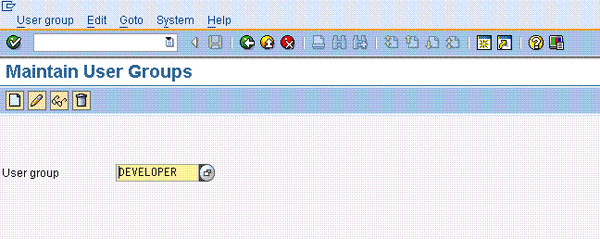
Figure 1
Initial screen in transaction SUGR
Step 2. Describe your user group. Click on the create icon to bring up Figure 2. Enter some meaningful text for your user group (e.g., Developer’s group) in the Text field. You can also add your individual users to this group in this screen. A faster way to do so is in the mass user change transaction that I’ll show you shortly. For now, just save the user group and text.

Figure 2
Save the user group with appropriate text
Step 3. Select the four users. Use transaction SU10 and press the F4 key in the User Name field to bring up a drop-down list. Check the boxes next to users DEV1, DEV2, DEV3, and DEV4, and then click on the check mark icon (Figure 3).
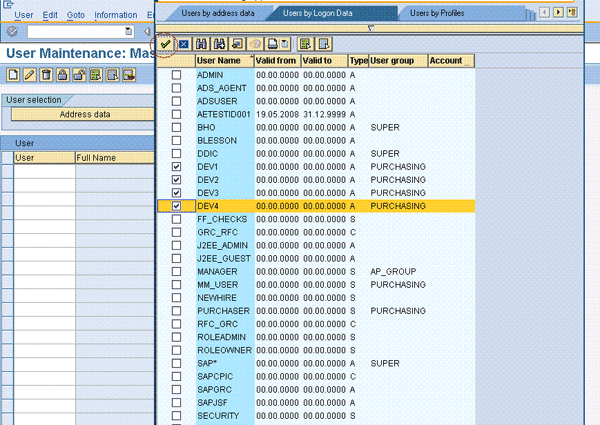
Figure 3
Mass maintenance of users
Step 4. Use change mode. In the transaction SU10 maintenance screen, click on the change icon (Figure 4). This takes you to the next screen, which has the tabs that you see in Figure 5 in change mode.
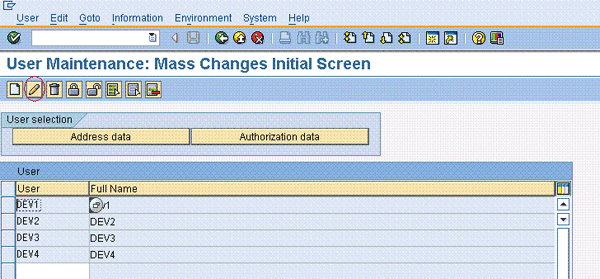
Figure 4
Changing in mass maintenance
Step 5. Choose the DEVELOPER user group. Click on the Groups tab and make sure that the Add radio button is checked (Figure 5). Then press the F4 key on the User group field to bring up the drop-down list containing user groups and choose the DEVELOPER user group. Click on the check mark icon to populate the User group field with your selection.

Figure 5
Choose the user group for assigning to user
Step 6. Save the change and review the details. Save this change and accept the warning message that the system produces. This takes you to the mass user change log (Figure 6). For details of the change that took place, drill down User DEV1 > User groups changed by user DEV1 > Added > DEVELOPER. You can do this for each of the users, but I’ll stick with DEV1 in the example.
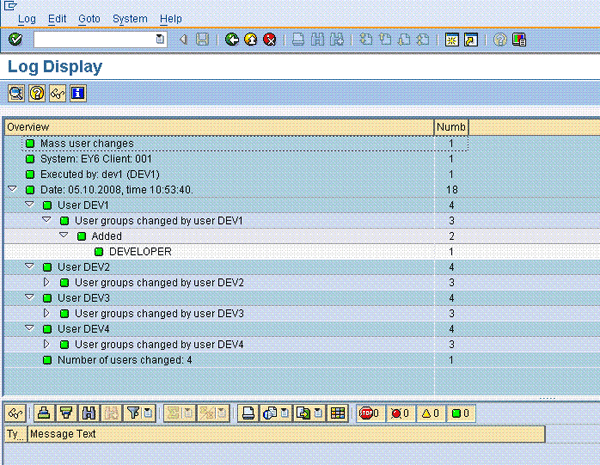
Figure 6
Log of mass user change
Step 7. Verify that the users are part of the user group. To verify whether these users are indeed part of the DEVELOPER user group, you can go to transaction SU01. Enter the name of the user and click on the display icon. Then click on the Groups tab. As you can see in Figure 7, this user is now assigned to the DEVELOPER group. You can repeat this for the other users in case you are not convinced of this change. This shows all the user groups that a user is assigned to in this tab.
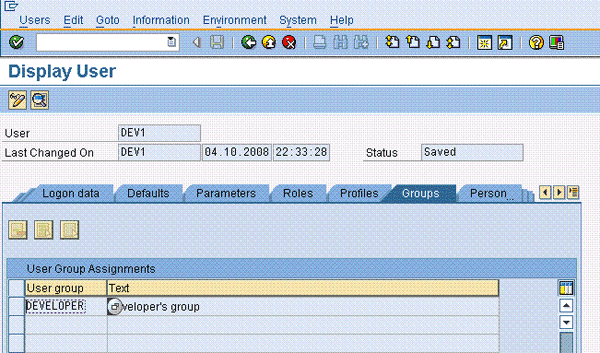
Figure 7
Verify the user group assignment in transaction SU01
Step 8. Add the IDoc administration role. Now that your user group is set up and the desired users have been assigned to it, adding the IDoc administrator role is easy. I’m using the IDoc administration role as an example because some companies offload a few selected traditional Basis or SAP NetWeaver administrator roles to developers. In transaction SU01, make sure that all four users of your group are highlighted (as in step 4 and Figure 4). Click on the change icon and then the Roles tab (Figure 8). The Roles tab shows all the roles assigned to the user, regardless of whether these roles were assigned directly or via user groups. Make sure the Add radio button is selected. In the Role field, press F4 to get a list of roles. From the list, select the desired role (technical name SAP_BC_MID_ALE_IDOC_ADMIN) and then click on the check mark icon to bring it into the selection screen.
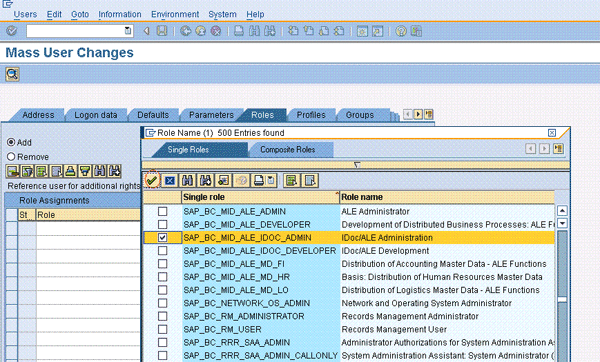
Figure 8
Select the IDoc administrator role
Step 9. Enter the validity dates. Enter the validity dates (e.g., 05.10.2008 to 31.12.9999) and then save this information (Figure 9).
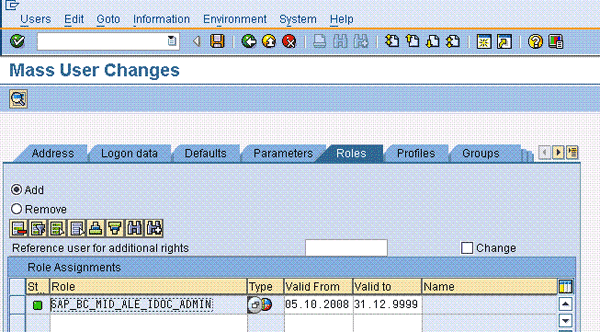
Figure 9
Save the new role to the DEVELOPER user group
Step 10. Save and review the log display. When you save this information, the system produces the same warning message as in step 6. Confirm it and the system displays a log similar to the one in Figure 6 that confirms the application of this role to this user group.
Step 11. Verify that the role has been added to the users (optional). As in step 7, you might want to verify if this role has been added to all the users in the DEVELOPER user group. Carry out step 7, but click on the Roles tab this time (Figure 10). As you can see, the new role was added to user DEV1. Check the other users and verify.

Figure 10
Verify the newly added role to a user’s profile
Important Considerations
You should remember four things while performing these steps.
- You can see the User group field in two places in transaction SU01: in the Groups tab as you saw in Figure 7 and in the Logon data tab (Figure 11). You can only enter one user group per user in this field. As mentioned earlier, there is no restriction on the number of user groups to which a user can belong. However, for the authorization check and subsequent delegation of user administration responsibilities, only the user group entered in this field is checked (Figure 11). In other words, you need to populate the User group field in Figure 11 when you want to distribute the administration of users among the various user groups (by using authorization object S_USR_GRP). The User group field in the Groups tab is meant purely for the mass maintenance of users (such as adding particular roles or PIDs) and not for the distribution of user administration work. Note that if the User group field shown in Figure 11 is blank and you want to delegate the maintenance of this user to the relevant user group administrator, you need to manually enter the name of the user group in this field. Also, all the reports in User Information System of Audit Information System (AIS) use the value in this field for all their reports that contain the User group field. If this field is blank, but you have multiple user groups assigned to a particular user in the field shown in Figure 7, then all the reports show a blank User group field.
- User groups are created in each individual system. You cannot transport them across your SAP landscape.
- The authorization object associated with user groups is S_USER_GROUP. When a particular user group is assigned to a particular user (i.e., when the User group field in the Logon data tab in transaction SU01 displays the user group for a particular user), this authorization object is checked.
- Table USGRP is the master data table for user groups and USGRPT is the text table.

Figure 11
User group in the Logon data tab
Anurag Barua
Anurag Barua is an independent SAP advisor. He has 23 years of experience in conceiving, designing, managing, and implementing complex software solutions, including more than 17 years of experience with SAP applications. He has been associated with several SAP implementations in various capacities. His core SAP competencies include FI and Controlling FI/CO, logistics, SAP BW, SAP BusinessObjects, Enterprise Performance Management, SAP Solution Manager, Governance, Risk, and Compliance (GRC), and project management. He is a frequent speaker at SAPinsider conferences and contributes to several publications. He holds a BS in computer science and an MBA in finance. He is a PMI-certified PMP, a Certified Scrum Master (CSM), and is ITIL V3F certified.
You may contact the author at Anurag.barua@gmail.com.
If you have comments about this article or publication, or would like to submit an article idea, please contact the editor.