Part 1 of this series on how to automate an SAP Query, published in the October 2004 issue, showed the option of sending the output to a shared location. Part 2 explains the option of sending the output to users by email.
Key Concept
R/3 accesses the function module SX_OBJECT_CONVERT_ALI_HTM in SAPconnect to convert the SAP Query output to HTML format before sending it as an attachment in an email.
R/3 allows you to run an SAP query in the background on a regularly scheduled date. You can send the output to a shared location or by email to users in their SAP inbox or external email account in HTML, XLS, or PDF formats. You can use this process to automate any query or standard/custom reports.
Sending the output to users as an attachment requires these five steps, which I explain in detail below:
- Set up the query: Select the output format, dynamically default the dates, and save the query with a variant
- Set up the emailing option
- Set up the user ID
- Set up a distribution list
- Set up the job to run in the background
Step 1. Set up the query. Follow the same procedure described in Part 1 in the October 2004 issue. To briefly recap: Execute transaction SQ01 and select the query you wish to set up to run automatically. Next, dynamically default the dates on the selection screen. You always need to select data based on a certain date range. Now that you will be running the query automatically, the selection dates will automatically update every time the query is executed. You do this on the screen where you enter the variant name. To verify that the dates are populating correctly, execute transaction SQ01, and select the variant that you have set up to dynamically default the dates. The functional person on the team or the power user who is responsible for reporting can complete this step.
Step 2. Set up the emailing option. You need to change specific settings for the query output to be sent as an attachment in HTML format. These steps may need the involvement of a Basis or ABAP resource.
First, execute transaction SCOT (SAPconnect Administration) and double-click on option INT (Figure 1). You then see the screen called SAPconnect: General node data (Figure 2). Click on the Set button that is beside the address type Internet under Supported address types.
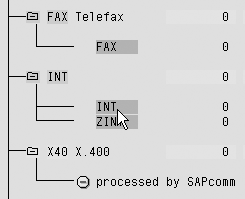
Figure 1
Set up Internet email
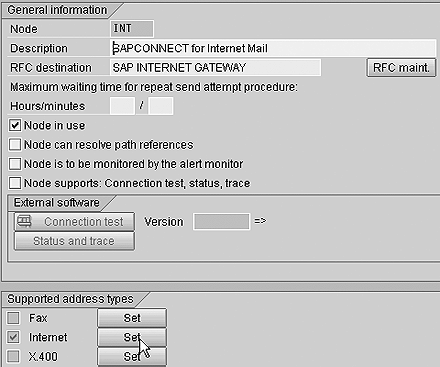
Figure 2
Click on the Set button for Internet in the Supported address types area
On the next screen, called SAPconnect: Address type for node (Figure 3), select the button All formats except the fllw. Under the Format section, be sure to make the following entries: ALI, OBJ, OTF, SCR, URL, and RAW. Output files with these extensions can only be opened within the R/3 system, and you may want users without R/3 access to be able to open and view the query output.
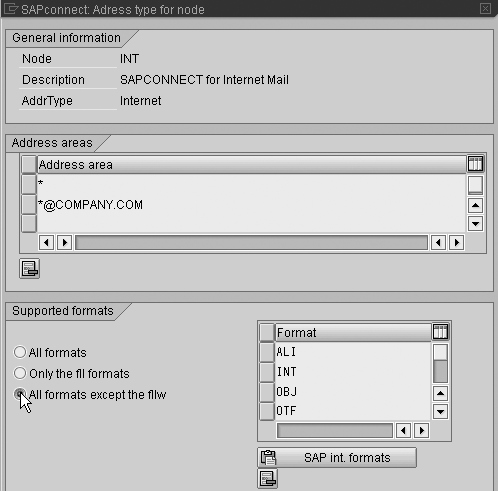
Figure 3
Select the format by clicking on All formats except the fllw
As of Release 4.6C, you can send the query output as HTML documents using the function module SX_OBJECT_CONVERT_ALI_HTM in SAPconnect. To check if the function module is present in your system, execute transaction SE37. Then type in the name of the function module SX_OBJECT_CONVERT_ALI_HTM, and click on the Display button.
If the function module SX_OBJECT_CONVERT_ALI_HTM is not present in your system (true for releases prior to 4.6B), you see the message Function module SX_OBJECT_CONVERT_ALI_HTM does not exist. If this is the case, copy the existing conversion function module — for example, SX_OBJECT_CONVERT_ALI_RAW to SX_OBJECT_CONVERT_ALI_HTM. The interfaces are the same for all conversion modules. Copy the modules into the same function group SX03. Replace the source text SX_OBJECT_CONVERT_ALI_HTM with the source code in Figure 4.
FUNCTION SX_OBJECT_CONVERT_ALI_HTM. *”——————————————————————————————————— *”*”Lokale Schnittstelle: *” IMPORTING *” VALUE(FORMAT_SRC) LIKE SXCONVERT-FORMAT_SRC *” VALUE(FORMAT_DST) LIKE SXCONVERT-FORMAT_DST *” VALUE(DEVTYPE) LIKE SXSERV-DEVTYPE *” VALUE(FUNCPARA) LIKE SXFUNCPARA STRUCTURE SXFUNCPARA *” VALUE(LEN_IN) LIKE SOOD-OBJLEN *” EXPORTING *” VALUE(LEN_OUT) LIKE SOOD-OBJLEN *” TABLES *” CONTENT_IN STRUCTURE SOLISTI1 *” CONTENT_OUT STRUCTURE SOLISTI1 *” EXCEPTIONS *” ERR_CONV_FAILED *”——————————————————————————————————— DATA: LISTOBJECT LIKE ABAPLIST OCCURS 100 WITH HEADER LINE, HTML_TAB LIKE W3HTML OCCURS 100 WITH HEADER LINE, NR_LINES TYPE I. * prepare list and get list size CALL FUNCTION ‘TABLE_DECOMPRESS’ TABLES IN = CONTENT_IN OUT = LISTOBJECT EXCEPTIONS COMPRESS_ERROR = 1 TABLE_NOT_COMPRESSED = 2 OTHERS = 3. IF SY-SUBRC <> 0. NUM1 = SY-SUBRC. SX_TRACE_MSG C_SWTMI_SX_CONV ‘SX_OBJECT_CONVERT_ALI_PRT’ ‘E’ 032 FORMAT_SRC FORMAT_DST ‘TABLE_DECOMPRESS’ NUM1. MESSAGE E834 RAISING ERR_CONV_FAILED. ENDIF. CALL FUNCTION ‘WWW_HTML_FROM_LISTOBJECT’ * EXPORTING * REPORT_NAME = * TEMPLATE_NAME = ‘WEBREPORTING_REPORT’ TABLES HTML = HTML_TAB LISTOBJECT = LISTOBJECT * LISTICONS = *{ INSERT DEVK928430 3 exceptions others = 1 *} INSERT . IF SY-SUBRC <> 0. NUM1 = SY-SUBRC. *{ REPLACE DEVK928430 2 * SX_TRACE_MSG C_SWTMI_SX_CONV ‘SX_OBJECT_CONVERT_ALI_PRT’ SX_TRACE_MSG C_SWTMI_SX_CONV ‘SX_OBJECT_CONVERT_ALI_HTM’ *} REPLACE ‘E’ 032 FORMAT_SRC FORMAT_DST ‘WWW_HTML_FROM_LISTOBJECT’ NUM1. MESSAGE E834 RAISING ERR_CONV_FAILED. ENDIF. CONTENT_OUT[] = HTML_TAB[]. * Compute length of result DESCRIBE TABLE HTML_TAB LINES NR_LINES. IF NR_LINES = 0. LEN_OUT = 0. ELSE. READ TABLE HTML_TAB INDEX NR_LINES. *{ REPLACE DEVK928430 1 * LEN_OUT = ( ( NR_LINES - 1 ) * 255 ) + STRLEN( HTML_TAB ). LEN_OUT = ( ( NR_LINES - 1 ) * 255 ) + STRLEN( content_out-line ). *} REPLACE ENDIF. ENDFUNCTION.
|
| Figure 4 |
Source code for SX_OBJECT_CONVERT_ALI_HTM |
Note
Formats (for example, ALI, RAW, SCR) describe the syntactical structure of a document. In addition to SAP’s own formats (such as SCR for SAPscript documents or RAW for text documents), you can process any number of other formats via the front end. They normally have the same name as the file suffix. If a node does not support a format in a message, SAPconnect converts the data into one of the formats supported by the node provided that the corresponding conversion is supported (SCOT>Settings>Conversion Rules). Otherwise an error message occurs.
Ranking order determines a ranking for processing entries in the table. When searching for a suitable entry, the system gives preference to the entry with the lowest value in this field.
Activate the module. If the function module SX_OBJECT_CONVERT_ALI_HTM is already present, correct the source code so that it corresponds to the code shown in Figure 4. Activate the module.
Now you need to set up the conversion function module. Add a new conversion rule in SAPconnect Administration, if one is not already present, via the following path:
- Version 3.1x: transaction SCON>Conversion Rules
- Versions 4.0 to 4.6B: transaction SCOT>Goto>Customizing>Conversion Rules
- Version 4.6C: transaction SCOT>Settings>Conversion Rules
Make the entry shown in the first four columns of the first row of Figure 5. You must leave the fields RFC destination and Parameter for call empty. Next, execute transaction SE16. Enter the table name TSOPE on the initial screen. From the menu, select Table>Table Contents to view the entries. Make sure that the table TSOPE (SAPoffice: exclusion of specific file extensions) contains an entry with an extension HTM file and that the ASCII_TYPE field of this entry is activated with a check mark or set with an X (Figure 6). To create new entries or modify existing entries, select Table>Create Entries.
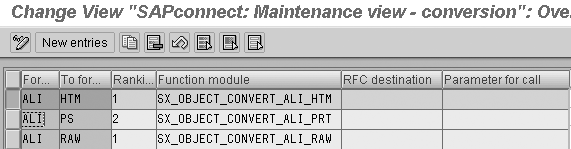
Figure 5
Set up the conversion function module
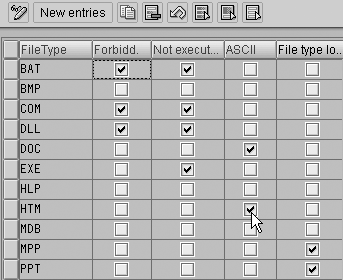
Figure 6
Make an entry in table TSOPE
Step 3. Set up the user ID. Execute transaction SU01 and enter the user ID that will be used to send emails. Click on the change icon. You get the screen shown in Figure 7. Click on the Other communication button. Select the communication type Internet mail (SMTP).
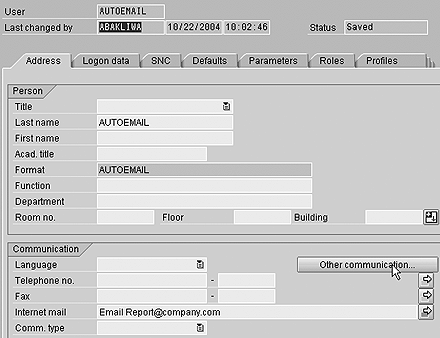
Figure 7
Set up the communication type
Then go to the screen Maintain internet mail addresses. Enter the email ID for the user who will be designated as the sender of email and click on the Copy button.
Step 4. Set up a distribution list. The distribution list identifies the group of people who will receive the query output as an attachment. It is helpful to create a distribution list when you need to send the same information to more than one recipient and it is likely that this process will repeat. If you create a distribution list, you do not have to enter recipients individually each time.
You can create multiple distribution lists and maintain them in different folders in the same way files are managed in Windows Explorer. It is advisable to follow a naming convention for better management. Let’s set up a distribution list as an example.
Execute transaction SBWP and click on the button Distribution List. You see the screen shown in Figure 8. Here you can create either shared or private distribution lists. A shared distribution list is stored in shared folders. All users who have at least display authorization for the folder in which the distribution list is situated can access it. On the other hand, a private distribution list is stored in a private folder and cannot be accessed by other users. My example will be for a shared distribution list.
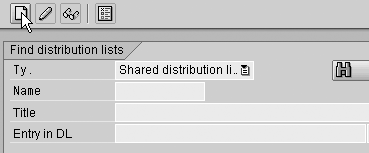
Figure 8
Create distribution list
On the screen shown in Figure 8, select type Shared distribution list and click on the create icon. Type in the appropriate name and title of the distribution list under the Attributes tab (Figure 9).
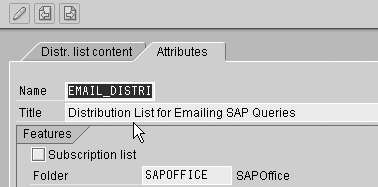
Figure 9
Enter attributes for distribution list
Then switch to the Distr. list content tab. Here, specify the recipient addresses and the corresponding recipient type for each person who will receive the query output as an email attachment (Figure 10).
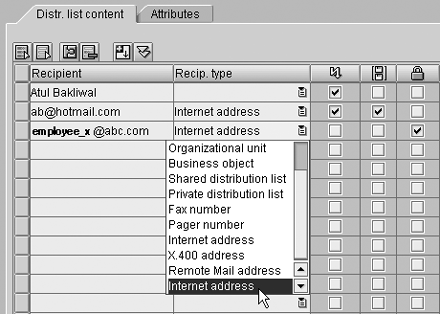
Figure 10
Maintain distribution list content
You only need to enter the SAP user ID and leave the field Recip. type blank for SAP users. Users can assign the following send attributes to the email that is sent to each recipient on distribution list:
- Express: The email is sent to the recipient as an express message. A dialog box then appears informing the user that an express document has been sent, allowing him/her to switch to the inbox.
- Copy: The user receives the email as a copy.
- Blind copy: The recipient receives the email as a blind copy. The sender can therefore be sure that only the recipient can read the document and not a substitute. Recipients cannot forward or print a blind copy.
Step 5. Set up the job to run in the background. To set up the query to run in the background, execute transaction SQ01. Select the query for which you want to set up the job, and then click on the Execute button. Open one more session and execute transaction SM36. Enter the Job name or short description to identify your job and the Job class to classify the background job according to priority. Click on the Step button (Figure 11). Note that the options for Job class are A, B, and C, indicating high, medium, or low priority, respectively.
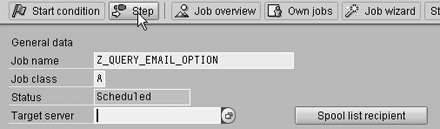
Figure 11
Enter the job name and job class
The generated program name for the query automatically defaults on the following screen (Figure 12). Select the variant that you would like to automate and click on the save icon.
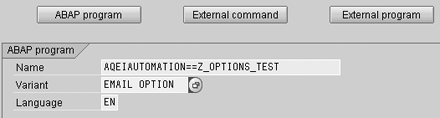
Figure 12
Name generated from the default
Click on the Spool list recipient button you saw in Figure 11 to identify the group that will receive the output as an attachment. You see a Recipient Determination screen. Select the drop-down list on the field Recipient.
On the following screen, check the appropriate distribution list types and then click on the Copy button. You go to the screen called Select Distribution Lists. Select the distribution list for the query you wish to automate (Figure 13).

Figure 13
Select the distribution list
Select the attributes as required on the Recipient Determination screen and click on the Copy button (Figure 14).
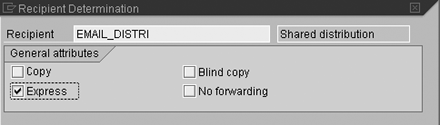
Figure 14
Select attributes for recipient
Click on the Start condition button to define the periodicity for the job. On the next screen, select the option Date/Time. Enter the start date and time for the job, check the option Periodic job, and select the button Period Values. Click on the Weekly option and then on the save icon.
Save the start condition and then click on the save icon on the Define Background Job screen to release the job. You should get the message Job Z_QUERY_EMAIL_OPTION saved with status: Released at the bottom of the screen. Now the query is set to run in background at the defined frequency/time and the output will be sent to recipients as defined in the distribution list in HTML format.
You can also send the query output as an Excel attachment. For this you need to create a custom function module Z_SX_OBJECT_CONVERT_ALI_XLS with the code that is shown in Figure 15.
FUNCTION Z_SX_OBJECT_CONVERT_ALI_XLS. *”——————————————————————————————————— *”*”Local interface: *” IMPORTING *” VALUE(FORMAT_SRC) LIKE SXCONVERT-FORMAT_SRC *” VALUE(FORMAT_DST) LIKE SXCONVERT-FORMAT_DST *” VALUE(DEVTYPE) LIKE SXSERV-DEVTYPE *” VALUE(FUNCPARA) LIKE SXFUNCPARA STRUCTURE SXFUNCPARA OPTIONAL *” VALUE(LEN_IN) LIKE SOOD-OBJLEN *” EXPORTING *” VALUE(LEN_OUT) LIKE SOOD-OBJLEN *” TABLES *” CONTENT_IN STRUCTURE SOLISTI1 *” CONTENT_OUT STRUCTURE SOLISTI1 *” EXCEPTIONS *” ERR_CONV_FAILED *”——————————————————————————————————— ** << Convert ALI to TXT >> CALL FUNCTION ‘SX_OBJECT_CONVERT_ALI_TXT’ EXPORTING FORMAT_SRC = FORMAT_SRC FORMAT_DST = FORMAT_DST DEVTYPE = DEVTYPE FUNCPARA = FUNCPARA LEN_IN = LEN_IN IMPORTING LEN_OUT = LEN_OUT TABLES CONTENT_IN = CONTENT_IN CONTENT_OUT = CONTENT_OUT * EXCEPTIONS * ERR_CONV_FAILED = 1 * OTHERS = 2 . IF SY-SUBRC <> 0. * MESSAGE ID SY-MSGID TYPE SY-MSGTY NUMBER SY-MSGNO * WITH SY-MSGV1 SY-MSGV2 SY-MSGV3 SY-MSGV4. Else. Data: Wa_Rec like Solisti1, Content_Final Like SOLISTI1 Occurs 0. DATA: tab TYPE X VALUE ‘09’. ** << Convert TXT to XLS >> Loop at Content_Out into Wa_Rec. Do. Replace ‘|’ with Tab Into Wa_Rec-Line. If Sy-Subrc <> 0. Append Wa_rec to Content_final. Clear Wa_rec. Exit. Endif. Enddo. Endloop. Refresh Content_Out. Content_Out[] = Content_Final[]. * Compute length of result Data: content_line type soli, nr_lines type i, len type i. describe table content_out lines nr_lines. if nr_lines = 0. len = 0. else. read table content_out index nr_lines into content_line. len = ( ( nr_lines - 1 ) * 255 ) + strlen( content_line ). endif. len_out = len. ENDIF. endfunction.
|
| Figure 15 |
Code to convert the query output to XLS format (written by Suresh Samala, senior ABAP programmer) |
Assign the ranking order 1 following the steps to set up the conversion function module (Figure 16). Change the Format from ALI to XLS, give it a ranking of 1, and identify function module Z_SX_OBJECT_CONVERT_ALI_XLS.
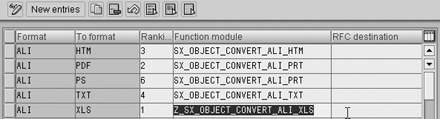
Figure 16
Make an entry for XLS in table TSOPE
Make an entry in the table TSOPE for file type XLS as shown in Step 2, Figure 17. Figure 18 is an example of the output sent as an XLS attachment in the email.
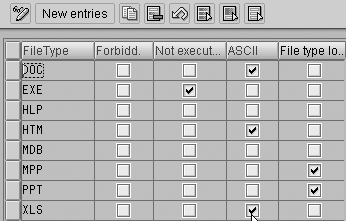
Figure 17
Make an entry for XLS in table TSOPE
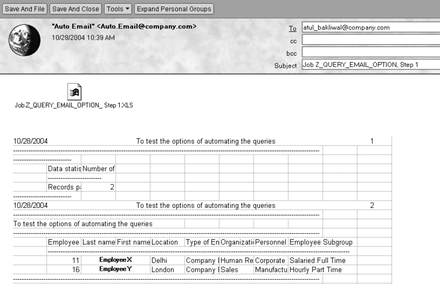
Figure 18
Sample output sent as XLS attachment
Atul Bakliwal
Atul Bakliwal is a seasoned, pragmatic SAP ERP HCM/SuccessFactors leader with over 20 years of deep expertise in solutioning, planning, managing, and delivering multi-faceted global implementations. He currently works for IBM India as a Service Delivery Leader for SuccessFactors/SAP ERP HCM, managing multiple implementations and AMS projects of various sizes and complexities in the SuccessFactor/SAP HR space.
You may contact the author at bakliwalatul@hotmail.com.
If you have comments about this article or publication, or would like to submit an article idea, please contact the editor.