Most organizations do not take advantage of many Manager’s Desktop features. Learn advanced customizing and programming techniques, custom function codes, and useful tips for your implementation project.
Key Concept
Manager’s Desktop enables managers to do much more than run simple HR reports. You can include appraisals, compensation management, accounting, and BW reporting. You can easily add preconfigured applications such as most standard and custom HR-reports based on logical databases and cost center reports in Report Writer. You can also add special applications in quota planning, performance management, skill management, compensation planning, and workflow. Others require a significant programming effort: starting reports via a selection screen, maintaining a particular infotype, and integrating custom reports without a logical database or other custom transactions.
Manager’s Desktop is a flexible framework into which you can integrate virtually any application once you understand the basic structure. Because busy managers use Manager’s Desktop, you must ensure it’s easy to use and free from unnecessary information. Making Manager’s Desktop as user friendly as possible is challenging because it uses the standard SAP user interface rather than the Web-based environment to which many managers are accustomed.
I described the basic concept of Manager’s Desktop in my last article, and now I want to show you how to get the most out of it. First I will present some more types of function codes you can include in Manager’s Desktop. Then I will address some options to improve the views on the right side of Manager’s Desktop. I’ll show you how to configure the information columns in each view so that the GUI does not present users with unnecessary and maybe even misleading data. Instead it should show additional, useful information that users can access without starting a report. Finally, I will offer tips and tricks for a smooth Manager’s Desktop project. See the sidebar, “Quick Start for Migration from HIS,” if you want to include a part of your Human Resources Information System (HIS) in Manager’s Desktop.
Function Codes
Function codes are one of the essential concepts of customizing Manager’s Desktop. They represent the actual applications that Manager’s Desktop can start, and they determine the structure of the left side of Manager’s Desktop screen. In my previous article, I discussed the function code types HOME and NODE, which are not executable (meaning that they do not start an application), and the types REPO and URL, both executable. Now I’ll describe the most important remaining types, all of which are executable:
URLW: Its effect is similar to URL, except that it does not show a navigation bar. Some organizations use this option to include a Web-based service such as Employee Self-Service (ESS) into Manager’s Desktop by entering its URL in the function code. However, note that in this case you do not automatically have single sign-on. This means that an ESS service started this way still requires logging in to ESS, even though the user is already logged in to the R/3 or mySAP ERP system.
RWRP: This type of function code allows you to start a report on cost centers. You can start all reports that have previously been created via Report Painter and Report Writer. The point of entry is not an individual report but a report group that is accessible via transaction GR55. Note that in the field Program Name you do not fill in the technical name of the ABAP program representing a report group. Instead you use the four-character key of the group (Figure 1), because the technical name of the program changes when the report group is transported from the development system to production.

Figure 1
Type the four-character key of the report group in the Program Name field
The objects evaluated in the report group are cost centers, not organizational units or persons. Therefore, you must include the cost centers in the organizational structure. Figure 2 shows a view in Manager’s Desktop including two cost centers with the IDs K 7100 and K 7110.

Figure 2
Manager’s Desktop view showing cost centers K 7100 and K 7110 click here for a larger version of this image
This is generally true for all cost centers that are used in infotype 0001 of the employee master data and where personnel costs are posted to via Payroll. However, most organizations have at least some cost centers that do not fall into this group. Sometimes buildings or technical equipment have their own cost centers to which no wages are ever posted. As a rule, Organizational Management (OM) does not maintain such cost centers and thus Manager’s Desktop cannot access them.
One solution is to link these cost centers in OM using a custom relationship type. This relationship does not interfere with standard processing for infotype 0001 and Payroll. You can include it in a custom view of Manager’s Desktop via a custom evaluation path, which I covered in the first part of this series. Another way to include these cost centers is to create additional sub-organizational units without positions or employees. You could link cost centers to them with the standard relationship for cost center assignment (011) without impacting employee data or payroll posting.
Function codes of this type work even when HR runs on a different system than Accounting. When you configure Application Link Enabling (ALE) to post payroll results from the HR system to the financial system, Manager’s Desktop knows which Remote Function Call (RFC) connection to choose for calling the respective reports in the remote system.
On a technical level, the HR system determines how to reach the remote financials system by reading ALE customizing to find the receiving system and client of the Business Application Programming Interface (BAPI) method CHECKACCOUNTASSIGNMENT (object BUS6001). If you have problems calling a remote report or if you haven’t yet installed payroll posting into the accounting system, ask your ALE administrator to activate this BAPI.
TCOD: This function code calls any transaction. It is flexible and easy to use, but the functionality is basic because it transfers no further information from Manager’s Desktop to the respective transaction, not even the personnel number of a selected person. With this function code as defined in Figure 3, you can open transaction PA40 for personnel actions, but you have to enter the personnel number, start date, and action type manually. The same applies for another transaction often used in Manager’s Desktop: master data maintenance (PA30). To improve usability, you can take advantage of function code FUNC.

Figure 3
Use function code TCOD to call any transaction
FUNC: Nearly anything is possible with this type of function code. You can include a custom function module in Manager’s Desktop. A predefined interface allows you to use the object selected on the right side of Manager’s Desktop as well as the time period entered in Manager’s Desktop in your custom coding. Any ABAP programmer can create such a function module via transaction SE37.

Figure 4
Define the interface with import parameters click here for a larger version of this image
The first step is to define the Manager’s Desktop interface with import parameters (Figure 4), export parameters (Figure 5), and interface tables (Figure 6). No matter what functionality you include, you must include all parameters and tables shown in these figures in your custom function module with the same names and further characteristics, except you may change the Short text if you want.

Figure 5
Define the interface with export parameters click here for a larger version of this image

Figure 6
Define the interface with interface tables click here for a larger version of this image
The most important parameters are:
- ACT_OTYPE and ACT_OBJID in Figure 4 describe the object type and ID of a single object selected on the right side of Manager’s Desktop
- The table ACT_OBJECTS in Figure 6 contains all objects selected on the right side of Manager’s Desktop in cases when the manager selects multiple objects
- ACT_BEGDA and ACT_ENDDA in Figure 4 describe the period selected in Manager’s Desktop
Build a Function Module
The following example opens infotype 0006 (address data) in copying mode for the person selected in Manager’s Desktop. The source code for this example is shown in Figure 7.
—
*”*”Local Interface:
*”  IMPORTING
*”     VALUE(ACT_FCODE) TYPE  MWB_FCODE
*”     VALUE(ACT_PLVAR) TYPE  PLVAR
*”     VALUE(ACT_OTYPE) TYPE  OTYPE
*”     VALUE(ACT_OBJID) TYPE  REALO
*”     VALUE(ACT_BEGDA) TYPE  BEGDATUM DEFAULT SY-DATUM
*”     VALUE(ACT_ENDDA) TYPE  ENDDATUM DEFAULT ‘99991231’
*”  EXPORTING
*”     VALUE(ACT_PROGNAME) LIKE  SY-REPID
*”     VALUE(ACT_SCREEN_NO) LIKE  SY-DYNNR
*”  TABLES
*”      ACT_OBJECTS STRUCTURE  HRSOBID
*”————————————————&md
ash;—————————————————
—
* do nothing, if the selected object is no person
  CHECK act_otype = ‘P’.
* open the infotype 0006 that is valid at the start date of
* the selected period to copy
  SET PARAMETER ID ‘PER’ FIELD act_objid.
  SET PARAMETER ID ‘ITP’ FIELD ‘0006’.
  SET PARAMETER ID ‘BEG’ FIELD act_begda.
  SET PARAMETER ID ‘END’ FIELD act_begda.
  set parameter id ‘FCD’ field ‘COP’.
  CALL TRANSACTION ‘PA30’ AND SKIP FIRST SCREEN.
ENDFUNCTION.
|
| Figure 7 |
Code for function module that opens infotype 0006 (address data) in copying mode |
The personnel number and the date come from the interface of the function module (ACT_OBJID and ACT_BEGDA, respectively). You also use parameter IDs and the CALL TRANSACTION command in ABAP.
After you build the function module, include it in a function code as shown in Figure 8. Then you can use this function code to copy and change address data for an employee directly from Manager’s Desktop.

Figure 8
Include your code in a function module to change address data
Standard function codes in Manager’s Desktop allow you to select objects not only directly but also via the organizational units to which they belong. Building on my previous example, you can create a function module that opens infotype 0006 for all employees who belong to a selected organizational unit. The interface and customizing are the same; just change the source code to what appears in Figure 9.
FUNCTION z_hr_mdt_pa30 .
*”————————————————&md
ash;—————————————————
FUNCTION z_hr_mdt_pa30 .
*”————————————————&md
ash;—————————————————
—
*”*”Local Interface:
*” IMPORTING
*” VALUE(ACT_FCODE) TYPE MWB_FCODE
*” VALUE(ACT_PLVAR) TYPE PLVAR
*” VALUE(ACT_OTYPE) TYPE OTYPE
*” VALUE(ACT_OBJID) TYPE REALO
*” VALUE(ACT_BEGDA) TYPE BEGDATUM DEFAULT SY-DATUM
*” VALUE(ACT_ENDDA) TYPE ENDDATUM DEFAULT ‘99991231’
*” EXPORTING
*” VALUE(ACT_PROGNAME) LIKE SY-REPID
*” VALUE(ACT_SCREEN_NO) LIKE SY-DYNNR
*” TABLES
*” ACT_OBJECTS STRUCTURE HRSOBID
*”————————————————&md
ash;—————————————————
—
data: result_tab like hrsobid occurs 10 WITH HEADER LINE. * get all persons selected directly or via OrgUnit or Position
CALL FUNCTION ‘RH_MWB_OBJECTS_OF_OTYPE_GET’
EXPORTING
search_otype = ‘P’
act_plvar = act_plvar
act_begda = act_begda
act_endda = act_endda
act_ev_path = ‘O-O-S-P’
act_otype = act_otype
act_objid = act_objid
TABLES
result_tab = result_tab. * Process transaction PA 30 for all selected persons
loop at result_tab.
* open the infotype 0006 that is valid at the start date of
* the selected period to copy
SET PARAMETER ID ‘PER’ FIELD result_tab-sobid.”personnel no.
SET PARAMETER ID ‘ITP’ FIELD ‘0006’.
SET PARAMETER ID ‘BEG’ FIELD act_begda.
SET PARAMETER ID ‘END’ FIELD act_begda.
set parameter id ‘FCD’ field ‘COP’. “Copy
CALL TRANSACTION ‘PA30’ AND SKIP FIRST SCREEN.
endloop. “ at result_tab ENDFUNCTION.
|
| Figure 9 |
Code for function module that opens infotype 0006 for all employees who belong to a selected organizational unit |
When you select the function code in Figure 9 for an organizational unit from Manager’s Desktop, infotype 0006 opens in copying mode for all employees of the unit one at a time. After you save the infotype for one person, the system processes the next person immediately. The difference between the two snippets of code is that in Figure 9, it is not the personnel number that comes directly from the interface but an organizational unit. That’s why you need the standard function module RH_MWB_OBJECTS_OF_OTYPE_GET to derive the personnel numbers of all employees that belong to that organizational unit.
For this purpose, I used the standard evaluation path O-O-S-P as a parameter. The table RESULT_TAB delivers the personnel numbers you need. You can use them as shown in the first example that opens infotype 0006 in copying mode. Given these two examples, you should be able to build your own function codes and take advantage of this concept’s flexibility.
Change the Columns Each View Displays
When you use a standard view, the columns look similar to what you see in Figure 10. Some columns may interest you while others do not. What if the important columns fall to the far right so you can only see them by scrolling (such as the column Chief in Figure 10)? The user can hide some columns using the select columns icon (above the arrow in Figure 10), but a better way exists.

Figure 10
Standard view in Manager’s Desktop click here for a larger version of this image
You can use the column framework to configure the number, sequence, content, and appearance of columns in applications including Manager’s Desktop. It lets you customize your view by grouping the columns and determining which column group to use in Manager’s Desktop. Access the column framework under the IMG path Personnel Management > Manager’s Desktop. Then choose Customer Adjustment > Determine Views of Organizational Structure > Determine Views (Evaluation Paths). The field Column Group decides what column group each view uses. In my example, I use MDT_ORGS.
Build a Custom Column Group
To create a column group to use in your Manager’s Desktop view, choose the IMG path Customer Adjustment>Column Framework>Define Your Own Column Groups/Change Column Group Text>Create Column Group Key. You can either copy a standard column group and make the necessary changes or build your own column group. I recommend that you build your own, because when you copy a column group with all dependent entries (i.e., the column assignment), you’re changing a table reserved for SAP.
Two tables define the columns used in a column group:
- T77ACOL is a client-independent table reserved for SAP. When copying a complete standard column group you would change this table. I recommend that you not alter it.
- T77ACOLC is a client-dependent table for customer use. This is where you should build your own column groups.
If you want to copy a standard column group, you must maintain everything manually in table T77ACOLC and can only use T77ACOL to look up what you have to enter in the customer table. On the other hand, you can use table T77ACOLC to change a standard column group by adding columns or by changing the properties of columns within the group. This means that any entries that exist in T77ACOLC overrule entries with the same column key in T77ACOL. I’ll show you how to build your own column group from scratch so that you are able to change existing column groups easily. Create a new entry for a column group key via the IMG path mentioned above, as shown in Figure 11.

Figure 11
Create a new entry for a column group key
Then assign the columns using IMG menu path Customer Adjustment>Column Framework>Define Your Own Column Groups/Change Column Group Text>Group Columns in Column Groups/Visibility Attributes. Do not use any other path because you might end up in table T77ACOL instead of T77ACOLC. Note that in R/3 4.6C, you cannot access table T77ACOLC via the IMG, so use transaction SM31. I strongly recommend using a standard column group (MDT_ORGS in Figure 12) as a model rather than selecting specific columns. Display table T77ACOL directly via transaction SM31 in another window to use it as a model to create your own group in table T77ACOLC (Figure 12).

Figure 12
Use the standard column group MDT_ORGS as a model click here for a larger version of this image
From the sequence number you can easily see which entry in the customizing table represents each column in Manager’s Desktop. You can then assign the columns you need to your column group. In this example, I move column OM_MOVE_X from position 2 to position 1 using the Column position field (Figure 13).

Figure 13
Assign the columns to your column group
The check boxes in the bottom half of the screen determine the properties of the column:
- Column fixed means that scrolling right will not hide it
- Never display column hides the column without giving the user the option to show it by changing its personal settings
- Column hidden by default initially hides the column but the user can choose to display it
- Column always visible prevents the user from hiding the column
The Coherence Relationship field links two or more columns so that you can only hide or show them as a group. You have to write the same key into this field for all affected columns. For example, in Figure 12 the columns ORG_BEGDA and ORG_ENDDA have the same key OBEG in the Coherence Relationship field, meaning that the user can hide both fields with the same check box but cannot hide only one of them.
After assigning all columns to your new group, you have to assign this group to your view as described earlier. Access the column framework under the IMG path Personnel Management > Manager’s Desktop. Then choose Customer Adjustment > Determine Views of Organizational Structure > Determine Views (Evaluation Paths). The field Column Group decides what column group each view uses. In my example, I customized my Manager’s Desktop view to display the Name, ID, and Chief fields first (Figure 14).
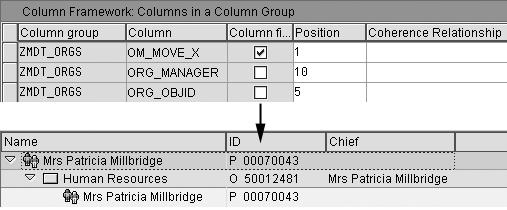
Figure 14
Assign the column framework to your view
If you want to add a column that is not included in the standard group, select one of the predefined columns shown in the F4 help of the Column field. However, more then 400 columns exist and it is not always easy to judge from the short description what each column really contains. If you do not know a standard column group to use as a model, you may have to use trial and error to find what you want. As a rule, column keys starting with PAD (e.g., PAD_PERSK_T showing the name of the employee’s personnel subgroup) provide the best results for employee data, and column keys starting with ORG or OM provide good organizational data results.
Create New Columns
You can add useful information to a Manager’s Desktop view that is unavailable as a predefined column, such as org unit headcount or the preferred language of each employee. Let’s create the language column that I just mentioned. More sophisticated examples, such as the headcount for each org unit, require more ABAP coding.
To customize a new column, copy a standard entry (e.g., PAD_PERNR) via the IMG path Customer Adjustment > Column Framework > Define Your Own Column, as shown in Figure 15.
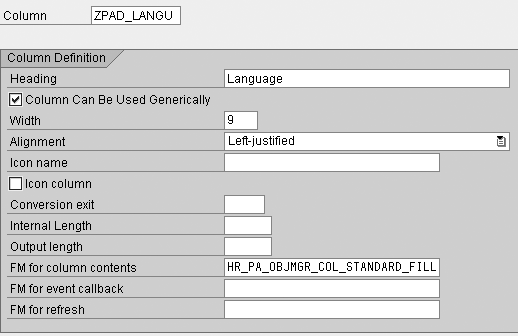
Figure 15
Copy a standard entry to customize click here for a larger version of this image
The function module you enter in the FM for column contents field determines the contents of the new column. Figure 15 shows the standard entry, which doesn’t deliver what I want. However, you can copy this template and customize the new function module Z_HRPA_OBJMGR_COL_STANDARD_FIL using transaction SE37. Always choose a function module from a column that reads data from the same object type, a person in this case. Then you can leave the interface as is and only change a part of the source code. The code for Z_HRPA_OBJMGR_COL_STANDARD_FIL delivers the language from infotype 0002 for each person shown in Manager’s Desktop (Figure 16).
— DATA l0002 LIKE p0002 OCCURS 0 WITH HEADER LINE. * Loop at all selected objects
LOOP AT tree_objects.
IF tree_objects-otype NE ‘P’.
CONTINUE. “only process persons
ENDIF.
* Read Infotype 0002 for selected person
CLEAR l0002.
REFRESH l0002.
CALL FUNCTION ‘HR_READ_INFOTYPE’
EXPORTING
tclas = ‘A’
pernr = tree_objects-objid
infty = ‘0002’
begda = begda
TABLES
infty_tab = l0002
EXCEPTIONS
infty_not_found = 0
OTHERS = 0.
READ TABLE l0002 INDEX 1. * Language from infotype 0002
MOVE-CORRESPONDING tree_objects TO column_content.
column_content-content = l0002-sprsl.
IF column_content-content IS INITIAL.
column_content-content = tree_objects-stext.
ENDIF.
APPEND column_content.
ENDLOOP. “AT tree_objects ENDFUNCTION.
|
| Figure 16 |
Code that delivers the language from infotype 0002 for each person in Manager’s Desktop |
This program processes all objects delivered via the TREE_OBJECTS interface table, locates the employee objects, and reads infotype 0002 for these objects using the standard function module HR_READ_INFOTYPE. Then the program delivers field SPRSL, which contains the language key, as output via the column_content-content field of the interface table.
Based on this example, a programmer should be able to create function modules for other columns with employee data. For other data (e.g., organizational data), choose an appropriate template for copying. Use a function module that shows data for the same types of objects and — whenever possible — extracts it from the same source. For example, if you want to create a column to show a person’s data from infotype 0002, you should choose a standard column that shows data for a person and — if possible — extracts this data from an infotype. Then you can use the function module assigned to this column to customizing the field FM for column content, as shown in Figure 15.
The Assistant’s Desktop
You can easily adopt Manager’s Desktop for other users. For instance, you can allow a manager’s administrative assistant to access the same data and get the reports in his place. As I explained in my previous article, the evaluation path assigned to a scenario determines what root objects the system displays for the organizational structure views. By default, the evaluation path SAP_MANG delivers all organizational units that report directly to the person that is assigned to the user. If users are not assigned to a person in a management position, they cannot access any part of the organizational structure.
To allow administrative assistants to access the same data as their manager, first enter the user name in infotype 0105 of the assistant. Connect the assistant with the organizational units for which the manager is responsible (only on the highest level). You can use a custom relationship type (e.g., copy standard relationship type 012 to a custom relationship type, which you may name ZSK) or an existing one that you don’t use for other purposes.
Copy the evaluation path SAP_MANG to a custom name (e.g., ZAP_MANG) and add the assistant relationship in the Relationship name field (Figure 17). Assign the new evaluation path to your scenario via the IMG path Customer Adjustment > Define Scenario-Specific Settings > Define Application Scenarios.

Figure 17
Add the assistant relationship in the Relationship name field click here for a larger version of this image
Acceptance and Usability Tips
- You can deal with substitutes in a similar way as assistants, allowing them to access the same data as the manager. To avoid a huge administrative effort, try to stick to permanent substitutions that can access data at any time so that you don’t have to reconfigure the system each time a manager is sick or on vacation.
- You can control the function codes available for a user without using different scenarios via the authorization object S_MWB_FCOD.
- Make sure that you properly control the access to employee data in the authorization profiles. Do not rely on Manager’s Desktop to take care of your security concerns. There may be situations in which a Manager’s Desktop user can fill in the selection screen of a report (e.g., when there is a problem in the variant), and the authorization concept must prevent the user from seeing too much data. In most cases, it is a good idea to use the structural authorization for Manager’s Desktop users.
- To make it as easy as possible to use Manager’s Desktop, provide variants for frequently used reports so that managers do not need to choose a selection period. You must represent each variant with a function code of its own. You could include the time statement with three different variants for the current month, the last month, and with no explicit time period (which uses the default Manager’s Desktop selection period). Managers select the function codes from the list on the left side of their screen.
- Do not overload Manager’s Desktop with many features in your first step. Start with a few well-designed functions and extend it based on the feedback you receive. Your goal should be to provide a significant value for the managers in your first version of Manager’s Desktop. Wait for the managers to accept the program before you add cost-saving applications.
Sidebar: Quick Start for Migration from HIS
Here’s a quick tip for everyone who uses the HIS settings via transaction
PPIS. You can easily recycle your customizing by including part of your HIS settings in Manager’s Desktop. You can include any single data view that you have defined for HIS. No matter how many reports exist in this view, if you create one function code, you can include all of those reports in Manager’s Desktop under a separate node. Therefore, you save time customizing Manager’s Desktop because you’re borrowing HIS customization rather than starting from scratch.
This is handy for any company that has customized HIS to report on data that Manager’s Desktop users would find interesting, such as employees’ overtime records. In addition, you could use your HIS customization to fill Manager’s Desktop with demonstration reports at the start of your project. If you’re short on time, you could use such demo reports for a kickoff meeting or similar project.
Just follow these four steps to integrate your HIS customization into Manager’s Desktop:
Step 1. Create a function code with type NODE and call it ZHIS.
Step 2. Include this function code into your catalog as a child node of your category.
Step 3. Assign a new child to your node ZHIS as shown in Figure 1. SAP delivers the function module and prefix to integrate HIS into Manager’s Desktop.
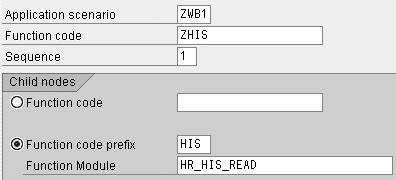
Figure 1
Integrate HIS into Manager’s Desktop
Step 4. Decide which HIS data view to use in Manager’s Desktop. Enter its key in table T77S0 – line MDT – HIS. Note that the use of the term “view” in HIS is different from its use in Manager’s Desktop: This is a line of the table T77S0 with the key MDT – HIS.
While this technique looks very convenient at first, you can only maintain one type of content this way. You have to look in two different places and use two different techniques to change the content of your Manager’s Desktop. Many organizations working with the standard scenario MWB1 without completely understanding the structure of Manager’s Desktop customizing do not know where certain entries in their function catalog come from even after using Manager’s Desktop for years. Despite its drawbacks, this is a convenient way to get custom content into Manager’s Desktop for presentation purposes within minutes.
Sven Ringling
Sven Ringling is executive director at iProCon (www.iprocon.de) and iProCon Human Capital Management (www.iproconhcm.co.uk). He started working as an SAP HCM consultant in 1996 and also works in strategic HR and change management. He is one of the authors of the books Mastering HR Management with SAP and HR Personnel Planning and Development Using SAP.
You may contact the author at s.ringling@iproconhcm.co.uk.
If you have comments about this article or publication, or would like to submit an article idea, please contact the editor.