You can control how your Personnel Development (PD) objects and structures react and relate to one another over time by properly using time constraints.
Key Concept
Personnel Development (PD) data in SAP consists of complex groupings of related objects and data structures. The relationships between PD objects carry specific meanings and are configured to exist only between allowed objects and for predetermined time frames. For example, while PD configuration controls the object types to which you can assign a cost center object, the same configuration also controls when and how often you can use those relationships. Data elements called time constraints control the “when” and “how often” aspects of PD relationships.
Imagine that your SAP security team has presented you with the following issue. Your Manager Self-Service (MSS) application security is driven by the A012/B012 “chief” relationship between a position and an organizational unit. A position in your organizational structure may be chief for one or many units, but, according to your company security policy, each unit should have only one chief.
It has come to the attention of the security team that in some situations in R/3, units have more than one chief at the same time, putting your MSS security at risk. Your task is to change your Per-sonnel Development (PD) configuration to allow only one chief per unit at any time. You also must audit your existing PD objects and relationships to identify and correct any instances of multiple concurrent chiefs per unit.
To resolve the issue of unwanted concurrent chief relationships, you must first address the configuration in PD that controls the allowed relationships between objects, particularly time constraints. PD relationships define the interaction between objects. Time constraints are configurable data elements that allow you to maintain the integrity of those relationships by controlling whether or not they can overlap or exist simultaneously for the same objects. Time constraints are configured to exist based on particular infotype or object relationship combinations. They are not attributes on the PD objects themselves.
In the MSS security scenario, you have been asked to prohibit overlapping B012 (is managed by) relationships between an organizational unit and a position. To do this, you must first assess which of the four available time constraint codes allow you to prohibit the overlapping records. Table 1 presents descriptions of the four types of time constraints used to configure the various allowable PD infotype and subtype relationships. Of the four types listed in Table 1, time constraint 2 allows you to prevent overlapping chief relationships between org units and positions. It still allows flexibility in data entry by permitting gaps in effective dates.
| Time constraint 0 — can only exist once |
| This time constraint allows no more than one record of a relationship between specific objects and does not allow changes to be made to the record. In other words, there can be no gaps or overlaps between objects, nor can the object be changed or delimited. Since time constraint 0 is not used in any standard SAP-delivered configuration, you may find value in using this for very specific custom relationships in which the infotype or relationship attributes are for single use only and must never change. Outside of such an example, time constraint 0 is rarely used. |
| Time constraint 1 — without gaps |
| Like 0, time constraint 1 also allows no more than one record of a relationship between specific objects at the same time. The difference between 0 and 1 is that records existing with time constraint 1 can be delimited or changed. However, if changed, there can be no gaps in the effective dates. In other words, the object relationship must be continuous. As an example, think about the use of infotype 1000 (object) for an organizational unit. This infotype defines the object and must exist without gaps in the effective dates. However, it is possible for you to change attributes of the object such as the description, while setting a new effective date to reflect the change. |
| Time constraint 2 — with gaps |
| This time constraint limits relationships between specific objects to only one of a certain type at any given time. However, time constraint 2 does not require continuous records. It allows the effective dates defining the relationship to have gaps. So, for example, an organizational unit may only report to one other organizational unit in your structure at any given time, but you may delimit the relationship and have times where no other such relationships exist (a unit that is dormant for a period of time). This case has no overlaps, and a gap in effective dates exists. |
| Time constraint 3 — as often as required |
| Time constraint 3 allows any number of relationships between specified objects to exist at any given time. Gaps, overlaps, or continuous records for objects whose defined relationships are configured using time constraint 3 are allowed. For example, a single organizational unit incorporates multiple positions at a given time. These relationships may have gaps in their effective dates as well. |
|
| Table 1 |
Definitions of time constraint types |
Configure PD Time Constraints
You configure PD time constraints in R/3 at one of two levels — for specific infotypes or for object relationships. To configure time constraints at the infotype level, access transaction OOIT or IMG menu path Personnel Management>Personnel Development>Basic Settings> Infotype Maintenance>Maintain Infotypes. Select the infotype in the table and double-click on the Time constraint option at the left of Figure 1. You can maintain time constraints per infotype in this table.
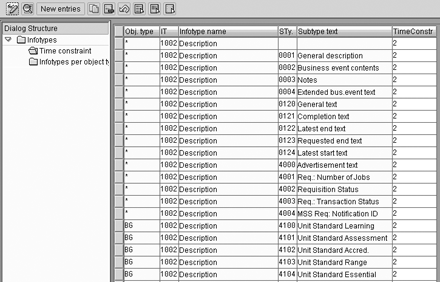
Figure 1
Table entries to maintain time constraints via transaction OOIT
Note
You’ll notice that the configuration for both infotype and relationship time constraints takes place in the same structure (V_T777ZVK). The main difference between the two methods of configuration described here is the view of the data as you configure. Transaction OOIT allows you to view all time constraints for a particular infotype, regardless of subtype, while transaction OOVK permits viewing of all time constraints for all relationships assigned via infotype 1001 only. Otherwise, the data you configure is similar in both instances.
In my example, you are adjusting the time constraint on the relationship level to prevent overlaps between org units and positions that use relationship code B012. To view and configure relationship-based time constraints in R/3, use transaction OOVK or follow IMG menu path Personnel Management>Personnel Development>Basic Settings>Maintain Relationships.
To continue, choose the 012 relationship and double-click on the Time constraint option at the left. The table containing the originating object type and the relationship code also contains a corresponding entry for time constraint (Figure 2). Scroll down the table to find the entry for originating object type O and relationship B012. Since you are going to change the time constraint from the original value of 3 (which allowed overlaps) to a new value of 2 (to allow gaps but no overlaps), change the value in the corresponding time constraint column to 2 and save the entry. The entry of a time constraint value here applies to all relationships for the B012 relationship code and org unit object type, regardless of the related object type.

Figure 2
Maintain relationship-based time constraints via transaction OOVK
In my example, the change in configuration applies to any object relationship to an org unit that uses B012. There is no difference based on the target object type used. Had you determined that you needed to configure your time constraints to behave differently depending on the target object type, you could have configured exceptions to relationship-based time constraints by using transaction OOZR or by following IMG menu path Personnel Management>Personnel Development>Basic Settings>Maintain Relationships>Define Time Constraint Depending on Target Object Type (Figure 3).

Figure 3
Time constraints based on target object type
While you don’t need this level of configuration for the chief example, when might you need your configuration to vary based on target object type? As an example, let’s assume you had determined that the relationship time constraint for positions using relationship code B007 should be set to 3 to allow as many concurrent relationships as required to the position. However, you also determined that jobs sharing a B007 relationship code with positions need to use a time constraint of 2. In this instance, because you are varying your time constraint based on the specific target object type of job (which is not allowed by using transaction OOVK), you could make time constraint exceptions using transaction OOZR.
Note
To use target object-dependent time constraints, you must first have configured the originating object type as a time constraint of 3 in the Maintain Relationships configuration step.
Tip!
When using RHCTIMCO to audit your PD relationships that contain gaps and overlaps, you do not necessarily have to change any inactive or historical records. If a record contains an overlap but the relationship that is overlapping has been delimited and is no longer active, you can choose to leave it alone or to delete it. You may find it helpful to use the reporting period parameters in your selection criteria when running RHCTIMCO to control whether or not historical records are included in your output or only active records are displayed (those relationships that are effective “today”).
Audit Gaps and Overlaps
PD time constraint configuration in R/3 is not “effective dated.” This means that no dates are assigned to the configuration in V_T777ZVK that would indicate when the configuration changes are effective. For example, changing the time constraint for org unit-to-position B012 relationships from a 3 to a 2 applies to all new relationships going forward. However, it does not change any existing PD relationships that may already overlap, creating a situation where historical records were created under a different time constraint than current ones. Those existing overlapping relationships remain in effect with the time constraint of 3 unless you delete or delimit them. At this point, auditing the current records that overlap due to your configuration change becomes critical.
In my main example, you have corrected the time constraint configuration to prevent overlapping records going forward. Now, you must identify all the existing overlaps to determine which relationships must be corrected or deleted. Program RHCTIMCO, which was introduced with Release 4.6C, allows you to audit your PD records whose time constraints allow gaps (time constraint 1) or overlapping records (time constraint 2). It also allows you to select objects of a certain type or within a specific evaluation path that have gaps or overlaps. You can even narrow your selection based on specific infotype or subtype entries or a combination of the two.
To produce a report of all organizational units that have overlapping B012 relationships, select object type O on the RHCTIMCO selection screen (Figure 4) and specify infotype 1001 (relationships) and subtype B012 at the bottom of the screen. This limits your output to all org units with gaps in their B012 relationships or with overlapping B012 records.
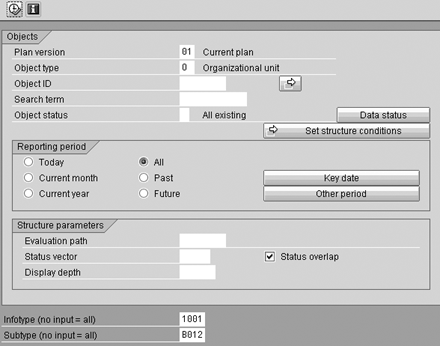
Figure 4
Selection screen options for report RHCTIMCO
The results from RHCTIMCO (Figure 5) display all org unit records that have overlapping B012 relationships for the reporting period you have selected. The report output appears in ALV format and displays the plan version, object type, and object ID, infotype/subtype combination, effective dates, related object type and ID, and the time constraint for each record. If the object record has overlaps such as those in the output here, you see all overlapping records for the particular object listed, along with the effective dates that show the overlap periods.
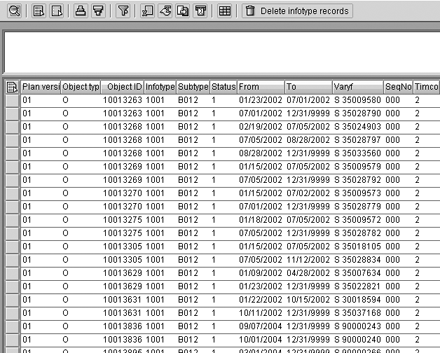
Figure 5
Output from report RHCTIMCO showing overlapping records
From the output screen, you also have the option of deleting the records that are returned by the program as having gaps or overlaps if you choose. To delete entries that appear in the report output, highlight the rows you wish to delete and click on the Delete infotype records button at the top of the output screen. As with any record deletion in PD, you should be very cautious when using this option and only delete those records that you are certain are in error.
A.J. Whalen
A.J. Whalen has successfully combined more than two decades of global business expertise with in-depth experience in the strategic development, management, and delivery of large-scale projects and education for SAP ERP HCM. Prior to his current role as SAP Marketing Director at Velocity Technology Solutions, he served as lead consultant for several global SAP implementations and engagements as well as an SAP Conference Producer for Wellesley Information Services. A.J. has been invited to speak at nine annual SAP educational events and holds an MBA degree from the Stern School of Business at New York University.
You may contact the author at whalen.aj@gmail.com.
If you have comments about this article or publication, or would like to submit an article idea, please contact the editor.