One of the differences between the BW 2.0 system and versions 3.0B and above is the way that OLAP queries are cached. The author explains the added features and global cache of newer versions of BW. He describes the cache configuration settings of BW version 3.x and their impact on system performance.
The OLAP (online analytical processing) cache is a repository for query result sets that provides users with quicker access to the data. It is populated after a query is run for the first time, and it provides performance improvements for subsequent executions of the same query. Report-specific data is retained in the cache on the application or the database server separately from the usual InfoProvider or aggregate where it would normally be stored.
In BW 2.0, the OLAP cache was not managed, but starting with BW 3.0B, it does require management along with configuration. With the release of BW versions 3.1 and later, additional configuration settings are possible that support added features. I will explain how to configure the cache as well as which options you may choose in BW 3.0B systems and in later releases. I will also describe issues you’ll face if your system taps into the global OLAP cache.
Before the release of BW 3.0, the system basically worked as shown in Figure 1. When a user executed a query, the data supporting the report was sent to the application server where the calculations were processed and cached. The completed report was then sent to the user’s PC, laptop, or handheld device, known collectively as the presentation server. As the user navigated, the cache of data involved would increase. In some cases, such as when prior requests had already been extracted from the database, the navigation step could be accessed directly from the cache on the application server.

Figure 1
Release 2.0 OLAP cache could not be used across applications or shared by users
The problem with the old system was that the cached data was stored only for individual users and was not shared with others. The caching occurred in the application server’s virtual memory in RAM or swapped space on the server’s disk used for overflow. Because it was stored in virtual memory, your data was released when you logged off. The benefits of such an arrangement were limited at best. If I ran the same query you did, for example, I could not use your cached data. If you logged off and than ran the query in another session a few hours later, you had to go back to the database and reprocess the entire report.
The global cache became available with the release of BW 3.0B. Features such as cross-application server logical files, which I will explain later, were improved in version 3.1 or later patches of 3.0B. The caching problems detailed previously were solved with the release of BW 3.0B Patch 13 (Figure 2). Since then, the query cache is shared across users.

Figure 2
The current 3.1C technology provides users with three caching options
Configuring the OLAP Cache
Setting up the global OLAP cache requires accessing parameter settings via transaction code RZ10 at the application server level, and a configuration setting via SPRO. Together these settings control the maximum virtual memory that the operating system will reserve for OLAP cache. First, use RZ10 to set the ExpImp SHM buffer, which is the buffer where the global catch resides. Settings must be made on each application server in your BW landscape. The values depend on available resources on each server, and do not have to be the same.
In the typical BW 3.x environment, the default setting will not be large enough to efficiently use the available cache. Changes shown in Figure 3 are required. These are just samples of what you might do. Your Basis team knows the necessary settings to configure your BW environment. While recommendations are provided in Figure 3, these settings are a function of system resources and need to be evaluated in your specific environment.
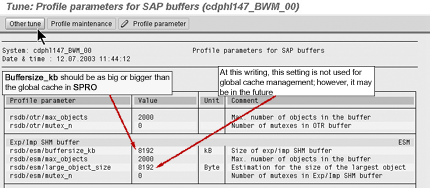
Figure 3
Transaction RZ10 provides access to the application server parameters for the cache
The second group of settings can be accessed via transction code SPRO. These global cache settings, which work in conjunction with the RZ10 settings, determine the utilization, size, and location of the global cache (Figure 4).

Figure 4
Using SPRO allows you to set the defaults to employ the global cache
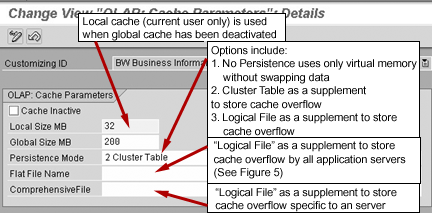
The default setting for 3.x BW systems employs OLAP caching. There are few reasons why you may decide not to use it, which will be discussed later. If you do not want to use the cache, put a check in the Cache Inactive box shown in Figure 4. Note that the system relies on local current user-only caching when the global cache is turned off.
The Global Cache Settings establish the global size of the cache, which is the maximum space the system will use to store cached data in memory. The amount shown in Figure 4 (200 MB) is a reasonable value.
The actual amount of memory used ranges from a minimum of the buffersize_KB setting made in RZ10 to a maximum of the SPRO setting — 200 MB in our example. The reason for the two settings is that RZ10 is a Basis setting, and in the future the Exp/Imp SHM buffer may have addtional purposes. In this case, the SPRO setting would limit the actual portion used for the global cache.
Persistence Matters
Users of BW 3.1 and higher, or 3.0B systems that have an equivalent patch level, can set the Persistence Mode, which affects how and where the data is cached. Three options are available: No Persistence, Cluster Table, and File.
In the No Persistence mode, the data is stored in the application server’s virtual memory to the maximum set by SPRO and RZ10. Once the virtual memory is filled, the oldest query data is deleted and automatically replaced by the results of the most recently run query.
When using persistent data — data that is physically stored in locations in addition to the main memory — you have more options. With the Cluster Table setting, the system again uses the maximum virtual memory established by the RZ10 and SPRO settings. Instead of deleting the data, however, it rolls it off to a Cluster Table on the database server. The Cluster Table setting allows persistent data to be shared by all application servers.
Using the Logical File setting in the Persistence Mode field in Figure 4 allows the system to create two different types of files to supplement and store the cache overflow. The Comprehensive File option uses a file to store the overflow for all the application servers in your BW landscape, as does the Cluster Table setting.
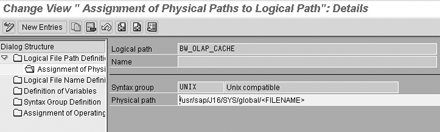
The other option sets up a separate file specific to each application server, and is set by indicating the appropriate file in the Flat File Name field. Use the configuration transaction FILE (Figure 5) to maintain the settings for both File modes, including parameters such as size and location of the actual physical files.
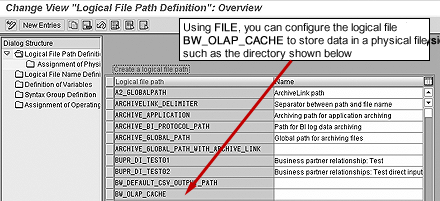
Figure 5
Transaction FILE
Note
If you specify the Cluster Table mode, the Logical Files settings are not relevant.
There are performance issues to keep in mind when configuring the Persistence Mode. When the cross-application options File or Cluster Table are enabled, no data is written to the global cache buffer initially because one app server cannot read the data from the other’s memory.
In addition, using options with cross-application servers can have responses that are slightly slower than other settings. If you use multiple servers and load balancing to distribute users randomly in your landscape, for example, then relying on main memory-resident cache might allow queries to run faster. There is no assurance, however, they will ever get back to the specific server where the cache is stored for the next query. This would prevent them from using the cache at all.
Various factors can affect the performance. You will need to experiment a little to determine which option and sub-option is the best, given your system specifications.
Setting InfoProviders
The configuration settings noted so far are basic defaults for how all queries will use the global cache. Specific settings also can be made for queries against an individual InfoProvider, and settings can even be made to control a specific query.
In most cases, however, you don’t need to overwrite defaults for individual queries or InfoProviders. Disregarding the defaults makes sense in only a few instances, such as when a specific query is so large that it consumes much of the cache and reduces system performance by pushing the other cached data out. Another example would be for a query accessed by only one person and run only once, after which new data is added to the InfoProvider. Caching is for users who need subsequent accesses to the same data, so why bother caching the data?
To control the cache default properties for all future queries using a specific InfoProvider, follow the menu path SPRO>Business Information Warehouse>Report Relevant Settings>General Report Settings>Info Provider Properties and change the Cache Mode as appropriate.
To overwrite the settings for a specific query, access the Query Monitor Support Package (transaction RSRT) (Figure 6) and click on the Query Properties icon. Make sure you regenerate the query. Be forewarned that doing different things to different queries at the query level will generate some maintenance work.
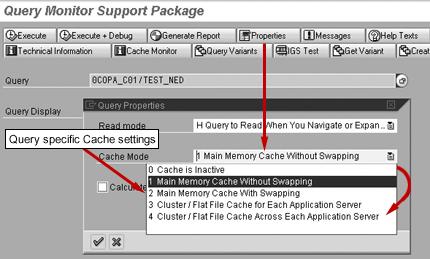
Figure 6
The Query Monitor Support Package allows parameters to be set at the query level
My colleague Ron Silberstein recommends that you review your queries regularly to ensure that your settings are appropriate and I agree. For queries with large result sets, you may want to have the data go directly to Cluster Table. Others, such as those that get loaded into InfoCubes hourly, might get invalidated too frequently to make caching worthwhile. Suffice it to say that you must proactively monitor and tune your system. Using tools such as BW statistics will help determine if your cache settings are optimal. More information concerning issues related to OLAP configuration as well as system performance is available at the service.sap.com.
Ned Falk
Ned Falk is a senior education consultant at SAP. In prior positions, he implemented many ERP solutions, including SAP R/3. While at SAP, he initially focused on logistics. Now he focuses on SAP HANA, SAP BW (formerly SAP NetWeaver BW), SAP CRM, and the integration of SAP BW and SAP BusinessObjects tools. You can meet him in person when he teaches SAP HANA, SAP BW, or SAP CRM classes from the Atlanta SAP office, or in a virtual training class over the web. If you need an SAP education plan for SAP HANA, SAP BW, BusinessObjects, or SAP CRM, you may contact Ned via email.
You may contact the author at ned.falk@sap.com.
If you have comments about this article or publication, or would like to submit an article idea, please contact the editor.