SAP CRM 2005 contains several basic R/3 Sales and Distribution (SD) features to help improve the sales order process. Understand the vendor availability check functionality in CRM 2005 and the settings required to integrate GATP in your CRM system.
Key Concept
Information about these Sales and Distribution (SD) features is available in the SAP CRM 2005 Release Notes at
https://service.sap.com/releasenotes. Follow menu path SAP Solutions>SAP Customer Relationship Management (SAP CRM)>Release Notes SAP CRM 5.0 (SP10). Some updates were not documented in these Release Notes, such as changes to the plant mapping (transaction CRM_LOCMAP), which is important to understand when you configure Global Available-to-Promise (GATP) or R/3 Available-to-Promise (ATP).
Are you in the process of implementing or upgrading to CRM 2005? This release mainly showcased new Marketing and Service functionality. However, many plain vanilla R/3 Sales and Distribution (SD) features are included that are not available in earlier CRM releases. These features are not the cornerstones of sales order processing and customer master maintenance, but they are certainly nice-to-have options that longtime R/3 SD users probably hoped for in CRM.
SD functionality along these lines available in SAP CRM 2005 includes allowed order type by sales area, templates for business partners, product proposals for quotations and orders, mass update for sales transactions, listings, credit rating check, electronic output of order confirmations, rebate processing, delivery tracking in the sales order for transportation cross-docking, and third-party order processing. In this article, I’ll review the changes to the business partner (also known as plant) and explain how the availability check works in CRM 2005, which is integral to sales order processing.
Vendor (Plant) At Line Item Level in a Sales Transaction
The design difference between R/3 and SAP CRM has always thrown hardcore SD aficionados for a loop. For example, the SD concept of “plant” becomes “business partner” in SAP CRM. When you execute SAP CRM download object DNL_PLANT via CRM transaction R3AS, the system converts all R/3 plants to SAP CRM business partners in the standard role BBP003 (plant). To view the mapping table that the download object creates, follow IMG menu path Customer Relationship Management>Basic Functions>Availability Check>Availability Check Using SAP ECC>Assign Location in CRM Enterprise to Plant in SAP ECC (transaction CRM_LOCMAP).
In SAP CRM 2005 location types are replicated as 1001 Plant or 1002 Distribution Center if the node type is maintained in R/3 through IMG menu path Production>Distribution Resource Planning (DRP)>Basic Settings>Maintain assignment of node type – plant). It is important to note that if you use your SCM system for planning but you use your CRM Available-to-Promise (ATP) check in R/3, you must manually change the location types to 1001 Plant in CRM_LOCMAP after the download. This setting is mandatory to ensure that when you change the default plant during order entry, it successfully replicates in R/3. If the CRM ATP check uses SCM Global ATP (GATP), then the location types should remain as 1002 Distribution Center. For releases lower than CRM 5.0, the location type is defined for Plant or Distribution Center, as shown in Figure 1.
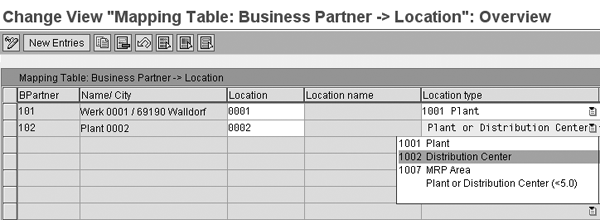
Figure 1
Possible location types available in transaction CRM_LOCMAP
You might overlook the concept of plant mapping to a business partner in transaction CRM_LOCMAP. For example, if the default plant is out of stock for an item a customer orders, the user changes to another plant and re-runs the ATP check to look for the item. To add partner function 35 (vendor) prior to SAP CRM 2005, the user had to switch to the Item Partner tab during order entry (transaction CRMD_ORDER).
Jumping to a different tab costs the user time and reduces both productivity and customer satisfaction, such as when customers place orders over the telephone. In R/3 transaction VA01, you can easily change the plant on a single screen. The input help (also known as search help) is accessed by pressing F4 on your keyboard and it displays the available plant in column Plnt of the Sales tab (Figure 2).

Figure 2
Execute R/3 transaction VA01 to display the available plant in column Plnt of the Sales tab
SAP CRM 2005 added the Vendor column to the line item listing for the online graphical user interface (GUI), as shown in Figure 3. The new column is easy to miss because it is the last column for the line item. If you prefer, use the layout control to drag and drop the Vendor column to a more strategic location — for example, you could move it to after the Quantity column.
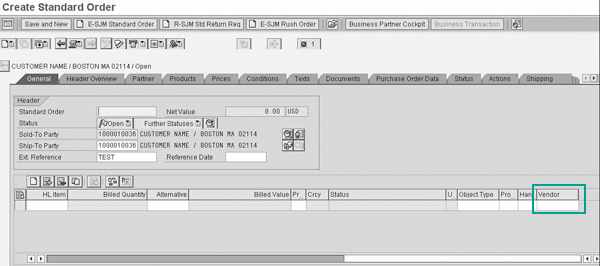
Figure 3
Scroll to the right to find the new Vendor column
In the R/3 ATP check, the Default Plant field contains the default delivery plant the material master assigns for a given item. Execute SAP CRM transaction COMMPR01 and click on the Sales and Distribution tab; then look at the Delivering Location field. When a user enters a customer order and finds that the default plant is out of an ordered item, the user can click on a drop-down menu from the Vendor column. The system then displays alternate plants that can supply the ordered item.
On the other hand, in GATP the default delivery plant is not determined from the material master, but rather through location determination in SCM. Based on the standard condition technique, most business scenarios and logic can be implemented for location determination. Include the new field to the structure /SAPAPO/KOMGOZ in SCM. If you use rules-based availability and location substitution in SCM, you can solve the SAP ERP Central Component (ECC) ATP check dilemma of the default delivery plant with no available stock. For example, if plant 0001 has no stock, the system immediately checks stock in plant 0002 automatically.
Note
To see the
SCM GATP Results screen in CRM during order entry, maintain parameter ID
APO_ATP_PARA APO ATP Delivery Proposal Screen in transaction
SU3. Parameter value
5 displays the results screen per item automatically or parameter value
6 generates the results screen when the user selects the availability check icon

.
GATP Settings in CRM
For GATP CRM integration, there are four key settings in CRM. To view these settings, follow IMG menu path Customer Relationship Management>Basic Functions>Availability Check>Availability Check Using SAP APO. The four settings include: 1) Define Middleware Parameters: Availability Check Using SAP Advanced Planning and Optimization (APO); 2) Define ATP Profile; 3) Assign ATP Profile to Item Category; and lastly, 4) Assign Location in CRM Enterprise to Location in SAP APO.
Setting 1. In the first setting, you assign the SCM Remote Function Call (RFC) destination that you created in transaction SM59 in field Param. Value to the key CRMAPOATP and parameter name CRMAPOATP (Figure 4). For example, enter the RFC destination APOCLNT800 in the Param. Value field and enter the control information X=APO4.10 (X represents the SCM system release) in the Param. Value 2 field. Figure 5 illustrates the results of this setting for APO.

Figure 4
Table SMOFPARSFA GATP middleware parameter before maintenance
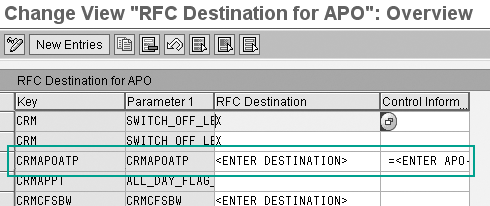
Figure 5
Overview of the assigned RFC destination for APO
Setting 2. In this setting, you define the ATP profiles. The standard availability check entry is 100 in SAP APO. This field value must contain the same value as the SCM requirement profile. Access the SCM requirement profile by following SCM IMG menu path Advanced Planning and Optimization>Global Available-to-Promise (Global ATP)>General Settings>Maintain Requirements Profile.
Setting 3. Assign the ATP profile from the second setting to the relevant item categories. For example, standard item category TAN would be assigned ATP profile 100 Availability Check in the SAP APO System (Figure 6). Refer to SAP Note 872118 for further CRM 5.0 ATP integration with APO details because there are certain restrictions in CRM which do not exist when executing GATP during R/3 order entry.
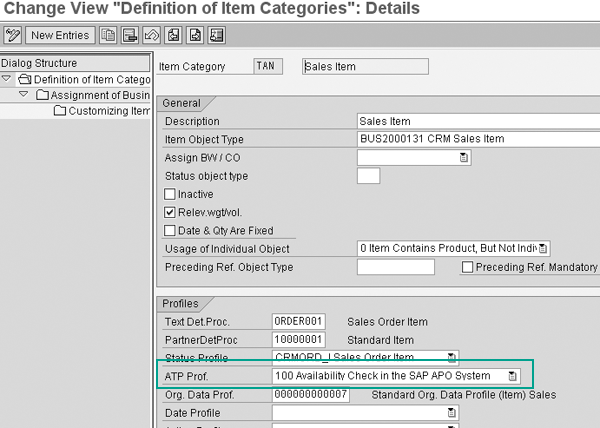
Figure 6
Assign ATP profile to the relevant item categories
Setting 4. Lastly, you assign the CRM business partner number to the SCM location. Follow IMG menu path Advanced Planning and Optimization>Global Available-to-Promise (Global ATP)>General Settings>Maintain Requirements Profile to execute transaction CRM_LOCMAP. When you run the download object DNL_PLANT via CRM transaction R3AS, the system converts all R/3 plants to SAP CRM business partners in the standard role BBP003 (plant).
Once you complete these settings, the global availability check is integrated with CRM 5.0 Order Entry. Now that the vendor field is on the item level, customer service users can easily change the sourcing plant if the GATP check fails (which occurs when stock does not exist in the default plant). If the business logic exists, the system uses location determination to propose an alternative plant that has the requested stock.
Karen Lindholm
Karen Lindholm is a senior consultant with PRAGMATEK Consulting Group in Minneapolis. She has been working with SAP products for more than eight years. As an SAP AG SD consultant, she implemented apparel and footwear (AFS) projects in Europe. Karen has also worked as a global support consultant for SAP America in SD and CRM , as well as a CRM consultant for SAP America’s Demo Development Group. Karen holds a bachelor of arts degree from Stanford University. Currently, she is the CRM consultant for a medical device company.
You may contact the author at Karen.Lindholm@pragmatek.com.
If you have comments about this article or publication, or would like to submit an article idea, please contact the editor.