Most DataSources within an SAP system are delta capable. However, the delta capability is not available when you connect to external databases using DB connect. By following this process, you will be able to connect your BW system to an external database and make the DataSource delta capable.
Key Concept
Delta-capable extractors deliver fewer records, which means fewer network resources are used, BW transfer and update rules require less work, and fewer records need to be rolled up in aggregates. Delta capability has a great impact on performance when you are loading data into BW.
The open architecture of SAP BW from Release 3.0 on allows you to integrate data from an external database using DB connect. It offers an option for extracting data into BW from tables and views in other external database management systems that are supported by SAP and are connected to BW.
The integration between BW and R/3 is seamless. DataSources and extractors are delivered along with a plug-in that is installed on the source system that makes the extraction of data into BW an easy task. Most of the DataSources are delta capable, which means they extract only the data that is newly created or changed after the last load into BW.
However, all the fun dries up when you use DB connect to extract data from a source system that is not part of SAP. Although BW allows you to connect to external databases such as Oracle, Microsoft SQL Server, and IBM DB2, the delta capability delivered as a part of the Service Application Programming Interface (SAPI) component of the plug-in is not available. Because of the lack of delta capability, system administrators monitoring extraction and system performance have not always exploited DB connect.
In our two-part series, we explain why you do not have to reinvent the wheel to make the external DataSource delta capable. (See the sidebar, “Prerequisites for Configuring DB Connect.”) We’ll use the example of an external Oracle database to take you step by step through the process. This month we’ll show you the first two steps:
Step 1. Connect to the external database using the DB connect Functionality of SAP BW
Step 2. Create and configure the DataSource on the external database system
In the next article, we’ll show you the ABAP code that makes the DataSource delta capable.
Step 1. Create a source system for the external database using DB connect. Go to Administrator Workbench in the modeling area to use the source system creation (menu path Modeling>Administrator Workbench:Modeling>Source Systems).
Use the context menu from the source system and click on the create icon (Figure 1). First click on the Source Systems button and then right-click to get the context menu. In this case the context menu gives only one option — Create.
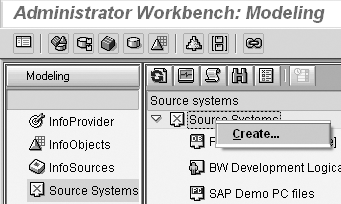
Figure 1
Create a source system in Administrator Workbench
Select the button for Database System (Data and Metadata Transfer Using SAP DB Connect). Click on the transfer icon to confirm the selection. Assign a Logical System Name in the pop-up screen (Figure 2). It should be a meaningful name. We selected DEV_DBCON since we are connecting a development system using DB connect.
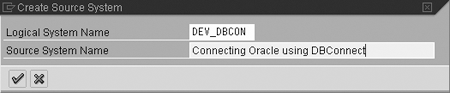
Figure 2
Assign a logical system name
Choose the external database system you are connecting to. In this case we are connecting to an external database on Oracle (Figure 3).
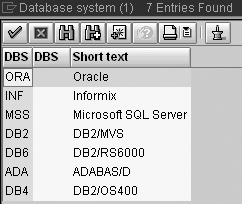
Figure 3
List of available database systems to connect to using DB connect
The system leads you to a screen where you need to provide the logon data for the external database system (Figure 4). The User name is the user created on the external database application.
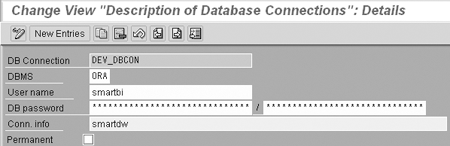
Figure 4
Add logon data
The Conn. info is required for the native SQL to open the database connection of the external application. The Permanent check box is useful for the situations in which the database connection is lost — for example, when the network link is broken or the database itself experiences some sort of failure. You should set the flag if the database connection is essential, or when it is accessed very often. In our scenario, this box is blank. Since we load the data to BW every night, it is a periodic job that requires just a temporary connection to the external database.
The database administrator of the external application provides the user name, password, and connection information. You put the connection information into a file called tnsnames.ora on the Oracle database server on the BW side. The connection information details are shown in Figure 5. You can use an editor to edit the file. The main parameter values in this connection information are the IP address of your external application and port number. The database administrator of the BW system makes those entries in the file. The administrator of the external database provides all the required parameters (e.g., the IP address of the external database, port, and surrogate ID [SID] for the database).
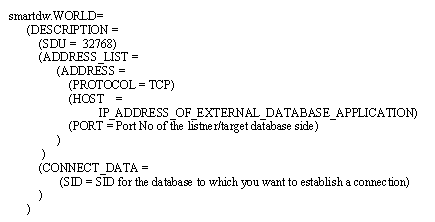
Figure 5
Entry in file tnsnames.ora in the database server for BW
Smartdw is the Conn. info name provided in Figure 4. The .WORLD after smartdw in Figure 5 is the domain. This is defined by means of the entry NAMES.DEFAULT_DOMAIN in SQLNET.ORA. Normally WORLD is used as the default domain name. SDU stands for session data unit, which determines the size of the sent data packages. The maximum value set for this parameter is 32768.
Note
SAP BW 3.0B with SP 24, DB connect, permits connection to Oracle, Informix, Microsoft SQL Server, DB2/MVS, DB2/RS6000, ADABAS/D, and DB2/OS400. These databases require different parameters for connecting to BW. SAP has released several SAP notes for connecting to specific databases. Refer to the section “Reference to Related Notes” of SAP note 323151 to access the correct SAP note. SAP BW 3.5 goes beyond the extraction capabilities of DB connect. It offers a new feature called UD Connect that allows you to access data from SAP as well as non-SAP platforms, including almost all relational and multidimensional DataSources. However, UD Connect does not provide delta capability automatically.
After entering the logon data, click on the save icon. You now have the new source system in the external database system list, as shown in Figure 6.

Figure 6
Include external database in the external database system list
You also see the newly created source system in the Source Systems screen (Figure 7).

Figure 7
External database (Oracle) included in Source Systems screen
Step 2. Create and configure the DataSource on the external database system. A prerequisite is that the database administrator has permitted access to the specific table and that the authorization permits editing of the table views. On the selected source system, use the context menu and choose the option Select Database Tables (Figure 8).
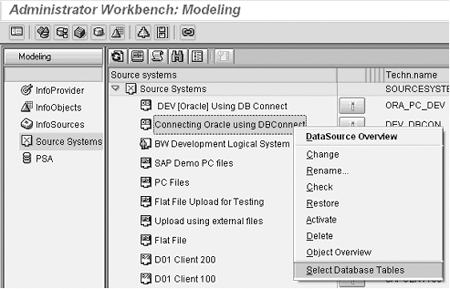
Figure 8
Selection of database tables from the newly created Source System using DB connect
After you select the option Select Database Tables, the system directs you to select the tables/views from the object catalog on the external database, as shown in Figure 9.
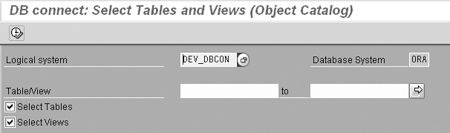
Figure 9
Selection screen to get the object catalog from the connected source system
Click on execute icon or press F8 to display the list of tables and views based on the selection made, either by entering a specific name or by a generic search, as shown in Figure 10.
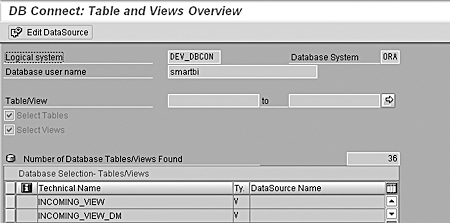
Figure 10
List of tables and views from connected system
Select the name of the Table/View from the list of Database Selection — Tables/Views and click on the Edit DataSource button. As shown in Figure 11, the system allows you to set the different attributes of the DataSource to be created.
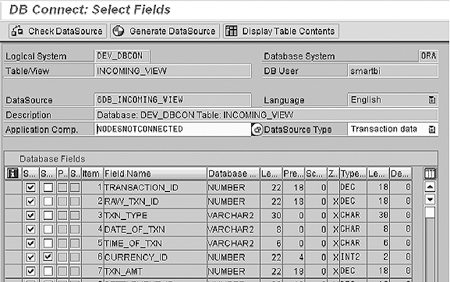
Figure 11
Screen to set the attributes of the DataSource
You may find some settings useful in making your DataSource more meaningful — for example, by declaring a field a selection field, you can use it to filter the extraction.
You can change the Application Comp. to your required application component, which makes a search for a DataSource easier. Otherwise the generated DataSource will be available under the NODESNOTCONNECTED application component in BW.
You can change the DataSource type; otherwise, by default it selects the Transaction data type. The DataSources differ based on the type of information/data they are extracting and bringing to BW. The DataSource is likely to provide three types of information/data:
- Transaction data
- Master data attributes
- Master data text (language-dependent description)
The Database Fields area has a number of columns. The first three are useful for creating a DataSource.
The first column with the information icon indicates whether the field is available to be included as a part of the DataSource. If there is no value, the field is available. If it contains the symbol , then it is not available as a part of the DataSource.
DB connect has limitations in including fields of Table/View as a part of the DataSource. Some limitations are common to any source database you use. For example, technical field names cannot be longer than 16 characters and must contain uppercase letters, numbers, and underscores only. You cannot use fields with reserved names used by the system for a specific purpose, such as COUNT. Other limitations specific to the source database are explained in the SAP notes listed below.
SAP therefore recommends that you create views that can overcome those limitations. The DataSources for BW should use views instead of tables. Once a table is created in the system and is filled with data, it is difficult to change any attribute (e.g., field name or type of field) of this table. In contrast, a view is a definition and does not contain any data. Views are based on one or more tables. SAP recommends that you create a view on a table to overcome the limitations of creating a DataSource with DB connect. We will explain how to create a view in part 2 of our series.
The second column indicates whether the field is available for the extraction and transfer of data into BW. By default all the fields are available for transfer. You can remove the check mark to indicate which fields should not be extracted and moved to BW.
The third column indicates whether you want to use selection criteria for that particular field in the InfoPackage. Selection criteria filter the data — for example, filtering for a currency if that is declared as a selection field, as shown in Figure 11. You can mark more than one field for selection to obtain more control over the extraction.
Click on the Generate DataSource button when you have made the changes to those three columns. Then click on Yes. The technical name of the table/view created is INCOMING_VIEW. The system adds the prefix 6DB_, so it generates the DataSource with the name 6DB_INCOMING_VIEW.
This newly created data source is now available for data extraction from the external database using DB connect. This DataSource will bring data in the full update mode. You will be able to make it delta capable after following the third step, which is in part 2 of this article.
Note
The DB connect documentation is subject to change. For this reason, you must also refer to the SAP notes listed in the documentation on the BW pages in the SAP Service Marketplace (
https://service.sap.com/bw), under
Documentation>Documentation Enhancements. SAP note 512739 provides additional information on DB Connect. SAP note 323151 provides information on several connections with native SQL, and refers to other SAP notes relevant to the topic.
The following database-specific SAP notes have more information on DB connect:
- MSS database, SAP note 512739
- Oracle database, SAP note 518241
- Informix database, SAP note 520496
- SAP DB database, SAP note 520647
- IBM DB2/390 database, SAP note 523552
- BM DB2/400 database, SAP note 523381
- IBM DB2 UDB database, SAP note 523622
Prerequisites for Configuring DB Connect
To follow this process, you need experience with the source database tools and database-specific SQL syntax functions. You need to be able to transfer semantically usable data into the BW. The SAP-specific part of the database interface — the Database Shared Library (DBSL) — must be installed for the corresponding source database management system on each of the BW application servers.
In our example, we are using the Oracle database and SAP BW 3.0B with Support Pack (SP) 17 on the BW side. Our external application was built using an Oracle database.
Since the source database and target database are the same, we did not have to install DBSL. Different databases have different steps for making the connection. See the list of SAP notes that explain details and limitations for different databases earlier in this article.
You also need to ensure you do the following while using DB connect:
- Create a special user and give the user the DB_OWNER role on the required database.
- Grant this user rights on the required tables.
- Create a view under this user to the table.
- Use this user to create the database connection in the BW system.
- Use the view to extract the data.
Bharat Patel
Bharat Patel is experienced in managing data warehouse technology for the petroleum industry. He is an SAP-certified BW and ABAP consultant, has authored a book on SAP BW, and teaches courses on BW and ABAP at the Sapient Academy and SAP Labs India. Bharat has presented papers about BW at Business Intelligence India Group (BIIG) conferences. He presently manages the SAP BW system at Bharat Petroleum, India.
You may contact the author at patelb@bharatpetroleum.com.
If you have comments about this article or publication, or would like to submit an article idea, please contact the editor.

Shreekant W. Shiralkar
Shreekant W. Shiralkar is a senior management professional with experience on leading and managing business functions as well as technology consulting. He has authored best selling books and published many white papers on technology. He also holds patents for innovations. Presently he is global head of the SAP Analytics Centre of Excellence at Tata Consultancy.
You may contact the author at s-shiralkar@yahoo.com.
If you have comments about this article or publication, or would like to submit an article idea, please contact the editor.