As an alternative to centrally collected and administrated light flat file loads, allow online submission of data directly to SAP NetWeaver BW through a Web page.
Key Concept
XML is a format that allows for flexible and structured encoding and exchange of Web documents between computer systems. An XML document contains data records along with several tags that explain each field in the data record in the data set. The recipient systems of XML document use these tags to determine what kind of data the XML record contains for subsequent processing. Consequently, the records found in an XML document contain a very high degree of overhead data. In fact, the XML document may contain more overhead data than actual data records. XML data loads should therefore only be considered for smaller loads of data, not mass data loads.
As a data consolidation tool, an integral part of SAP BW is the ability to connect to various SAP and non-SAP systems for data collection. You can use Extensive Markup Language (XML) with a Simple Object Access Protocol (SOAP) DataSource to upload data to BW. I’m going to explain how your BW system can receive comma- separated value (CSV) file data submission to BW directly through a Web page.
The business process of submitting data files to an administrator for BW upload processing is optimized by replacing a manual process with automation. The collection, handling of multiple data files, and subsequent BW flat file upload is a three-step process that you can replace with a one-step Web page data submission.
The XML/SOAP architecture has been available since BW 3.0B and is supported through the release of SAP NetWeaver 2004. I wrote this article based on a solution developed on the BW 3.5 platform.
Business Scenario and Benefits
The subsidiaries want to consolidate data in SAP BW from multiple organizational entities on a periodical basis. They have not implemented R/3 or any other non-SAP systems from which you can directly extract data. However, the subsidiaries to the organization are able to produce an Excel file saved in CSV format with their periodic data to load into SAP BW. You must now create a solution and process for this data source.
This is not an unusual scenario for existing and future BW implementations. A common solution for non-SAP and non-integrated systems is to develop a process to facilitate a flat file load to BW. As an alternative to the flat file load process, I am introducing a solution to allow submission of CSV data files directly through a Web page through use of XML/SOAP. The solution allows the submitter to access a Web page, browse for the CSV file, and submit the file directly to BW with the click of a button.
This solution creates a flexible alternative for third-party entities to load data to BW through the Internet and provide an alternative to existing manual flat file processes. This gives your submitters the ability to upload data to BW any time from anywhere without dependence on BW administrators. It decreases the costs of BW ownership and therefore increases the return on investment for the BW implementation.
It is important to recognize that the proposed solution introduces a process enhancement with technical dependencies. The subsidiaries must write the Web page script used for data file submission to match the structure of the InfoSource tying the data stream to your InfoProviders. Consequently, you need to modify the script if your InfoProviders and InfoSources change. While the business process is enhanced, technical competency around this solution must be provided in-house to properly support this solution.
The Pieces of the Solution
This solution contains a front-end data-submission component and a back-end BW XML component. The front- end part is responsible for allowing the user to browse for a CSV file and submitting the XML document to BW. The back-end part is responsible for receiving the XML document and processing the data into BW.
The front-end component consists of an HTML Web page that the data submitters (users sending a data file to BW through the Web page) access. A JavaScript module within the HTML file converts the selected CSV file into an XML document that is automatically submitted to SAP BW using SOAP. This XML document is then submitted to the waiting XML service on the BW system.
The back-end component consists of the XML service and a delta queue. The XML service is processing XML documents as they arrive from outside sources. Once an XML transmission is received, the data records are inserted into a BW delta queue. Then you can load data to selected InfoProviders through execution of a delta load InfoPackage.
Step-by-Step Instructions
This solution assumes that you have set up a flat file InfoSource and configured it to receive the identical records from XML loads. The “How to… Send XML Data to SAP BW” paper describes this process. I’ve posted the front-end HTML source code and the source data (CSV) file used in my example.
Back-End Steps
Step 1. Maintain the transfer rules for 0RECORDMODE. Go to Administrator Workbench (transaction RSA1), select InfoSources from the modeling menu, and right-click on the InfoSource. You should now be in change mode for the InfoSource. Choose Extras>Create BW DataSource with SOAP Connection and click on Yes when prompted. Take note of the name of the DataSource. In this case, it’s 6AZ_XML_SETUP (Figure 1). Then click on Yes to maintain the transfer rules.
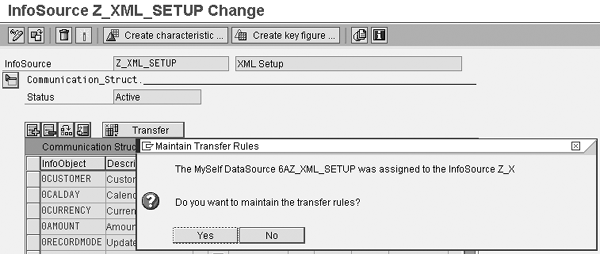
Figure 1
Click on Yes to maintain the transfer rules
Maintain the transfer rules for 0RECORDMODE, which is blank by default. You must enter a constant value. Click on the Transfer button and set your value as a constant. Click on the green check mark icon (Figure 2).
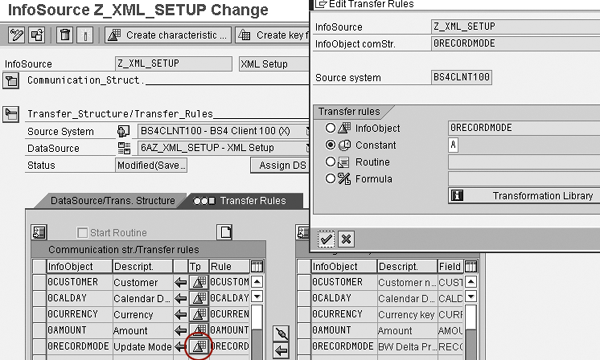
Figure 2
Maintain the transfer rules for 0RECORDMODE
Step 2. Create an initial delta and a delta InfoPackage for your InfoSource with your XML DataSource (Figure 3). The initial delta InfoPackage sets up the delta queue into which you insert XML records. The delta InfoPackage allows you to process those records into your InfoProviders.

Figure 3
Create initial delta InfoPackage
Next, right-click on your source system (in this example, BS4 Client 100). Then, create the InfoPackage, give it a description, and save (Figure 3).
In the Update tab, select Initialize Delta Process and the check box next to Initialize Without Data Transfer (Figure 4).
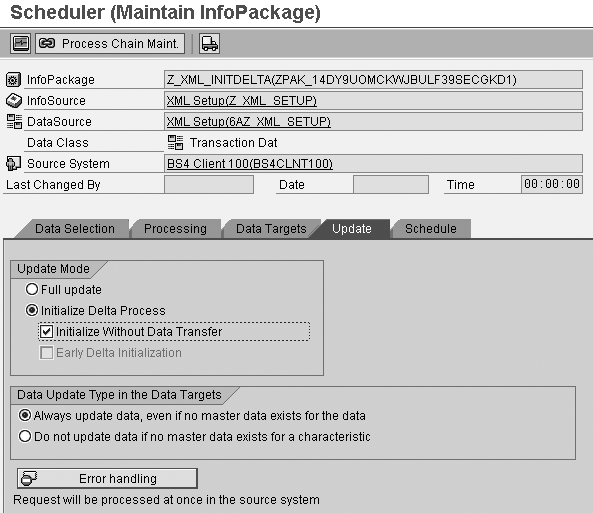
Figure 4
Describe the InfoPackage
Now you have created an initial delta InfoPackage. In addition, create a delta InfoPackage. Right-click on the source system (as shown in Figure 3) and select Create InfoPackage. Give a description and select Delta Update under the Update tab as shown in Figure 5.

Figure 5
Create a delta InfoPackage
Step 3. Execute the initial delta InfoPackage. After creating the InfoPackages, go to transaction RSA7. This transaction shows you delta queues in the BW system. No delta queue should exist for your DataSource yet. Then, execute the initial delta InfoPackage. This process generates an empty delta queue. Verify its existence in RSA7.
Front-End Steps
The front-end portion of this solution involves preparing an HTML file with a JavaScript that parses a CSV file, produces XML records, and submits them to BW. All the code is maintained in the same file. You need to modify the JavaScript to the structure of your InfoSource. By default, the JavaScript accessible for download at the bottom of this article is set to support the demonstration in this article.
Step 1. Define the XML DataSource and the number of columns (fields in the dataset). In this example, my DataSource’s name is Z_XML_SETUP and the data set includes four fields. These fields are 0CUSTOMER, 0CALDAY, 0CURRENCY, and 0AMOUNT (Figure 6). The JavaScript later uses these parameters to parse the CSV file and submit the XML data to the correct DataSource. A BW administrator or developer must perform this task.
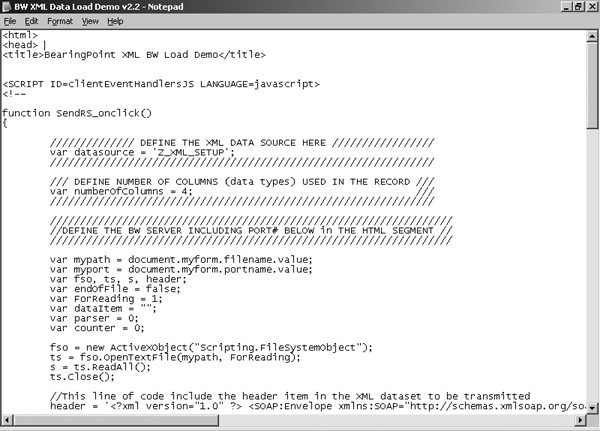
Figure 6
Define XML DataSource (the number of columns)
Step 2. Define XML record processing. In this step, define how the CSV data records are broken into XML records (Figure 7). This example shows the code required to break four fields into an XML record. You must modify the code to match your specific InfoSource fields. If you have five fields in your record, add another case statement. See my example in Figure 8.
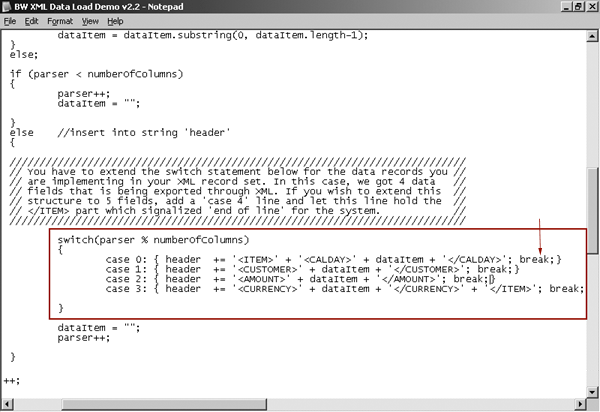
Figure 7
Define XML record processing
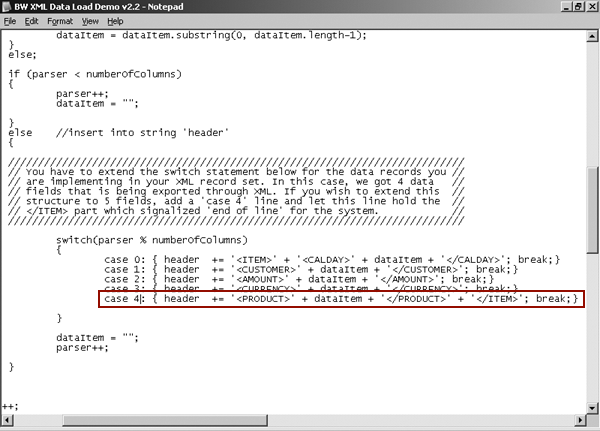
Figure 8
Example of one field added to the record. Note that the tag needs to be the last case statement in your code. You also need to change the number of defined columns to 5 in the screen shown in Figure 6.
Step 3. Define BW server and port. You have now completed modifying the JavaScript code. The JavaScript code is to be executed within the HTML document after the user browses for a CSV file and then clicks on the Send XML Recordset button. The last item the HTML document needs to know is the server’s IP address and the server’s port. The example below uses server r2i-for- sap.svb.kpmgbsc.net and port 8000 (Figure 9). Obtain your server and port information from your Basis resource.
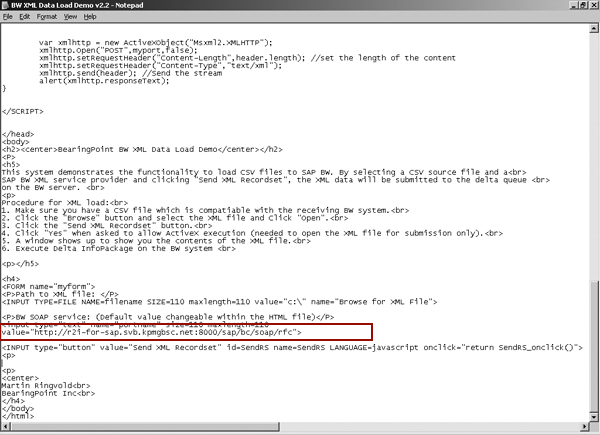
Figure 9
Define your BW server and port
Step 4. Prepare a CSV file in Microsoft Excel with the corresponding fields as in your InfoSource. This is the file that the data submitters need to produce. They need to follow the exact format that the BW administrator/developer has determined. Notice that the field heading sequence in Figure 10 follows the same sequence as the code in Figure 7 (Calendar, Customer, Amount, and Currency).
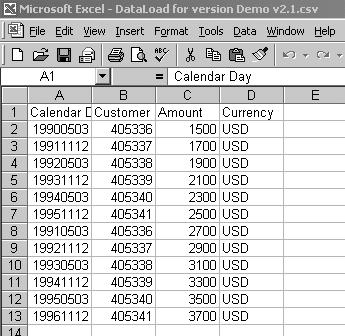
Figure 10
Prepare a CSV file
Step 5. Open the HTML file. So far, I’ve explained how to modify the JavaScript and HTML code in the front-end HTML file. Next, open the HTML file (in this example with Microsoft Explorer). Browse for the CSV file you created in Figure 10, and click on the Send XML Recordset button (Figure 11).
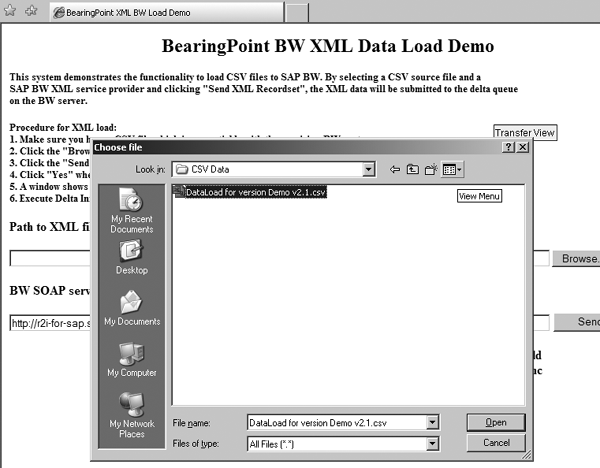
Figure 11
Browse for CSV file and submit data
Step 6. Monitor your delta queue. Go to transaction RSA7. Highlight your delta queue with the same name as your XML InfoSource, press F2, and click on the execute icon. Your data records should appear in the delta queue (Figure 12).
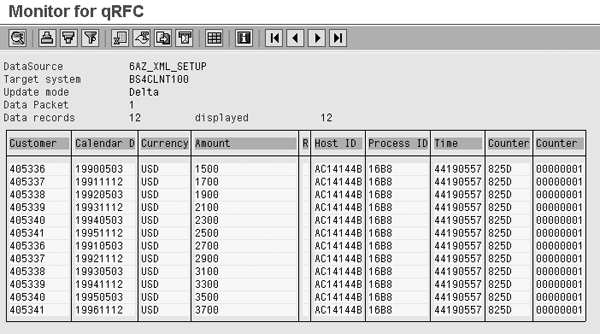
Figure 12
BW delta queue after XML data submission
Any InfoProviders tied to your InfoSource are able to receive the data you see in transaction RSA7. Typically, deltas are loaded to an ODS object for subsequent load to an InfoCube. Recall that I used the initial delta InfoPackage to set up the delta queue. I also created a delta InfoPackage to move data from the delta queue to the ODS object. After having tied the ODS object to your InfoSource (i.e., through an update rule), your delta InfoPackage should list this ODS object as recipient of data under the Data Targets tab. You can also set the InfoPackage to execute with a certain frequency under the Schedule tab.
Martin Ringvold
Martin Ringvold, MBA, is an independent, certified BI solution consultant focusing on functional and technical aspects around SAP NetWeaver BI/SAP CRM integration projects. He has a background in computer science and four years of SAP NetWeaver BI implementation experience. He is currently affiliated with Nsight, Inc.
You may contact the author at mringvold@yahoo.com.
If you have comments about this article or publication, or would like to submit an article idea, please contact the editor.